

Overview
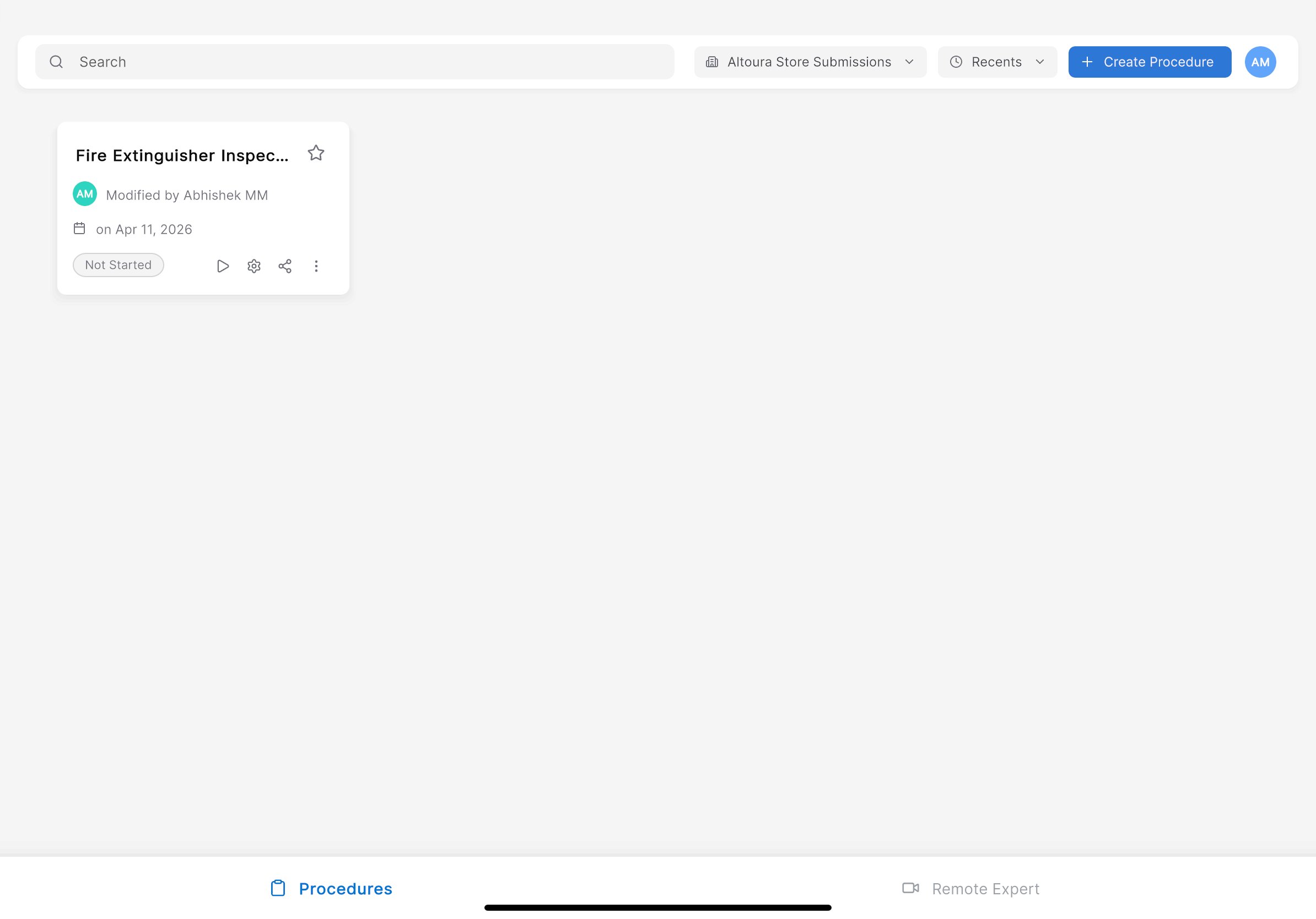
After signing in, the Procedures landing page is the first screen displayed. It provides a centralized view of all available procedures within your selected organization. The bottom navigation bar includes two tabs:- Procedures — Browse and run step-by-step procedures (selected by default).
- Remote Expert — Connect with remote specialists for live assistance.
Page Layout
The Procedures landing page contains the following elements:| Element | Location | Description |
|---|---|---|
| Search bar | Top left | Search for procedures by name or keyword. |
| Organization dropdown | Top center | Filter procedures by organization (for example, Altoura Store Submissions). |
| Recents | Top right | View recently accessed procedures. |
| + Create Procedure | Top right | Create a new procedure directly from the iPad. |
| Profile icon | Top right corner | Access your account settings. |
| Procedure cards | Main area | Displays available procedures as individual cards. |
| Bottom tabs | Bottom | Switch between Procedures and Remote Expert. |
View Procedures
Each procedure is displayed as a card containing:- Procedure name (for example, Fire Extinguisher Inspec…)
- Modified by — The user who last edited the procedure
- Date — When the procedure was last modified
- Status badge — Current status (for example, Not Started)
- Action icons — Quick actions including play, settings, share, and more options
Search for a Procedure
Use the search bar to quickly locate a specific procedure.Steps
- Tap the Search field at the top-left of the page.
- Enter a procedure name or keyword.
What Happens Next
The procedure list filters in real time to show only procedures matching your search criteria.Filter by Organization
Use the organization dropdown to switch between procedure groups.Steps
- Tap the organization dropdown at the top of the page (for example, Altoura Store Submissions).
- Select the desired organization from the list.
What Happens Next
The procedure list refreshes to display only procedures associated with the selected organization.Create a Procedure
Tap the + Create Procedure button in the top-right corner to start building a new procedure directly from the iPad.Launch a Procedure
To start a procedure:- Tap on a procedure card from the list.
- The app proceeds to the QR Scan flow to anchor the procedure in your environment.