

Overview
The Remote Expert feature on iPad allows you to connect with remote specialists for live audio, video, and visual guidance. You can initiate a session by searching for a contact or by joining a scheduled Microsoft Teams meeting. To access Remote Expert, tap the Remote Expert tab in the bottom navigation bar of the app.Contacts Tab
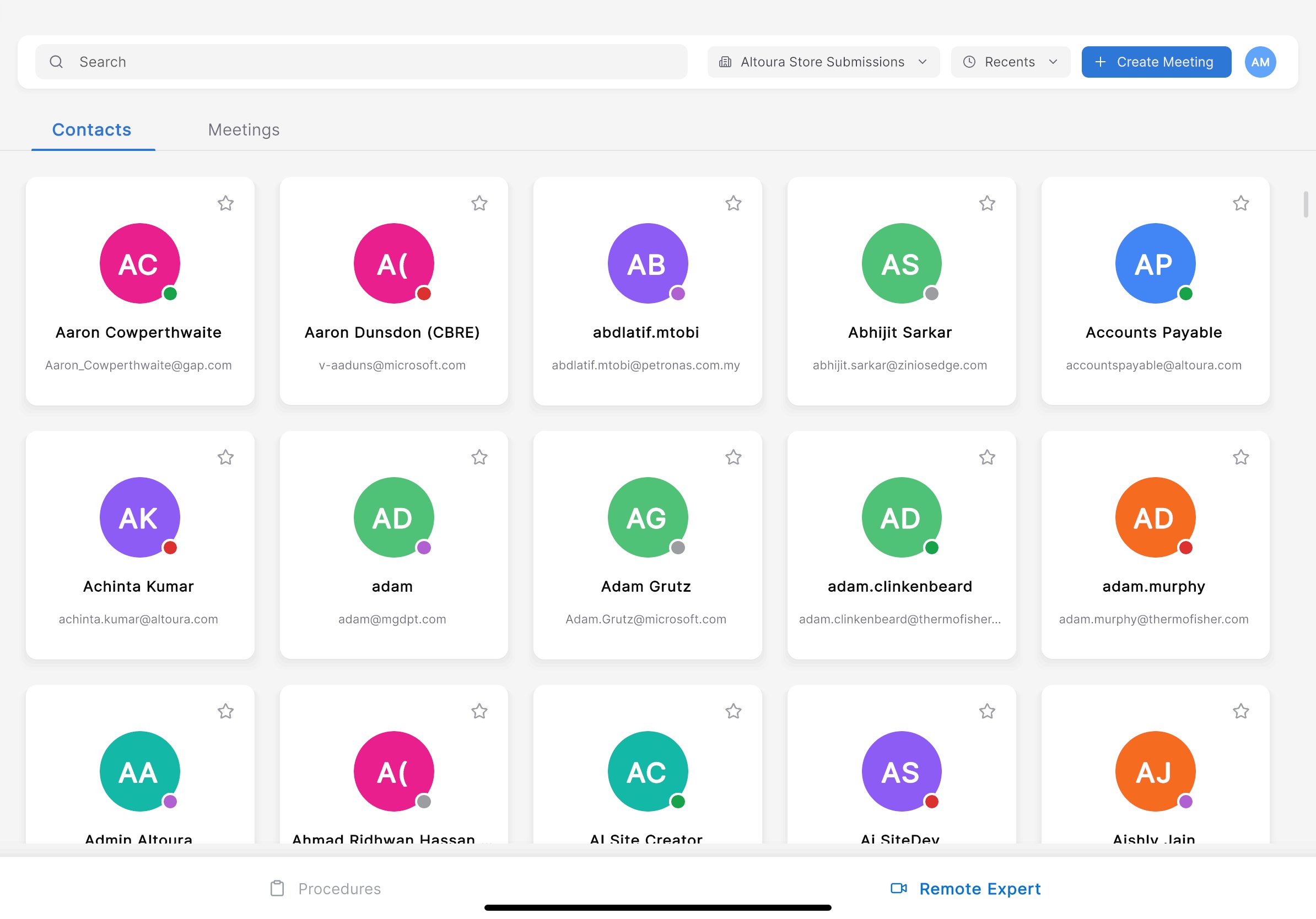
- Avatar with initials and a color-coded background
- Name of the contact
- Email address
- Availability indicator (colored dot — green for online, red for busy, grey for offline)
- Favorite star to bookmark frequently contacted experts
Search for a Contact
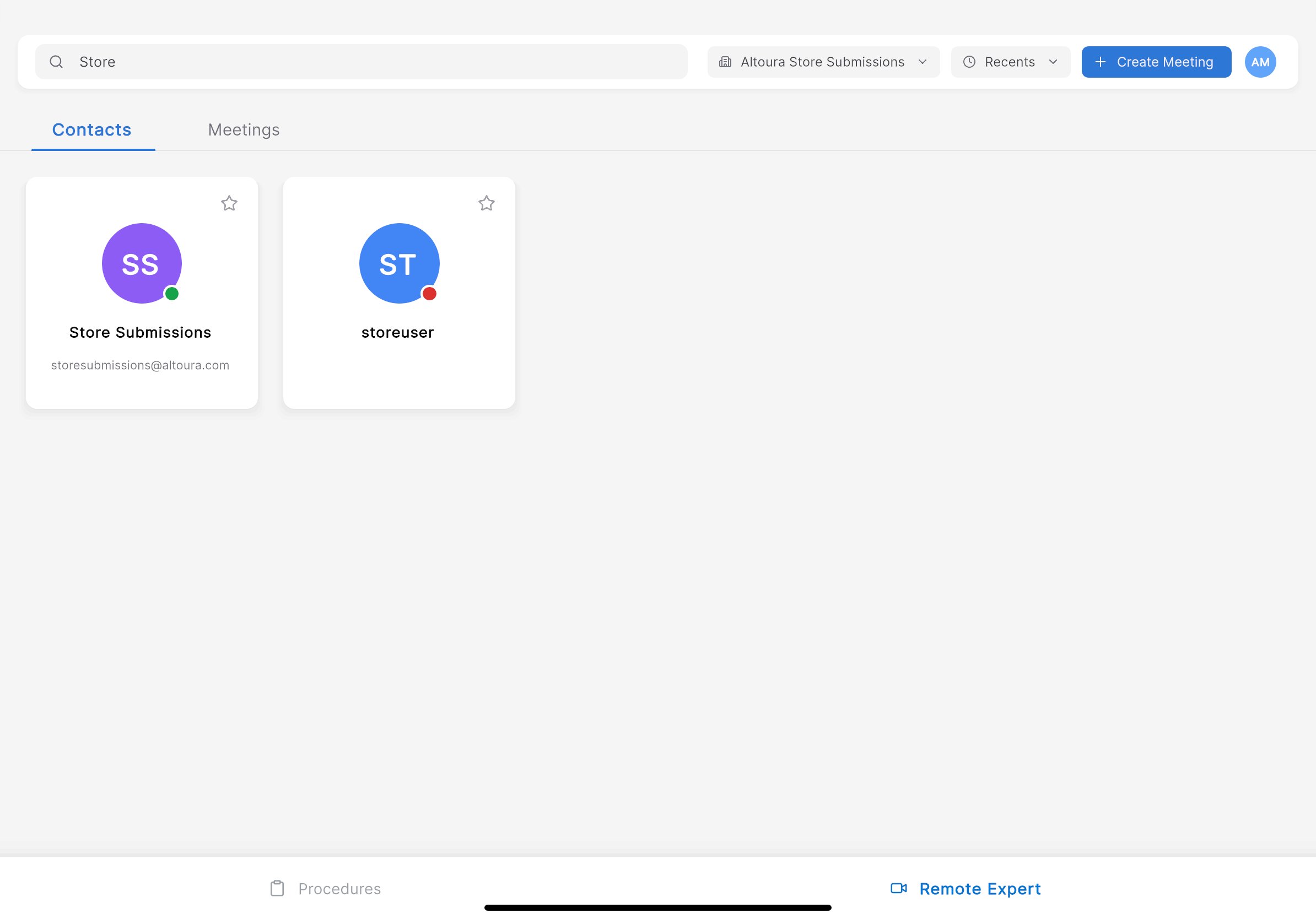
Steps
- Tap the Search field at the top of the screen.
- Enter the contact’s name or keyword.
What Happens Next
The contact grid filters in real time to display only contacts matching your search criteria.Invite a Contact
- Tap on a contact card to select the expert you want to reach.
- Follow the on-screen prompts to send an invitation.
- The remote expert receives a notification and can join the session.
Meetings Tab
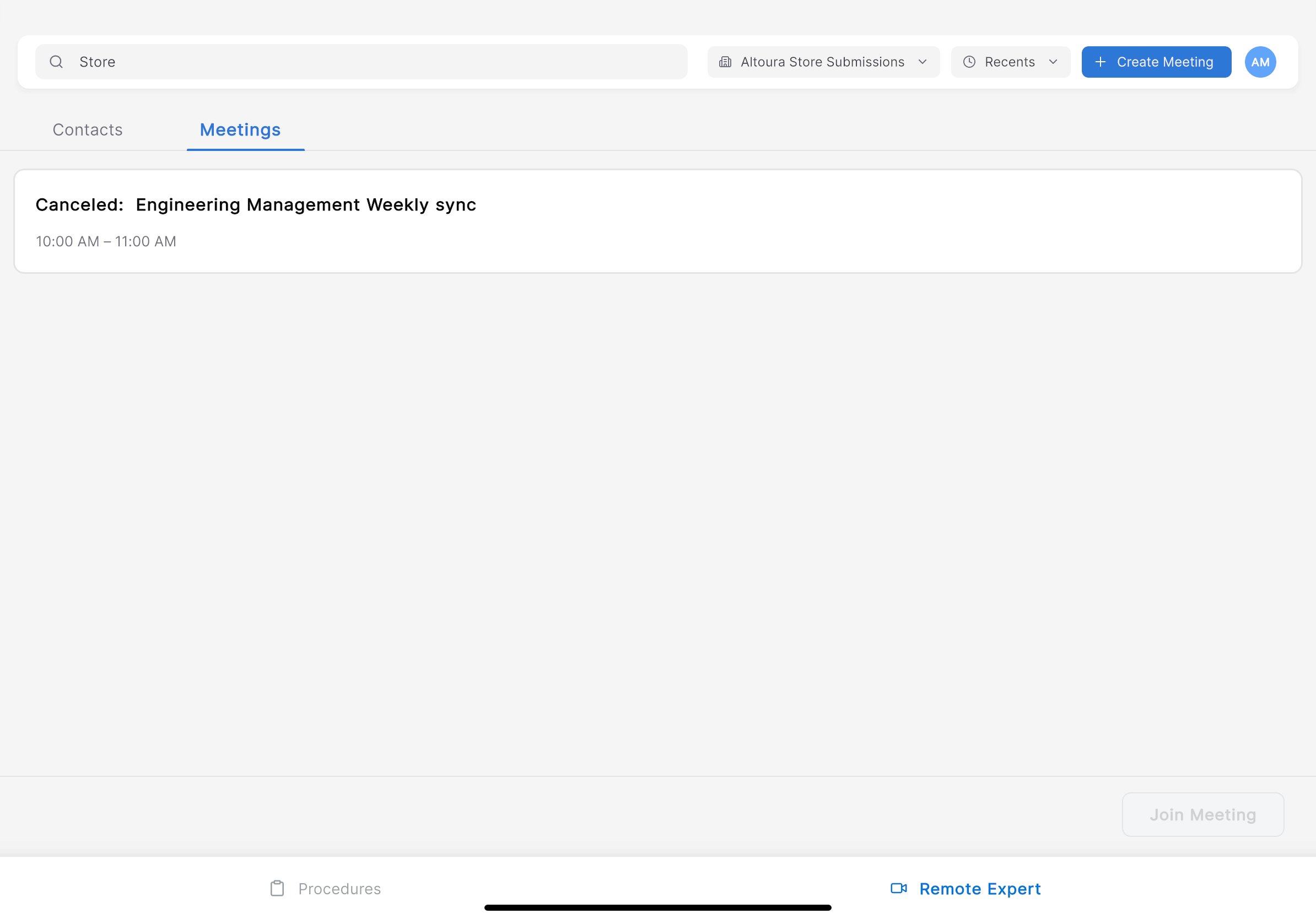
- Meeting title (for example, Engineering Management Weekly sync)
- Status (for example, Cancelled) if applicable
- Time range (for example, 10:00 AM – 11:00 AM)
Join a Meeting
- Tap the Meetings tab to view scheduled meetings.
- Select a meeting from the list.
- Tap the Join Meeting button in the bottom-right corner.
What Happens Next
The app connects you to the Microsoft Teams meeting and opens the live call interface.Live Call View
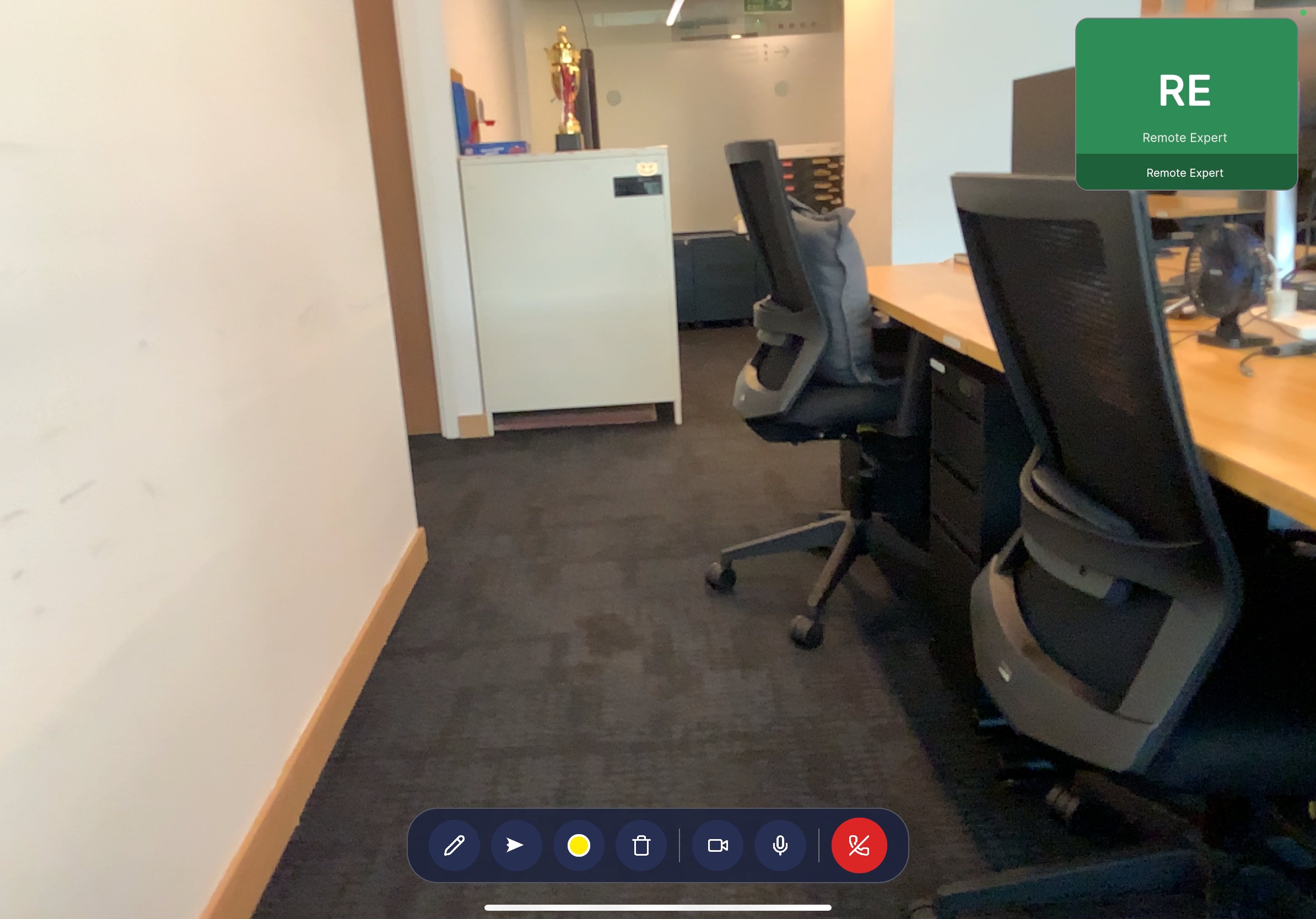
Remote Expert Card
In the top-right corner, a card displays the connected expert’s information:- Initials avatar with a color-coded background
- Name of the remote expert
Call Toolbar
A floating toolbar at the bottom of the screen provides the following controls:| Icon | Action |
|---|---|
| Pencil | Annotate — Draw on the live camera feed to highlight areas for the remote expert. |
| Play | Share — Start or control media sharing. |
| Color dot | Color picker — Change the annotation color. |
| Trash | Delete — Remove annotations from the screen. |
| Camera | Video — Toggle the video feed on or off. |
| Microphone | Audio — Mute or unmute your microphone. |
| Red phone | End call — Disconnect from the Remote Expert session. |
Annotations
During a live call, both the on-site user and the remote expert can draw annotations on the shared camera view. Annotations appear as colored markings overlaid on the live feed, allowing the expert to visually point out components, highlight areas of concern, or provide step-by-step visual guidance.Organization & Recents
At the top of the Remote Expert screen:- Organization dropdown — Filter contacts and meetings by organization (for example, Altoura Store Submissions).
- Recents — Quickly access recently contacted experts or recently joined meetings.