

Overview
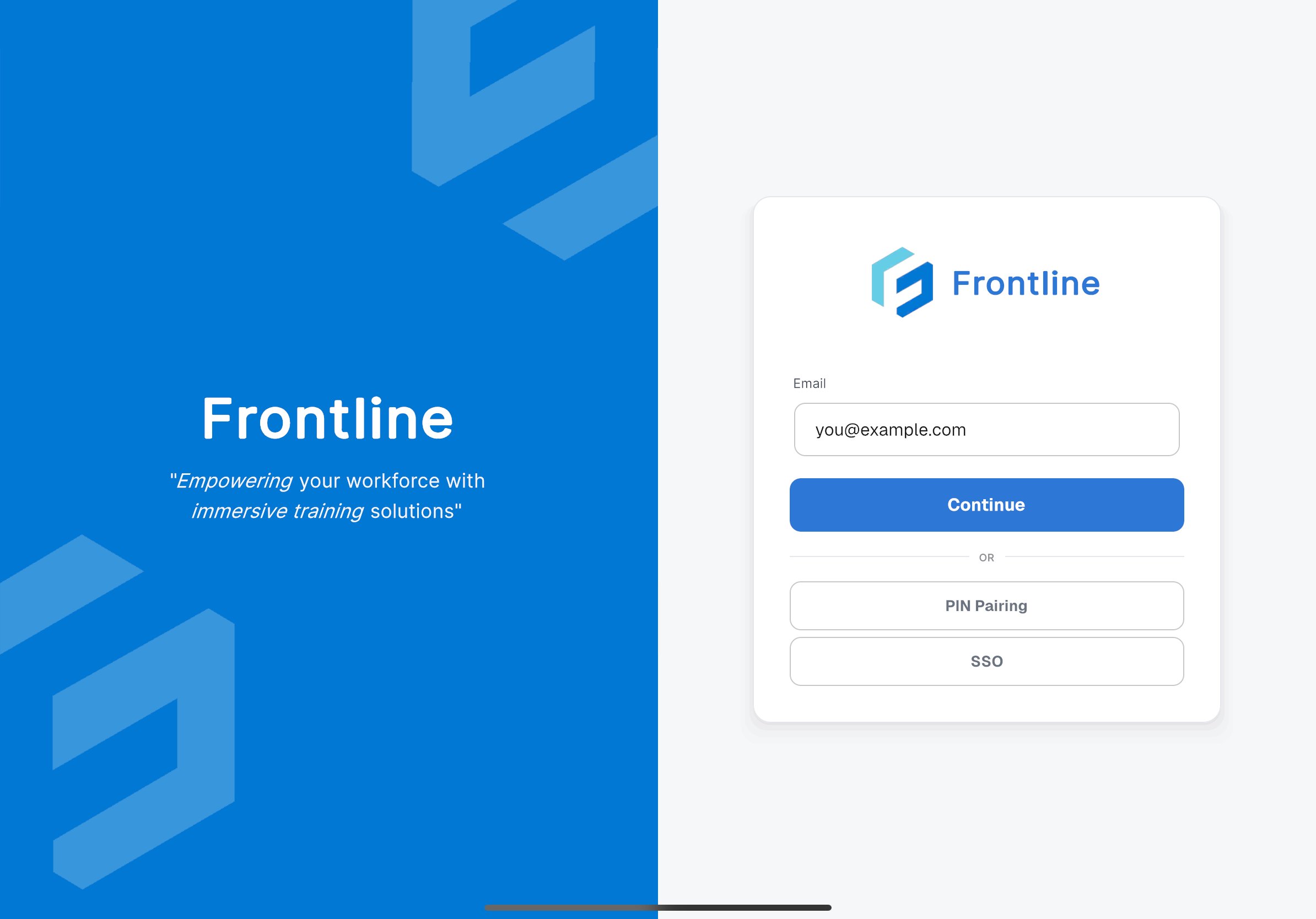
When you launch Altoura Frontline on your iPad, the sign-in screen is displayed. You can authenticate using one of three methods depending on your organization’s configuration:- Email & Password — Enter your Altoura-managed credentials directly.
- PIN Pairing — Pair the iPad with your account by entering a code on the Altoura Portal.
- SSO (Single Sign-On) — Sign in through your organization’s Identity Provider.
Sign In with Email & Password
Use this method when your organization uses Altoura-managed credentials.Steps
- Launch Altoura Frontline on your iPad.
- On the sign-in screen, enter your email address in the Email field.
- Tap Continue.
- Enter your password on the next screen.
- After successful authentication, the app opens to the Procedures landing page.
Troubleshooting
- Invalid credentials: Verify that you are using the correct email and password associated with your Altoura account.
- Account locked: Contact your IT administrator if your account has been locked due to repeated failed attempts.
Sign In with SSO (Single Sign-On)
Use this method when your organization has configured a custom Identity Provider (IdP) for authentication.Steps
- Launch Altoura Frontline on your iPad.
- Tap the SSO button on the sign-in screen.
- You are redirected to your organization’s Identity Provider (IdP) login page.
- Sign in using your organization’s credentials and complete any additional authentication steps required by your IdP (for example, multi-factor authentication).
- After successful authentication, you are redirected back to Altoura Frontline and the app opens to the Procedures landing page.
Troubleshooting
- Redirect not working: Ensure your iPad has an active internet connection and can reach your organization’s IdP.
- IdP login fails: Verify your credentials with your organization’s IT team.
- MFA issues: Ensure your authenticator app or phone is accessible for multi-factor verification if required.
Sign In with PIN Pairing
Use this method to pair your iPad with your Altoura account without typing credentials on the device.How It Works
- The iPad app displays a 6-digit PIN code.
- On the Altoura Portal from any browser, you open the Pair Device page and enter that code.
- Once the code is verified, the iPad is automatically signed in to your account.
Step 1: Get the PIN from the iPad
- Launch Altoura Frontline on your iPad.
- On the sign-in screen, tap PIN Pairing.
- A 6-digit code is displayed on screen. Note this code and keep the screen open.
Step 2: Enter the PIN on the Altoura Portal
- On your phone, tablet, or PC, sign in to the Altoura Frontline portal at procedure.altoura.com.
- Click on your profile icon in the top-right corner.
- Select Pair Device from the dropdown menu.
- Enter the 6-digit code displayed on your iPad.
What Happens Next
- Once the code is accepted, the iPad automatically completes the sign-in and links to your account.
- The app opens to the Procedures landing page.
Troubleshooting
- PIN expired: The code is time-limited. If it expires, go back on the iPad and generate a new code.
- Code not accepted: Verify that you entered the 6-digit code exactly as displayed on the iPad.