

Prerequisites
Before installing Altoura Frontline, ensure the following:- Device: Microsoft HoloLens 2 with the latest OS update.
- Microsoft Account: A Microsoft account signed in on the device.
- Network: Active Wi-Fi connection with internet access.
- Organization Access: Your IT administrator has enabled access to the Altoura Frontline app for your tenant.
Find Altoura Frontline in the Microsoft Store
- On your HoloLens 2, open the Start menu using the bloom gesture or by tapping the Start icon on your wrist.

- Select the Microsoft Store app from the pinned apps or app list.
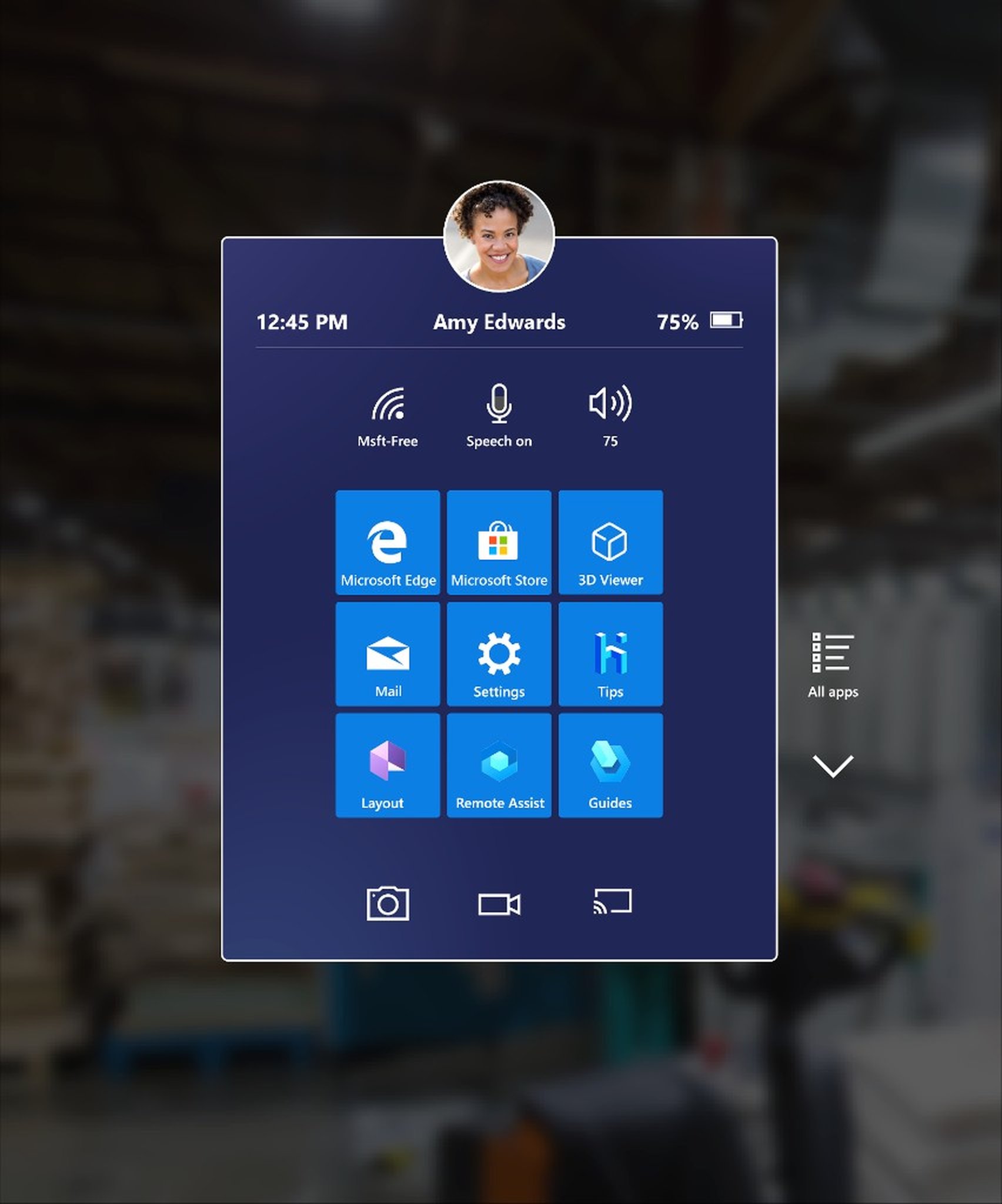
- In the Store, select the Search field.
- Type Altoura Frontline and confirm the search.
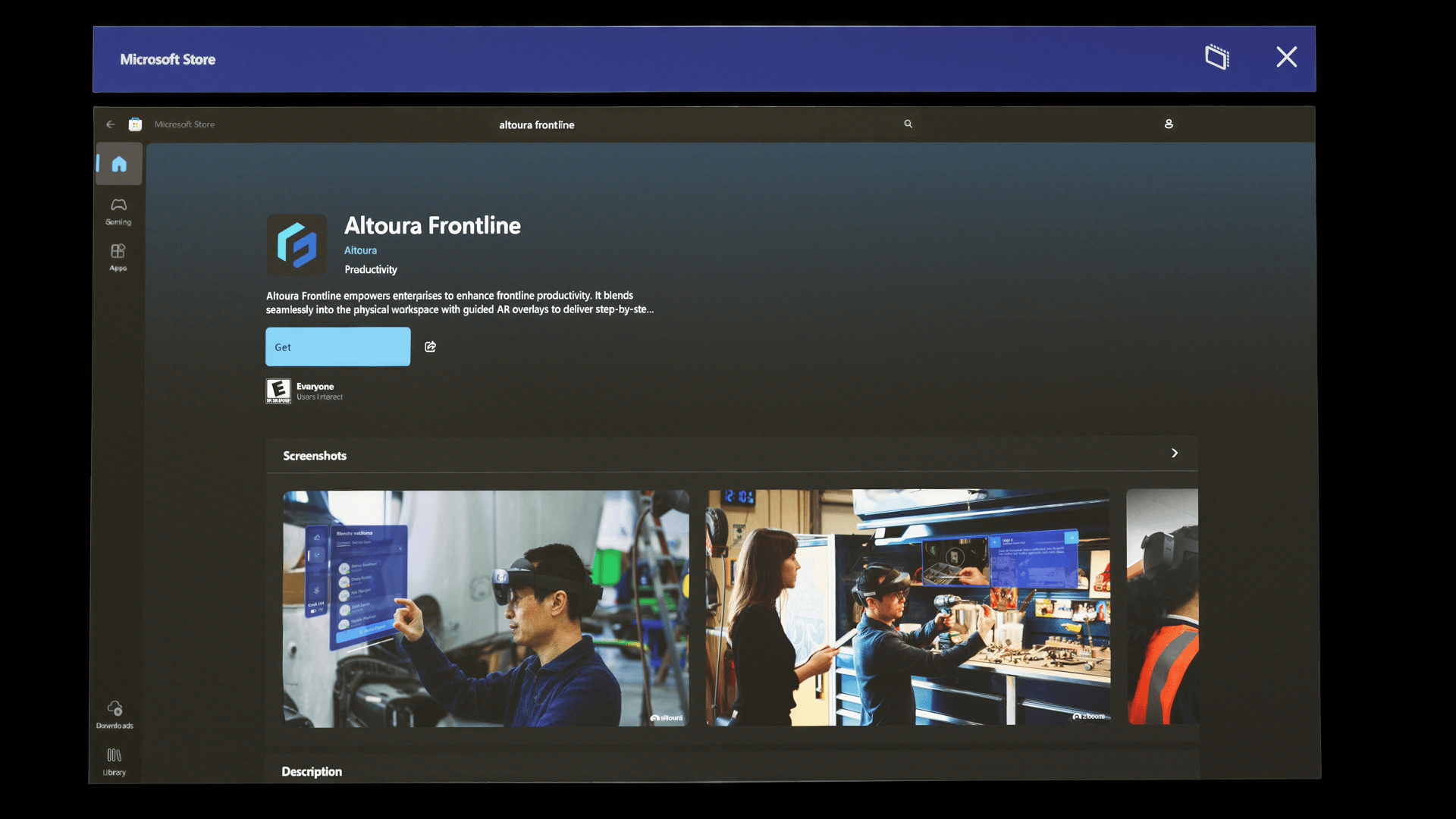
- Locate the Altoura Frontline app in the search results.
Download and Install
- Select the Altoura Frontline app from the search results to open its Store listing.
- Select Get or Install to begin the download.
- Wait for the download and installation to complete. A progress indicator will be displayed.
- Once installed, the app will appear in your All apps list.
Launch the App
- Open the Start menu on your HoloLens 2.
- Select All apps.
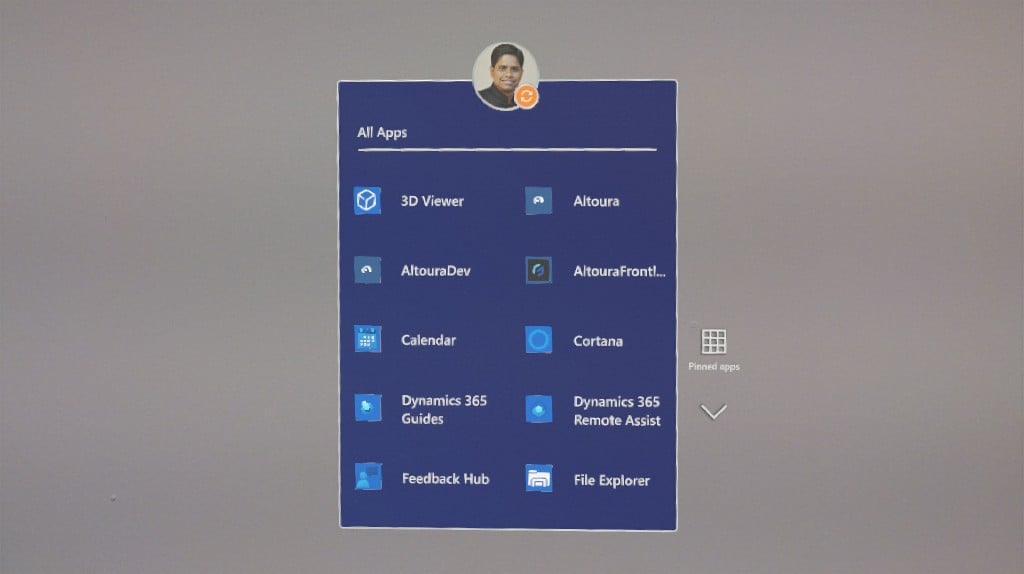
- Find and select Altoura Frontline to launch the application.
- The app opens to the Sign In screen on first launch.