Overview
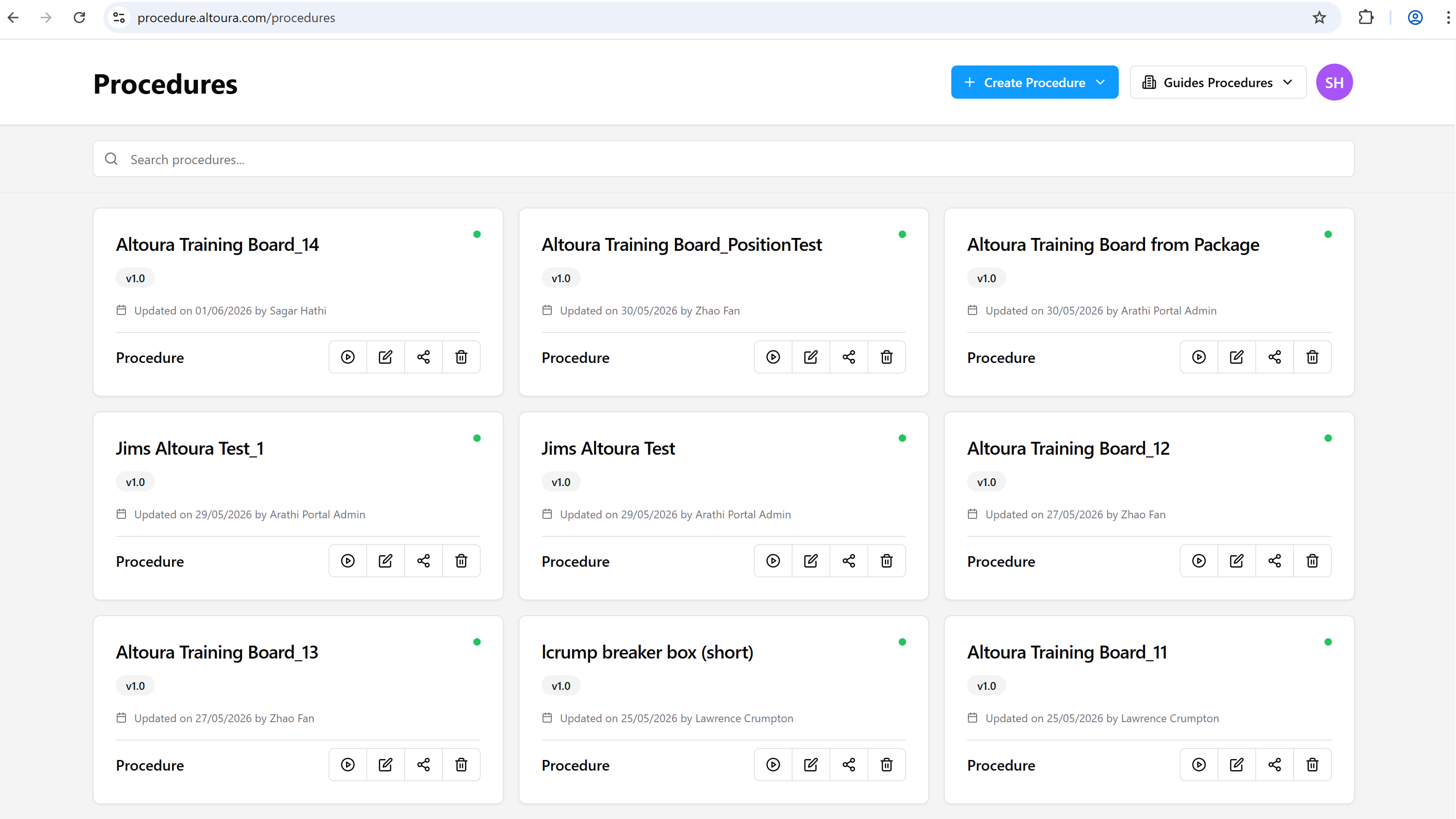
The Procedures page is the primary workspace for managing procedural content in Altoura Frontline.
Procedures created here power guided experiences across Web and HMD, scoped to the selected organization.
All procedures are organized by Organization, allowing teams to maintain separate procedure libraries for different business units, customers, or environments.
When you land on this page, you are always working within the context of a selected organization.
Organizational Context
Altoura Frontline supports multiple organizations within a single account.
Each organization maintains its own independent set of procedures.
The currently selected organization determines:
- Which procedures are displayed
- Where new procedures are created
- Which users have access to those procedures
Procedures are not shared across organizations unless explicitly configured.
Selecting an Organization
Use the Organization selector in the top navigation to switch between organizations.
How It Works
- The selector lists all organizations you have access to
- Selecting an organization refreshes the Procedures page
- Only procedures belonging to the selected organization are shown
This allows you to manage procedures for different teams or customers without overlap.
When to Switch Organizations
Switch organizations when you need to:
- Create procedures for a different customer or team
- Review or update procedures in another organizational context
- Ensure procedures are authored and published in the correct environment
Procedures Within an Organization
Once an organization is selected, the Procedures page displays only the procedures belonging to that organization.
Within an organization, you can:
- Create new procedures
- Search and filter existing procedures
- Edit, share, or delete procedures
All actions apply only to the currently selected organization.
Creating Procedures in the Correct Organization
When you create a new procedure:
- It is automatically created under the currently selected organization
- The procedure will only be visible to users with access to that organization
Before creating a procedure, always confirm that the correct organization is selected.
Procedure List
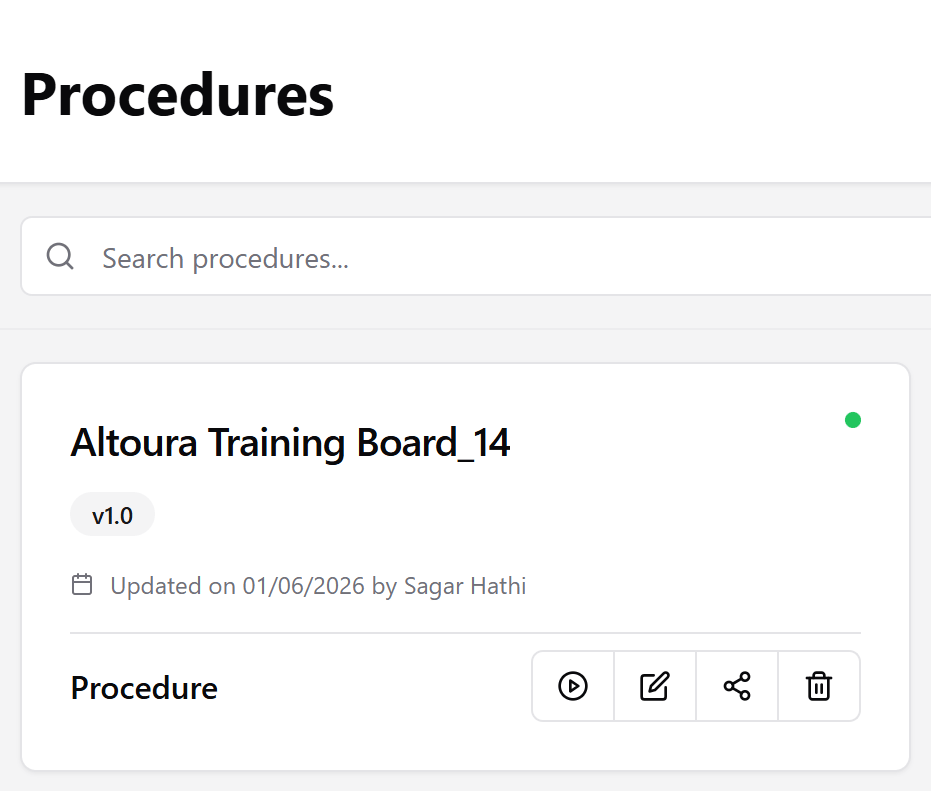
Each procedure is displayed as a card representing its current state within the organization.
Each card shows:
- Procedure name
- Current version
- Last updated date and author
- Availability status
This allows quick assessment without opening the procedure.
Procedure Actions
The following actions are available for each procedure:
| Action | Description |
|---|
| Open | View or run the procedure |
| Edit | Modify content and create a new version |
| Share | Share the procedure based on organizational permissions |
| Delete | Permanently remove the procedure from the organization |
Deleting a procedure removes it permanently from the selected organization and cannot be undone.
Scope of This Page
The Procedures page is used for organizational procedure management. The following activities occur elsewhere:
- Detailed step authoring, in the procedure editor
- Spatial authoring and 3D model placement, in the HMD
- Procedure execution, by frontline users on supported devices
Best Practices
- Always verify the selected organization before creating or editing procedures
- Use consistent naming conventions within each organization
- Avoid duplicating procedures across organizations unless required
- Regularly review procedures to keep organizational content up to date
Next Steps
From here, you can: