Overview
Altoura Frontline allows you to securely pair a Head-Mounted Device (HMD) with your web account.
Pairing avoids the need to type your email address and password directly on the HMD (a slow and error-prone task on a headset) by transferring your authenticated web session to the device. Once paired, the HMD is logged in with the same user account as the web session and is ready to run procedures immediately.
When to Use Device Pairing
Use device pairing when you want to:
- Sign in to Altoura Frontline on an HMD without typing credentials
- Link an HMD to your existing web account
- Start running procedures on a headset
Before You Begin
- Make sure you are signed in on the web at app.altoura.com.
- Make sure the HMD is powered on with the Altoura Frontline app installed.
- Have both surfaces accessible at the same time. You will switch between them during pairing.
Pair Your HMD
Pairing uses both your HMD and the web Procedures Portal. The flow is three steps: generate a PIN on the HMD, open the Pair Device dialog on the web, then enter the PIN to complete pairing.
Step 1: Generate a PIN on the HMD
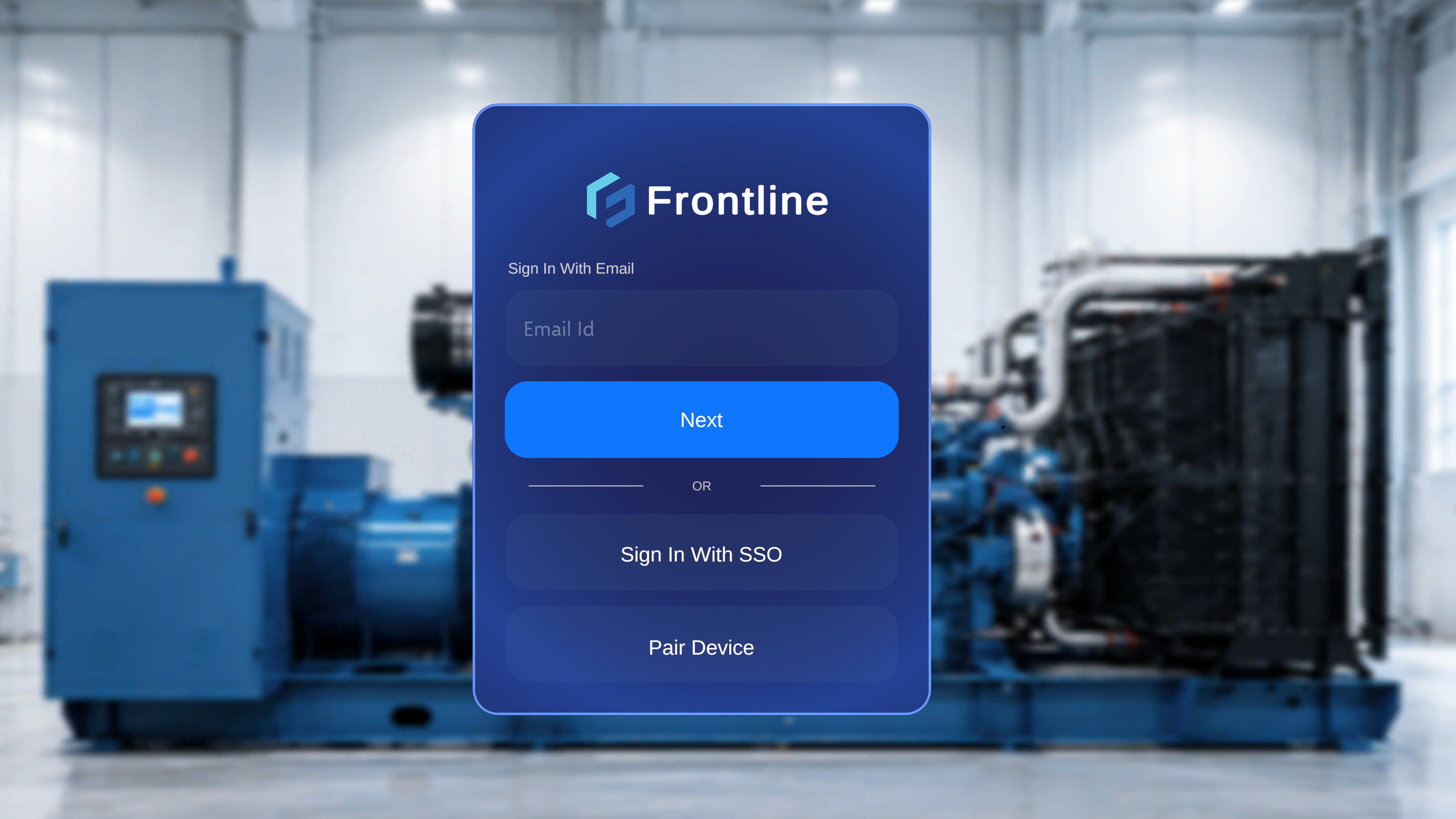
- On the HMD, launch the Altoura Frontline app. The sign-in screen appears with Email & Password, Single Sign-On (SSO), and PIN Pair options.
- Choose the PIN Pair login option.
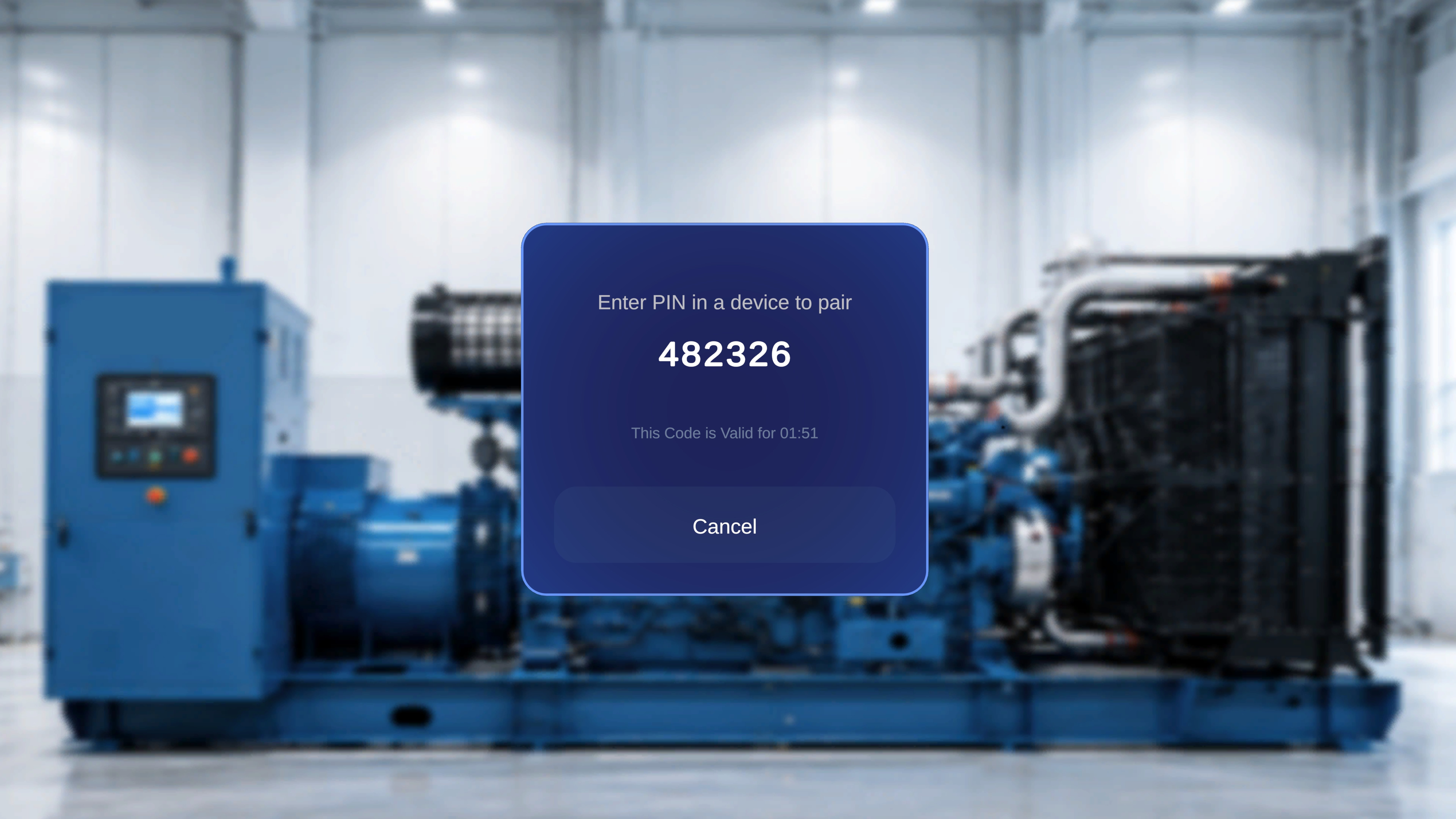
- The HMD displays a 6-digit pairing code. Note the code and keep this screen open while you complete the next steps on the web.
Step 2: Open the Pair Device Dialog on the Web
- In your browser, click your profile avatar in the top-right corner of the Procedures page. The profile dropdown opens, showing your name, email, Pair Device, and Logout.
- Select Pair Device from the dropdown.
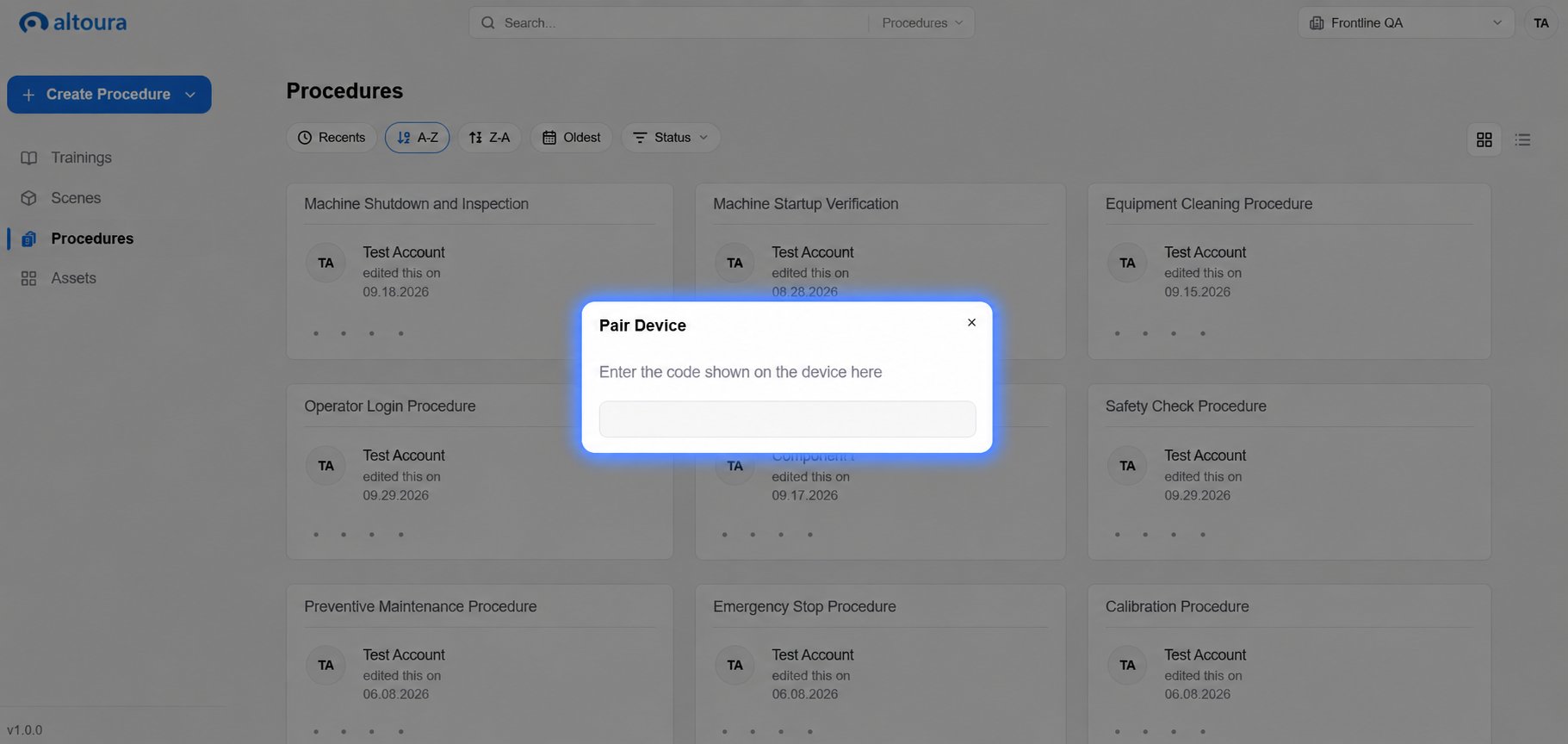
A Pair Device dialog opens on the same page (no new tab or page is loaded). It contains a single input field labelled Enter the code shown on the device here for entering the PIN from your HMD.
Step 3: Enter the PIN
- In the input field, enter the 6-digit code displayed on your HMD.
- Submit the code to complete pairing.
PIN Pair is the recommended login method because it avoids typing your email and password on the HMD, which is slow and cumbersome on a headset. Once the code is accepted, you’re signed in on the HMD with your web account. No extra credentials needed.
What Happens After Pairing
- The HMD is logged in using the same account as the web user.
- No additional credentials are required on the device.
- The HMD is ready to run procedures immediately.
Security and Session Behavior
- Pairing is time-limited. The PIN generated on the HMD expires after a short window (typically a couple of minutes).
- Pairing only works while you are logged in on the web.
- Each pairing action links a device to the active user session.
- If the PIN expires before you submit it on the web, generate a fresh one on the HMD and reopen the Pair Device dialog.