

Overview
Altoura Frontline allows you to import existing Microsoft Dynamics 365 Guides and convert them into Procedures. This enables teams to migrate content seamlessly without rebuilding steps, media, or 3D assets from scratch.Importing requires a one-time connection between Altoura and your Dynamics 365 environment, set up by an IT administrator. See Dynamics 365 Guides Configuration.
Imports are scoped to the currently selected organization. Always confirm the correct organization is active before importing.
What Gets Imported
When a guide is imported, Altoura brings the following data over (as available in the source guide):- Guide structure and name
- Steps and step instructions
- Images and videos
- 3D / GLB-related data and associated content
How to Import a Guide
The end-to-end import flow consists of three stages: starting the import, selecting the guides, and submitting them for processing.Step 1: Start the Import
Navigate to the Procedures page in the Procedures Portal.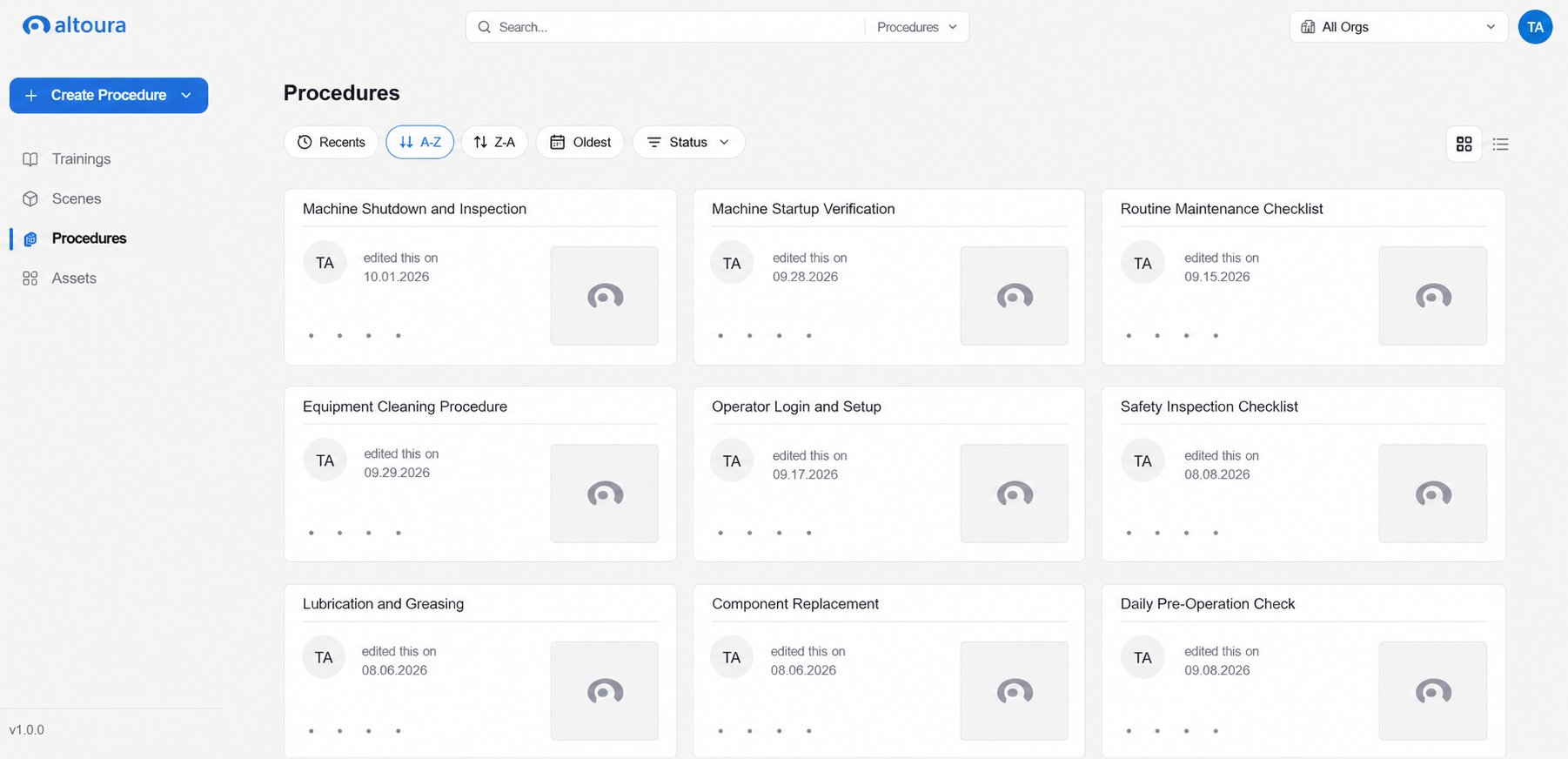
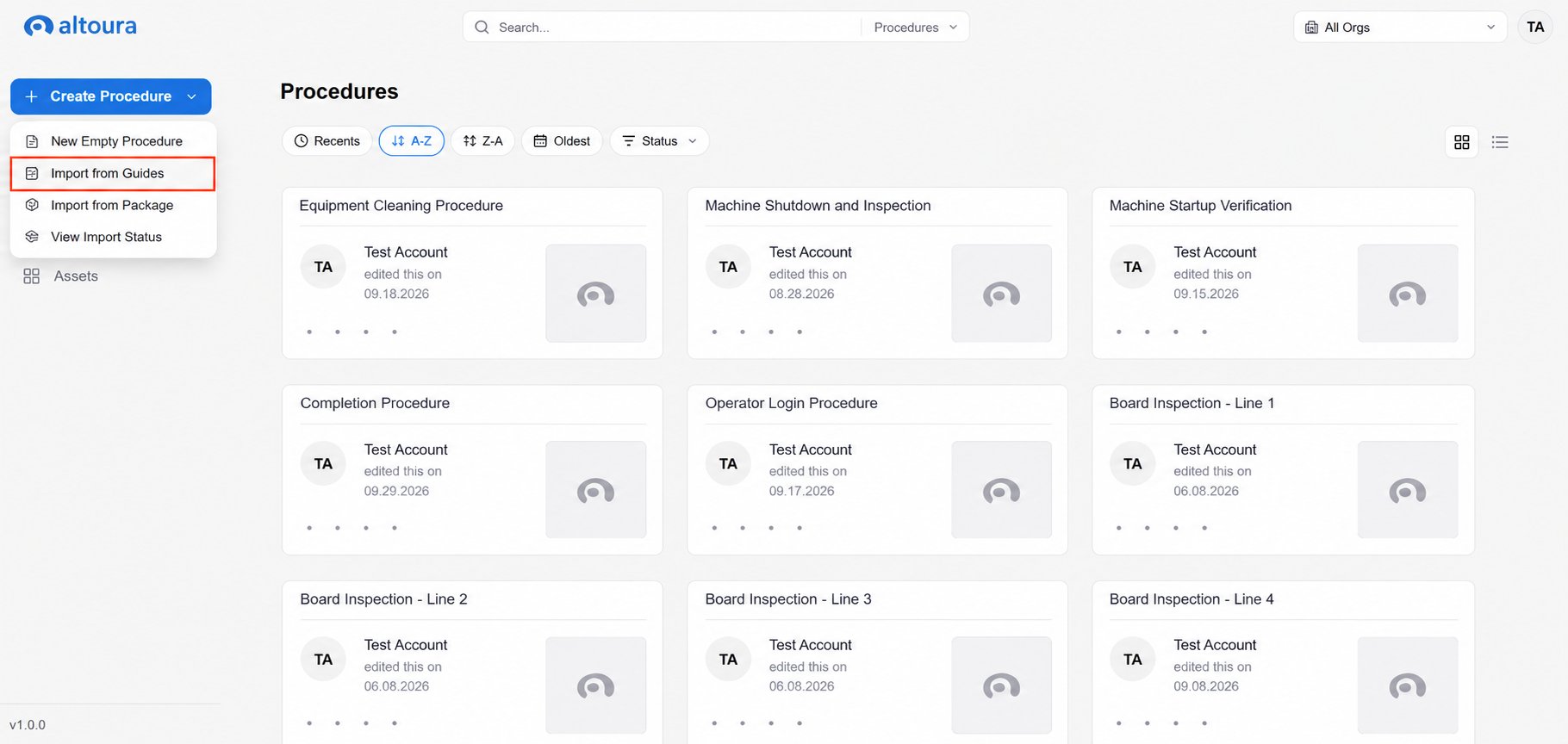
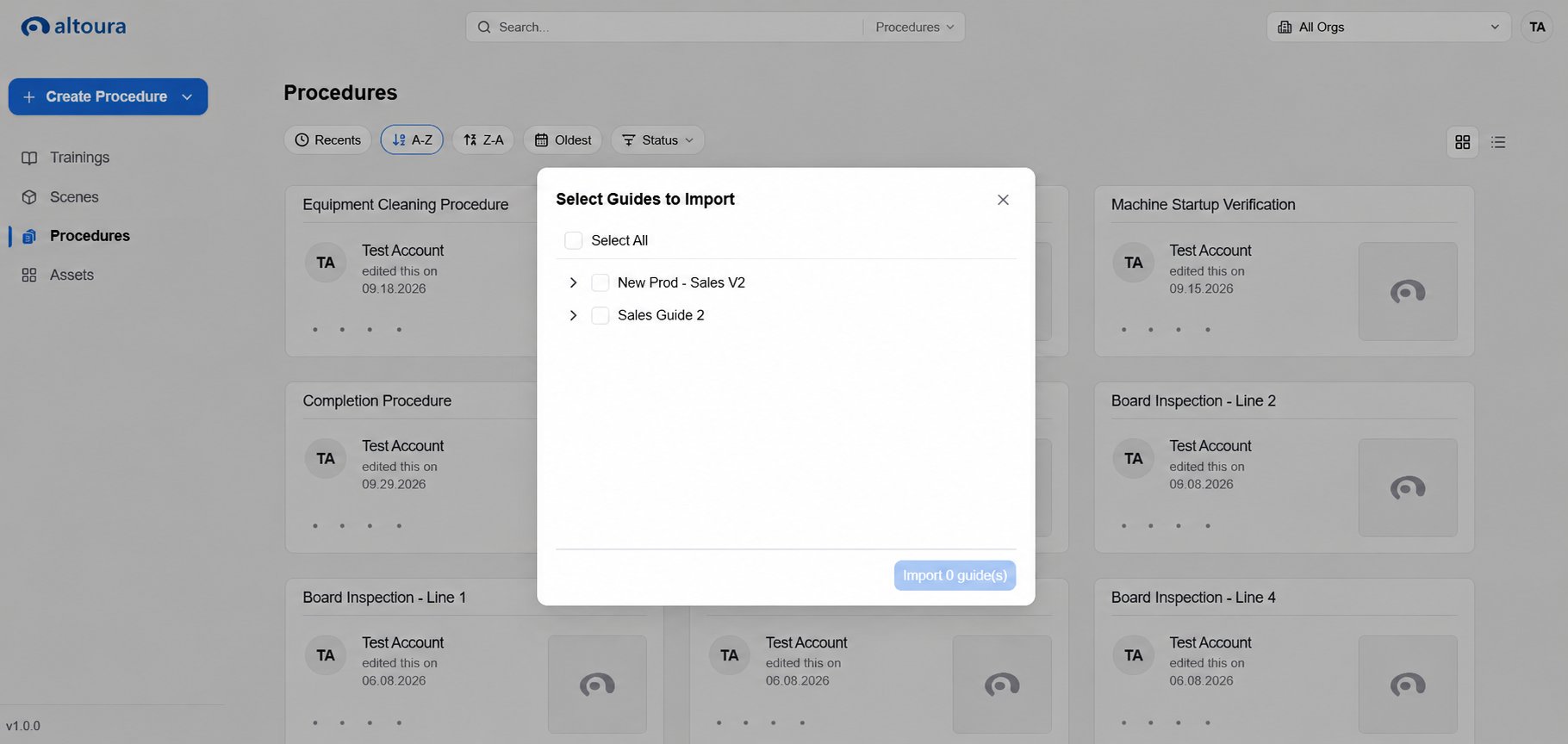
Step 2: Select Guides
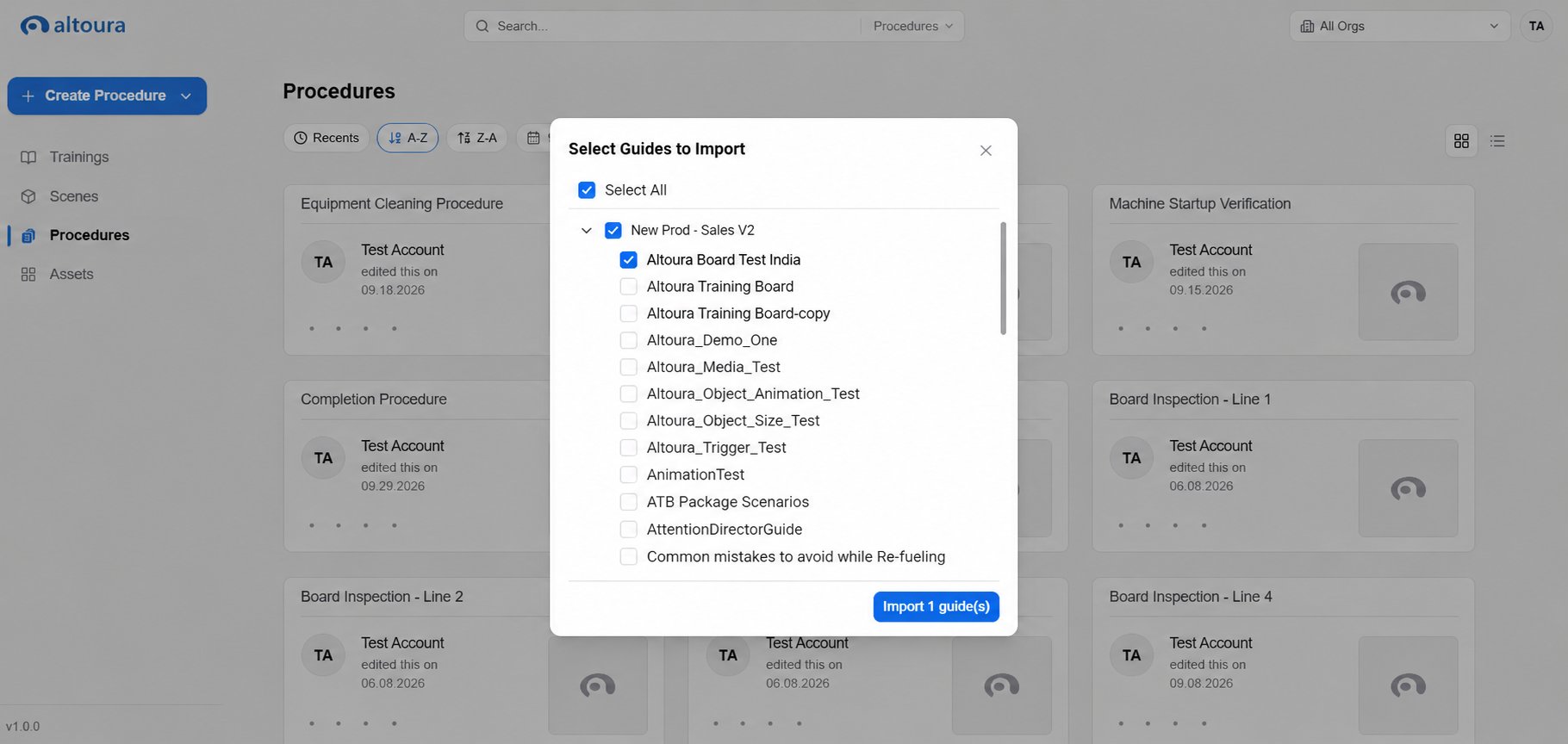
- Expand the required instance / environment (for example, GuidesProcedures).
- Select one or more guides using the checkboxes, or use Select All to pick everything in the list.
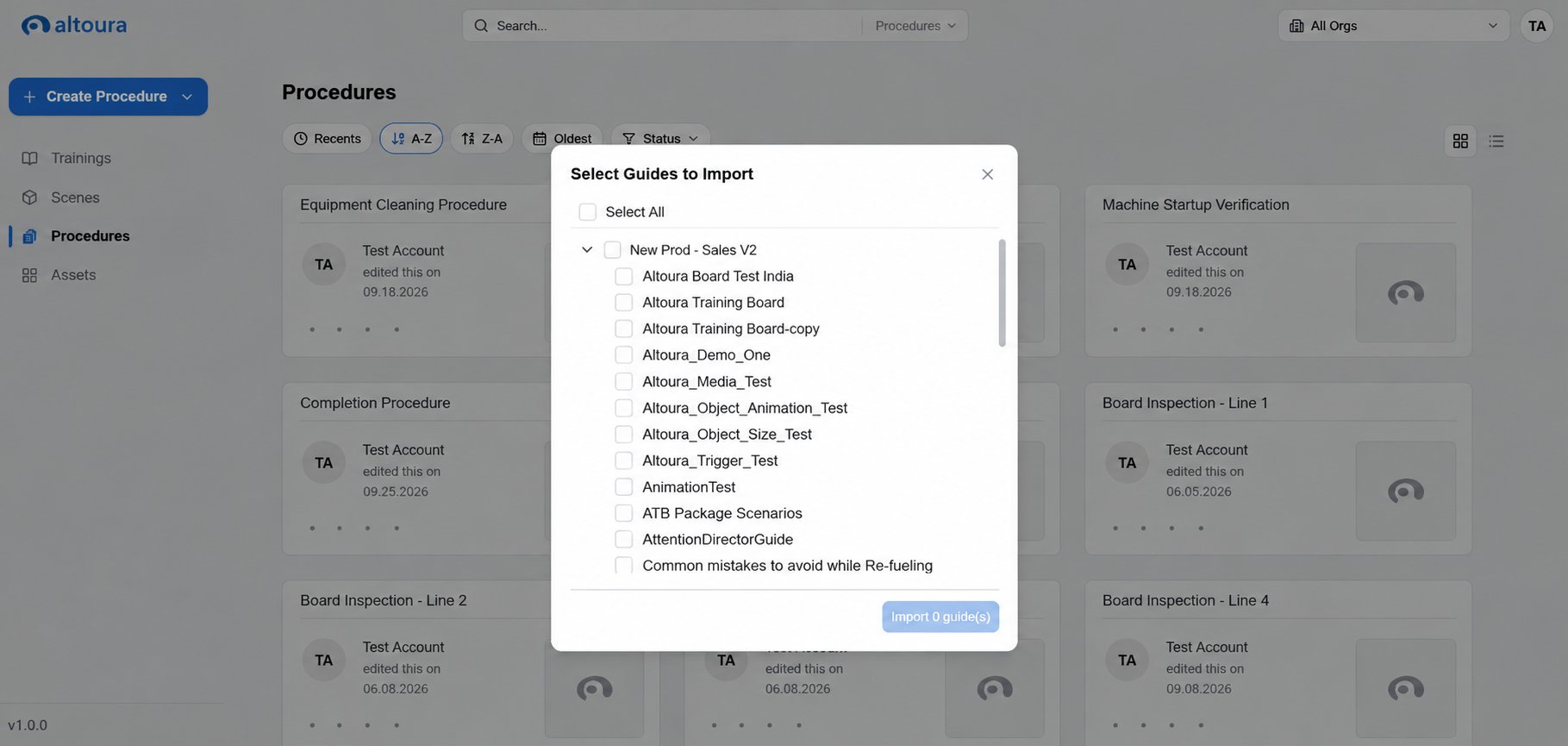
- The Import Selected button becomes active
- The dialog footer shows the number of guides currently selected

Step 3: Submit the Import
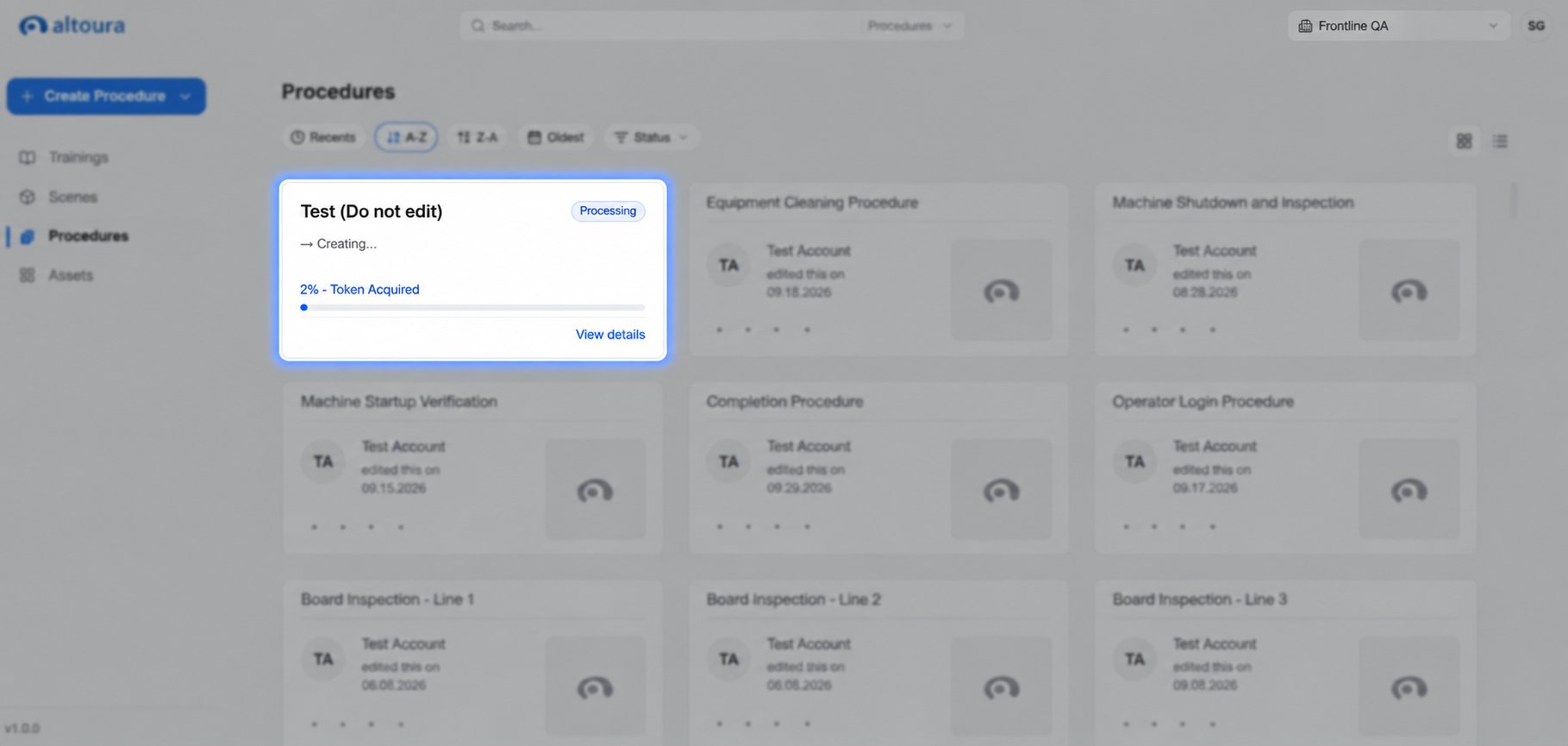
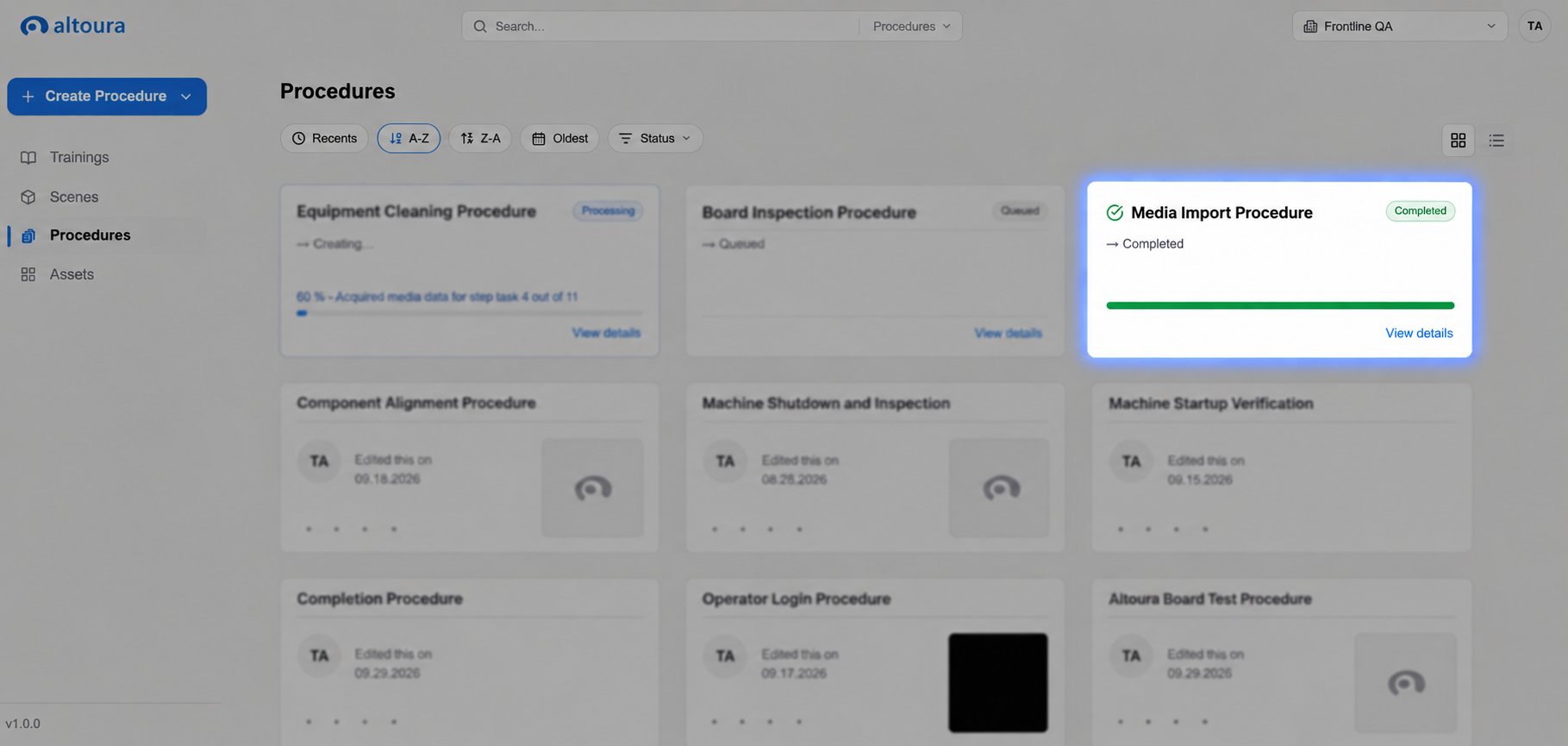
Select Import Selected to begin the import. Once submitted:- An Importing… indicator appears on the Procedures page
- Imports run in the background
- You can continue working while imports are in progress
How Imported Procedures Appear
After completion, the imported guide is created as a standard procedure and added to the Procedures list. From that point it behaves exactly like any other procedure. It can be opened, edited, shared, or deleted.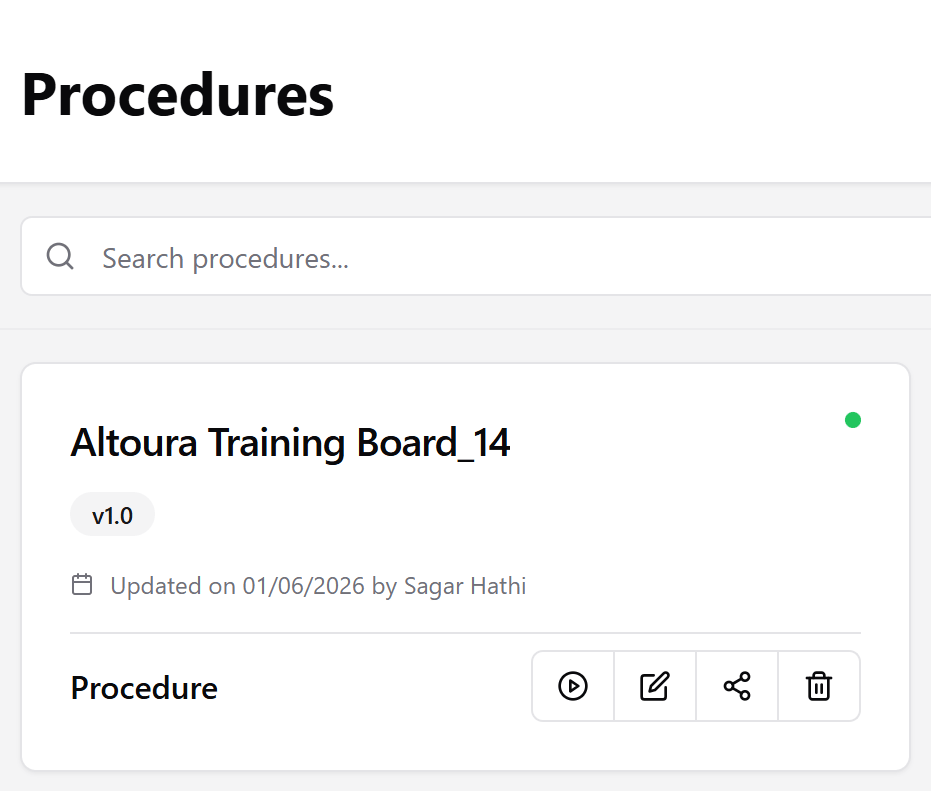
Importing the Same Guide Multiple Times
If the same guide is imported more than once, Altoura automatically appends a numeric suffix to the procedure name so existing procedures are never overwritten:Guide NameGuide Name_1Guide Name_2
Checking Import Status
To review the history of guide imports, including completed, older, and failed runs:- Select Create Procedure.
- Choose View Import Status.
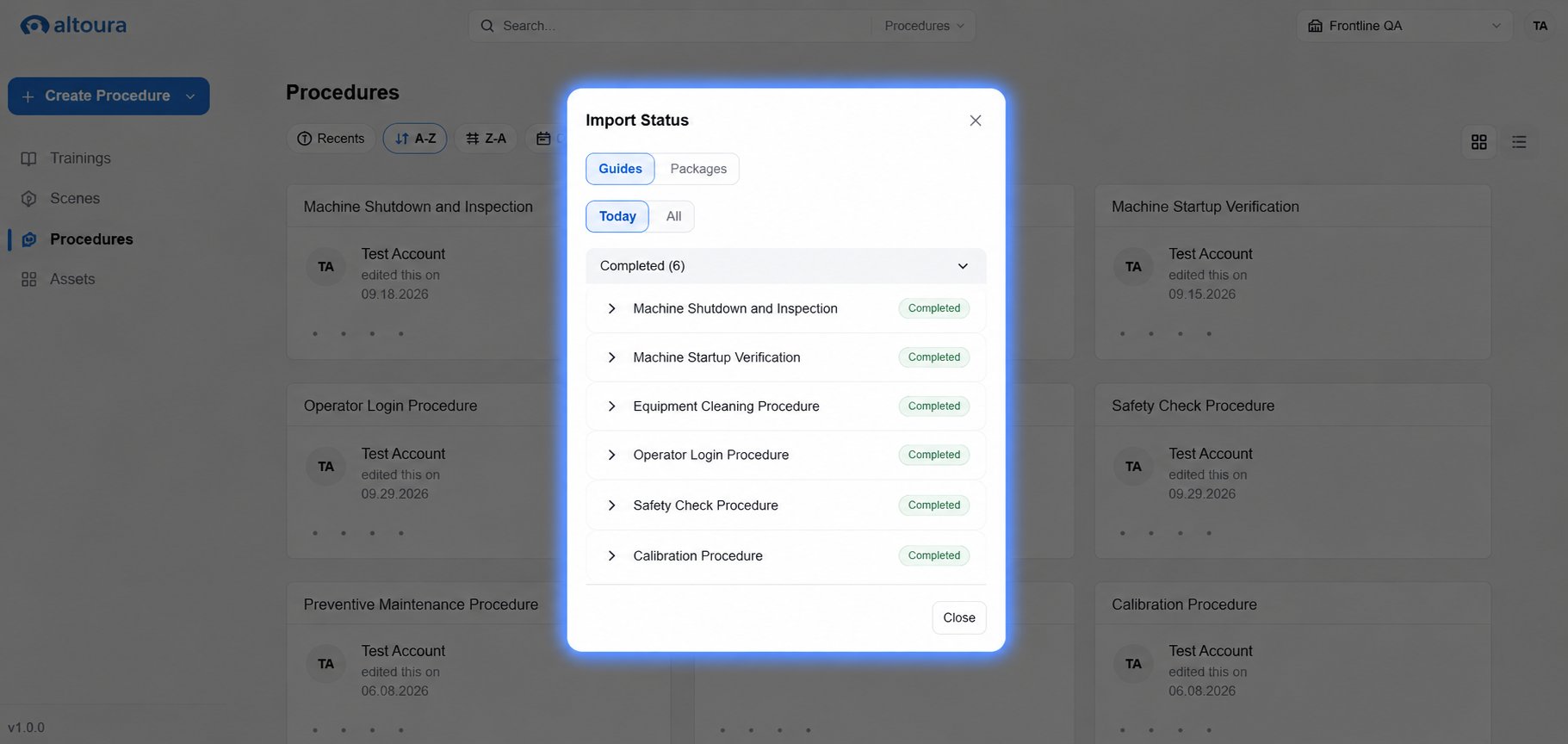
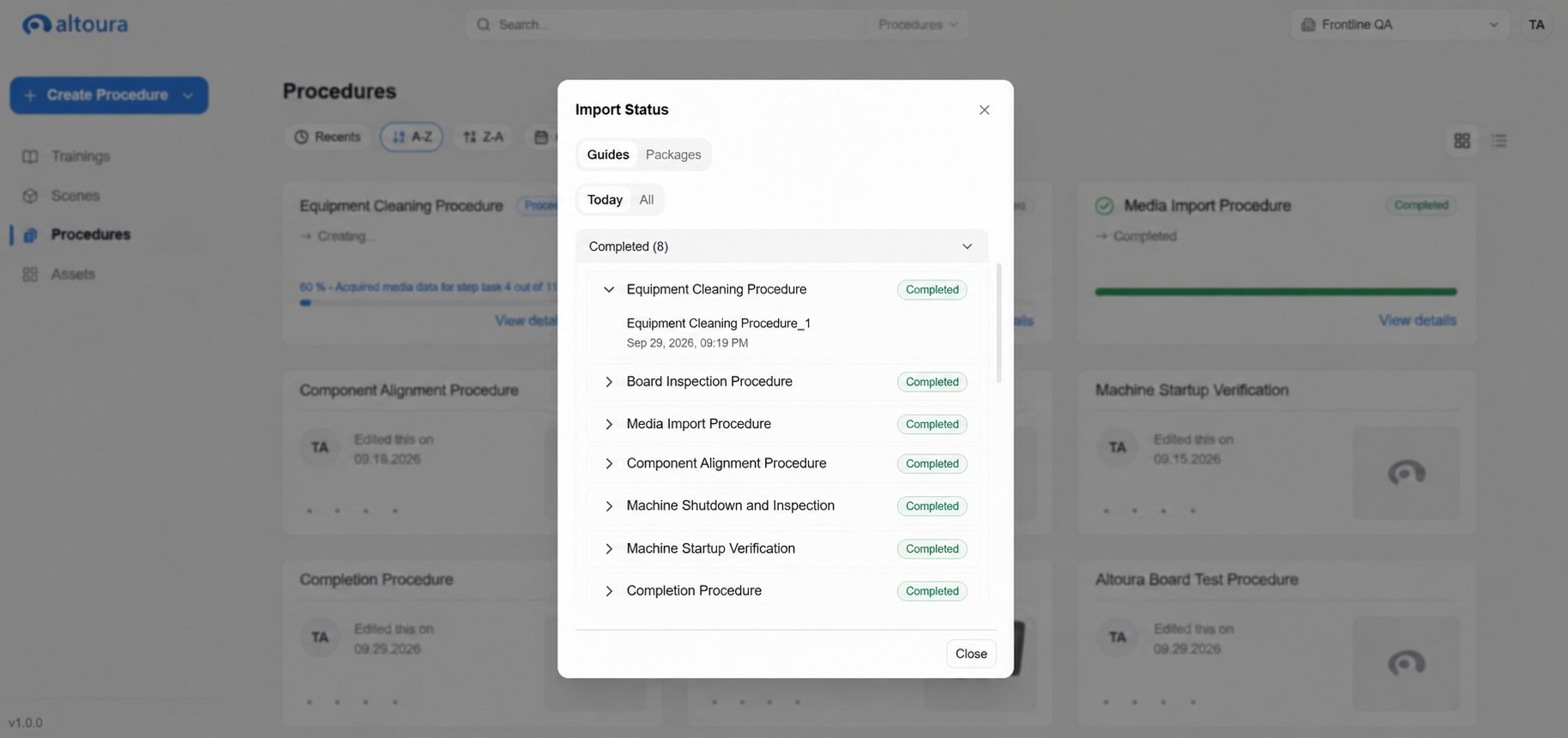
Expand a section to view individual entries. Each entry displays:
- The source guide name
- The resulting procedure name (for example,
Altoura Training Board_14) or a status message if the source guide no longer exists - The date and time the import completed
- A status icon indicating success or failure
If an Import Fails
If a guide import fails, it appears under a Failed section in the Import Status window. No procedure is created or partially updated. The operation is fully rolled back. To retry:- Open Create Procedure → Import from Guides.
- Select the failed guide.
- Submit the import again.
Each retry is treated as a brand-new import. If the second attempt succeeds, a new procedure is created. It does not resume the failed attempt.
Key Points to Remember
- Imports run asynchronously in the background
- Imported procedures are scoped to the selected organization
- Re-importing never overwrites existing procedures; a numeric suffix is added instead
- Failed imports must be retried manually using the same flow
- Imported procedures appear in the standard Procedures list and behave like any other procedure