Overview
Authoring is the process of building and maintaining procedures in Altoura Frontline. In Authoring mode, you structure tasks, define steps, add decision logic, and enrich steps with media and 3D content. All authoring is done in Edit Mode, which auto-saves your changes as you work.Entering Edit Mode
Step-by-Step Instructions
- Open the Procedures page.
- Locate the procedure you want to work on.
- Hover over the procedure card and select the Edit (pencil) icon.
What Happens Next
The procedure opens in Edit Mode in a three-panel layout, where all changes can be made.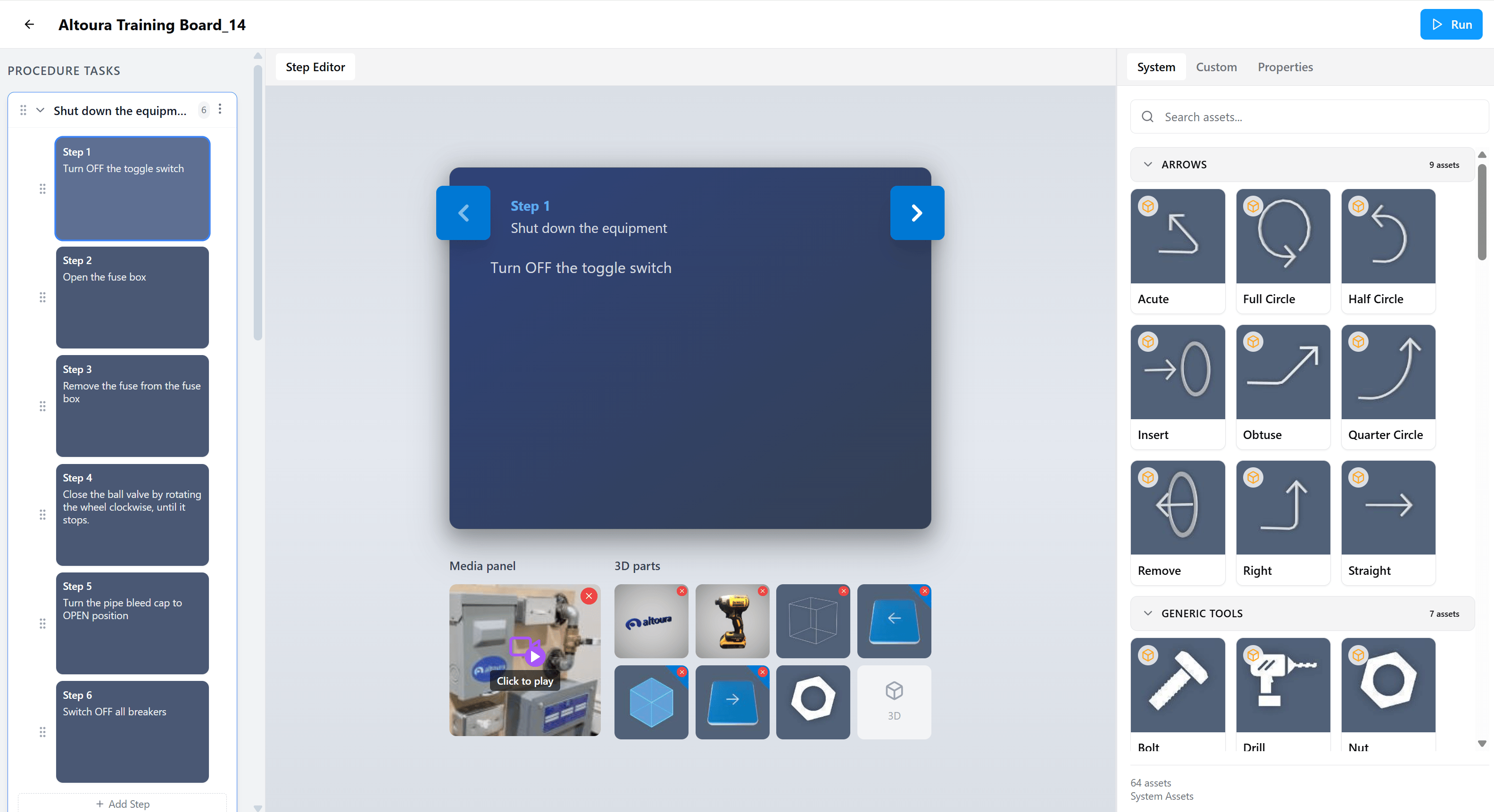
Authoring Layout
Edit Mode is organized into three main areas:Procedure Tasks (Left Panel)
Used to manage tasks and steps. Shows the structure and flow of the procedure. Supports reordering and quick navigation.
Step Editor (Center)
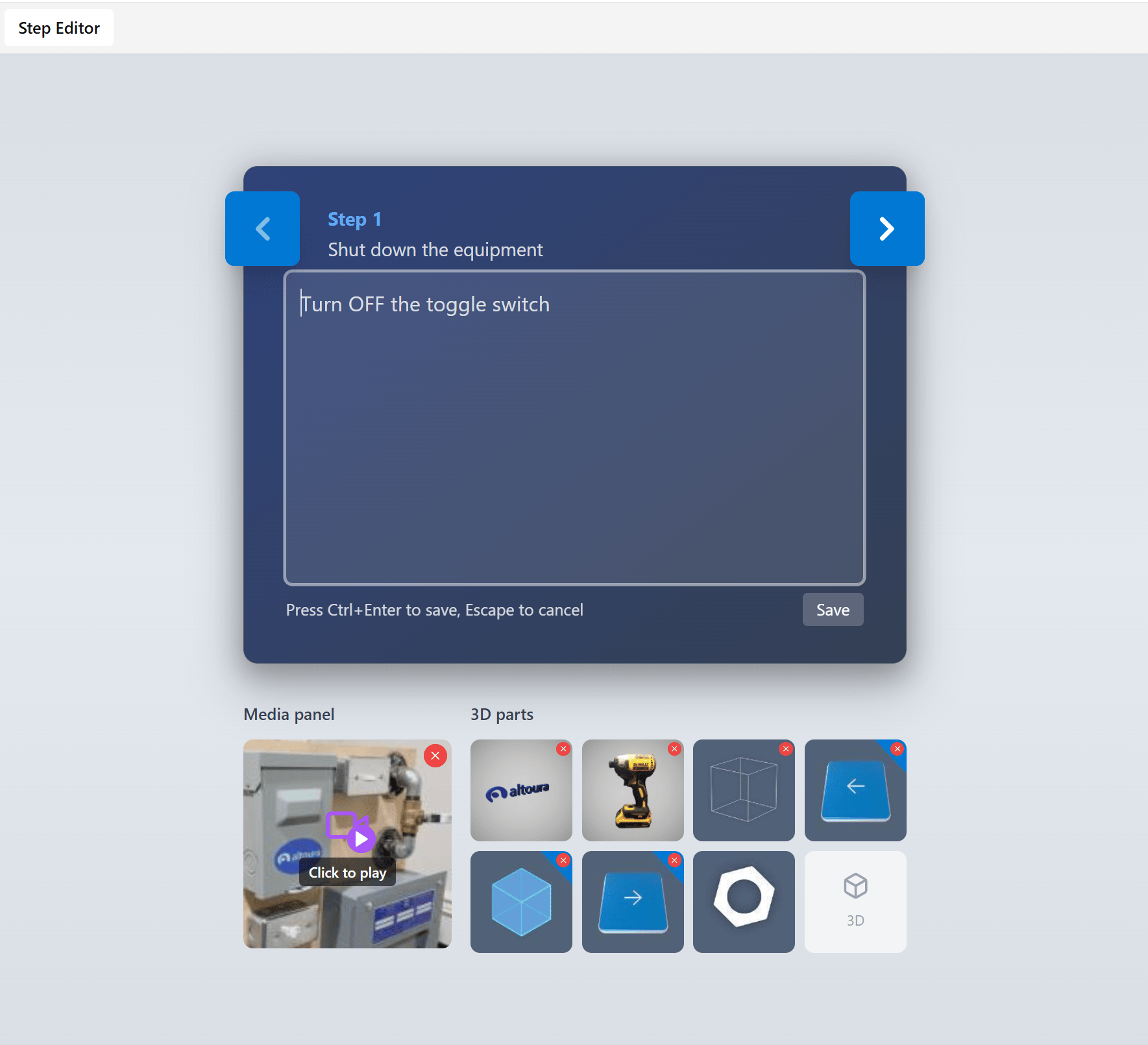
Displays the selected step. Used to author step text and view how it will appear during execution.
Assets Panel (Right)
Used to browse, upload, and manage media and 3D assets. Includes System, Custom, and Properties tabs.
Working with Tasks
Tasks group related steps together and help organize longer procedures. Each task in the Procedure Tasks panel shows:- A drag handle (six-dot icon) for reordering
- The task name
- A step count badge indicating the number of steps the task contains
- A three-dot menu for task actions
Open the Task Menu
Select the three-dot icon on the right of a task to open the task menu. The menu includes Rename Task, Add Task, Duplicate Task, and Delete Task.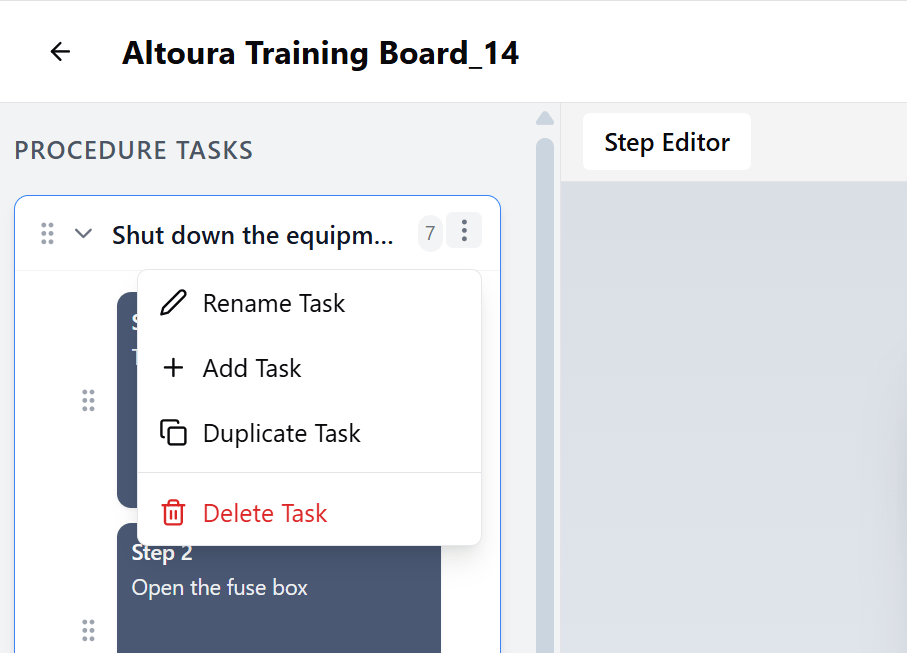
Add a Task
- Open the task menu of any existing task, or scroll to the bottom of the task list.
- Select Add Task.
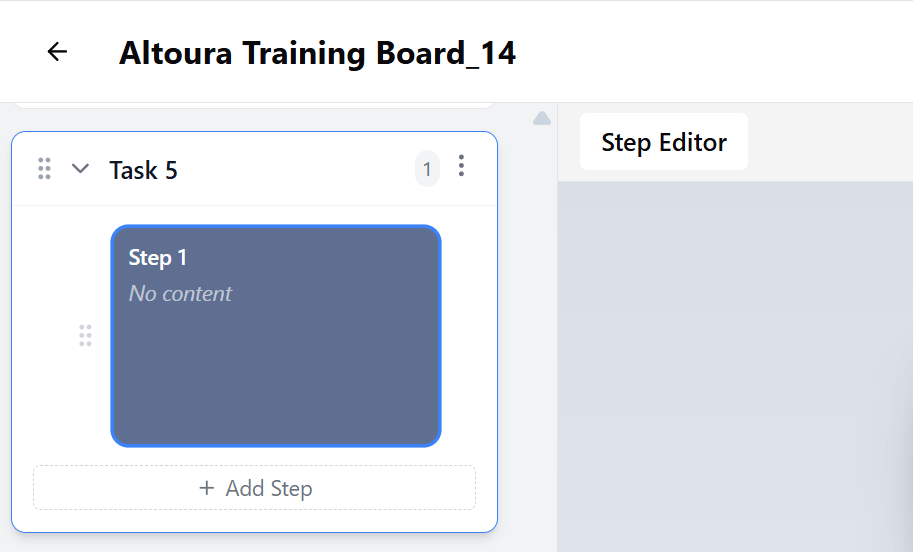
- A new empty task is created at the end of the list with a single empty step, ready for content.
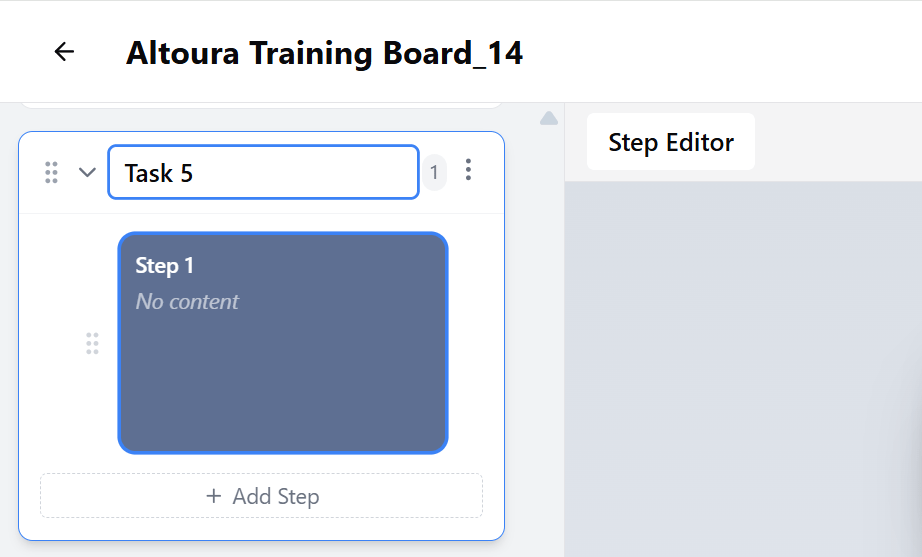
Rename a Task
- Open the task menu.
- Select Rename Task.
- Enter a new name and confirm.
Duplicate a Task
- Open the task menu.
- Select Duplicate Task.
- A copy of the task and all its steps is created and added to the list.
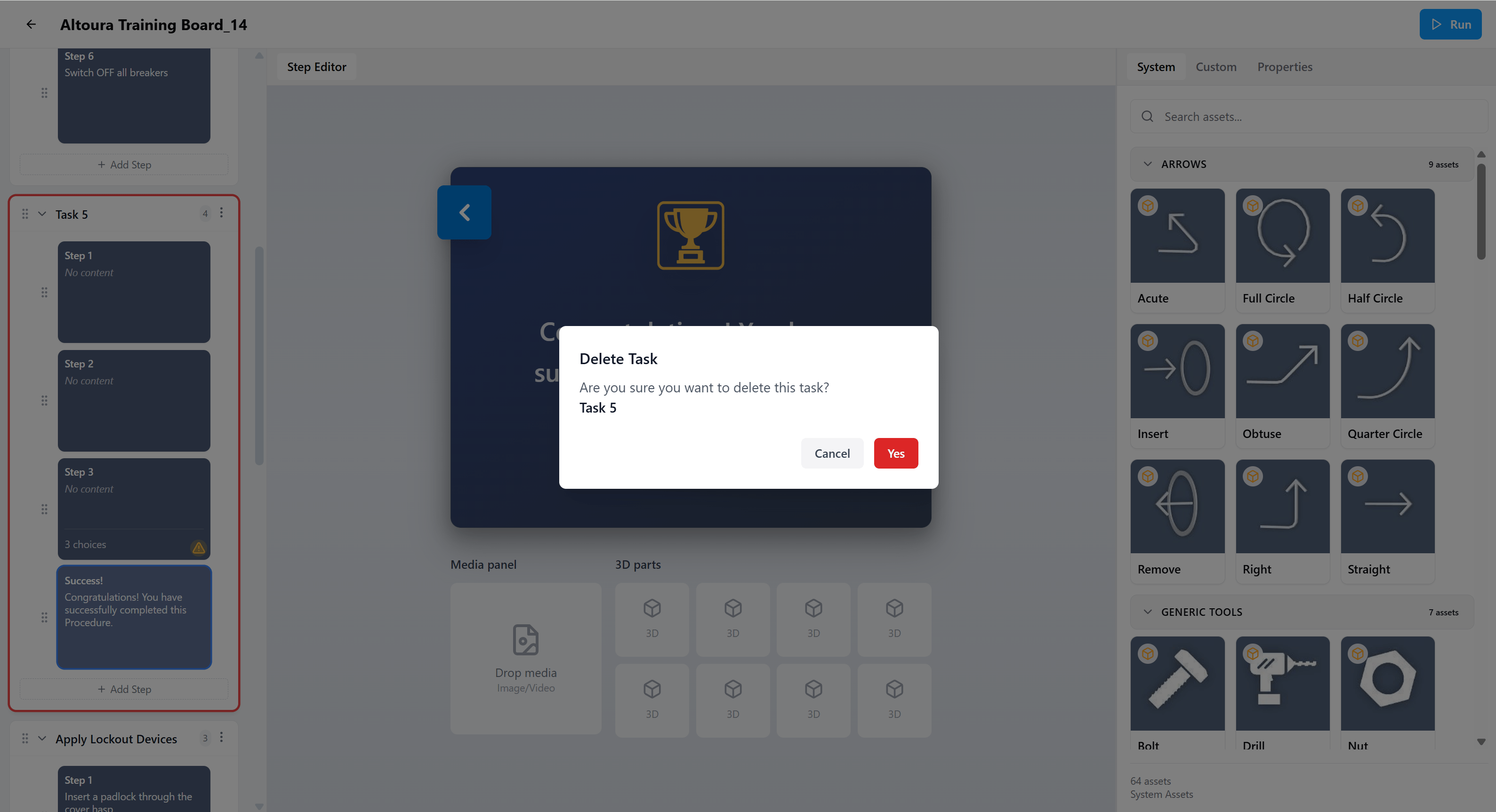
Delete a Task
- Open the task menu.
- Select Delete Task (shown in red).
- Confirm the deletion in the Delete Task dialog.
Working with Steps
Steps define the actual instructions or decisions within a task. Newly added steps show a No content placeholder until you add text.Add a Step
- Expand a task.
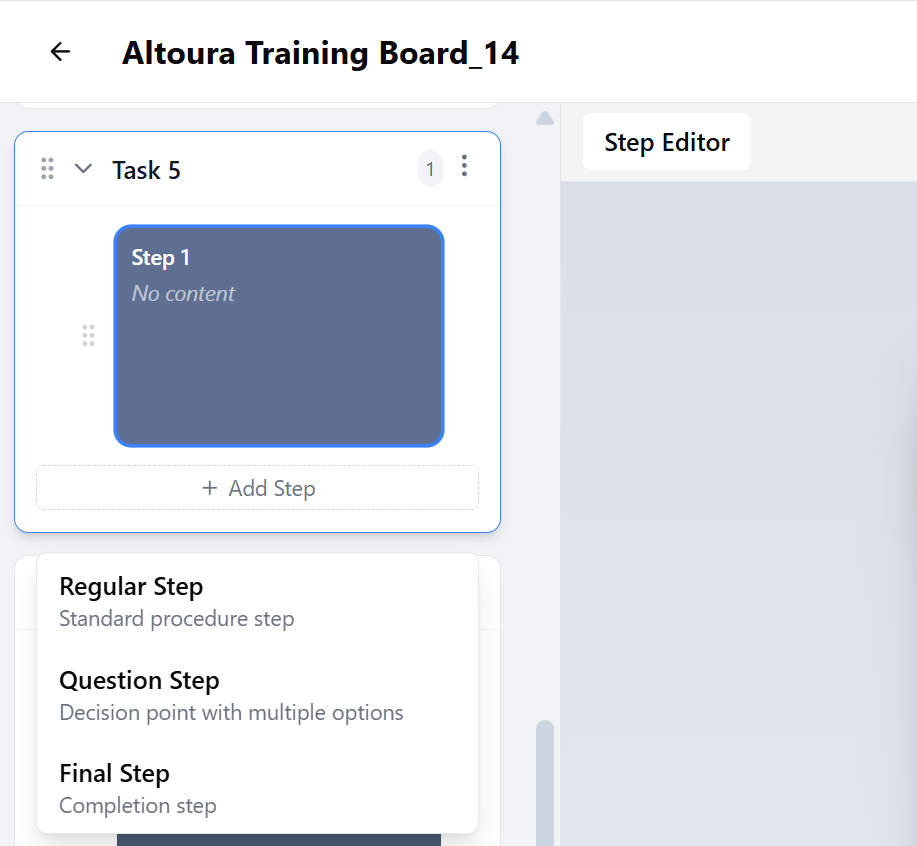
- Select + Add Step.
- Choose a step type from the dropdown:
- Regular Step: Standard procedure step
- Question Step: Decision point with multiple options
- Final Step: Completion step
Edit Step Content
- Select a step in the Procedure Tasks panel.
- Click inside the Step Editor in the center.
- Enter or update the step text.
- Press Ctrl + Enter (or select Save) to save your changes, or press Escape to cancel.
Reorder Steps
- Use the drag handle (six-dot icon) next to a step.
- Drag and drop to change the order.
Duplicate or Delete a Step
- Open the step menu.
- Choose Duplicate Step or Delete Step.
Enrich a Step with Media and 3D
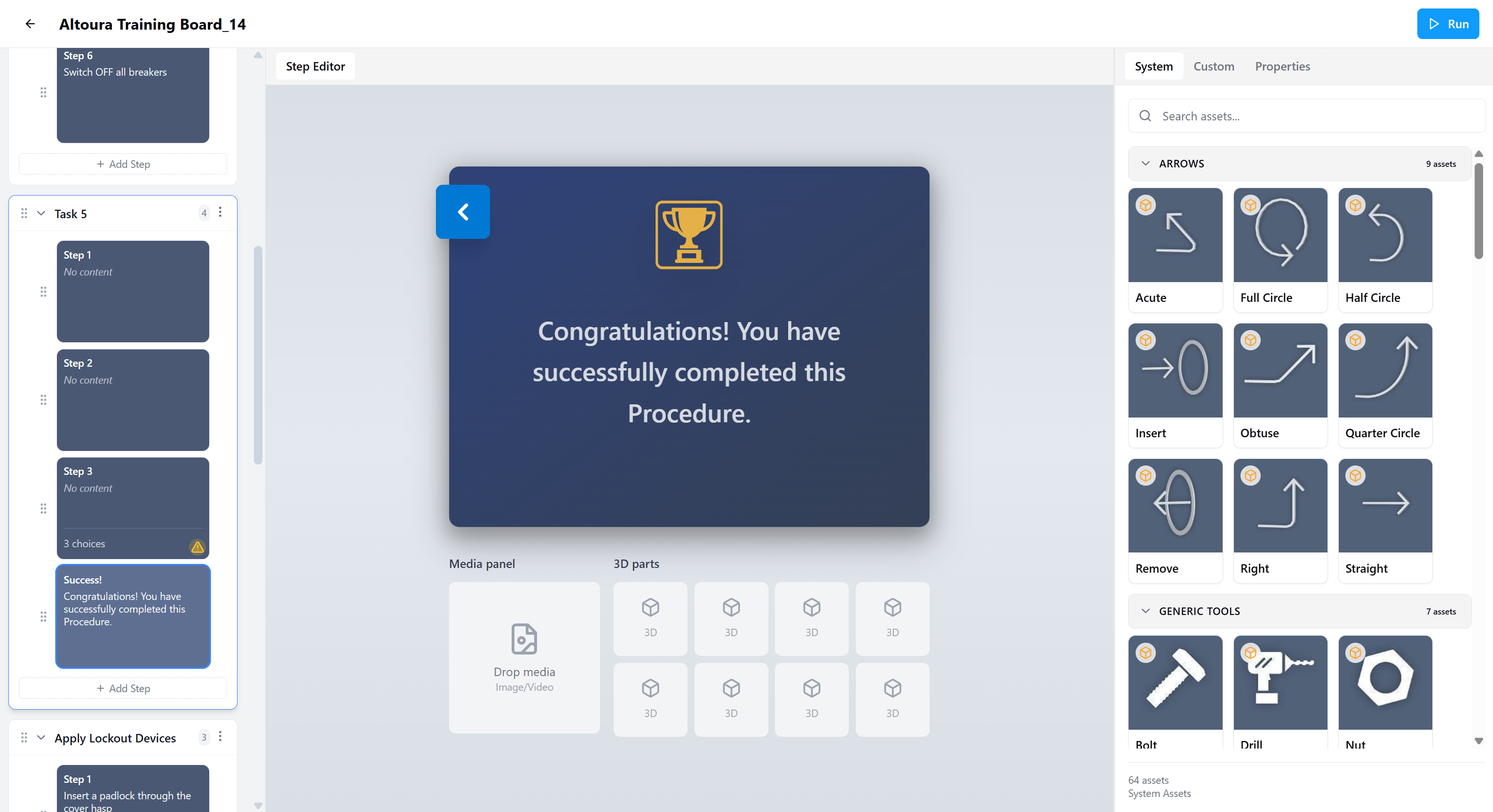
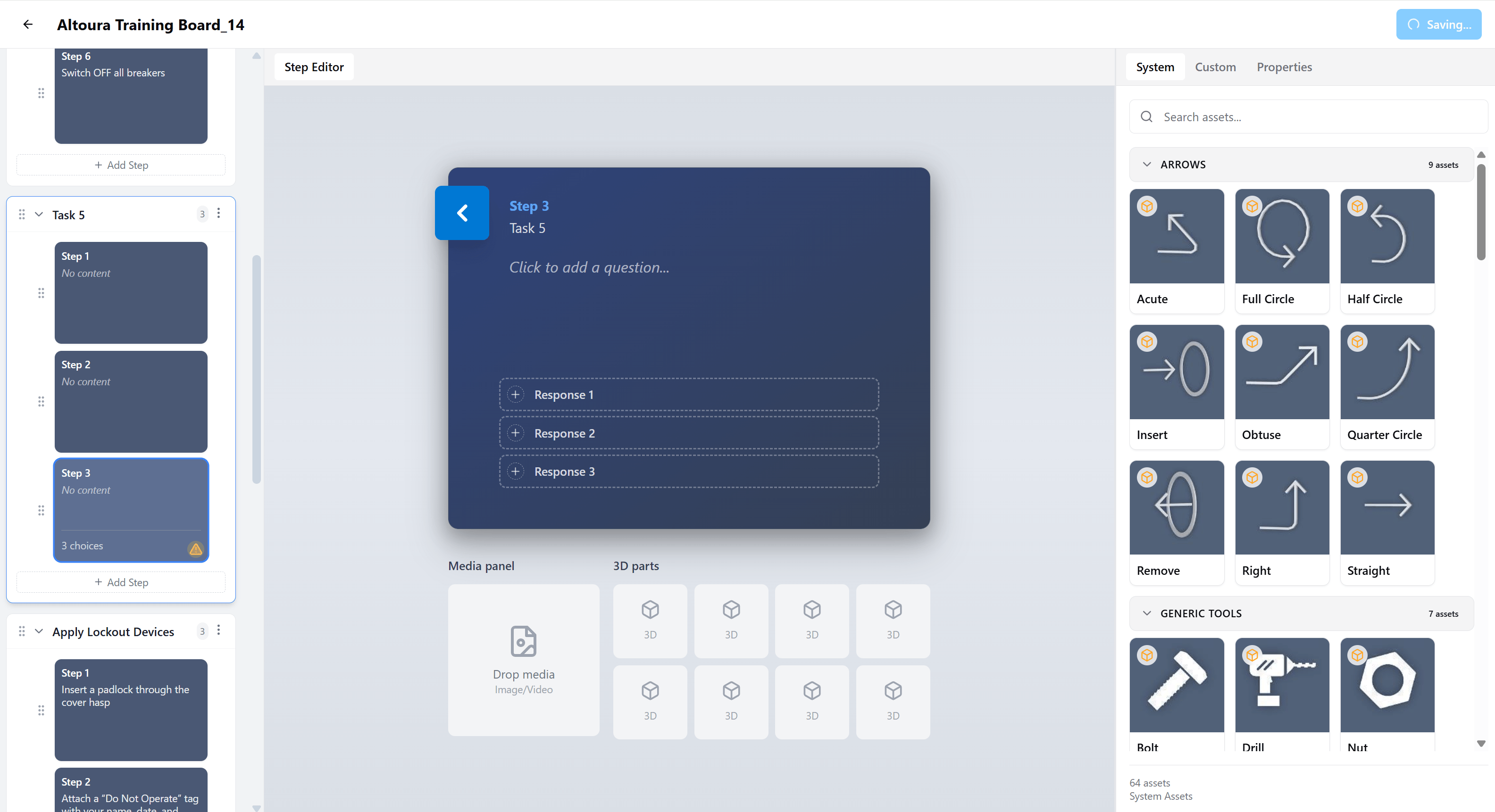
Each step can include images, video, and 3D parts. These appear inside the Step Editor and are also visible during execution in Run Mode. The Media panel (bottom-left of the Step Editor) shows images or video attached to the current step. The 3D parts grid next to it shows 3D assets attached to the step.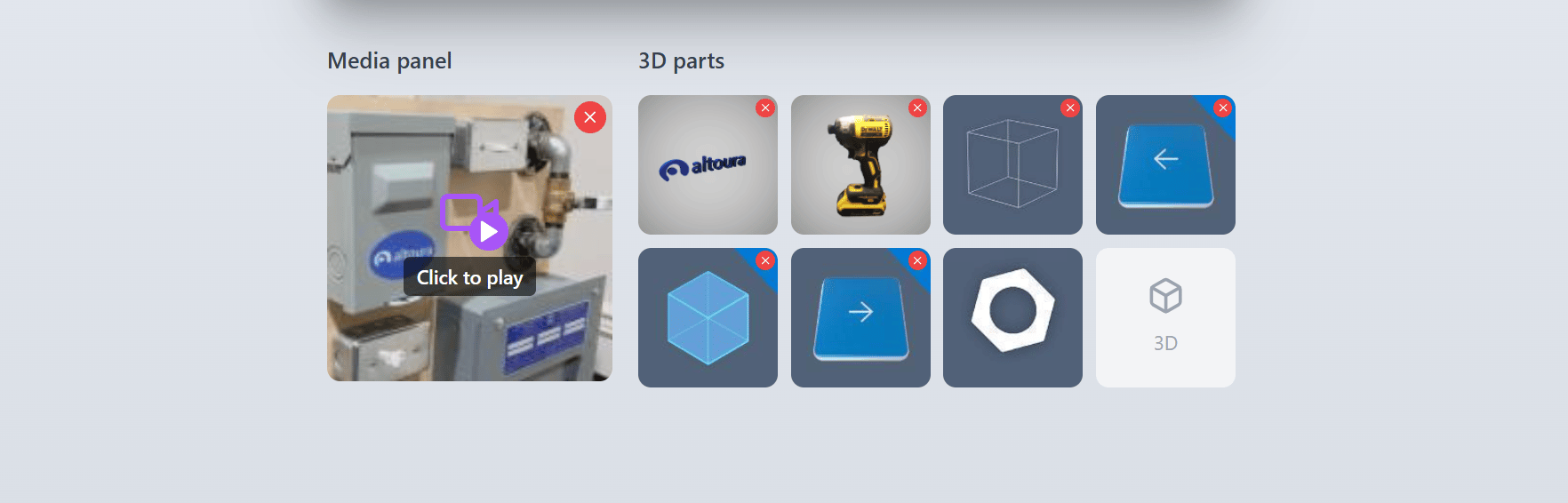
- System: Built-in assets (Arrows, Generic Tools, and other categories)
- Custom: Assets uploaded for your organization
- Properties: Properties of the currently selected step or element
Step Types
Regular Step
Used for standard, linear instructions. Use when:- The workflow follows a fixed sequence
- No decision is required
Question Step (Choice Step)
Used to create decision points in a procedure. A Question Step includes:- A question or prompt
- Multiple response options
- A destination step for each response
Configure Question Steps
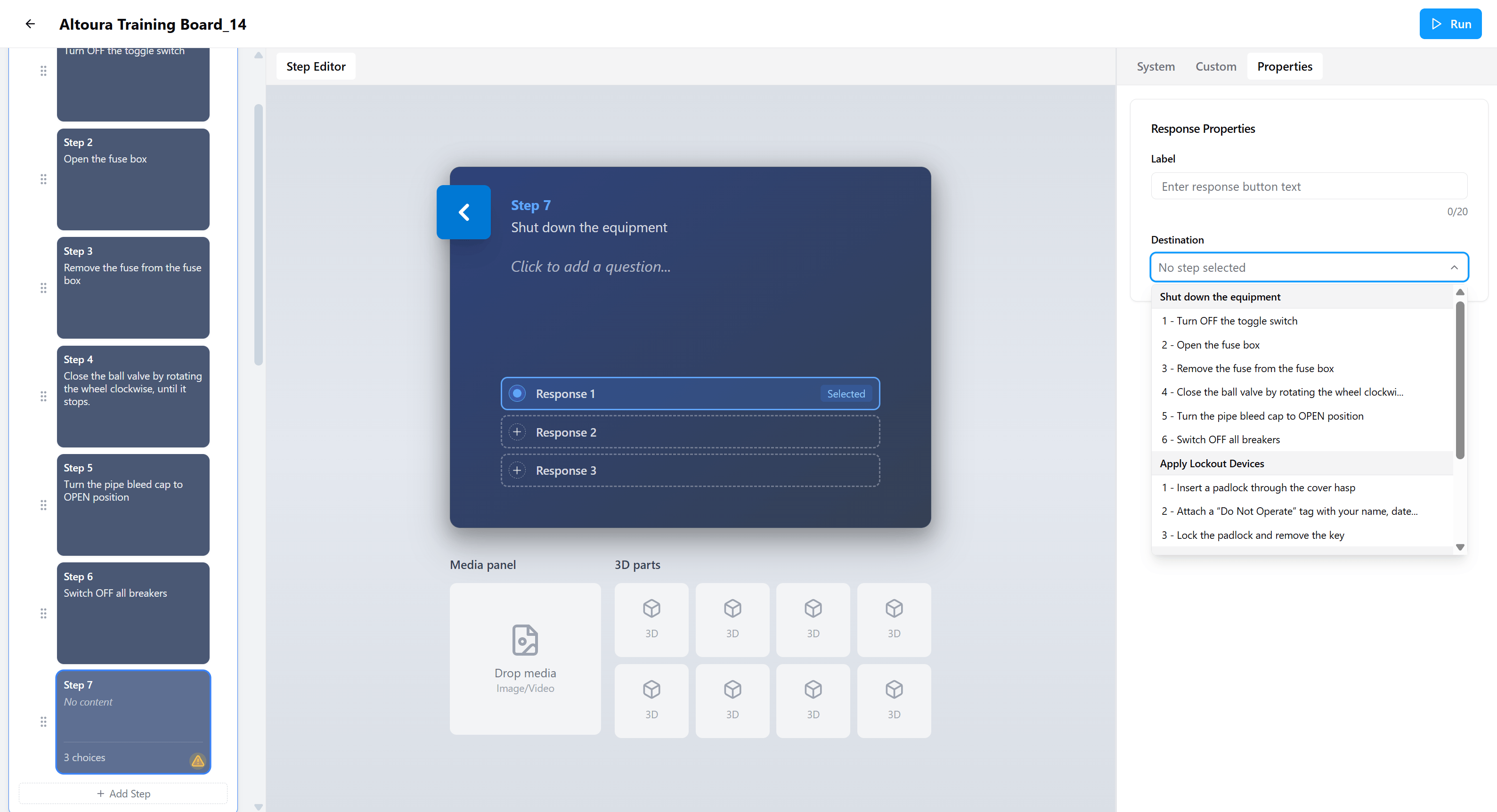
For each response option:- Select the response in the Step Editor.
- In the Response Properties panel on the right, enter a Label (what the user sees, up to 20 characters).
- Open the Destination dropdown and select the step the response should route to. Destinations are grouped by task to make navigation easier.
- Review the routing in the Target Step Preview.
Final Step
Used to mark the completion of a procedure. A Final Step displays a success message to the user when reached. Use when:- The procedure ends
- You want to show a success or completion message