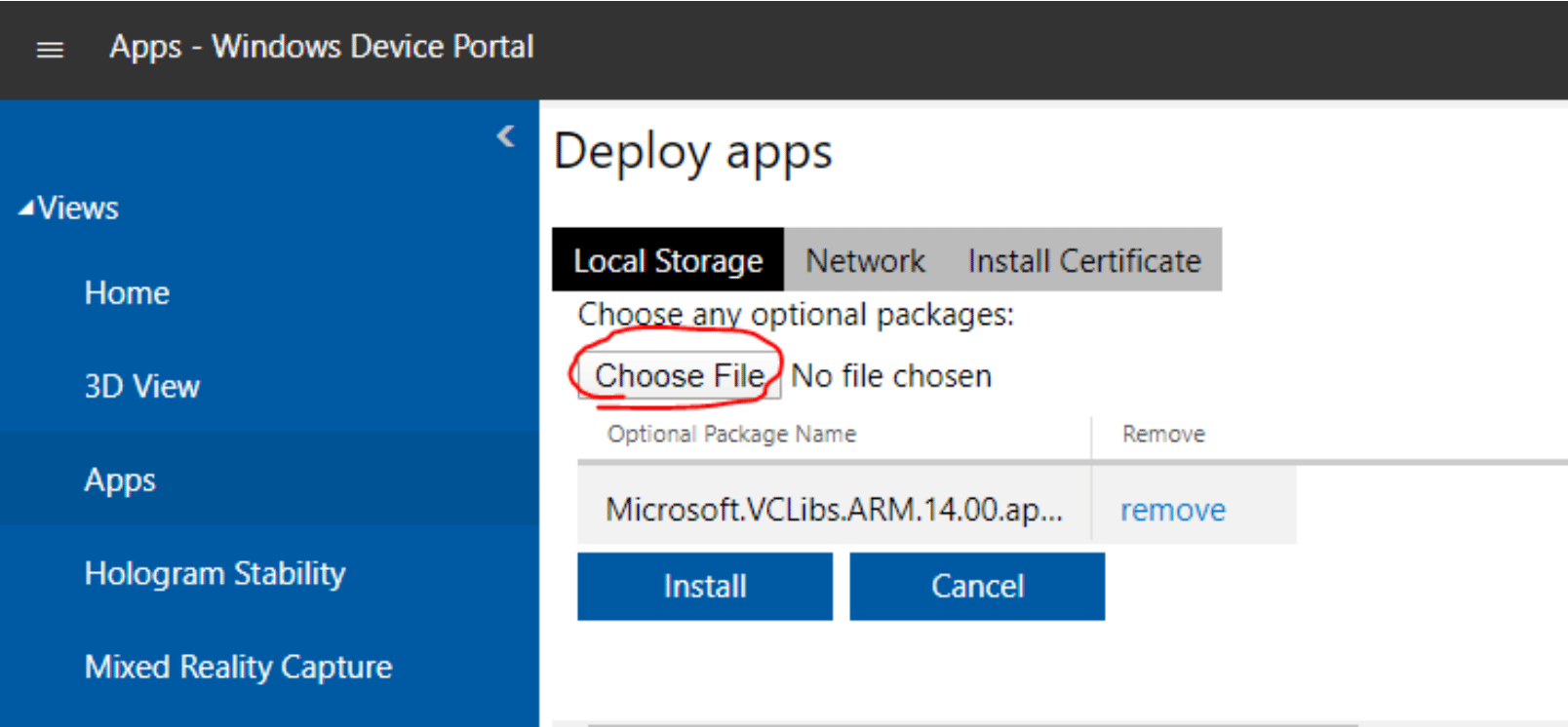
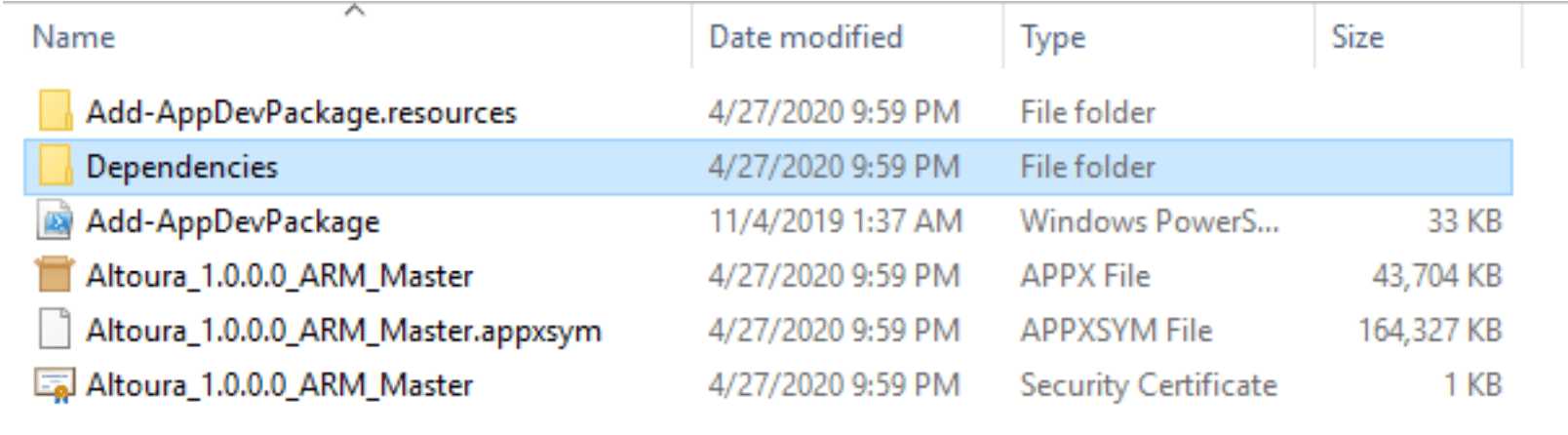
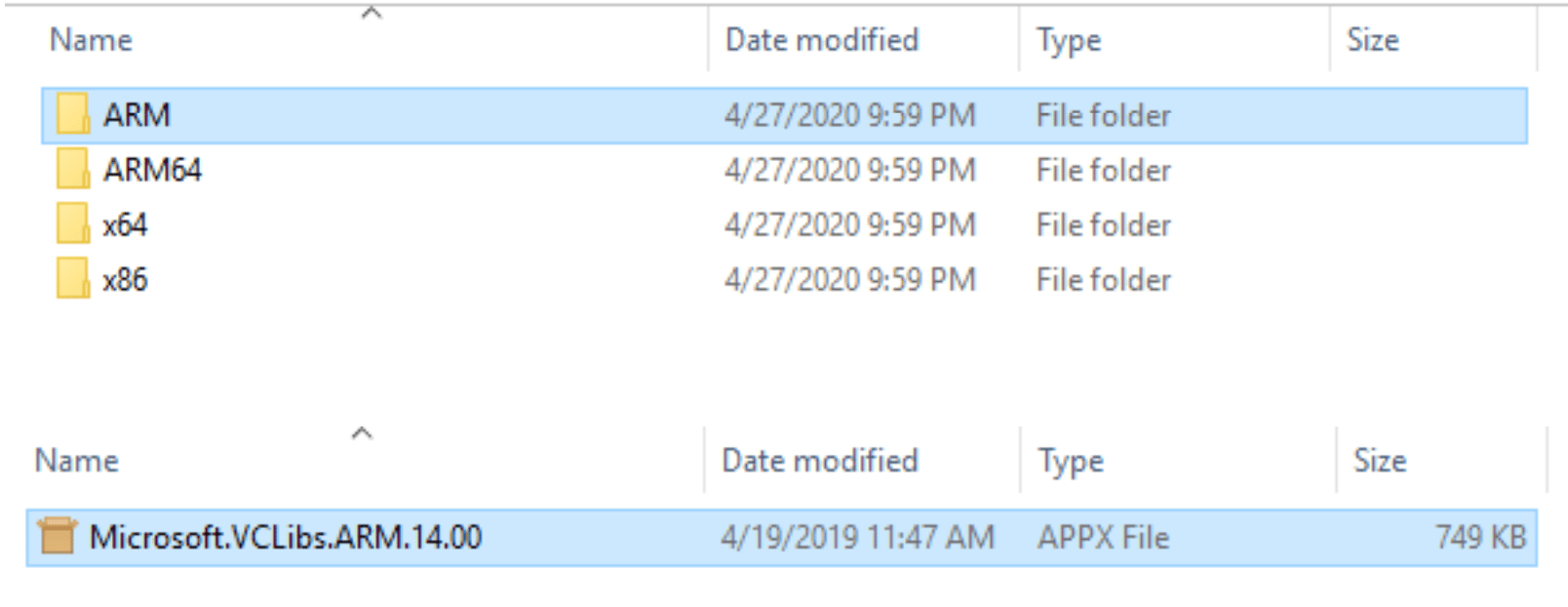
New Device Set-Up
Follow the device set-up instructions provided by Microsoft. Set up the device with the ‘I Own It’ selection and do not use a personal email. The email needs to be a registered Microsoft email (sign up here). If your company does not have a alias email that multiple people receive (ex: [email protected]), please create a free one.Enable Developer Mode
Here are the instructions provided by Microsoft and by screen instructions below. Start with the HoloLens on, Wifi and computer access.HoloLens - How to find your IP Address
- Starting with the HoloLens on, make sure you’re connected to WiFi
- Find headset IP address by accessing settings.
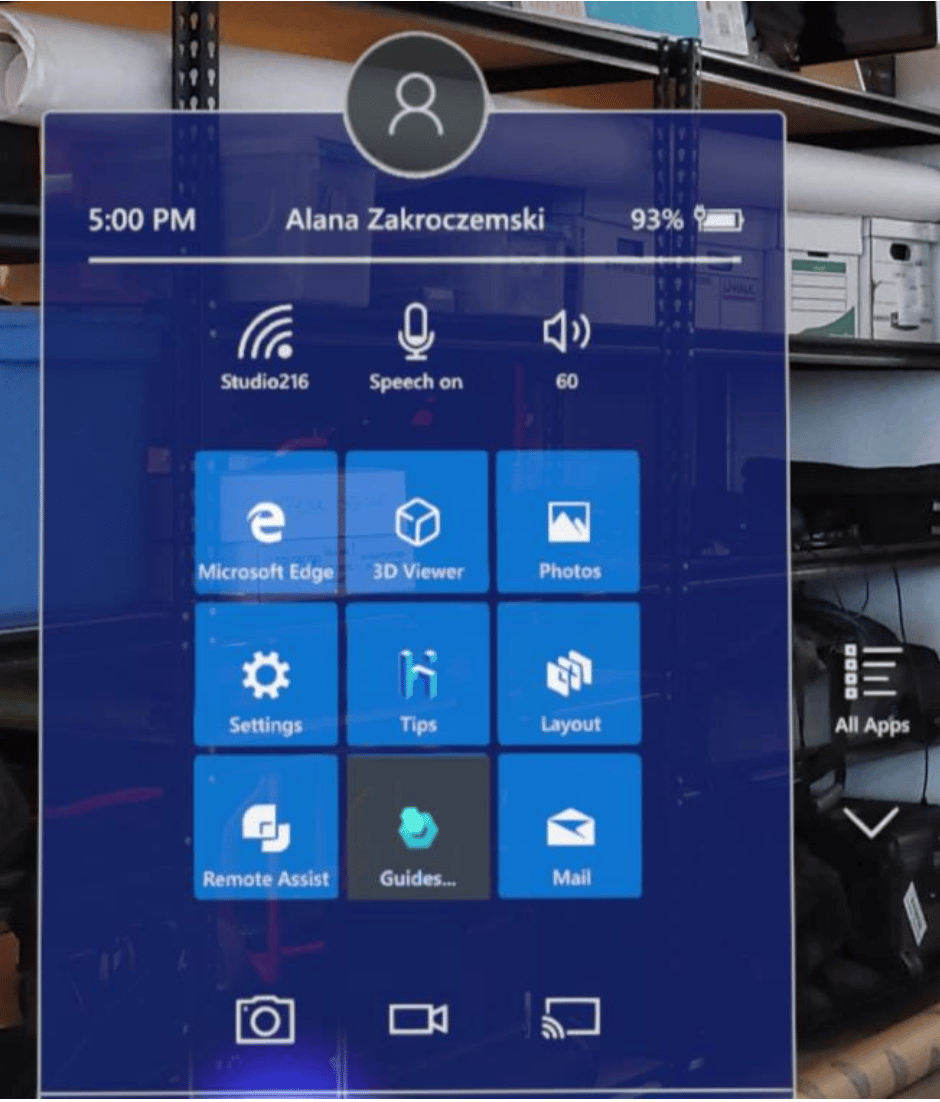
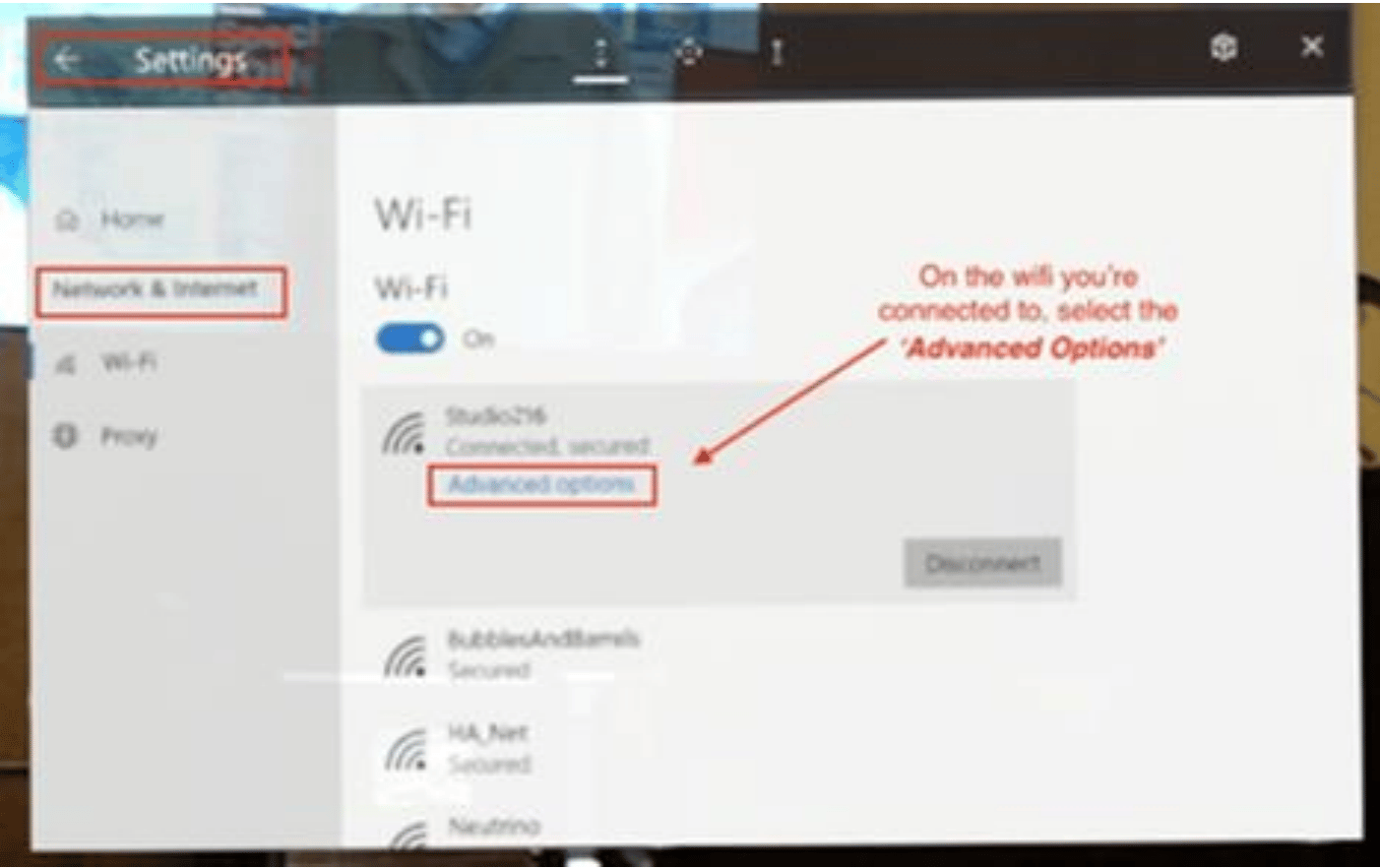
Settings > Networking & Internet
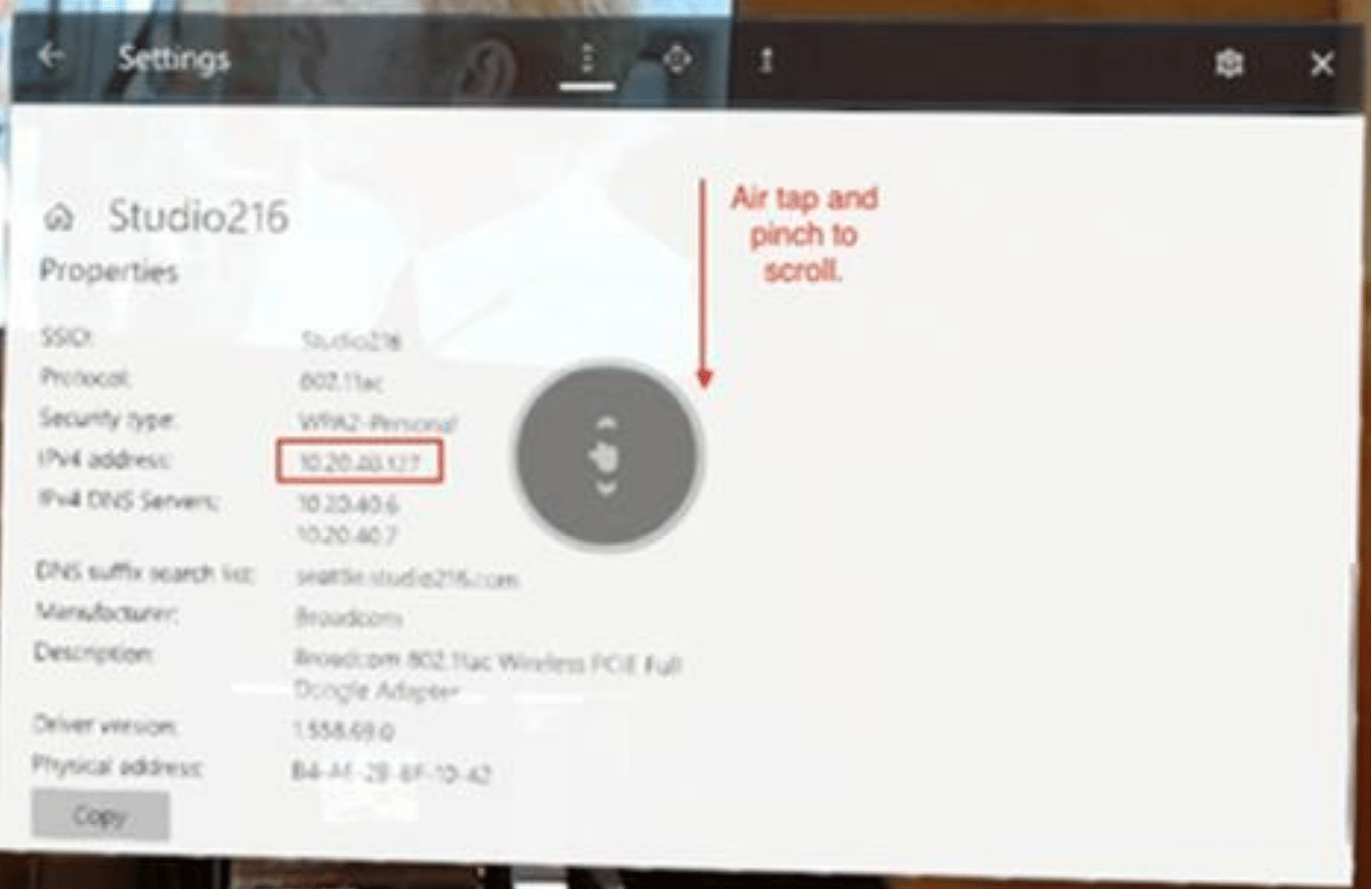
- Select Wifi connected to, then select Advanced Options. Scroll down to see IP address.
Developer Mode
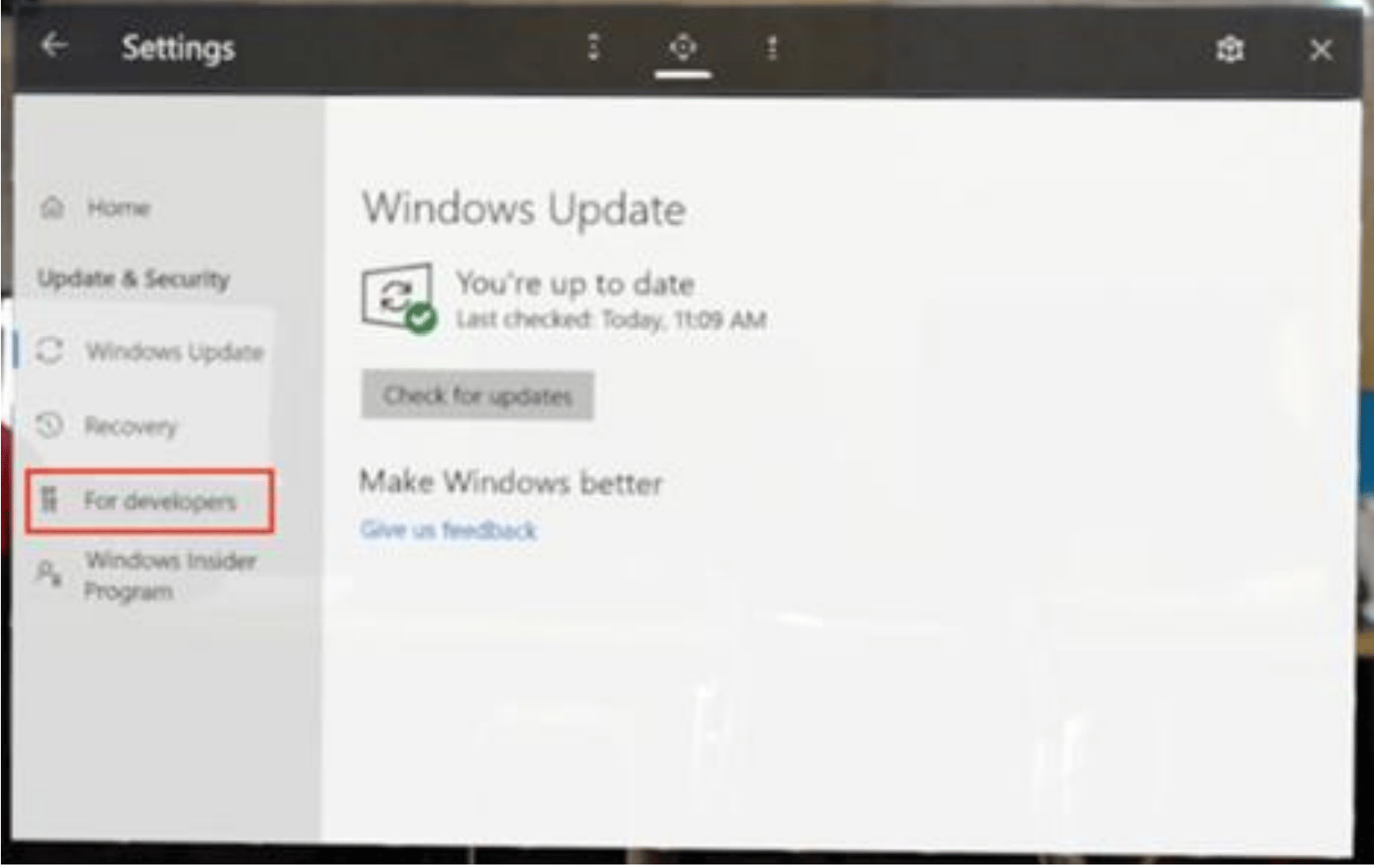
On the main menu, select Settings > Updated & Security > For Developers.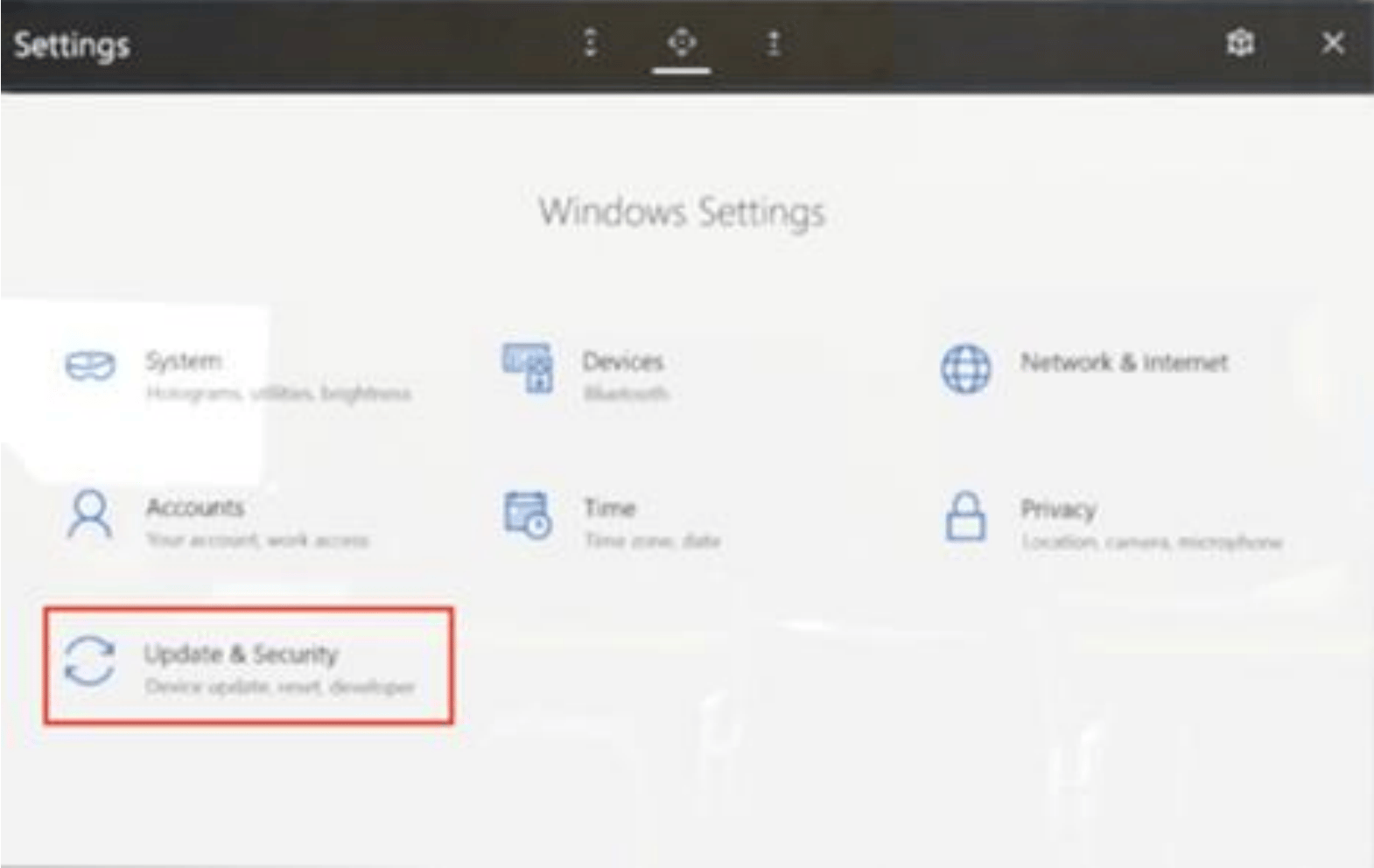
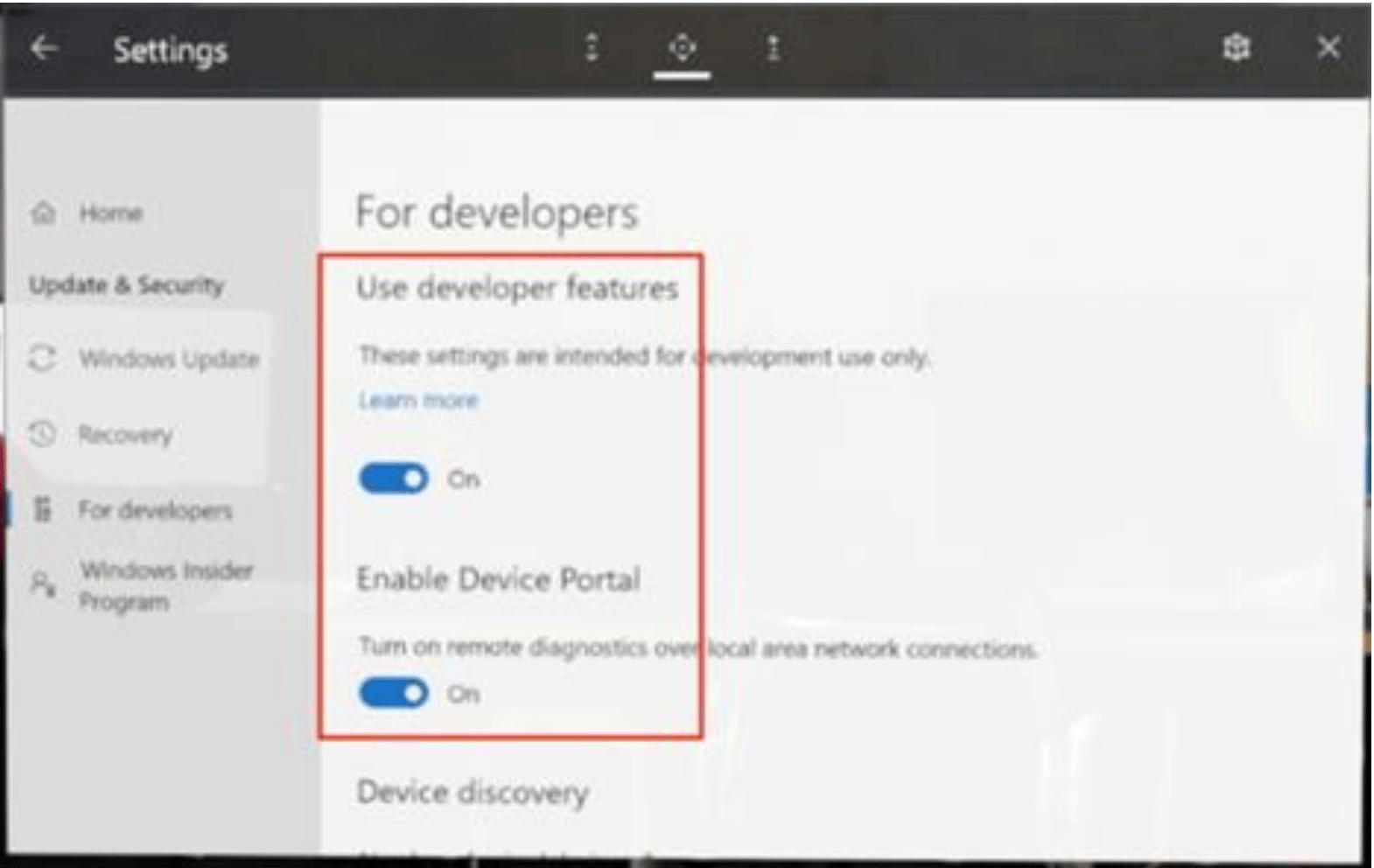
Access the Device Portal (Hololens 2)
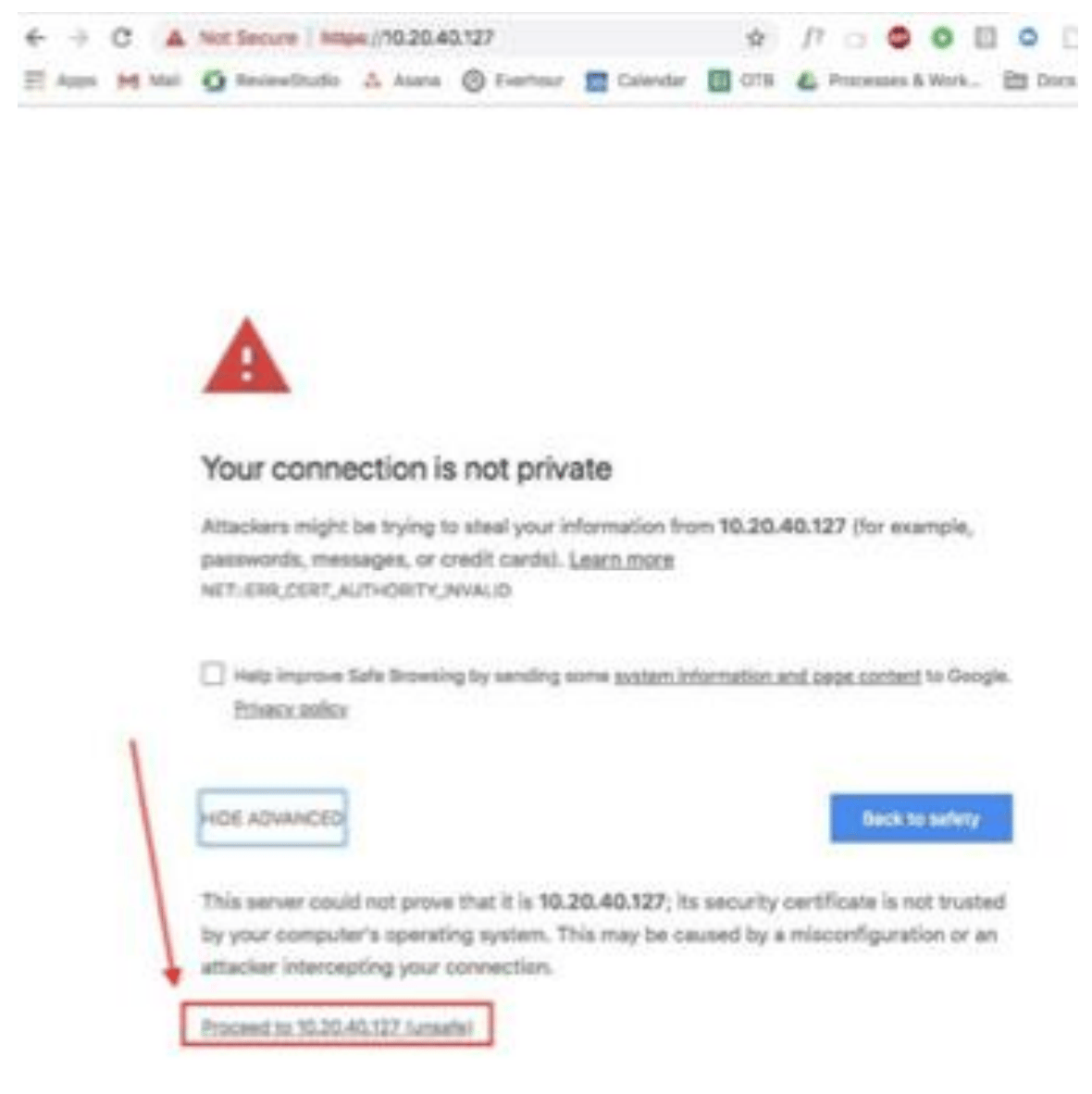
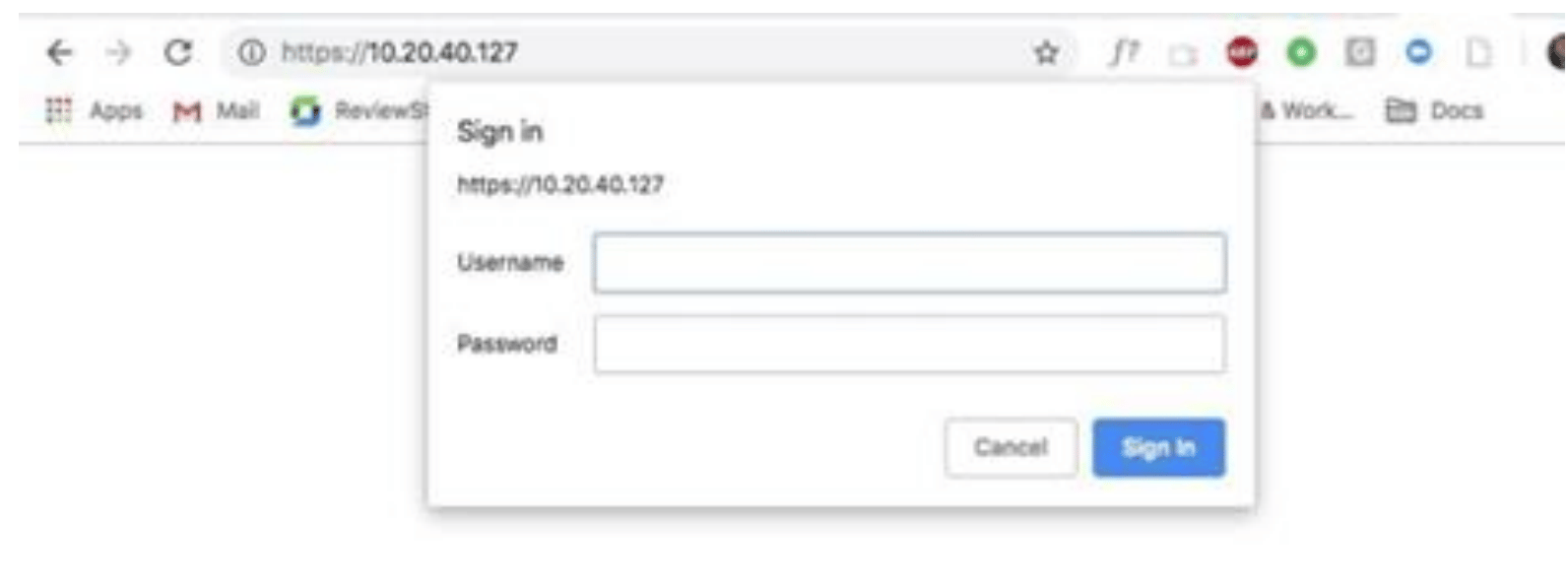
• Open a web page and type in: https://<YOUR_HOLOLENS_IP_ADDRESS> • Example from the screenshots above: https://10.20.40.127 • The webpage will prompt you that it’s ‘unsafe’, proceed through and create a username and password.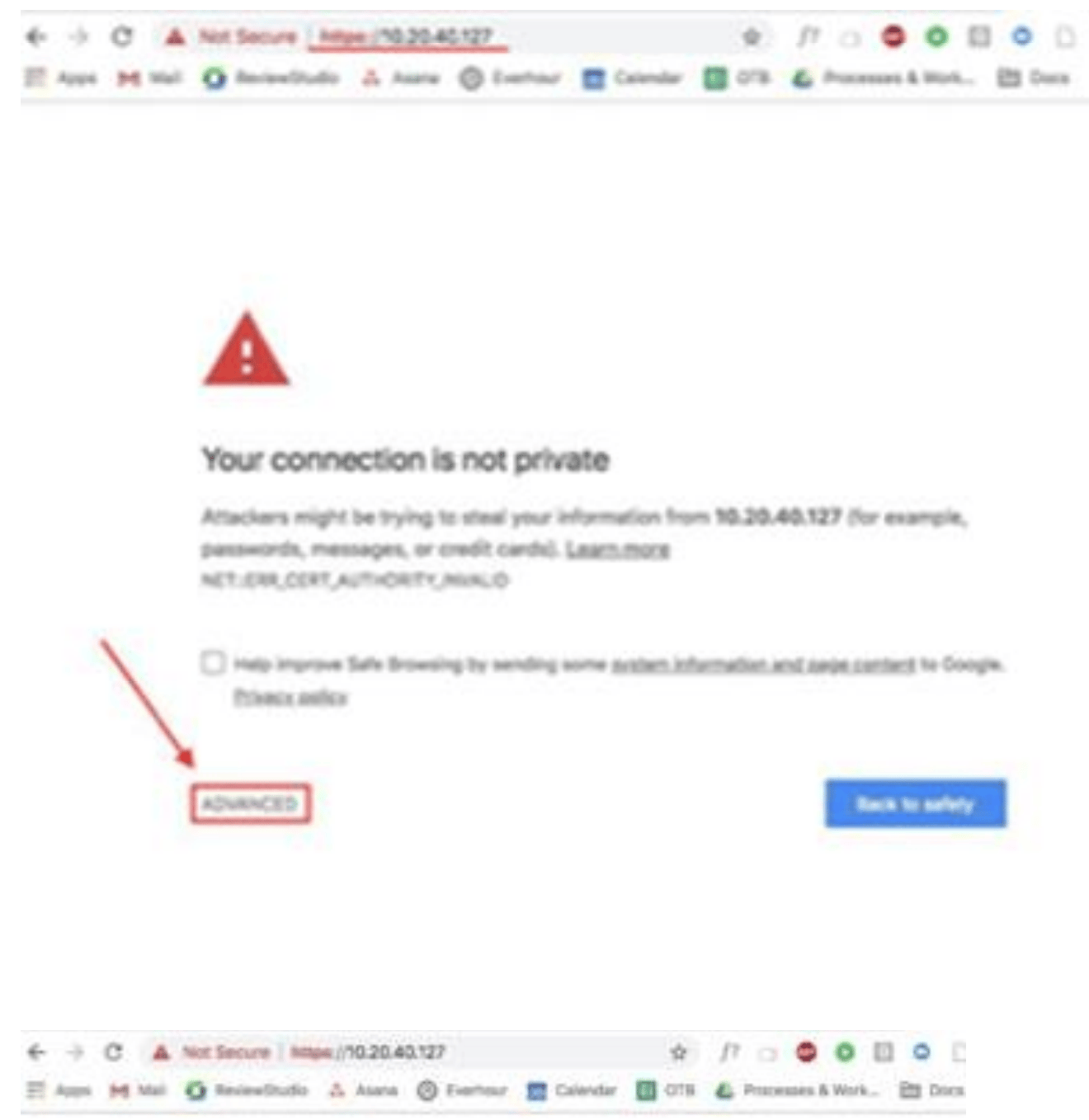
Hololens 2 Installation
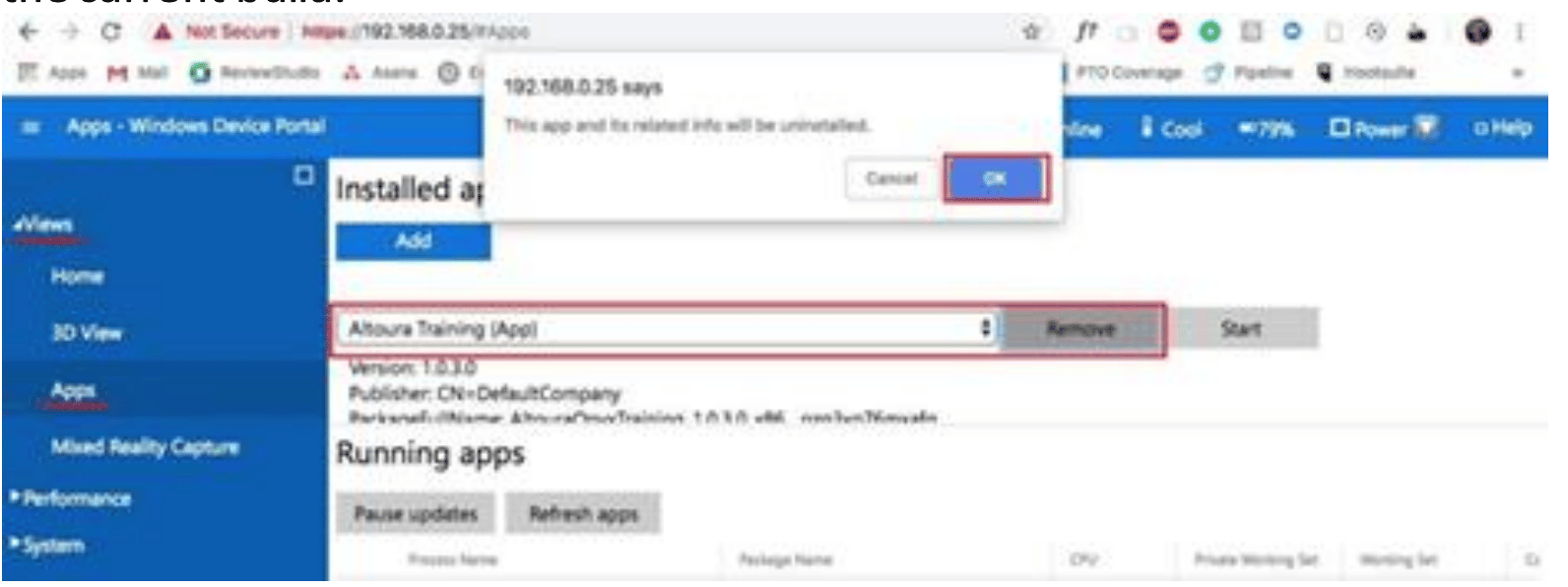
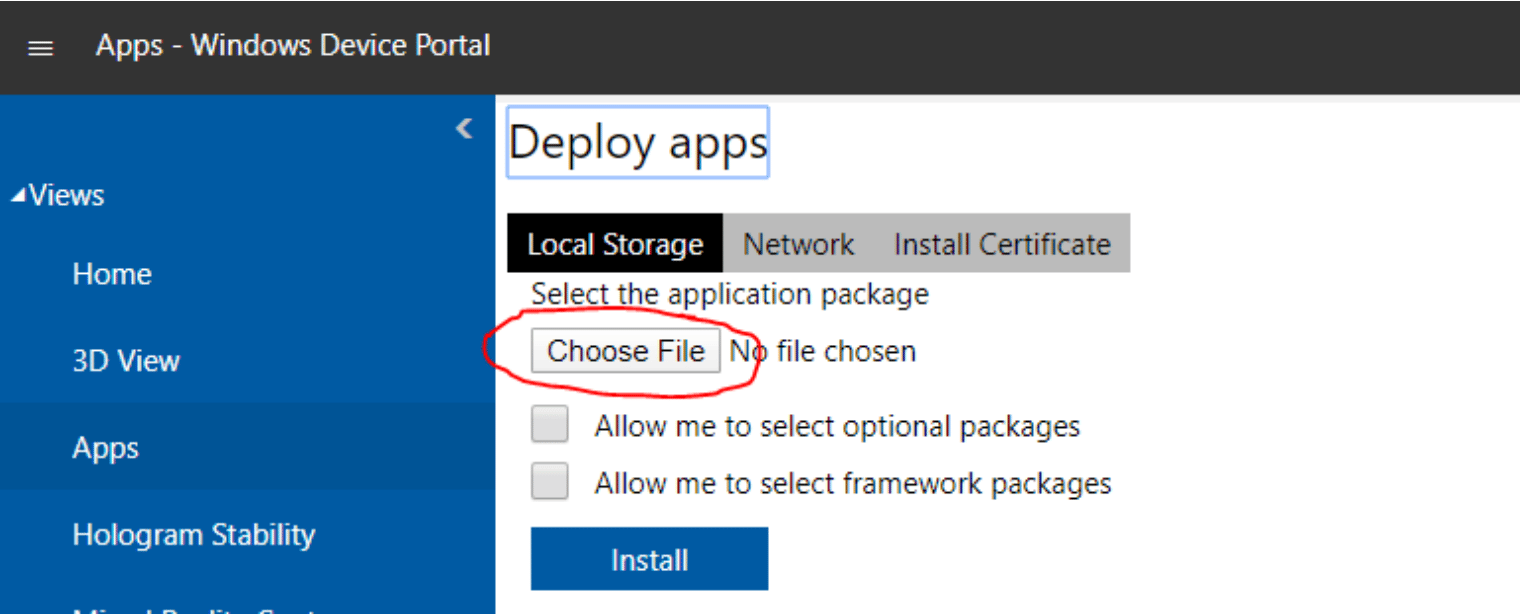
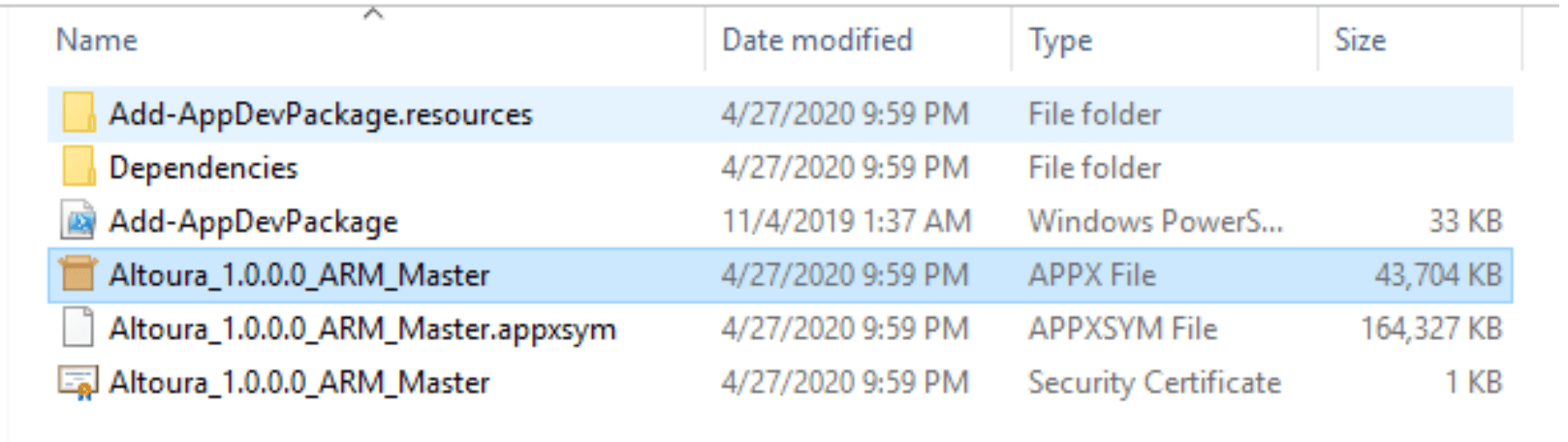
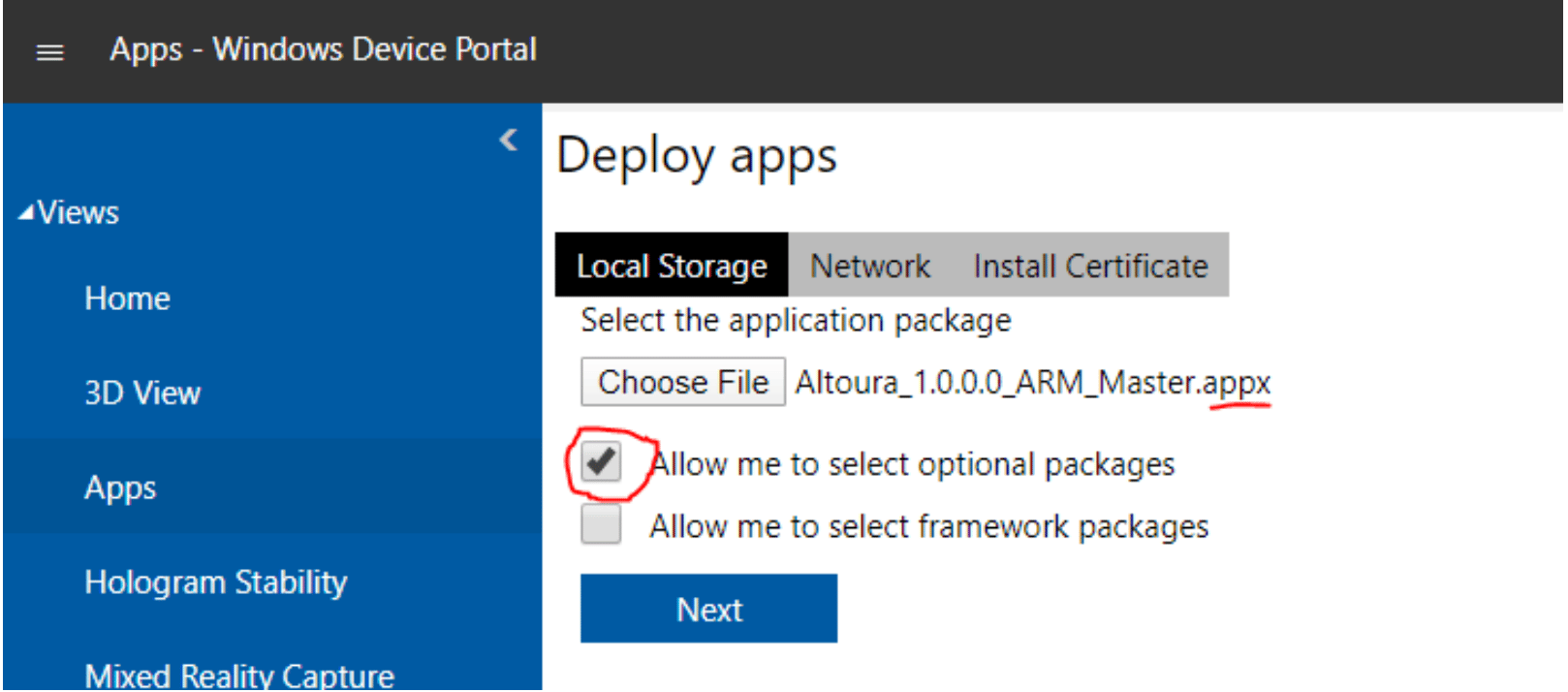
This step will not be needed once the Altoura app is available on the HoloLens Store. Make sure you begin the install with a computer / laptop, with the web portal opened and the HoloLens headset turned on. • If the Altoura app is already installed on your device, make sure to uninstall it prior to installing the current build.