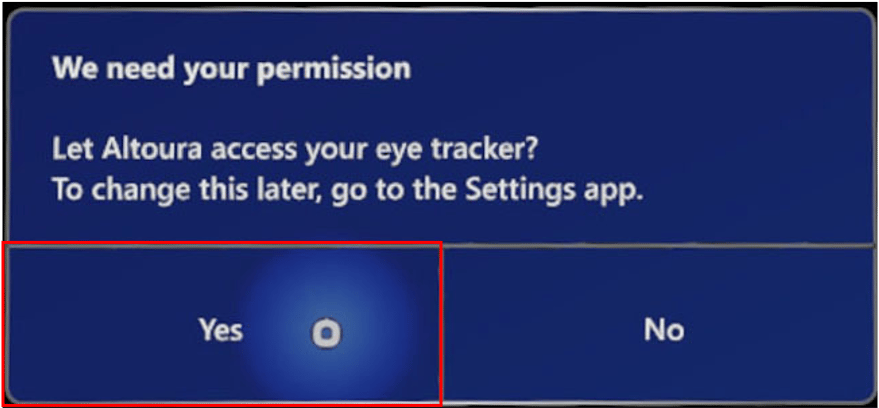
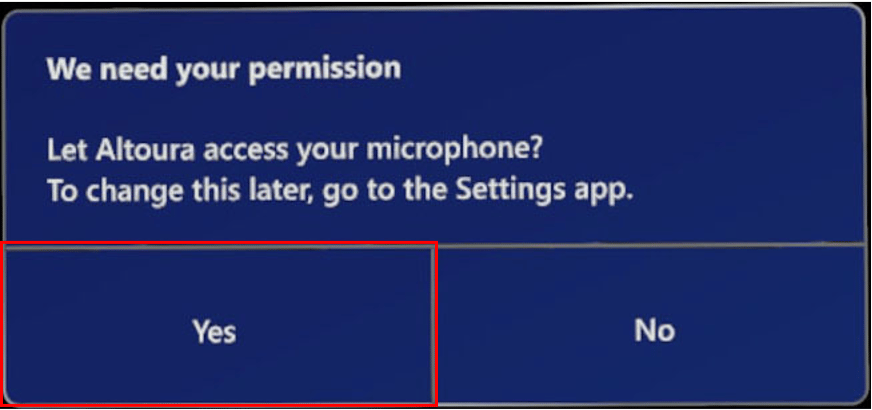
Granting Permission
Logging In
There are three ways you can login to Altoura on the HL device.- Login with Email This method uses your Altoura or company email and password for verification.
- Pair Device This method uses the Altoura app on your mobile or Desktop device to log you in.
- Device Login This method uses the credentials you’ve logged in to your HoloLens device with. Make sure you have logged into your device through SSO at least once to see this option show up on the login menu.
Altoura Toolbox
Make an A with your fingers to bring up the Altoura Menu.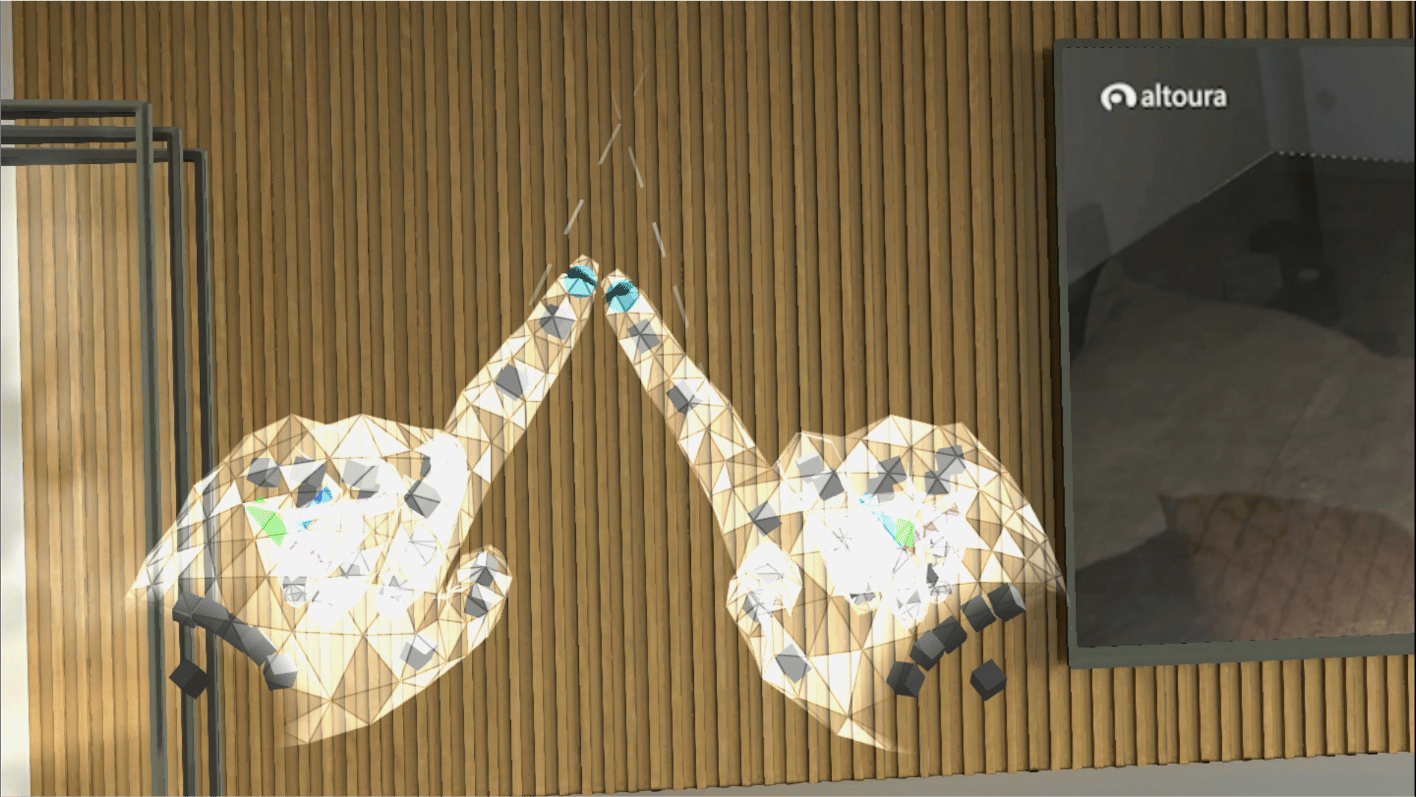
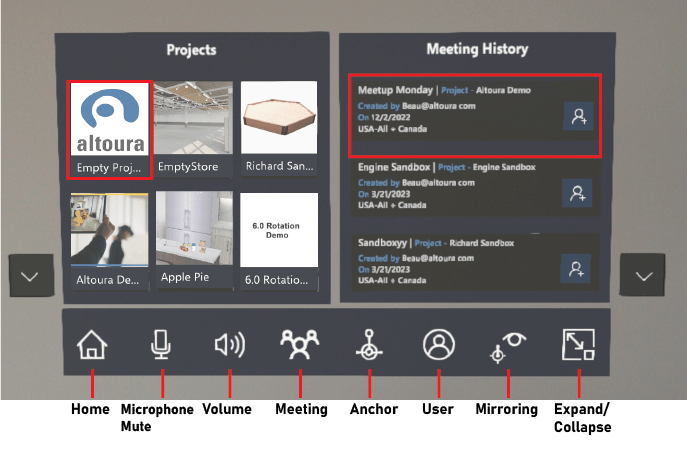
Closing Altoura
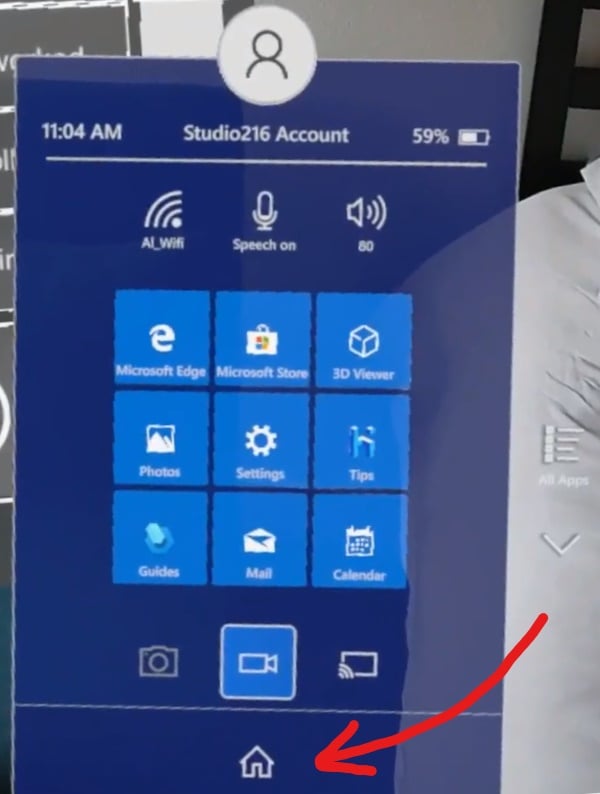
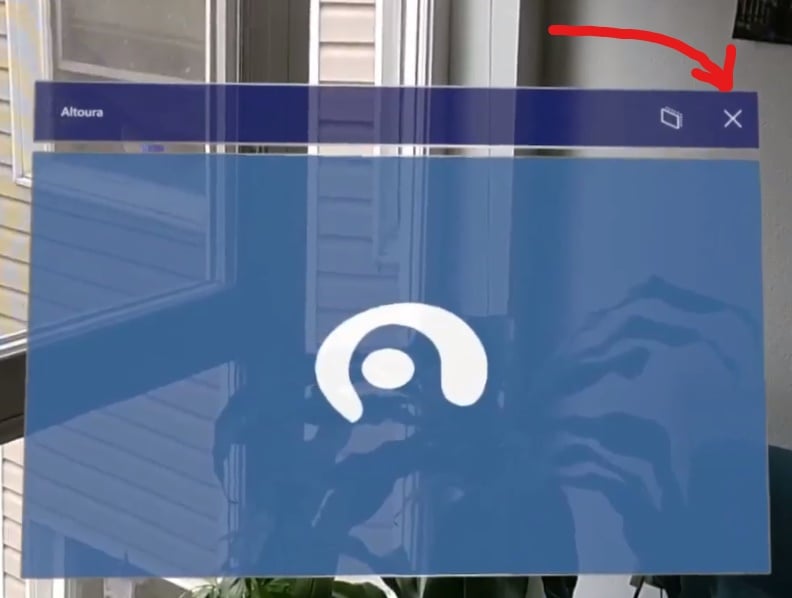
When you’re done using the Altoura on the HoloLens, make sure you close out the app. To do this, bring up the HoloLens shell button by tapping your wrist and press the home icon at the bottom. This will take you out of the Altoura app and back to the HoloLens home environment.