Adding a Node or Connector
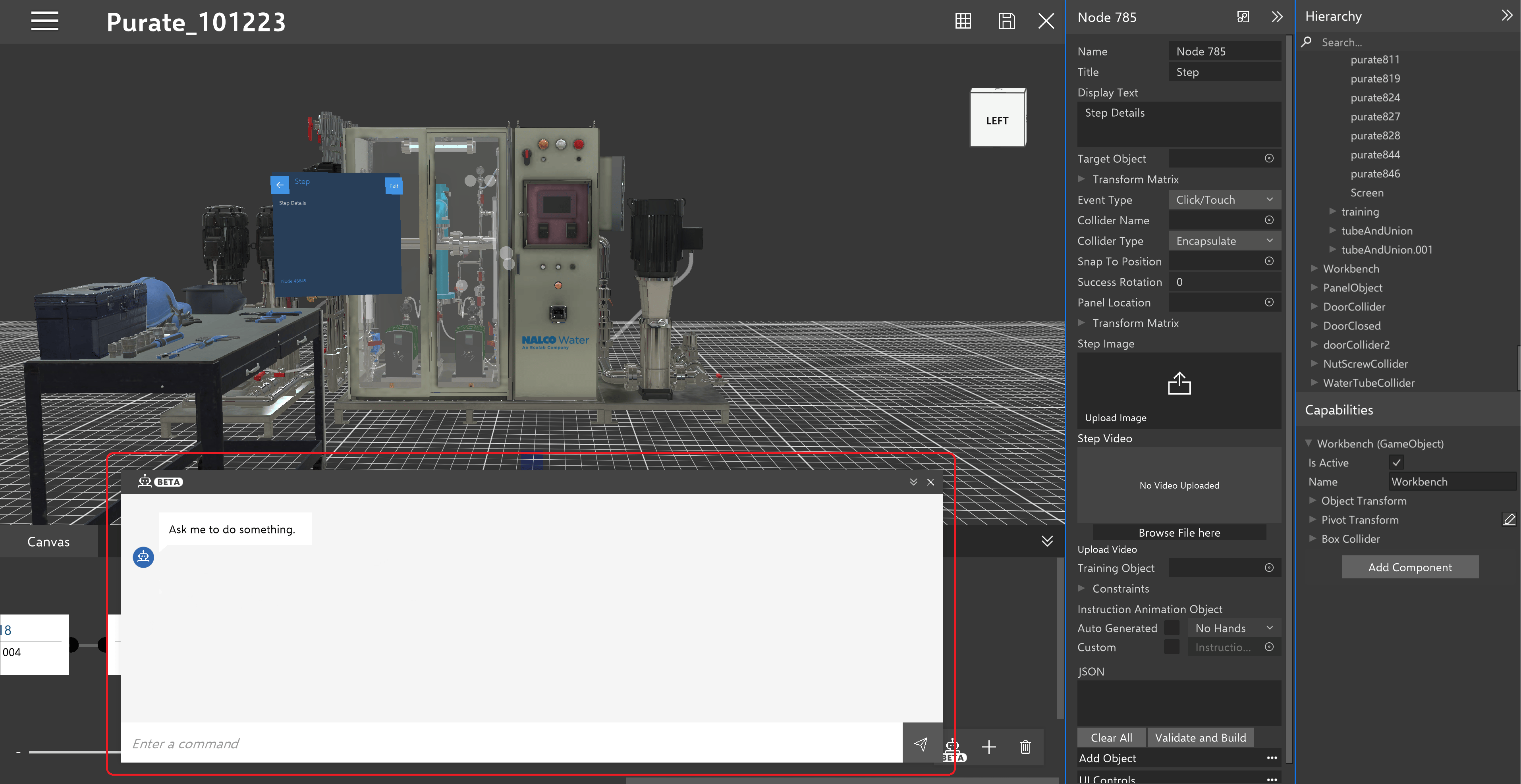
If you want to communicate with the bot to add a node or connector to your Experience, click the bot icon in the bottom left corner of the Experience Canvas.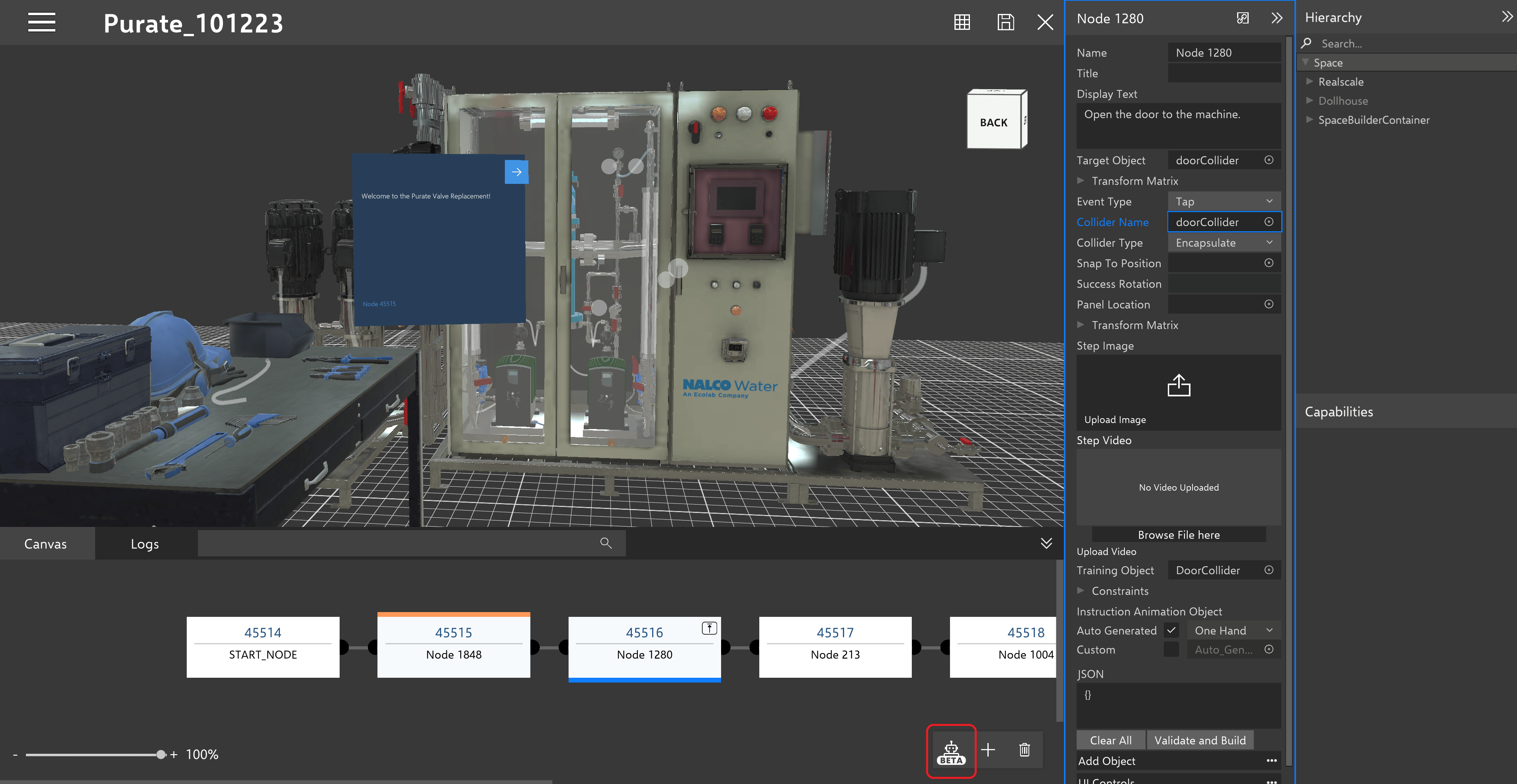
Language Examples
Here are some examples of language that the bot is likely to understand.
In the nature of AI, there is likely to be some variability even between the same commands given at two different times. After a command is processed, the bot will create a preview in the Experience based on what it understands and ask for specific references to be filled based on what it could not understand.
Reference Matching
When a command is given to the bot, and it has parsed all the different references needed from the space to create the node, it will first check to see if these references are in the space. For example, in the screenshot below, the user entered the command: “Create a step to tap the workbench.”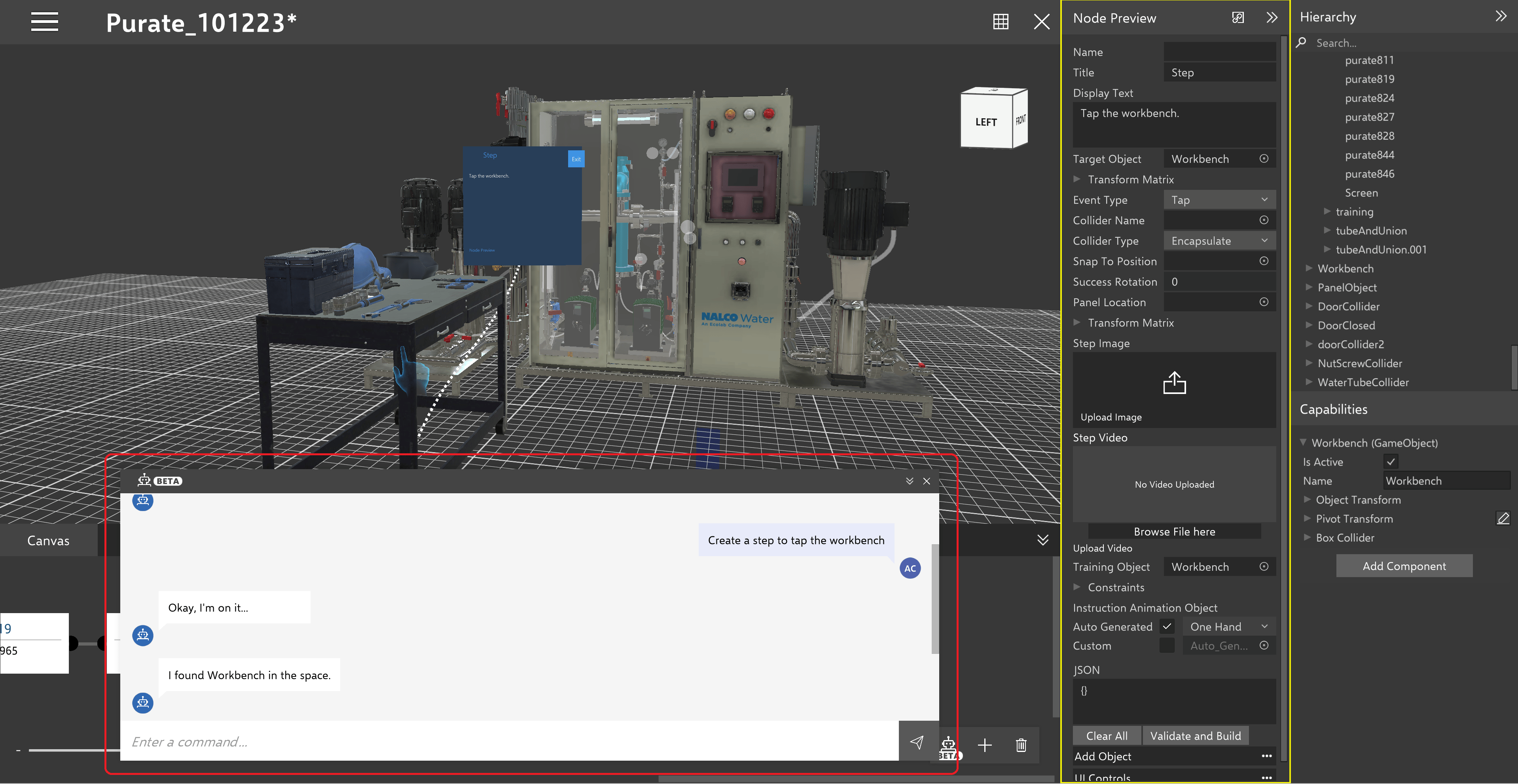
Reference Resolution
If there is something in the command that the bot is not able to find in the space, or was a term mentioned and resolved previously in the current space, or if the bot was not able to confidently assume a comparable term in the space, it will ask for help in resolving this. When a term needs to be resolve, the bot will ask for clarity like in the screenshot below.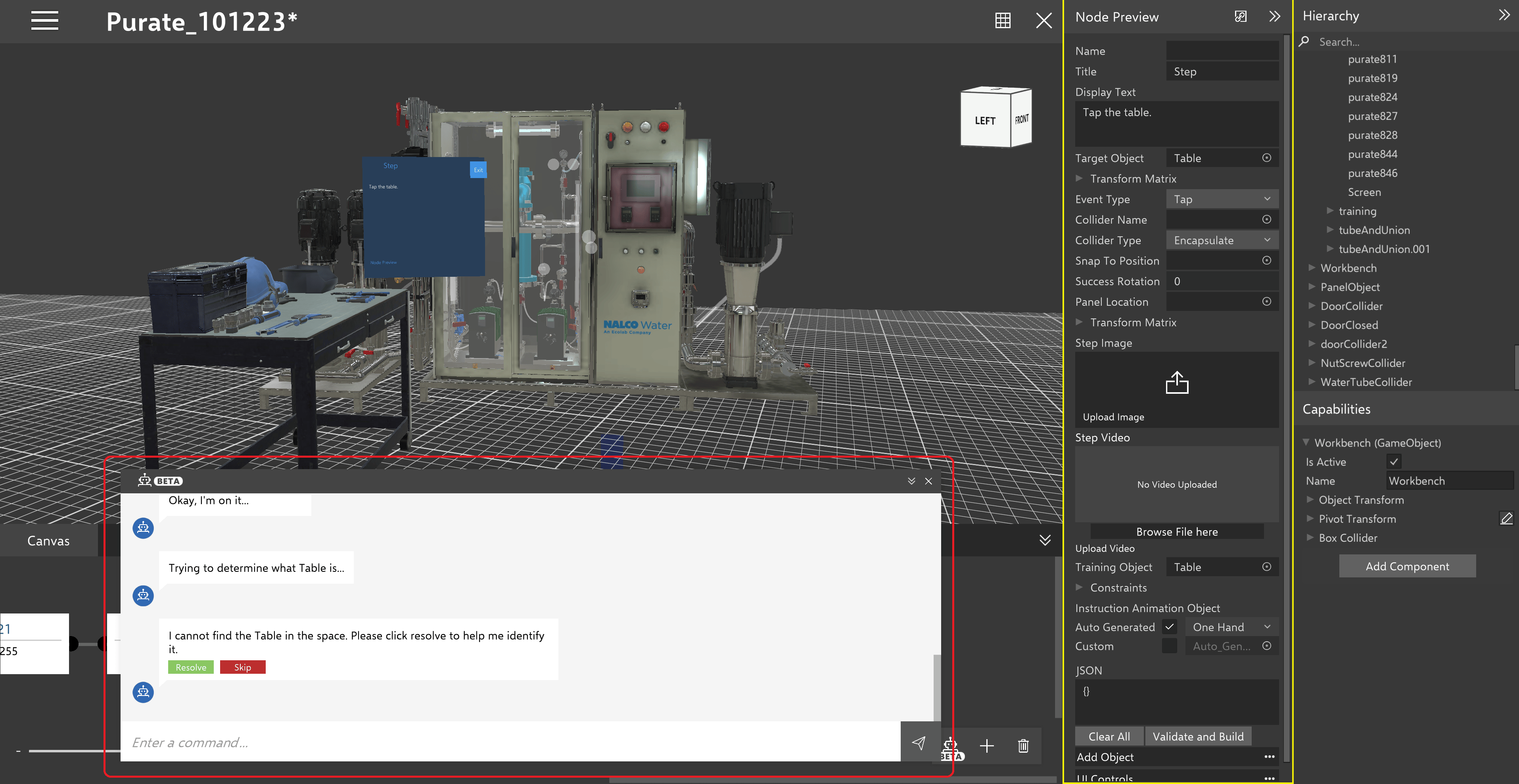
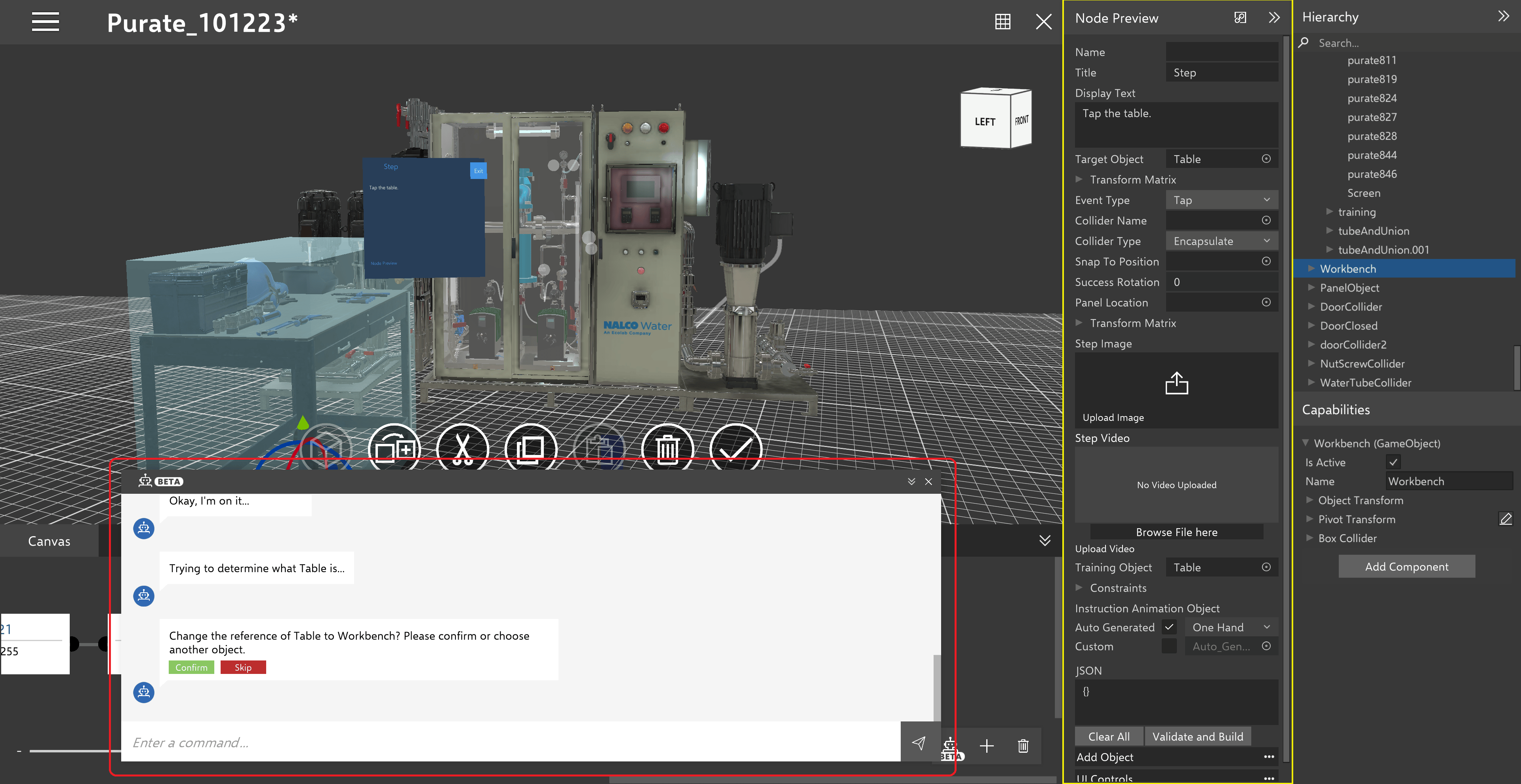
Preview Mode
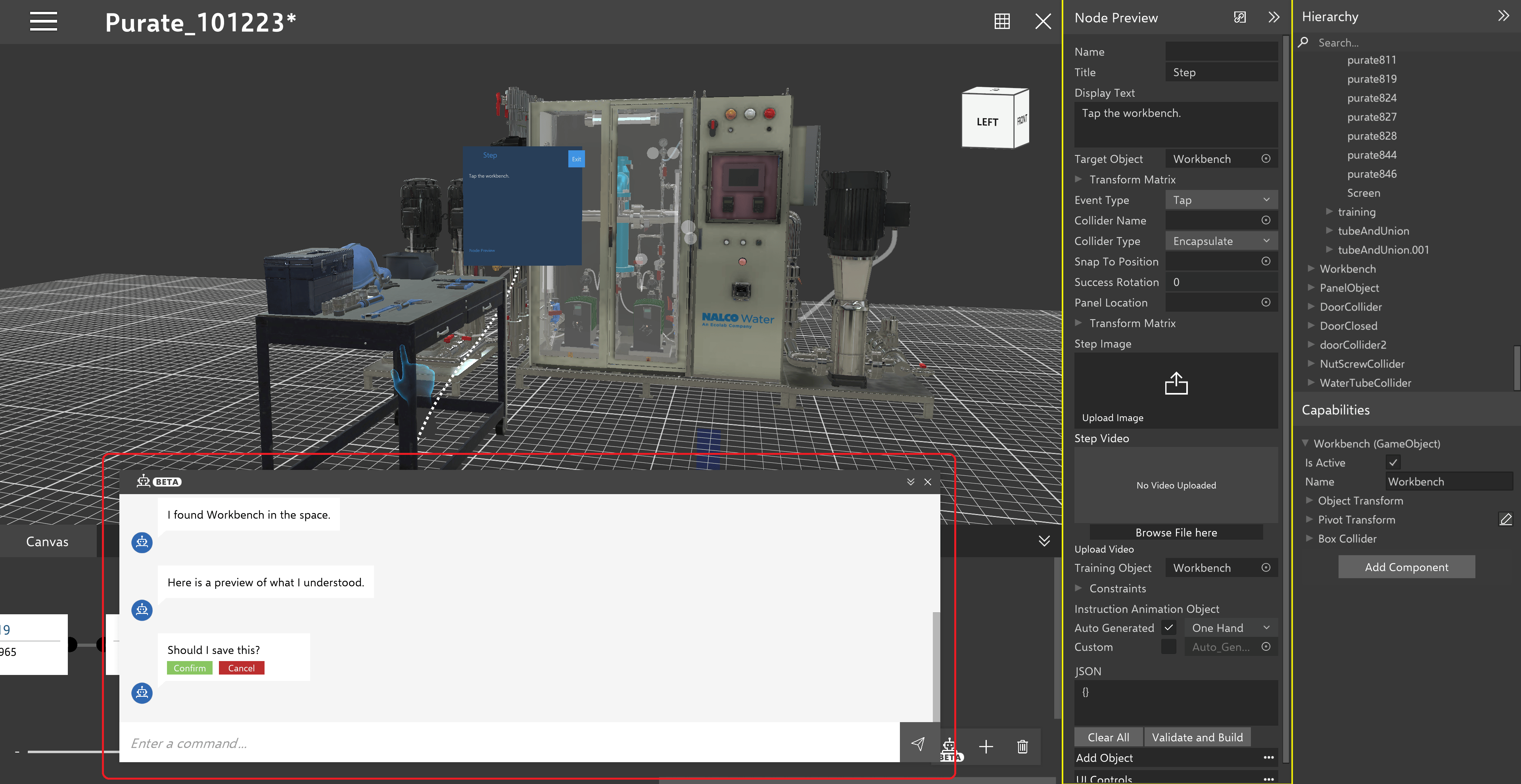
After sending a command and between each resolution, the preview of the node that the bot created in both the canvas and the definition window. Any information that is technically a preview, is marked by being highlighted in yellow.Saving Your Changes
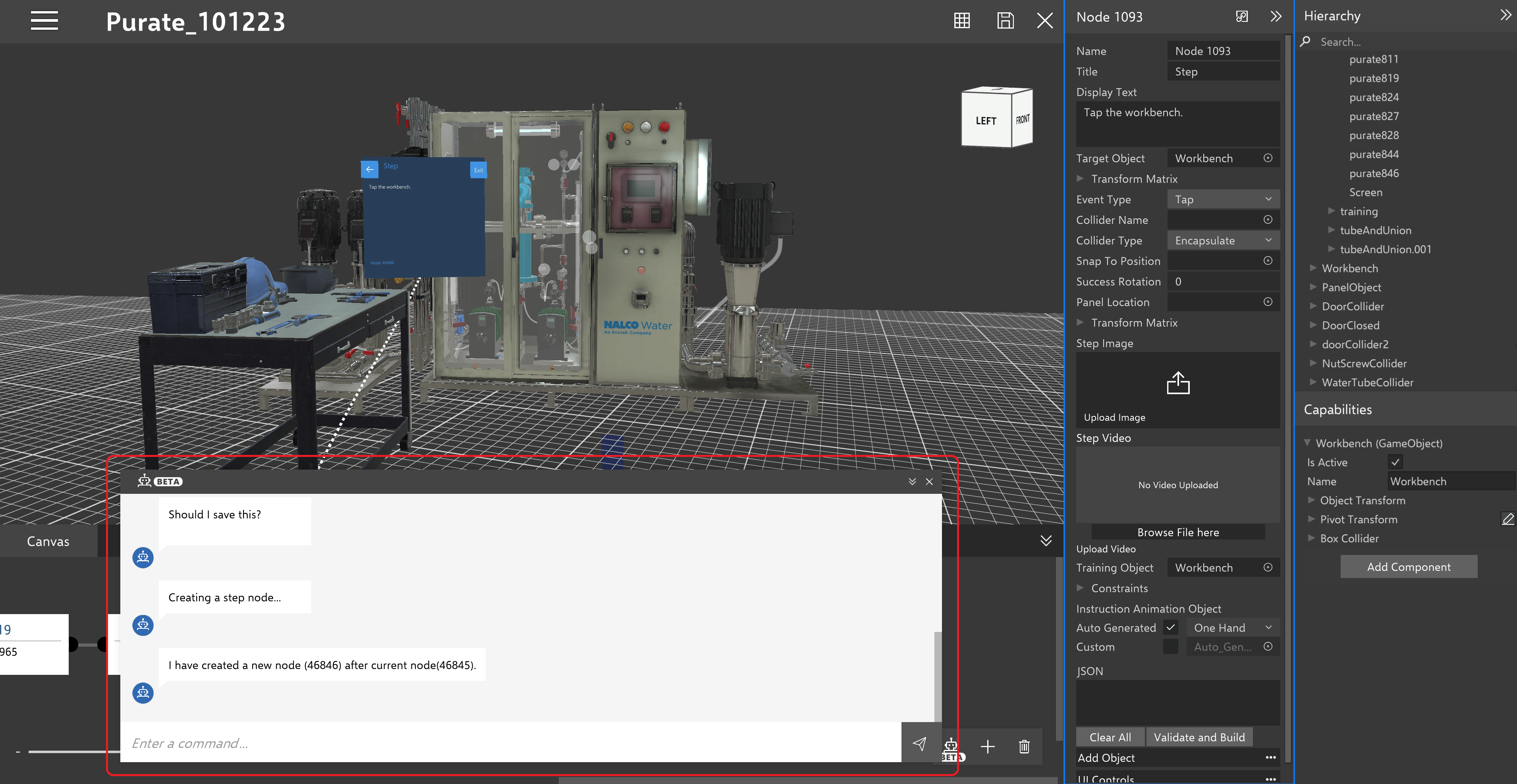
Your changes will be prompted to save when there is nothing left to resolve, as shown below.