Node Representation
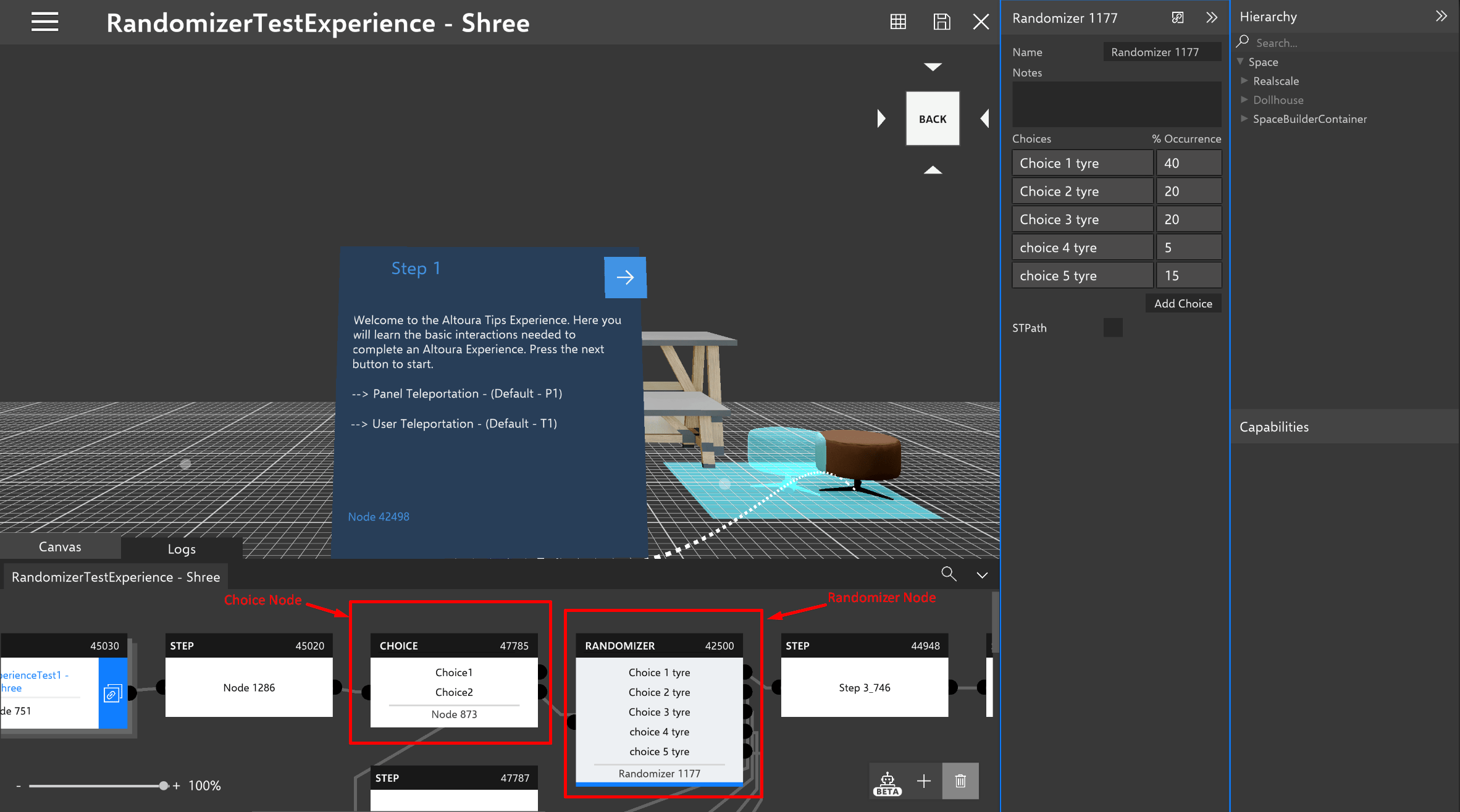
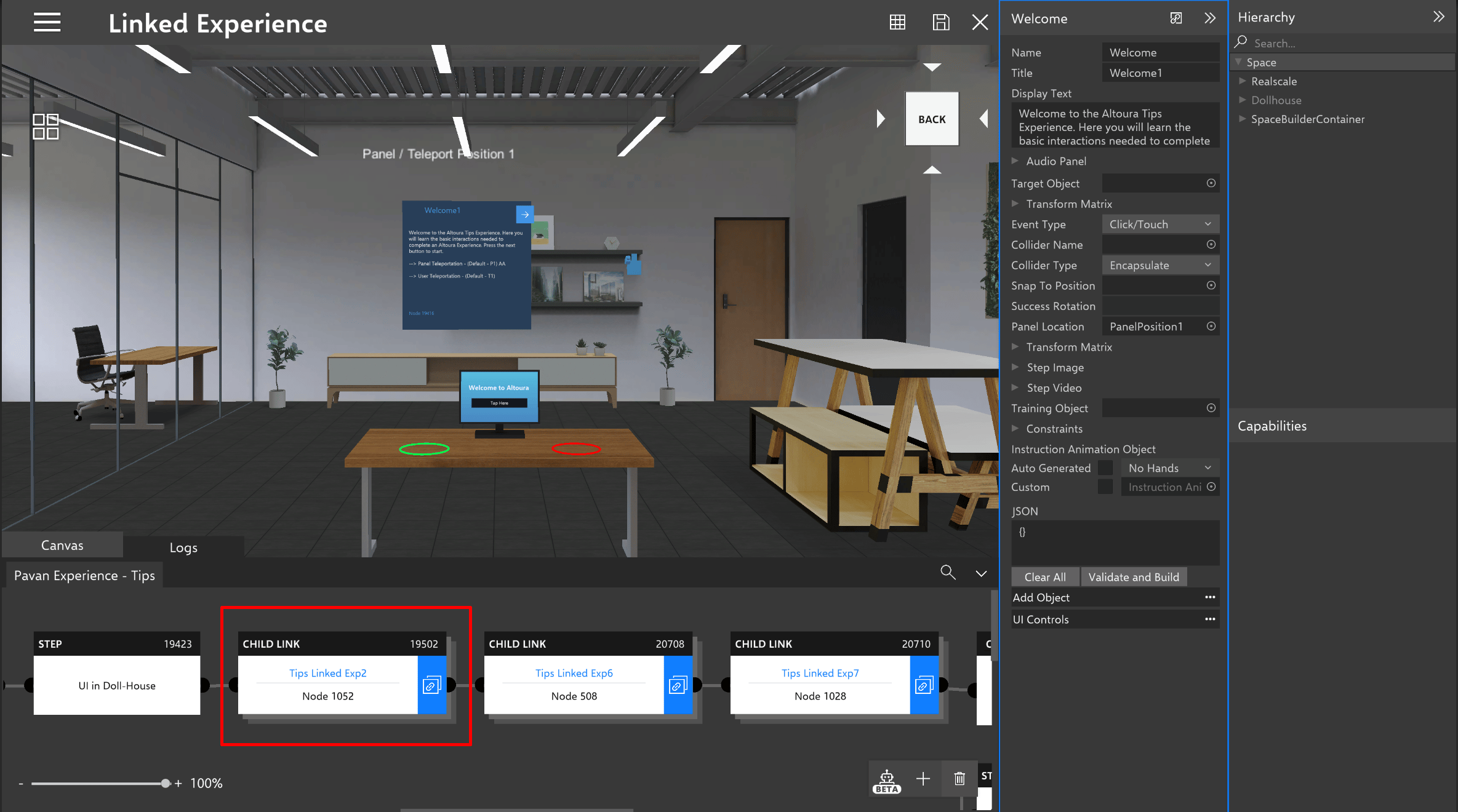
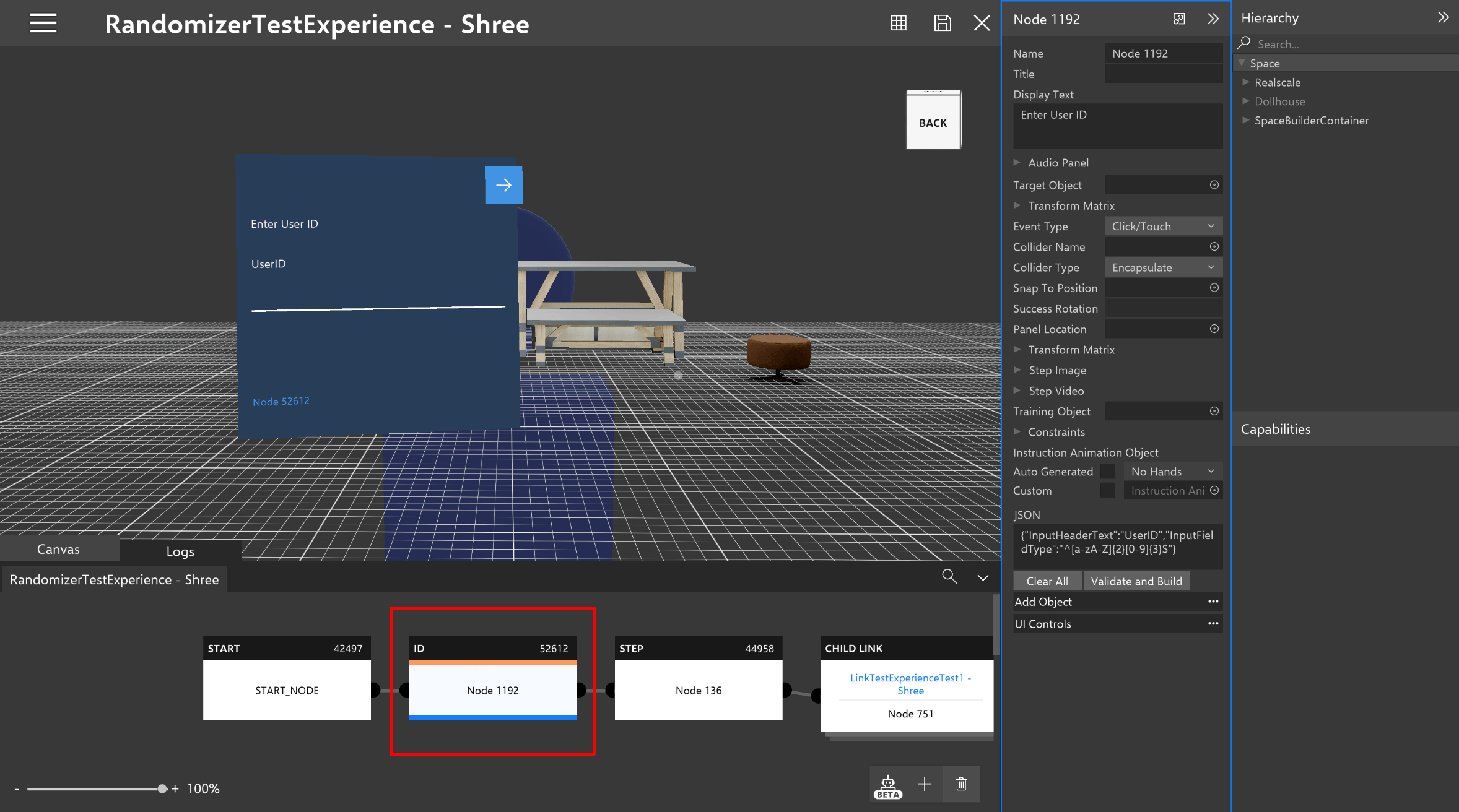
There are 5 different types of nodes in the experience. Step Node, Choice Node, Randomizer Node, Link Node and User ID Node Below is an example of how different types of nodes are represented in the canvasStep Node
Choice Node and Randomizer Node
Link Node
User ID Node
The Node Map
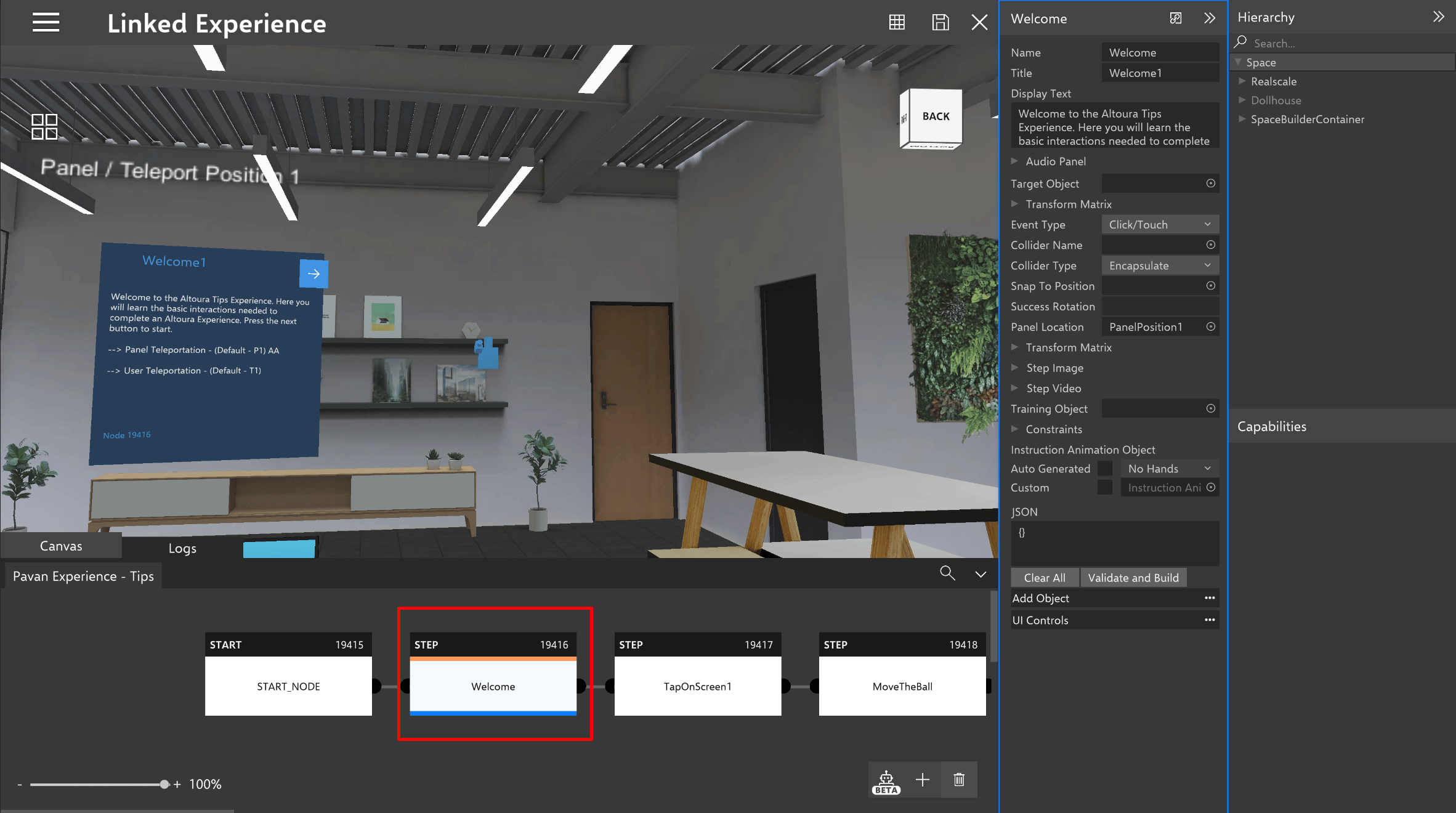
In the Experience Builder, there are two perspectives of the node that is indicated in the node map at the bottom of the builder. In the node canvas, the orange stripe on the top border of a node indicates the node that is shown in the space, and the blue stripe on the bottom border indicates the node that is shown in the node details panel. Below is an example of what the same node shown in the space and the node details panel looks like.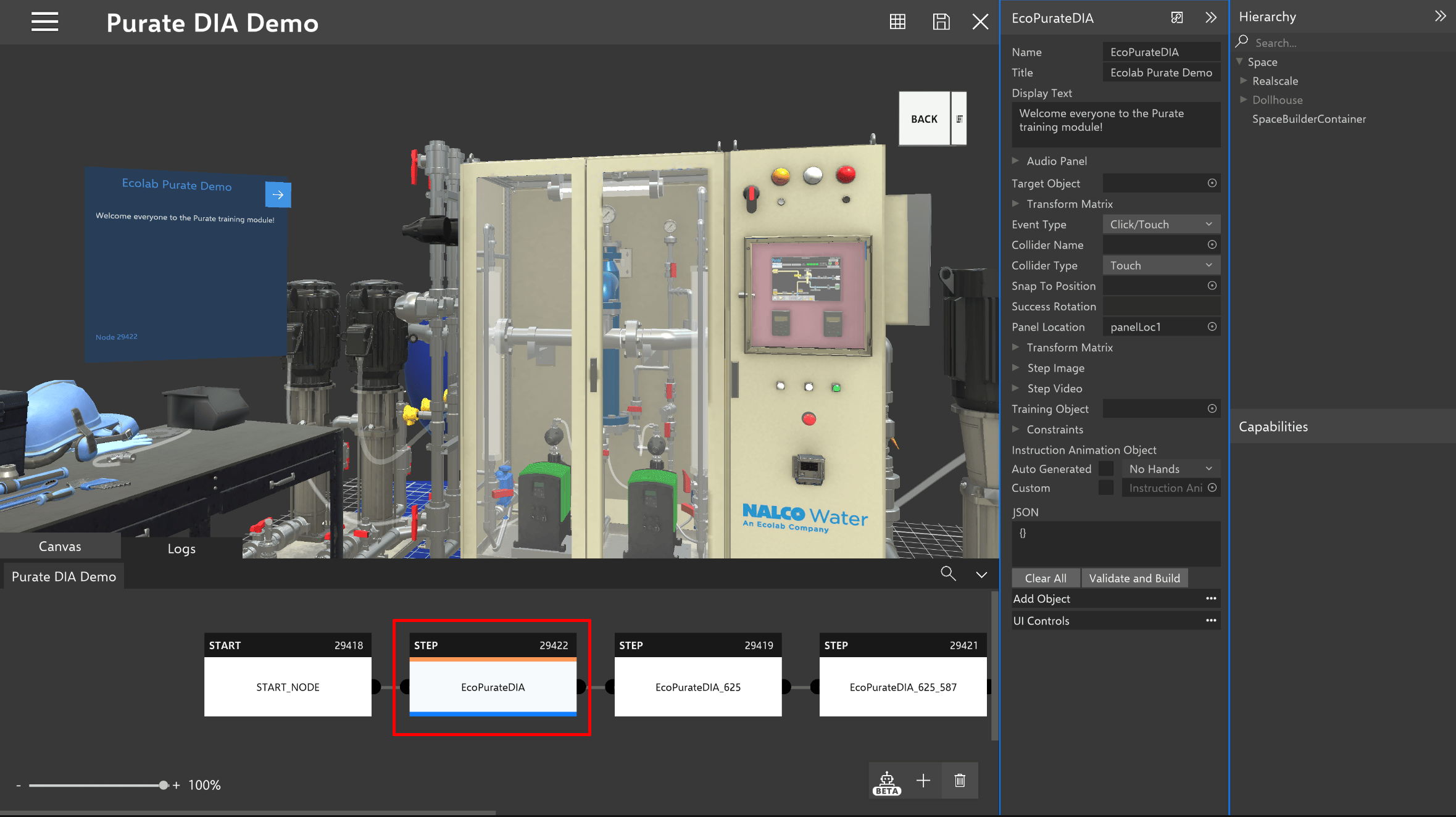
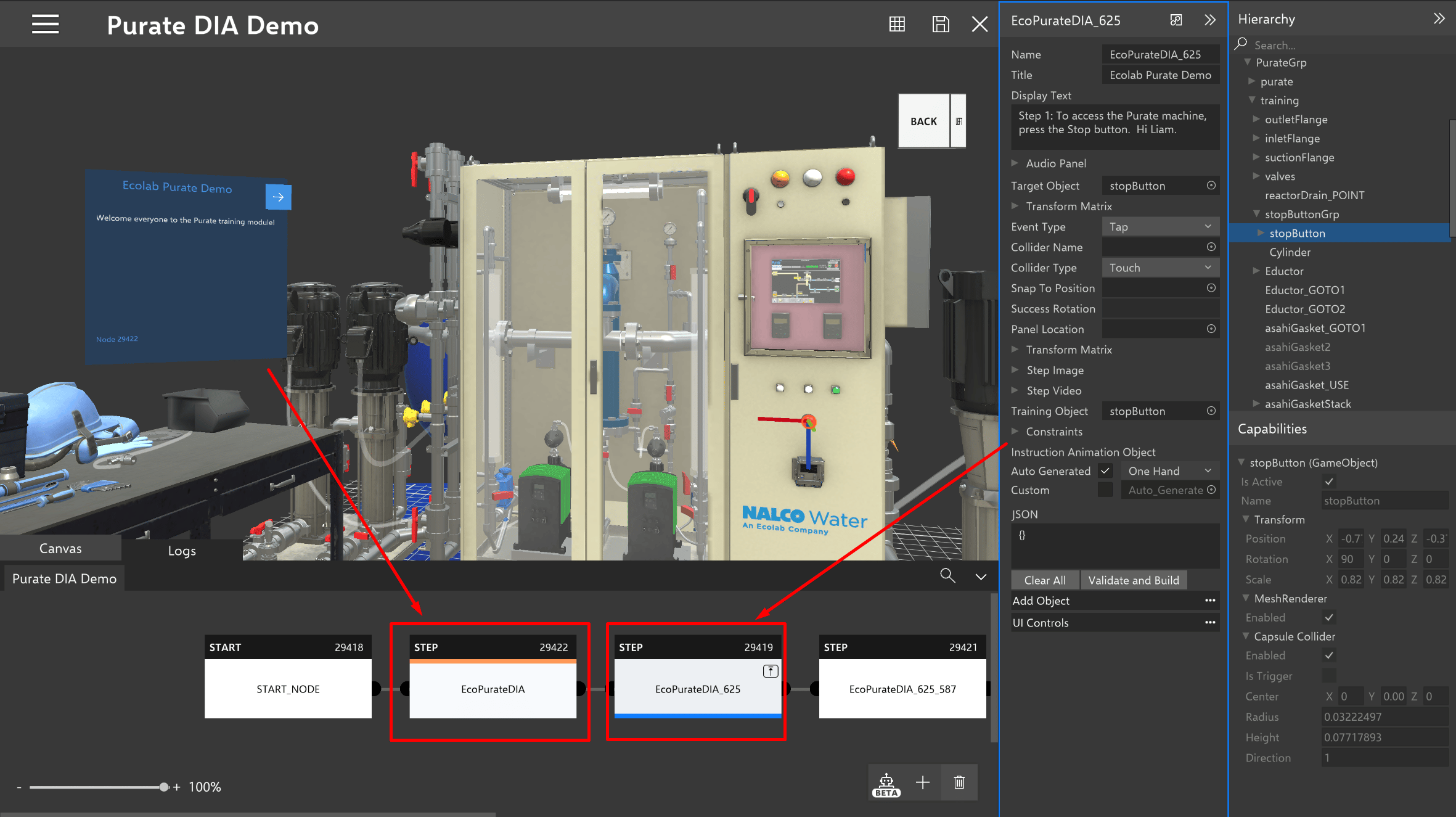
The Node Details Panel
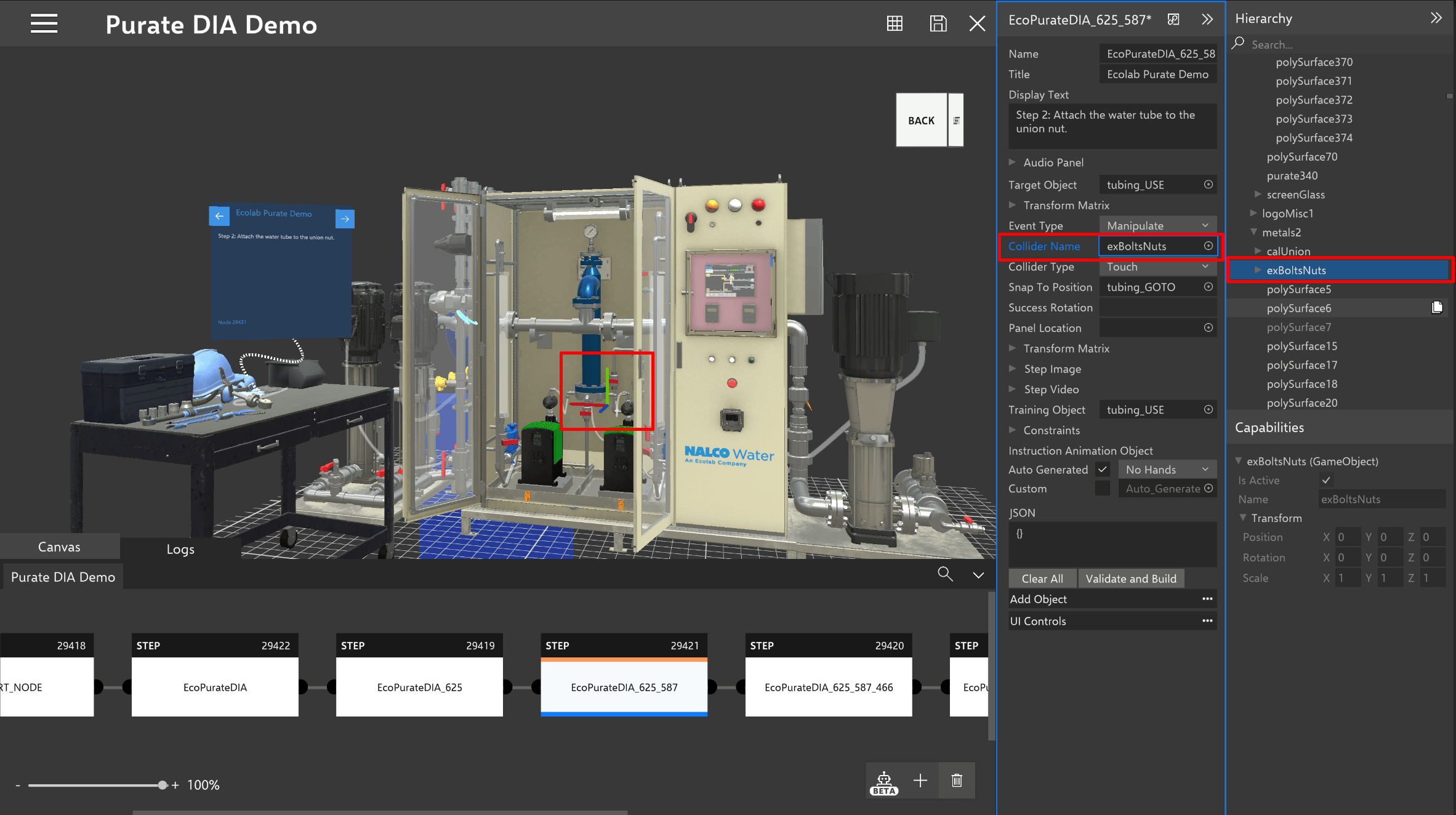
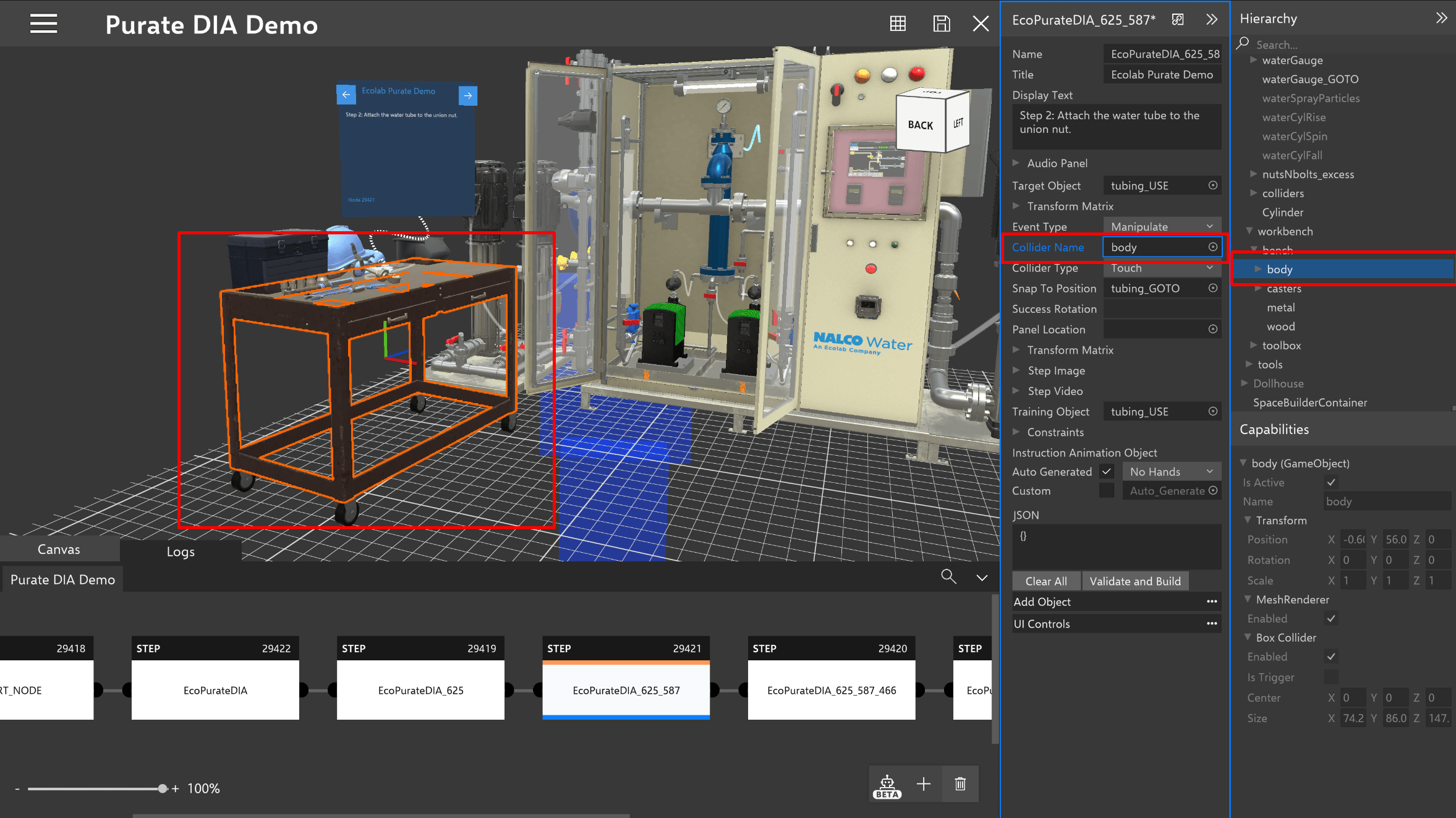
Changing references in the node details panel is simple. When changing a GameObject reference in the node details panel, select the circle at the right edge of a GameObject field. This will highlight the field in blue and now allows you to fill the reference with another object.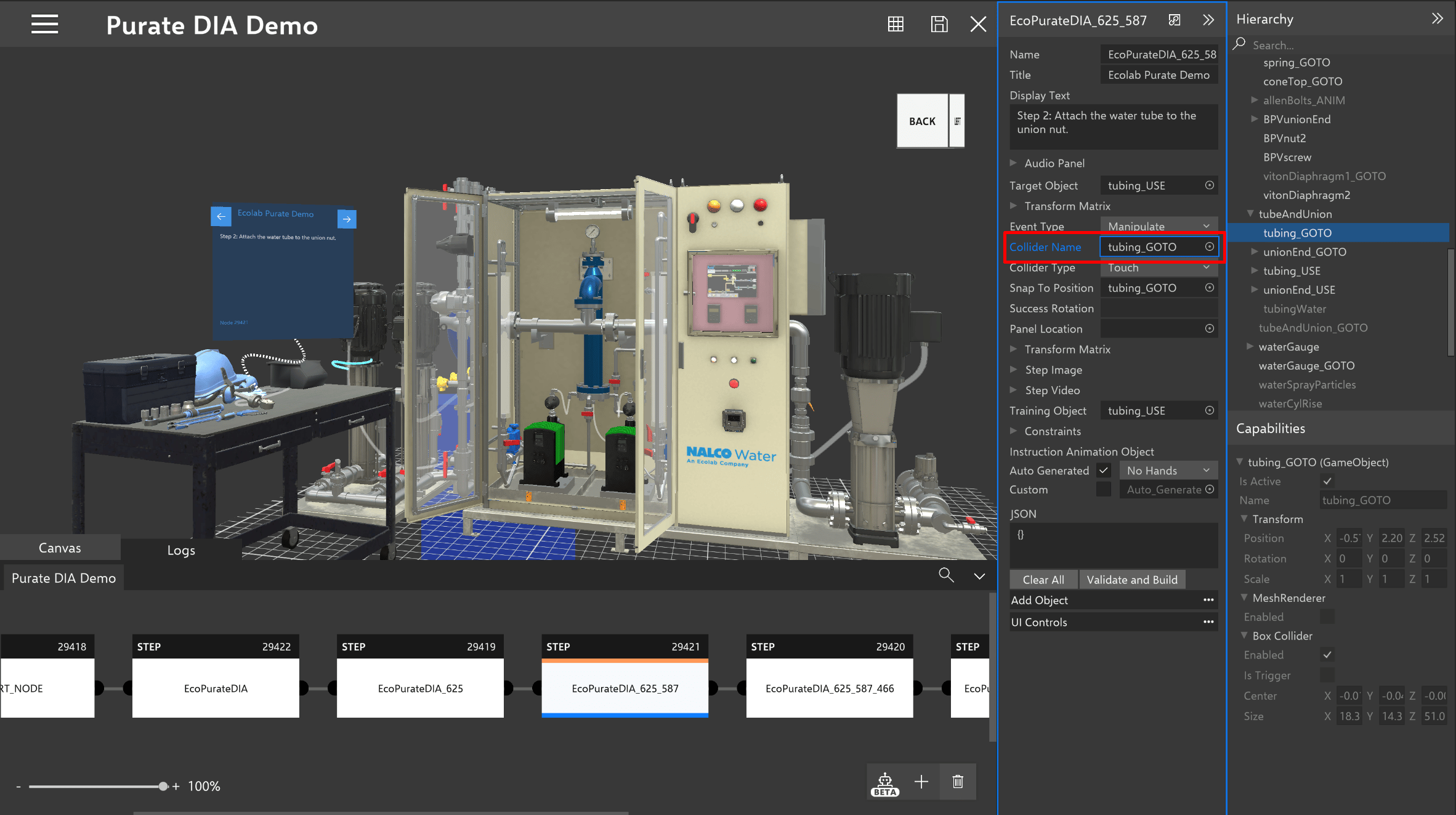
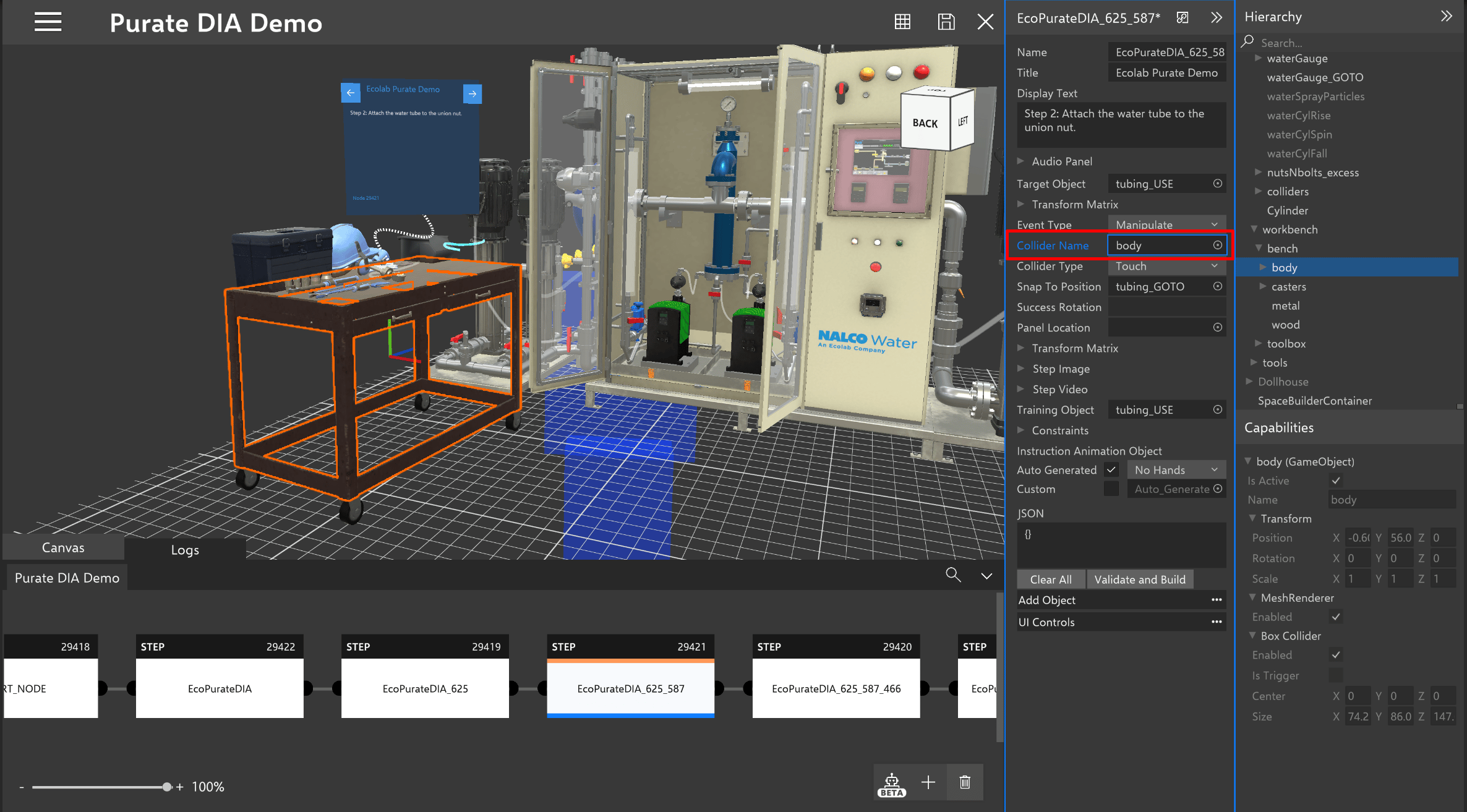
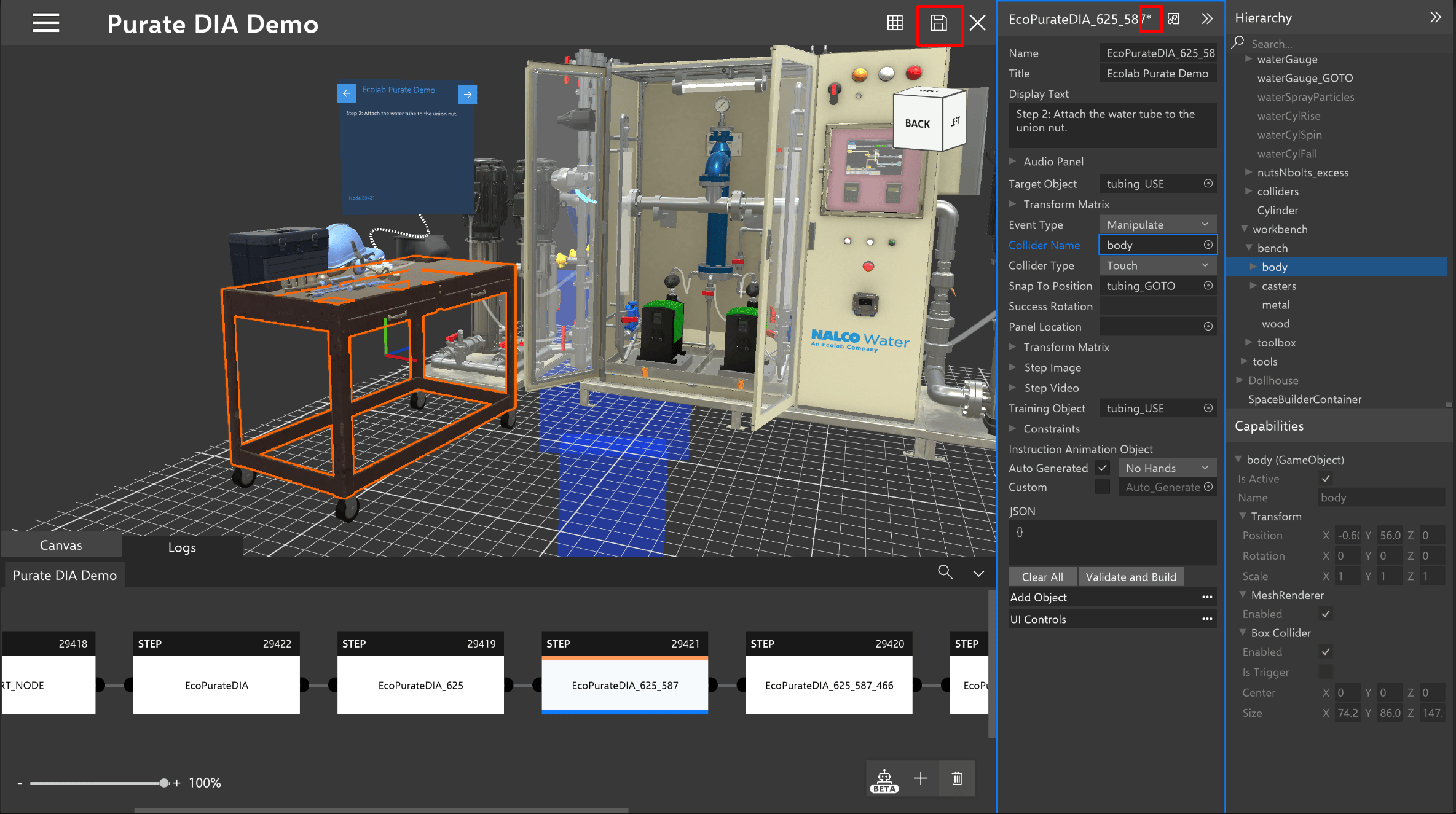
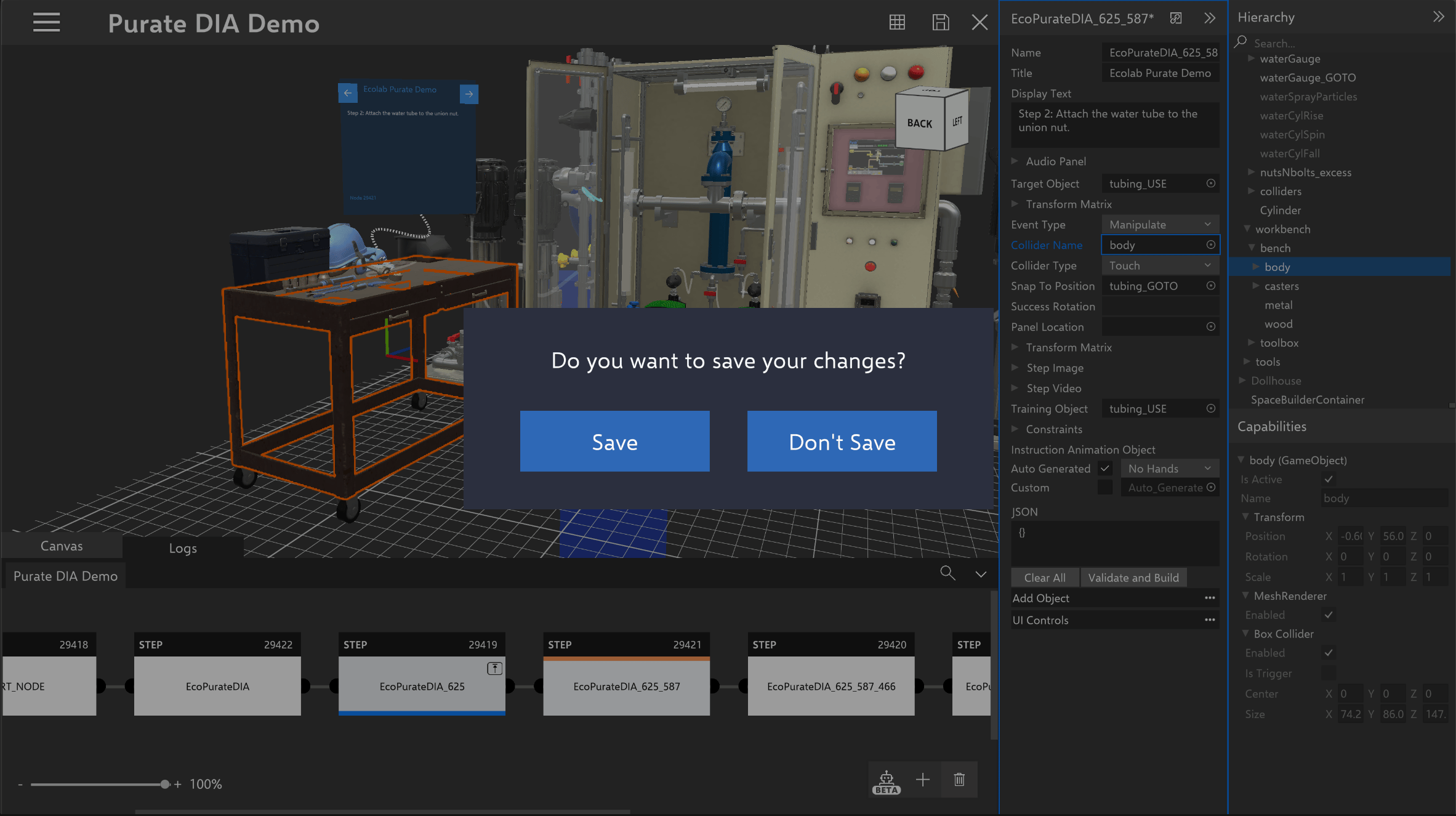
Link Node
To view the content in a Link Node, select the Link Node and then click on the available options to view the node’s details.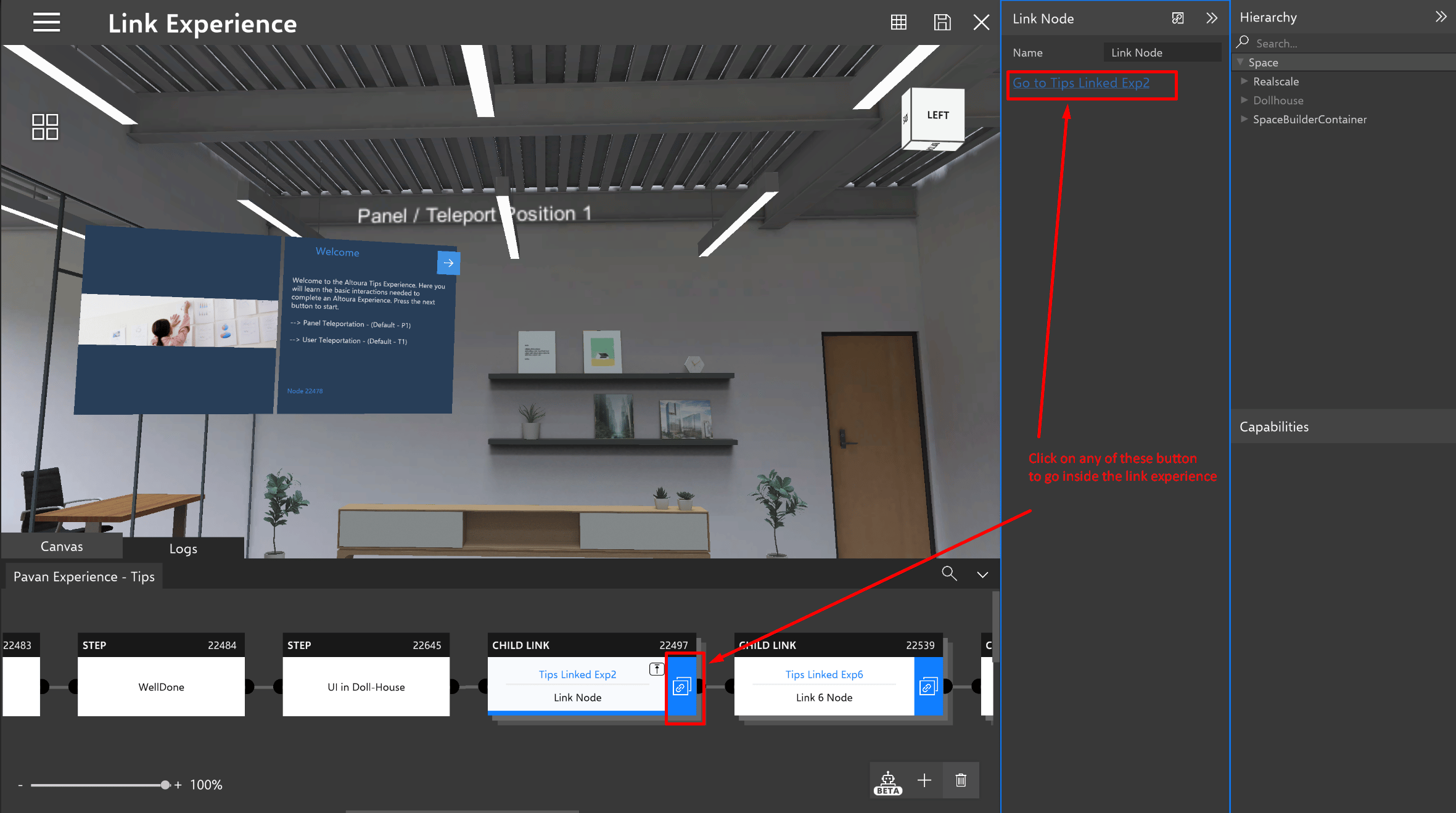
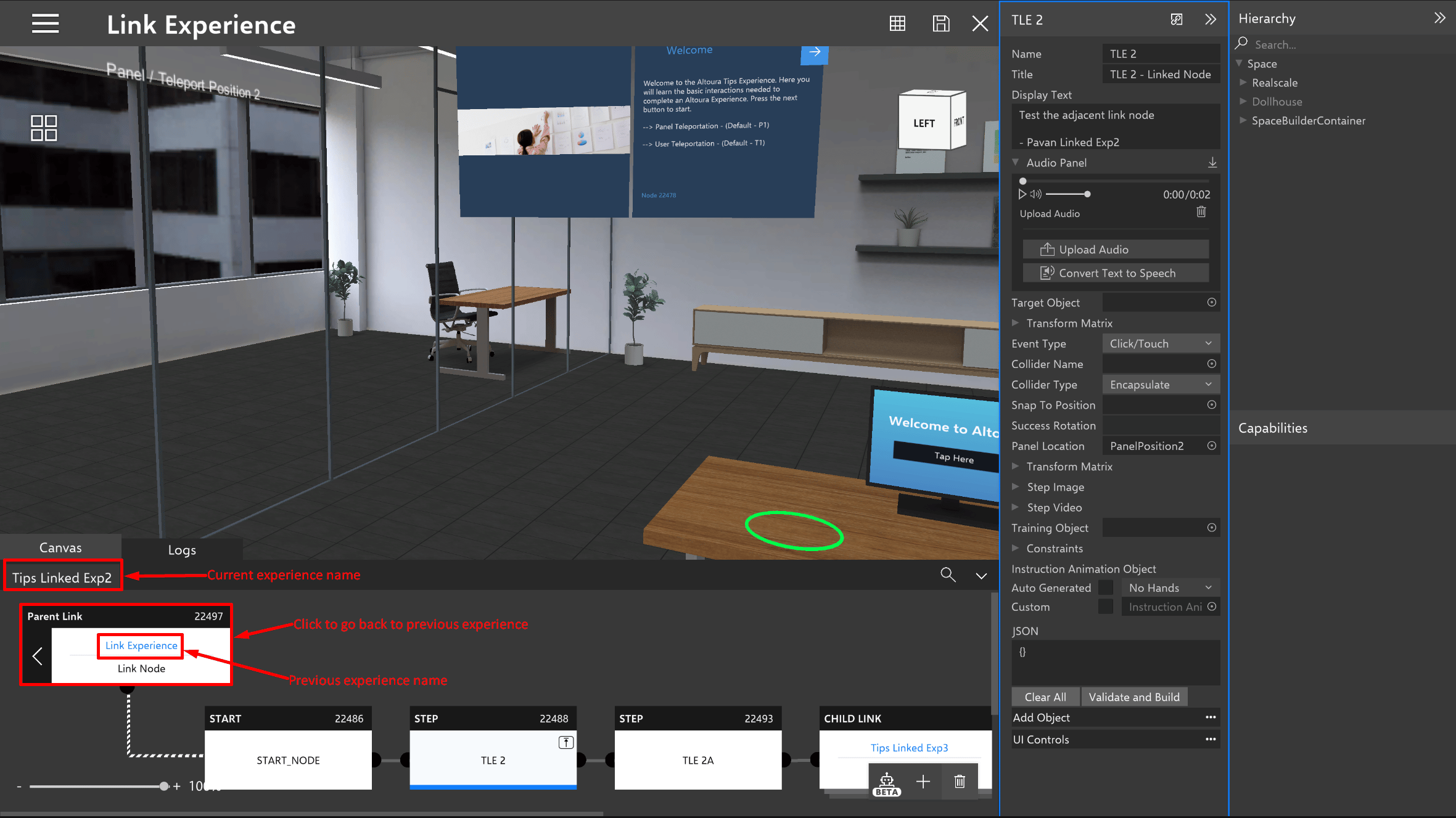
Adding a Node
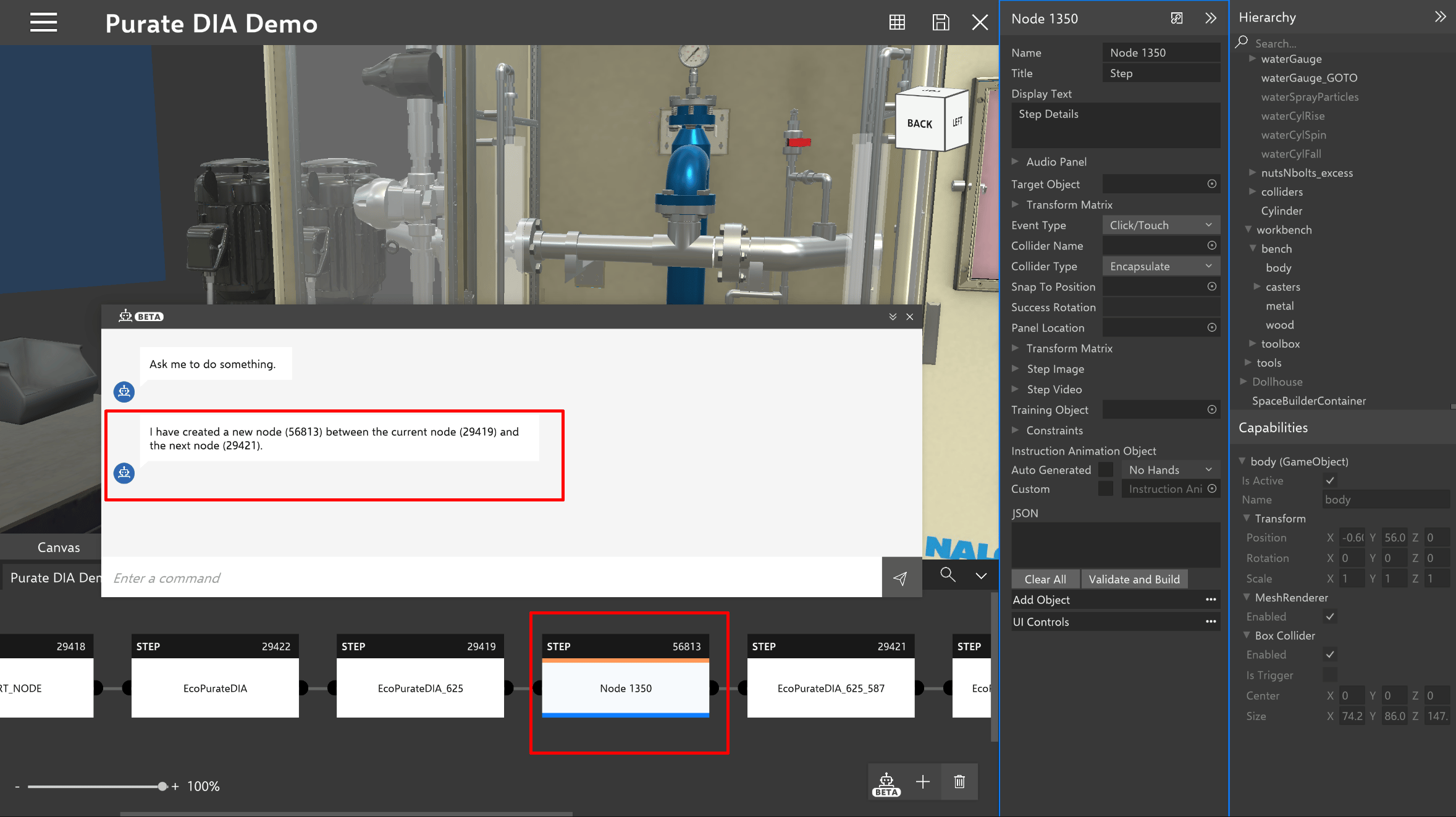
If you want to add a node to your Experience without a command from the bot, you can add an empty node from the Canvas bottom bar. This will add a node after the current node you have selected in the node details pane.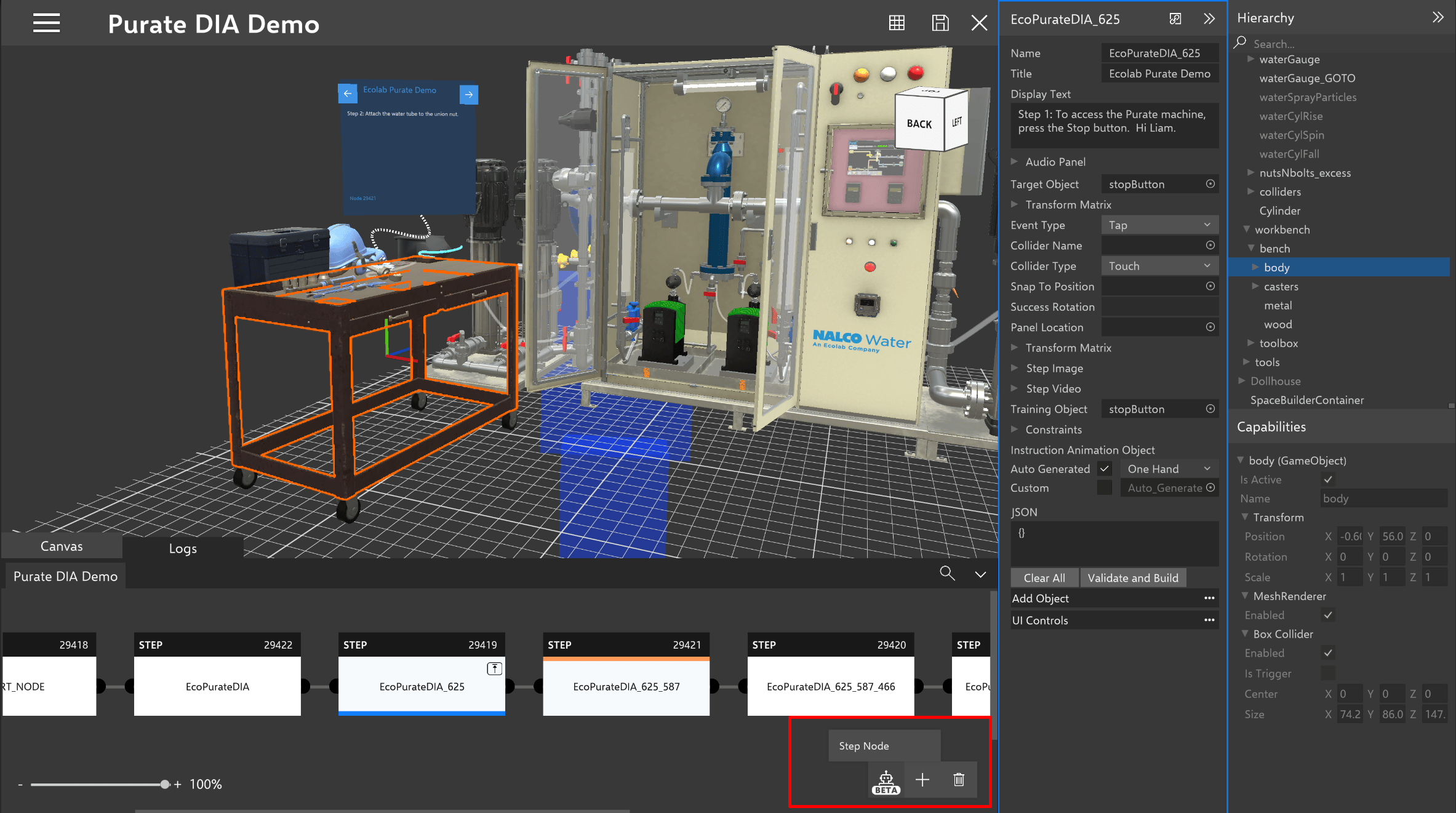
The choice node Details Panel
Changing references in the choice node is similar to node details In choice node user can add or delete choice, atleast one choice should be there. Note: If a user delete a choice for which the nodes are connected, then all the nodes will be disappeared in the canvas, to get back the nodes please redirect to portal and add connector for the any choice or node.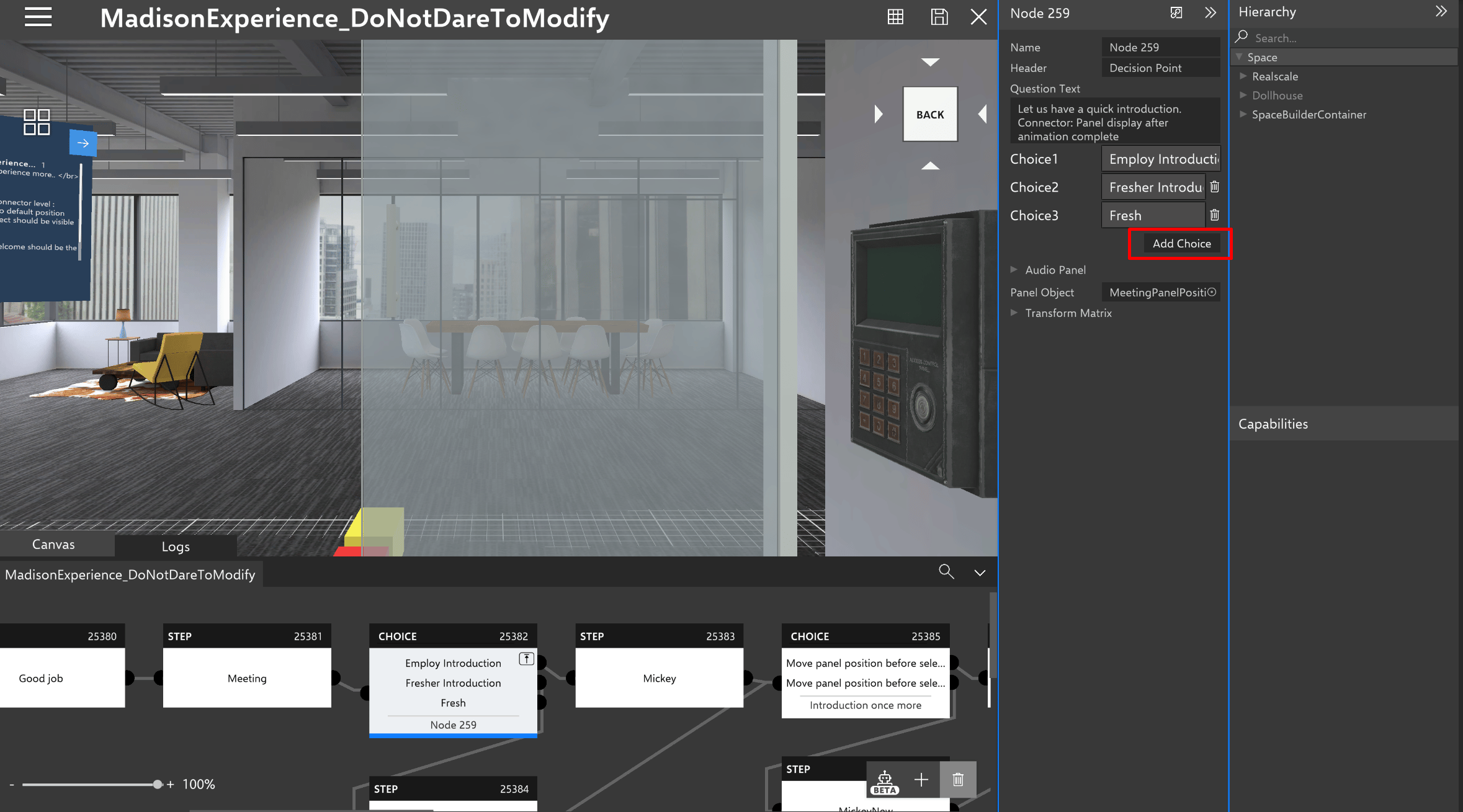
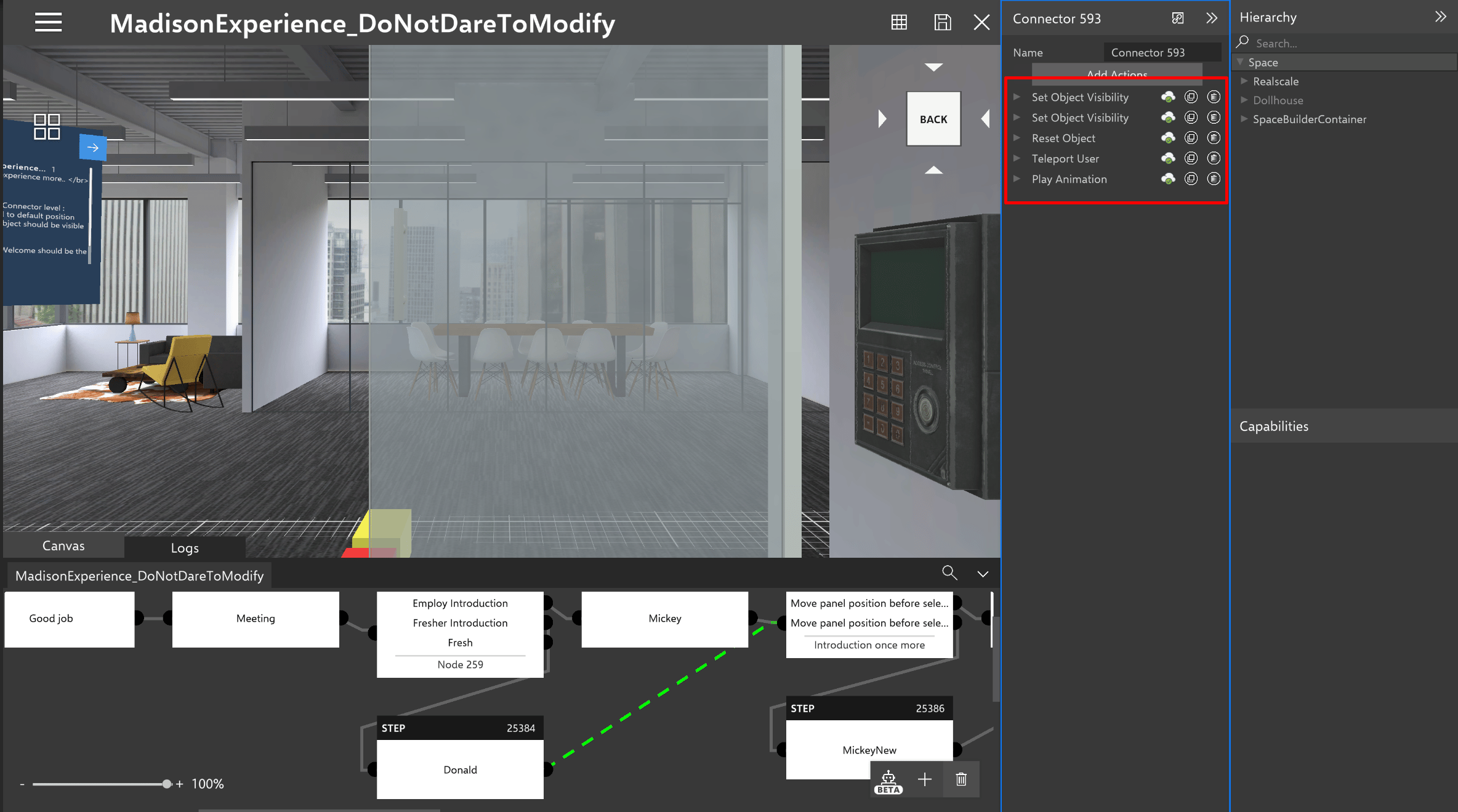
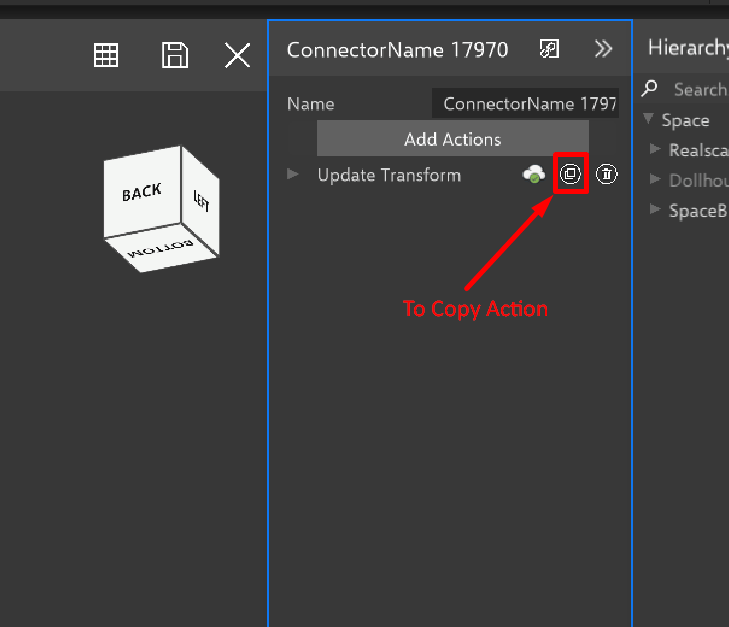
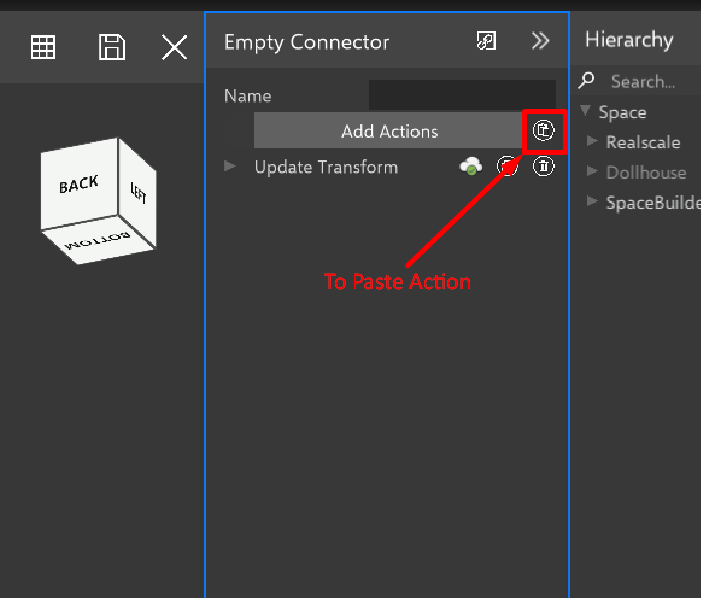
The connector Details Panel
Changing references in the connector details panel is same as node details panel. Drag and drop connector actions to reorder the execution. To drag and drop, hold on any connector actions and drag to the desired position.