Exporting an Experience

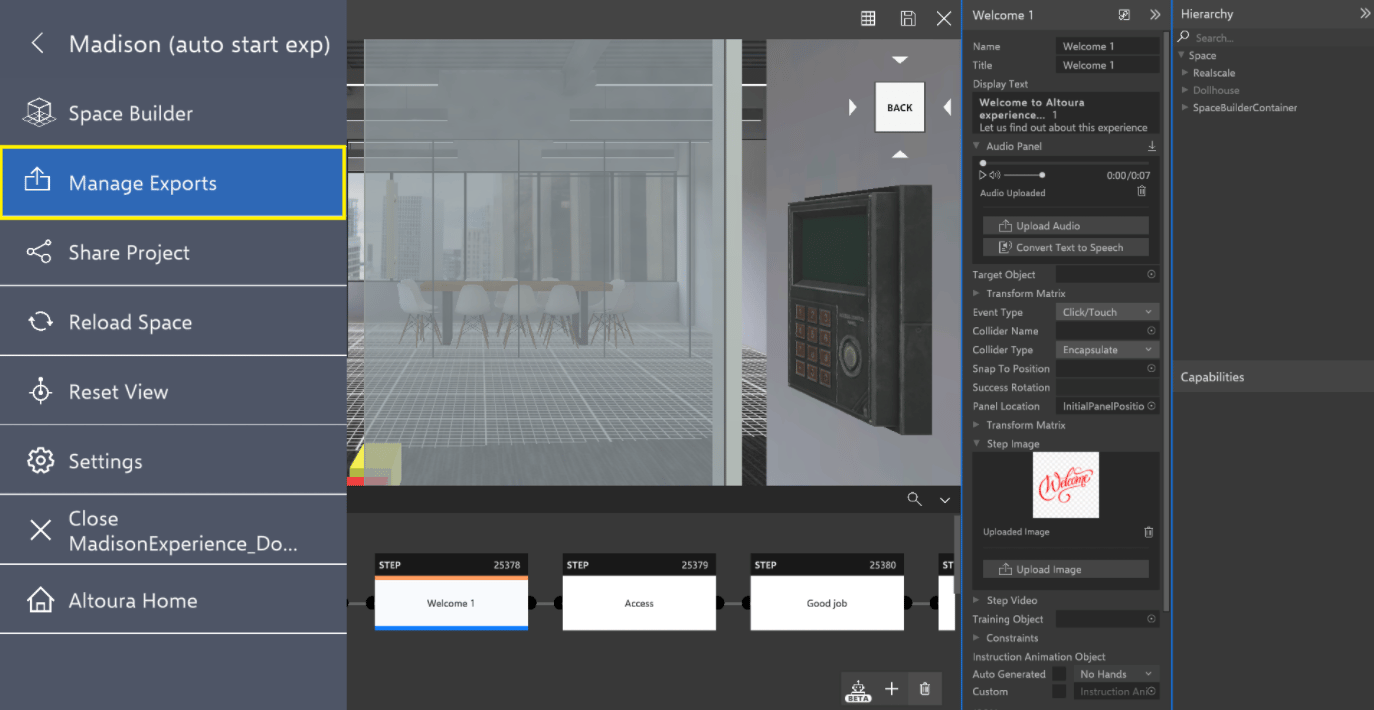
To export an Experience, the Experience must be open in the space and the Experience Builder must be open . The Manage Exports button will be in the hamburger menu. Currently there are two options for exporting an Experience to: Excel and Guides.
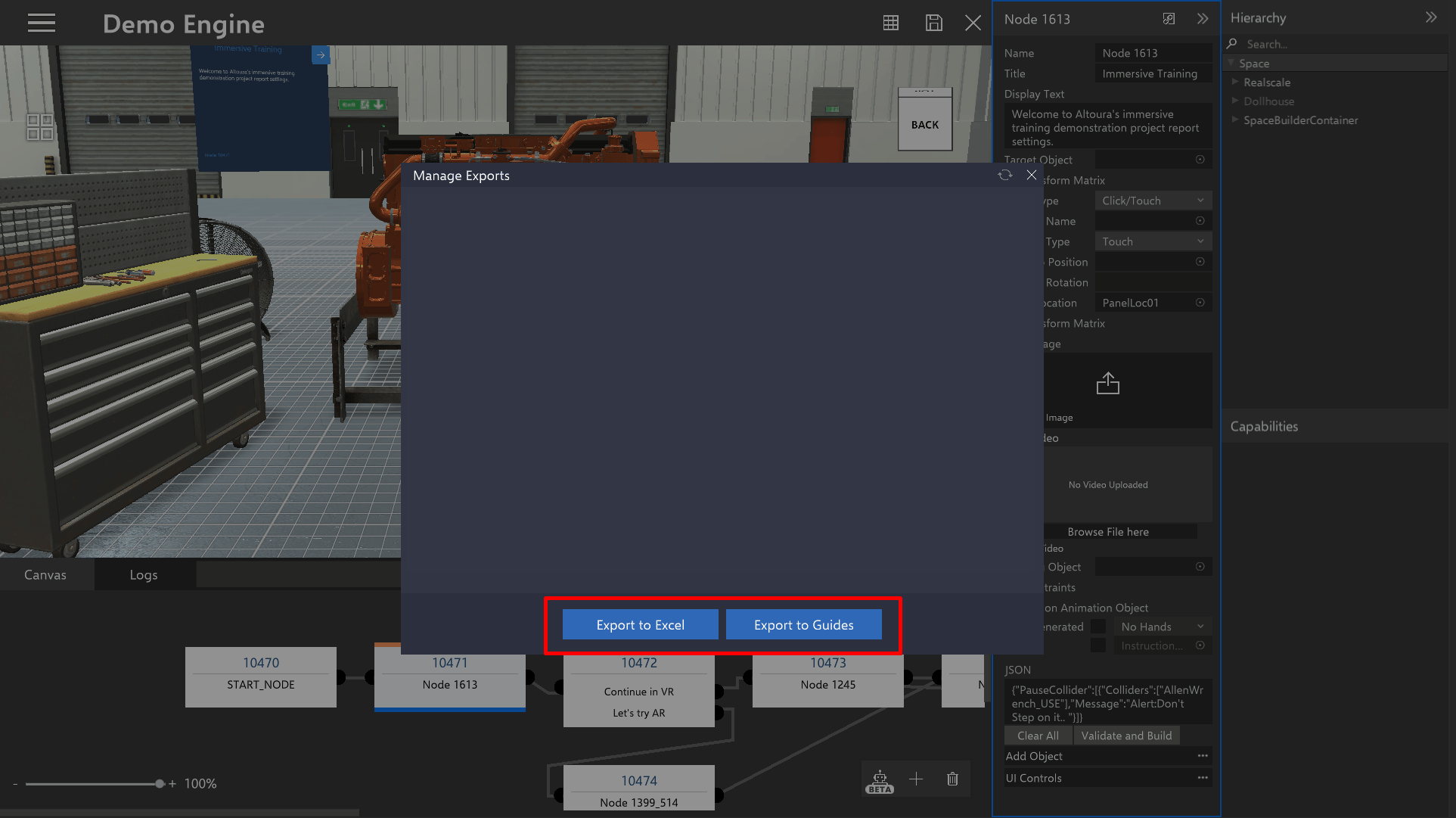
Export to Excel

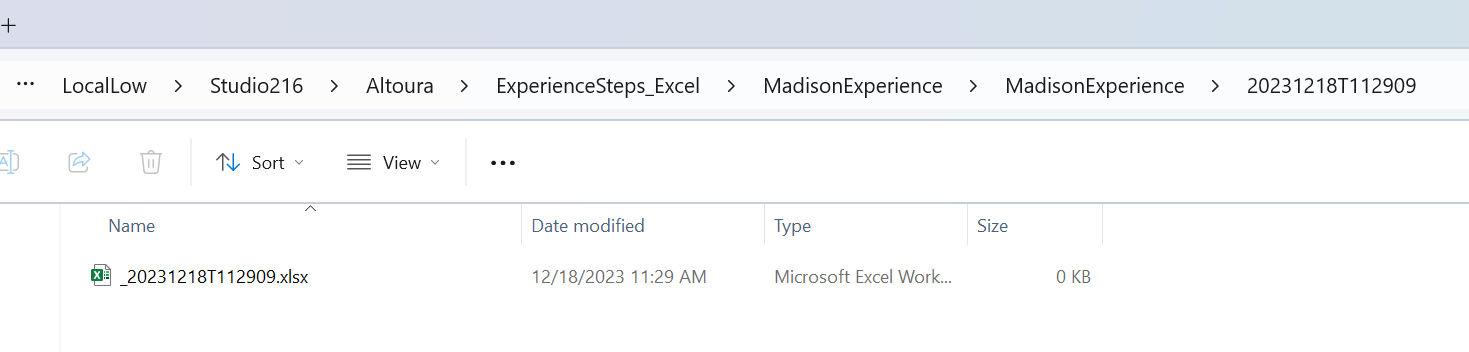
If exporting your Experience to an Excel doc, all the step details of the experience will be exported, and the directory of the export will show after the export is complete. Each time when user clicks on Export to Excel, a new folder with time stamp will be created under the experience name folder.
Export to Guides

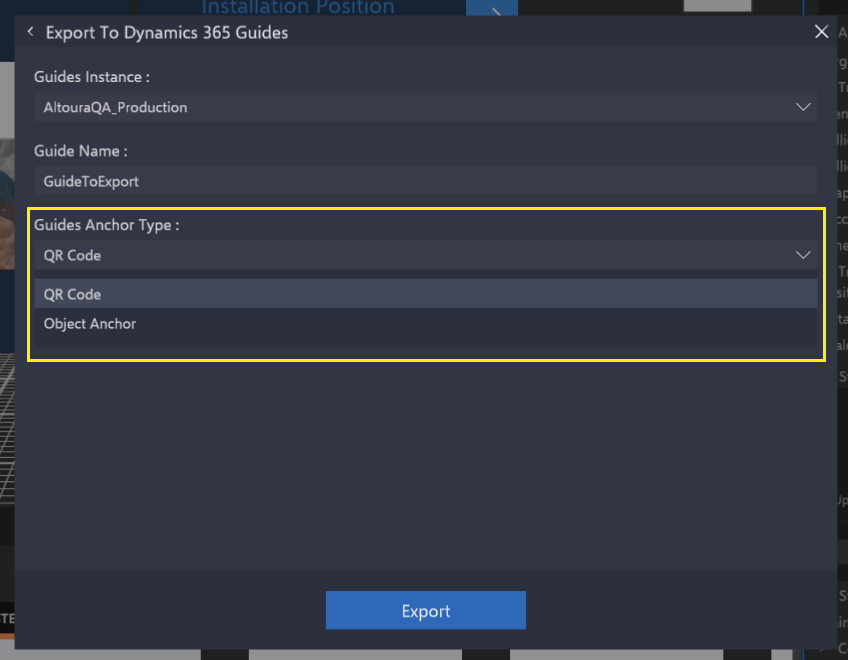
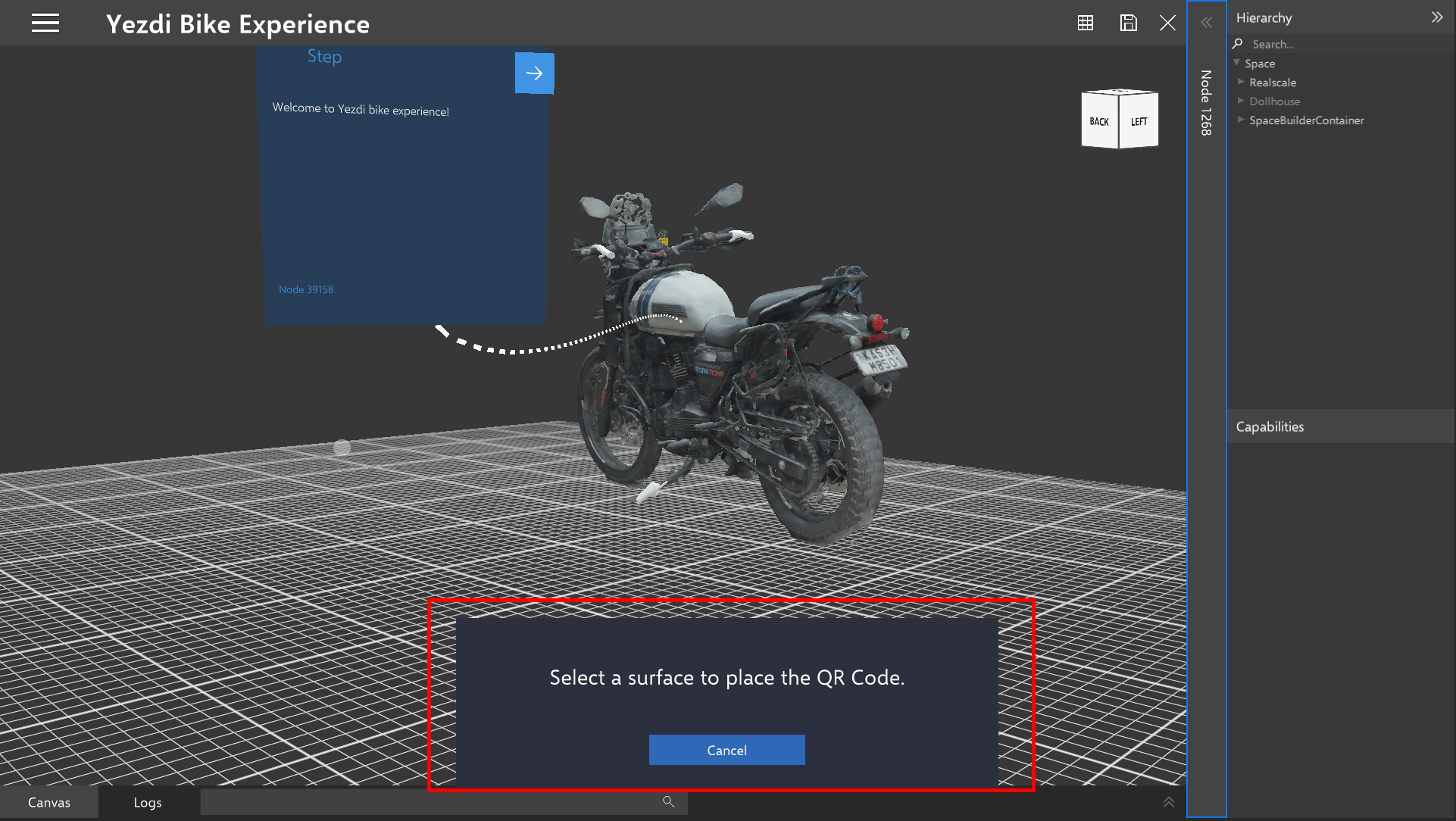
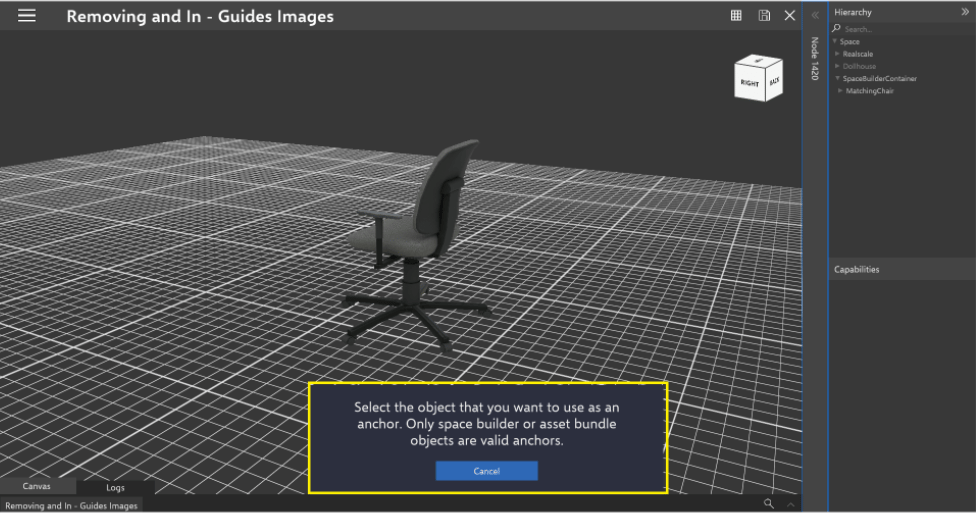
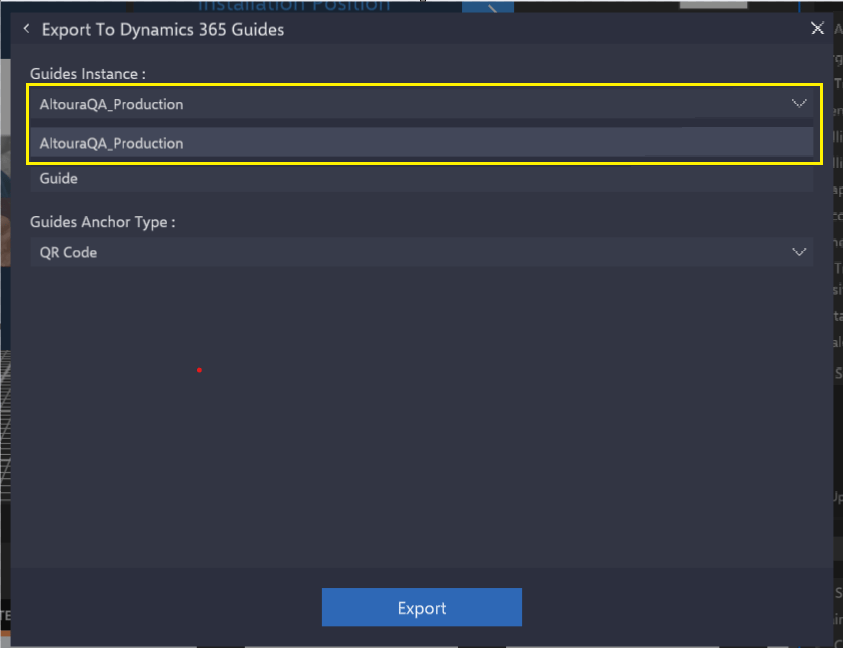
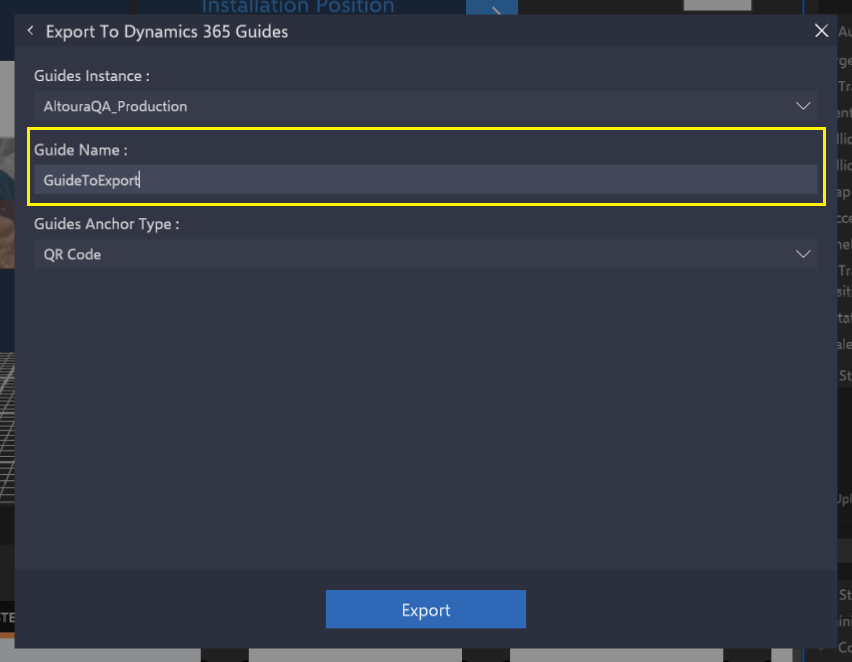
To export your Experience to Guides, you must have a Guides account associated with your Altoura organization. First select any one Guide instance where the Guides needs to be exported Next, provide a Guide name to export the Experience. The Experience exported will be seen under Dynamics 365 Guides with the name provided in this section. Next, select the Guide Anchor Type. When choosing the anchor type for your guide, you have two options to consider: QR Code and Object Anchor. Once you have chosen Export, based on your selection of QR Anchoring or Object Anchoring, choose the appropriate anchor point: For QR Anchoring: Select a surface to place the QR code. For Object Anchoring: Select an object for the anchor. This is to map and align the virtual space with the real space once the Guide is exported. QR Code Anchor Flow:
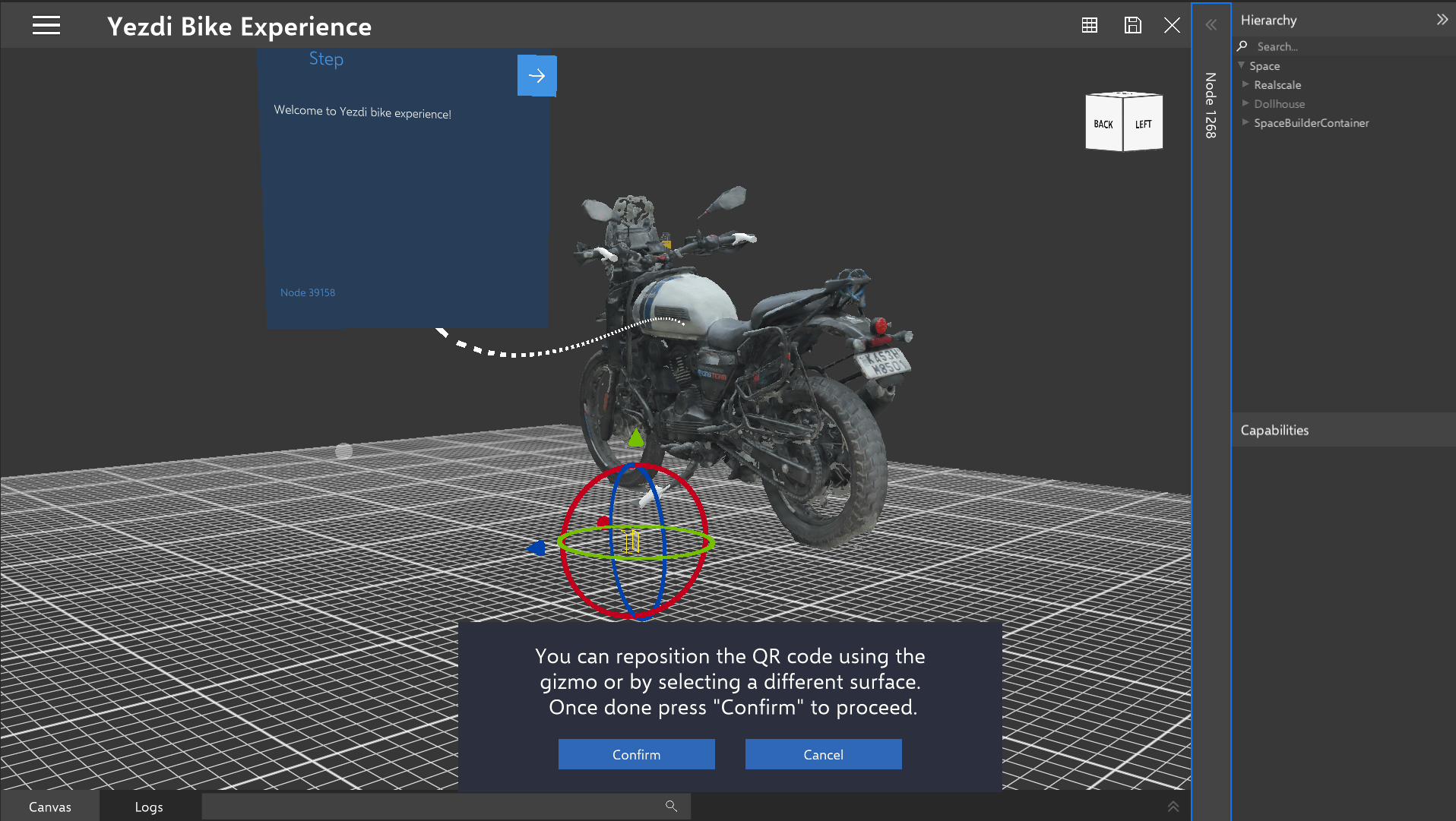
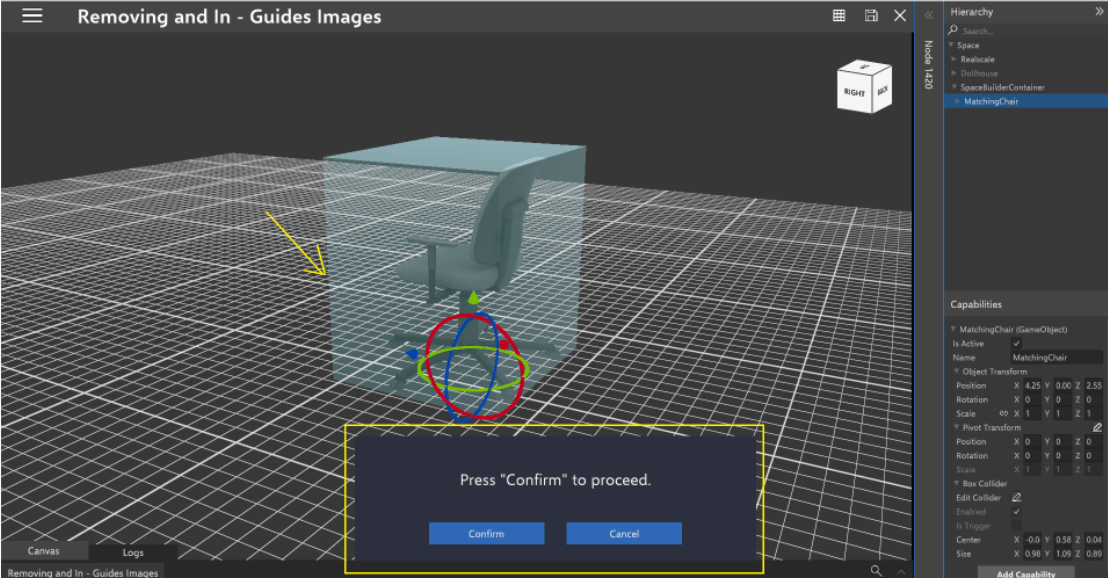
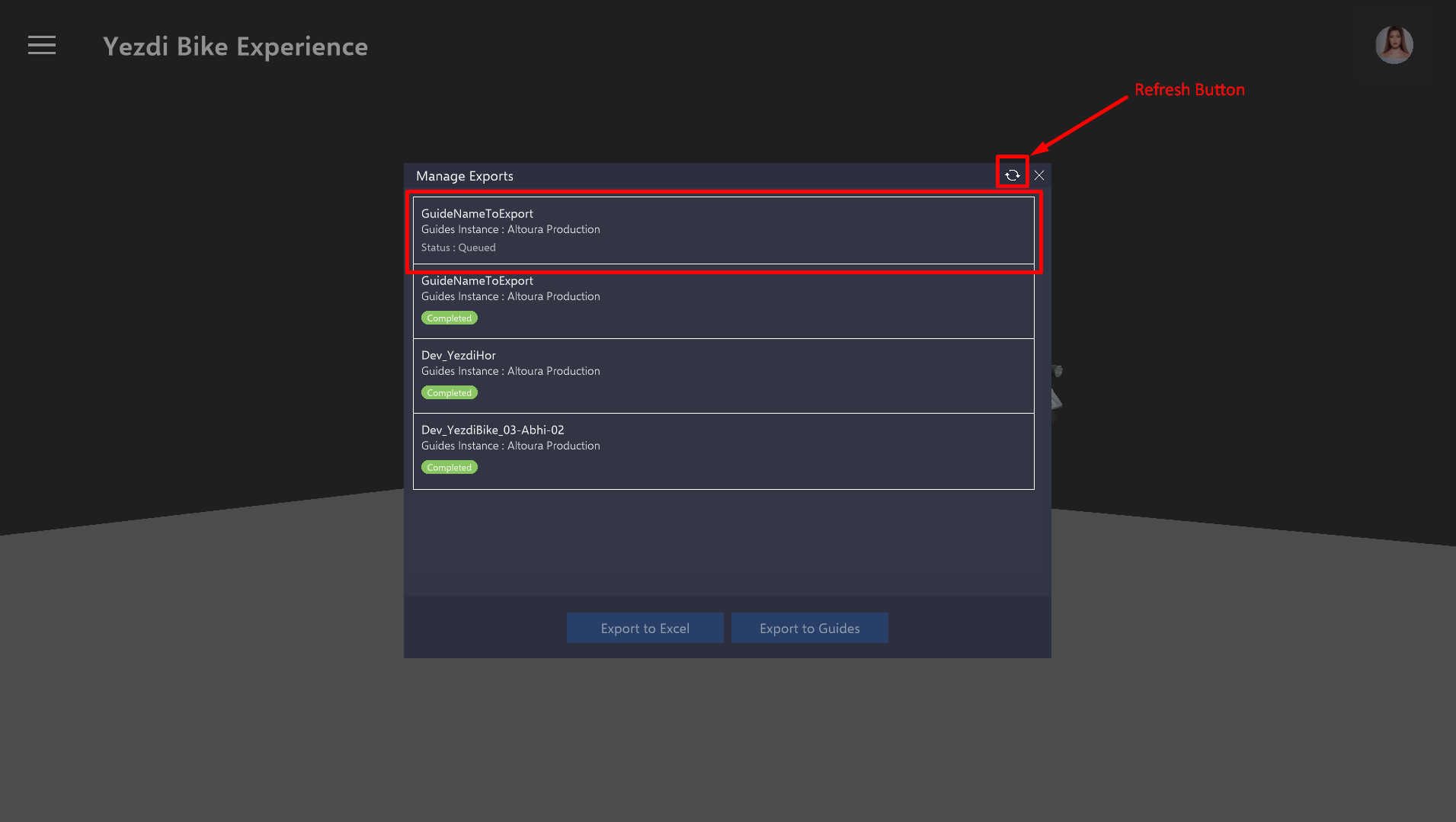
To add the QR code to a surface, press on any surface to select and adjust the position using the Gizmo associated with the QR code. When you’ve chosen a convenient spot that you can access on the physical model, press Confirm. Object Anchor Flow: To designate an object as an anchoring point, simply select the desired object and press Confirm. Once the Export process has started, you will be brought back to the Manage Exports page. This will show the status of the Guides export process. The status is not auto updated, so to see the latest status User will have to click on the ‘Refresh’ icon as shown in the picture below. Generally, the export of an Experience to Guides will be completed in about 5 minutes., depending on the steps involved in Experience which is getting exported. Once completed, you can login to Dynamic 365 Guides from either the PC or from HoloLens and see the exported Guide under the Guides list. Users can launch this Guide and go through the Guide.

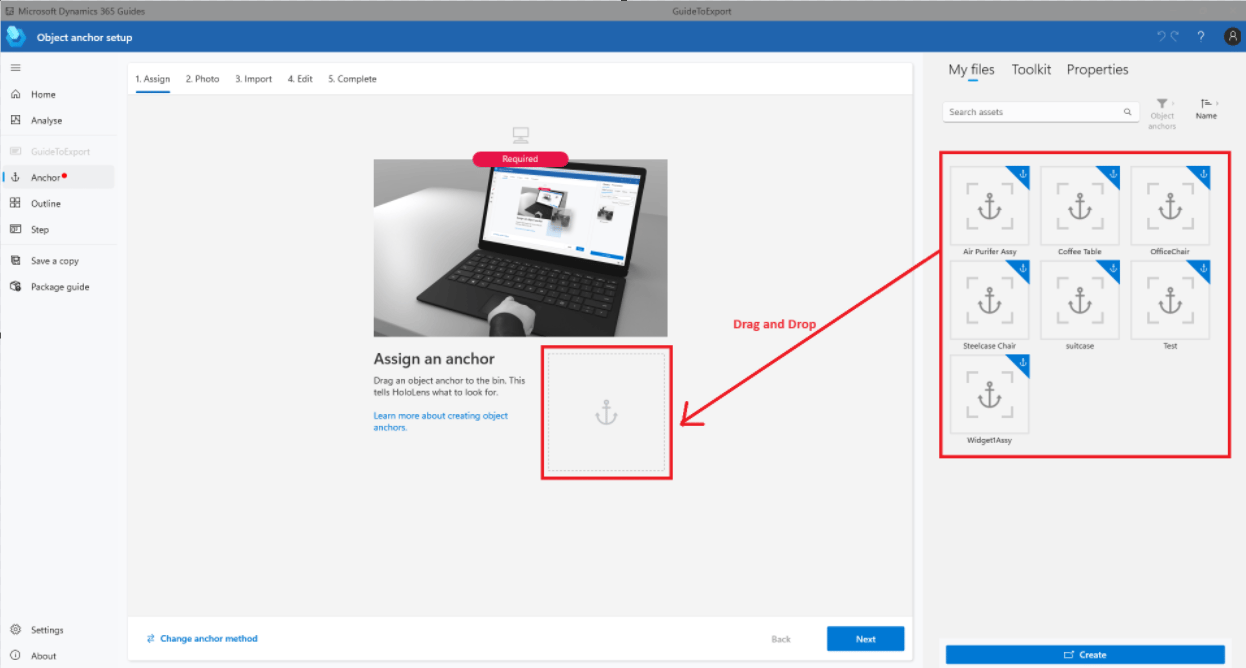
Setting Up Anchor in Dynamic 365 Guides when export is done using object anchoring.

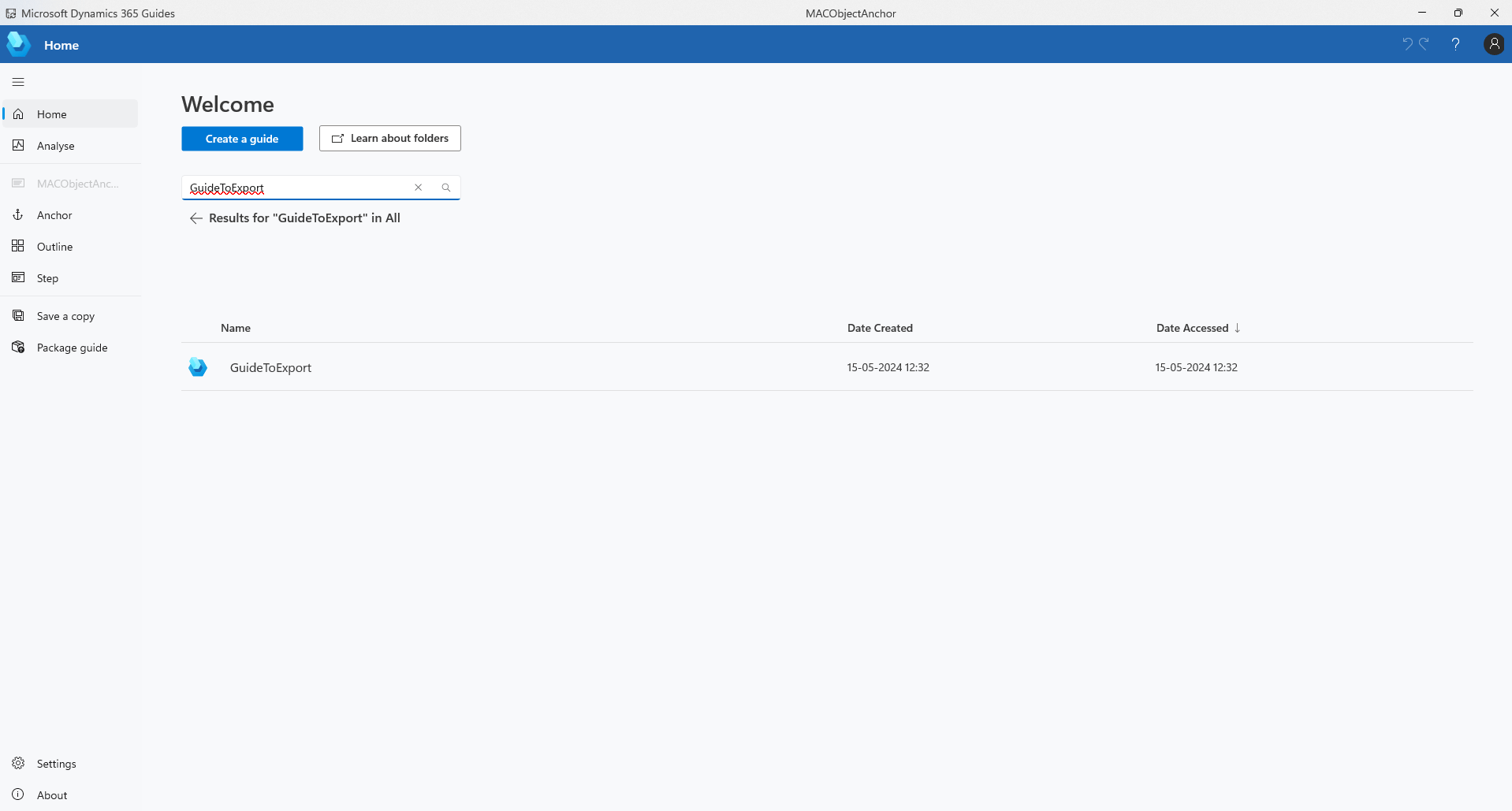
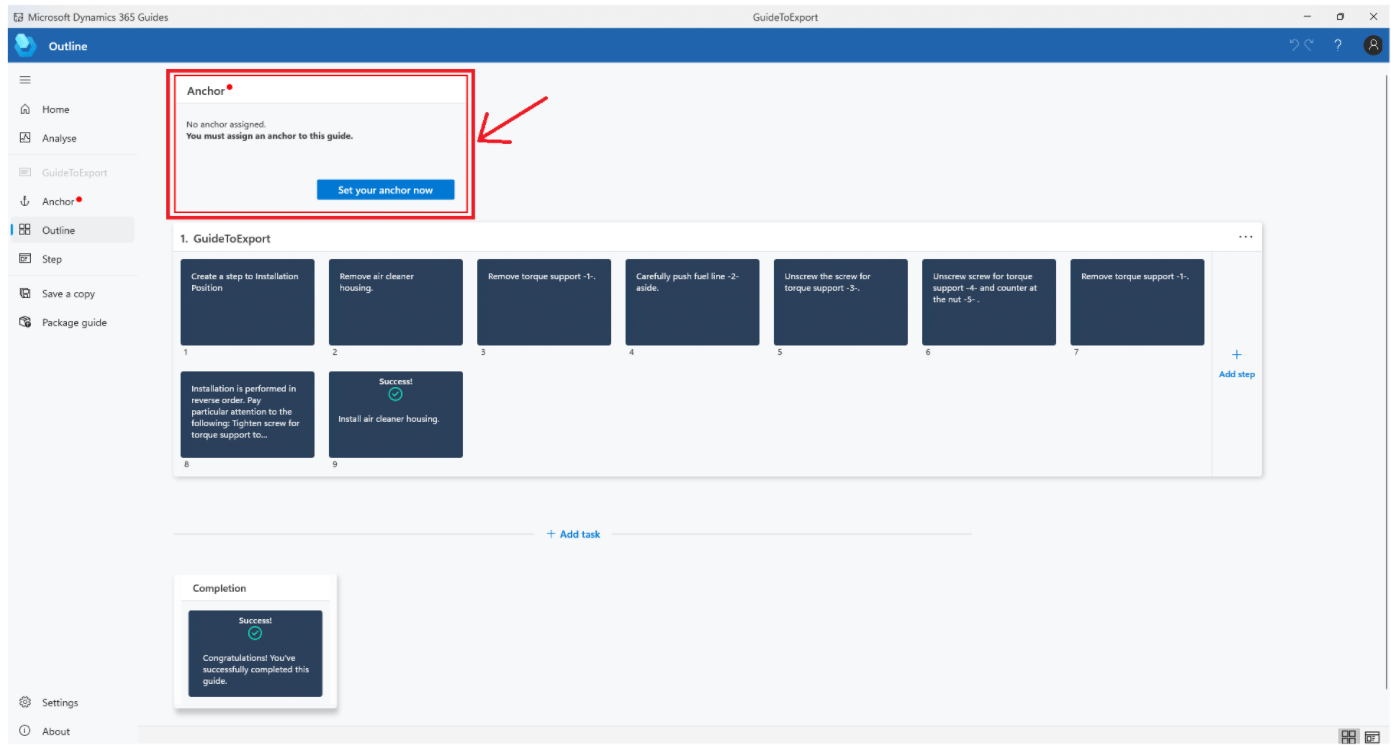
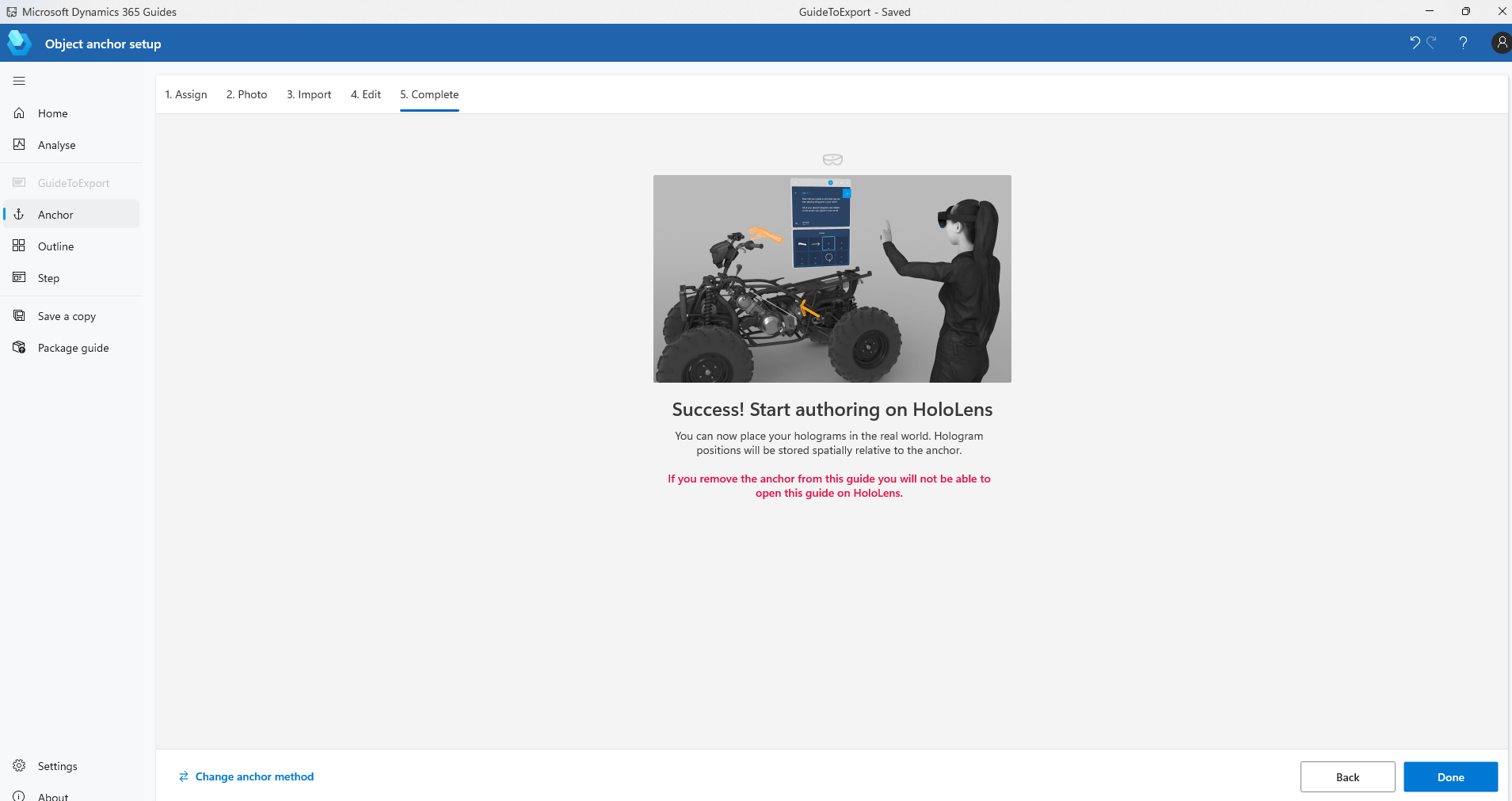
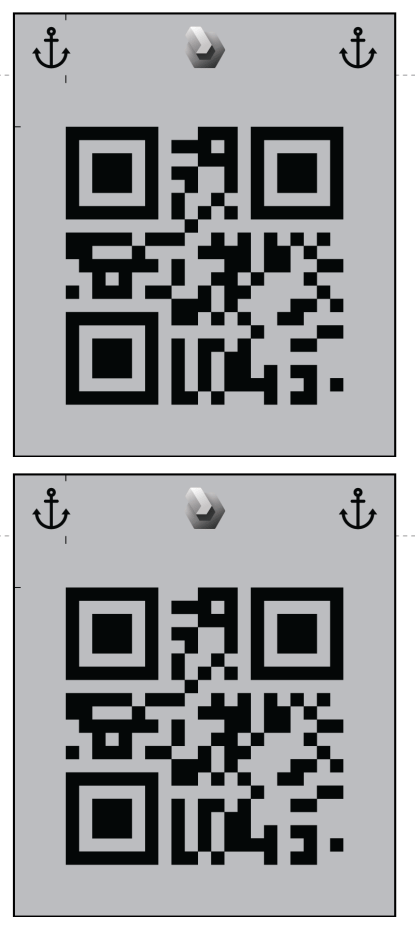
Search for the Guide name which was exported. Open the guide and select “Set Your Anchor Now”. Click on the object and drag it to the specified location. Complete all the steps in the ‘Object Anchoring Setup’ before opening the Guide in HL. QR CODE which user can use to anchor in Guides: