

Mouse & Trackpad Controls
If you’re using a computer with a mouse or trackpad: Look Around- Click and drag with the left mouse button to rotate your view
- Look up, down, left, and right to see all angles
- Scroll your mouse wheel forward to move forward through the scene
- Scroll your mouse wheel backward to move backward
- Hold the middle mouse button and drag to slide your viewpoint without turning
- Drag left/right to strafe, drag up/down to fly up or down
- Left-click on any highlighted (glowing) object to interact with it
Keyboard Controls
Use your keyboard to move and look around the scene: Movement (WASD)- W — Move forward
- S — Move backward
- A — Strafe left
- D — Strafe right
- E — Move up (raise camera)
- Q — Move down (lower camera)
- Arrow Up / Down — Pitch up / down
- Arrow Left / Right — Turn left / right
- Left Shift (hold) — Sprint at 2× speed
- Left Alt (hold) — Slow walk at half speed
- Press J to show or hide the virtual joystick without opening Settings
- Ignored while you’re typing in a text field or holding a modifier key
On-Screen Help Strip
A help strip is displayed at the bottom-right of the screen showing the available controls for your device: On Desktop — Shows W A S D (move), Q E (height), Drag (look), Middle Mouse (pan), Shift (run), J (joystick), and your current camera height in meters. On Touch Devices — Shows Drag (look), Two-finger drag (move and height), Pinch (zoom), Tap, and your current camera height in meters.Touch Controls
If you’re on a tablet or touchscreen device, you can move around using gestures alone — no joystick required: Look Around — One-finger drag across the screen to rotate your view Strafe Left / Right — Two-finger drag horizontally to slide sideways Raise / Lower Viewpoint — Two-finger drag vertically to move up or down Move Forward / Backward — Pinch fingers apart to move forward, pinch together to move back Tap Objects — Single tap on a highlighted object to interact with itOnce a two-finger gesture is recognized as a pinch or a slide, it stays in that mode until you lift your fingers. If you start pinching and want to slide instead, lift and start again.
Virtual Joystick
The virtual joystick is an optional on-screen movement controller that works like a game controller. It’s off by default and ideal for touchscreen devices, but also works with a mouse.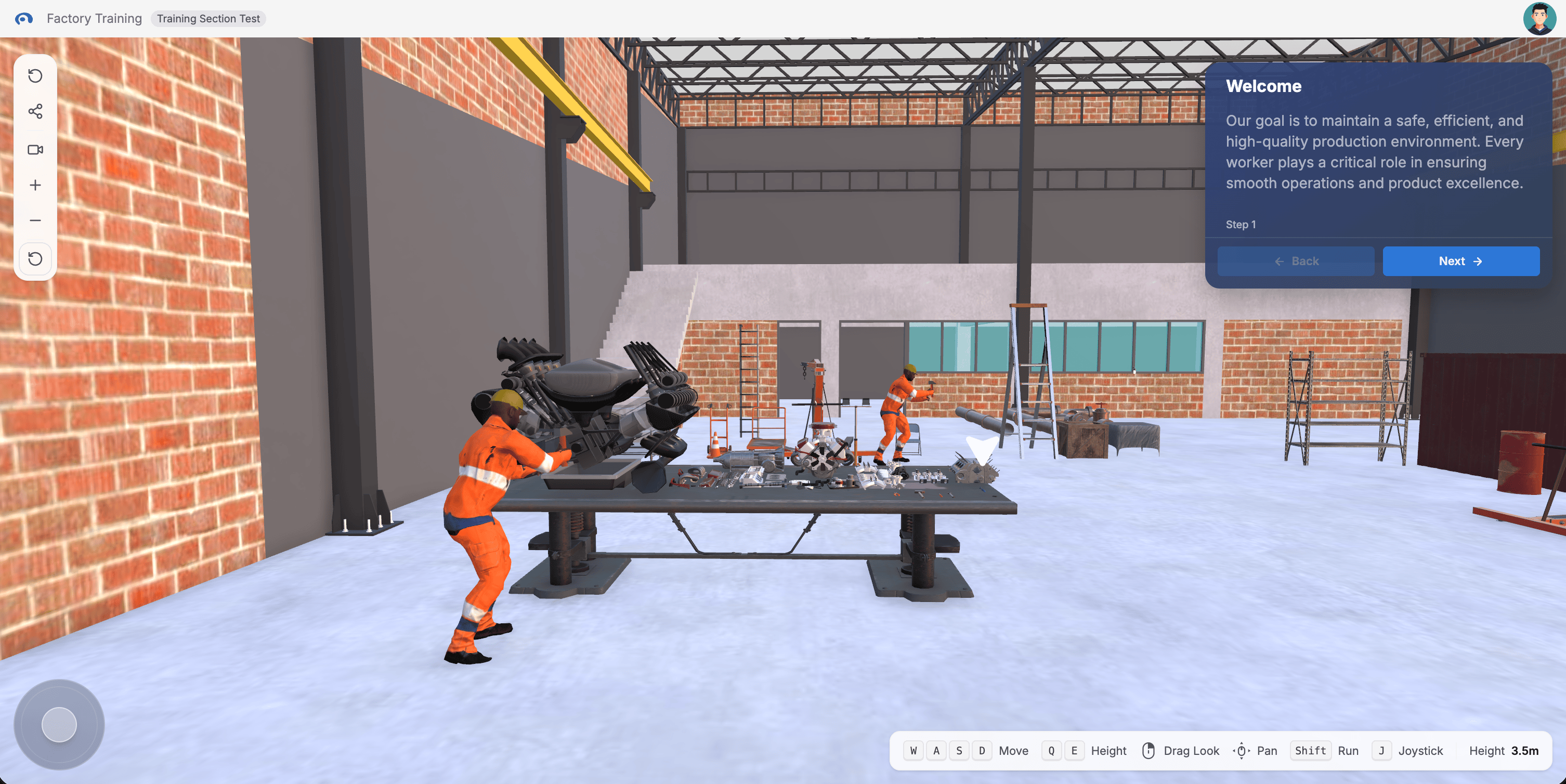
- Drag up/down to move forward/backward
- Drag left/right to strafe
Enabling the Joystick
1
Click Your Profile Avatar
Click the circular avatar icon in the top-right corner
2
Open Settings
In the dropdown menu, click Settings
3
Toggle Virtual Joystick
Under Controls, switch the Virtual Joystick toggle on or off. The joystick appears or disappears immediately.
Using the Joystick
With a Touchscreen — Touch and drag the pad to move. Release your finger and the joystick returns to center. Swipe elsewhere on the screen with another finger to look around at the same time. With a Mouse — Click and drag the pad. Works the same as touch. Even a small movement input works. Moving and Looking Together — Drive with the joystick while dragging elsewhere to look around. You can also click objects on screen while using the joystick.When to Use It
Use the Virtual Joystick if you’re on a tablet or touchscreen, prefer game-controller-style movement, or are navigating a large scene with lots of walking. Use Keyboard & Mouse if you’re on a desktop, prefer traditional WASD controls, or want more precision with click interactions. You can switch between them at any time — mix and match whatever feels comfortable.Camera Height Controls
The camera height controls let you raise or lower your viewpoint to see objects at different eye levels. You’ll find these on the left side of your screen, below the share button.
Enabling Height Controls
Height controls can be toggled on or off in Settings under the Adjust Height toggle. When disabled, the +/− buttons are hidden and your camera stays at the default level. On tablets, the Adjust Height toggle is not shown in Settings. The +/− buttons are always available, and you can also use a two-finger vertical drag to change height.Reset Height only resets the vertical position. To reset your full camera orientation (position + rotation), use Reset View from the Reset menu on the left side of the screen.
Tips for a Better View
Getting a Good Angle- Drag with the mouse or use arrow keys to rotate until you can see the object clearly
- Use Camera Height + or press E to raise your viewpoint for objects above you
- Use Camera Height − or press Q to lower your viewpoint for objects below you
- Scroll the mouse wheel forward or use W / left joystick to walk toward what you need
- If you get disoriented, open the Reset menu (left side of screen) and choose Reset View to return to the trainer’s recommended viewpoint
- Rotate with the mouse, then use WASD to walk closer
- Use Shift to move faster when covering larger distances
- Move with the virtual joystick and click objects with your mouse — both work simultaneously
Can’t find what you’re looking for? Try rotating around the scene or walking backwards. Every interactive object is highlighted in practice mode — look for glowing indicators and the direction indicator arrow.
Troubleshooting
The virtual joystick isn't showing
The virtual joystick isn't showing
It’s off by default. Open Settings via your profile avatar (top-right) and enable the Virtual Joystick toggle under Controls, or press J on a keyboard.
I can't move on my tablet
I can't move on my tablet
You don’t need the joystick. Use a two-finger drag to strafe or change height, and pinch to move forward or back. If you’d rather have on-screen controls, enable the Virtual Joystick in Settings.
The joystick isn't responding
The joystick isn't responding
Check that it’s enabled in Settings. If it’s on and still not responding, try refreshing the page.
I keep accidentally touching the joystick
I keep accidentally touching the joystick
Disable it in Settings and use keyboard/mouse controls instead.
I'm completely disoriented and can't find anything
I'm completely disoriented and can't find anything
Use Reset View from the Reset menu on the left side of the screen to return to the default camera position and orientation.