

Supported Devices
- Meta Quest 2 / 3 / 3S
- HTC Vive
How to Pair
1
Open the Profile Menu
Click the circular avatar icon in the top-right corner of the screen
2
Select Pair Device
In the dropdown menu, click Pair Device
3
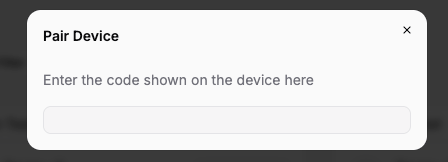
Enter the 6-Digit Code
A pairing modal appears in the Trainee. On your HMD device, a 6-digit code is displayed. Type that code into the pairing modal. It submits automatically as soon as all six digits are entered.
4
Confirm Connection
Once paired, you’ll see a “Pairing is Successful” confirmation. Your HMD mirrors or extends the training session.
The HMD device must be on the same network as your computer, or have internet access to connect to the Altoura cloud service. Ensure both devices are connected before starting the pairing process.
What Changes with an HMD
Once paired, the HMD runs the training in its own Altoura app. The exact experience depends on the HMD platform:- On the HMD, you see the 3D environment with full depth and spatial awareness
- Interaction methods depend on the device (controllers or hand tracking on Quest, controllers on Vive)
- Head movement controls your view on the HMD
- The web browser session on your computer links to the same training session for pairing purposes
Troubleshooting
The pairing code isn't working
The pairing code isn't working
You’ll see “Invalid code” if the code was mistyped or has expired on the HMD. Check the code on the headset and enter it again. If the headset shows a new code, use that one.
The HMD connected but I don't see the training
The HMD connected but I don't see the training
Ensure the Altoura app on your HMD is updated to the latest version. Try unpairing and pairing again.
There's a delay between my actions and what I see
There's a delay between my actions and what I see
This is usually a network issue. Make sure both devices have strong, stable connections. Being on the same local network reduces latency.