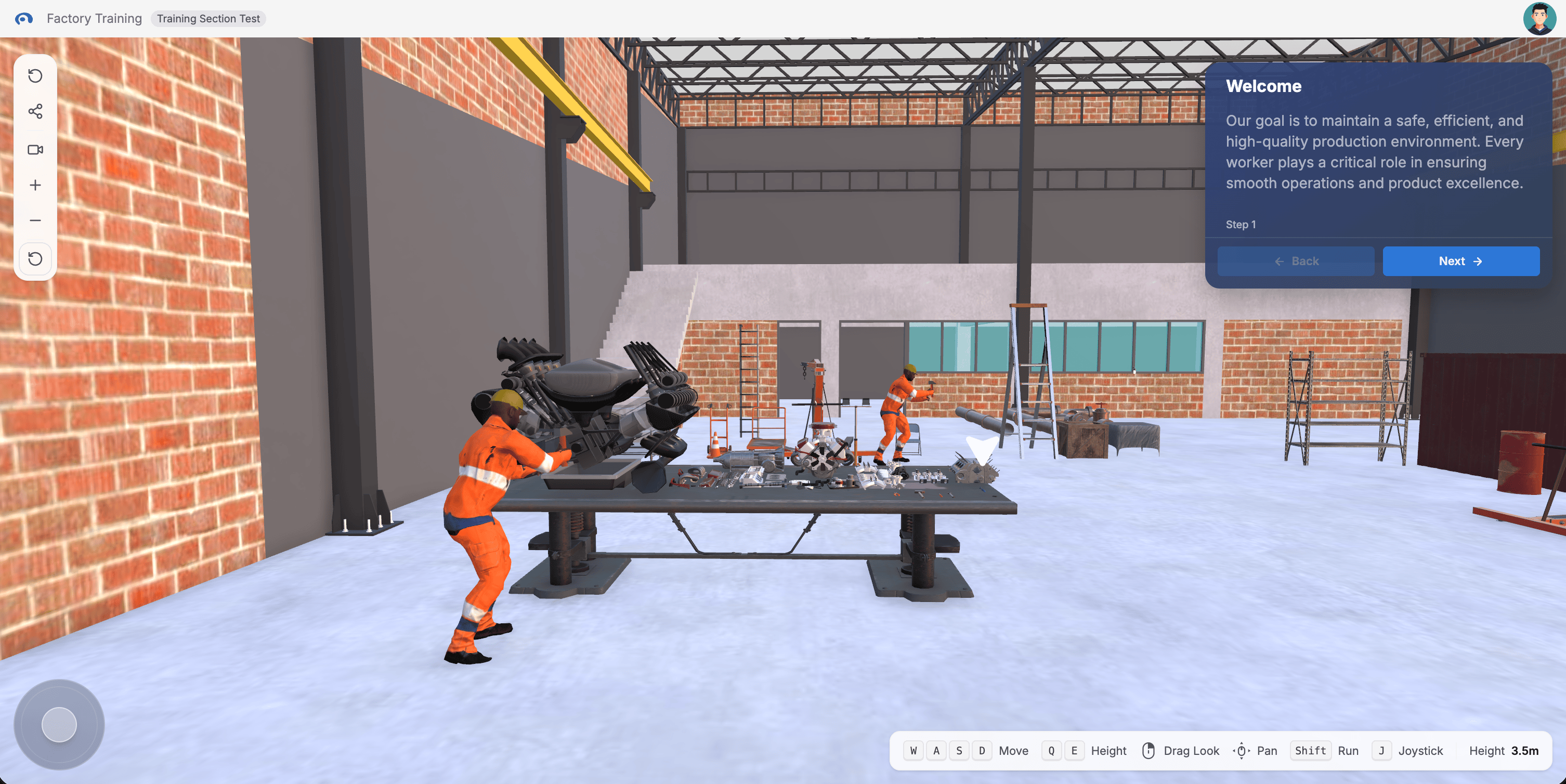
Once your training loads, you’ll see several key elements on screen. Here’s what each one does.
Top Ribbon Bar
At the very top of the screen, you’ll find:
Altoura Logo — Displayed on the left side of the ribbon. Click it to open the Altoura Dashboard in a new tab; your training stays open in the current tab.
Training Name — The name of your current training, along with your organization badge
Profile Menu — A circular avatar on the right side. It shows your profile photo if you have added one, otherwise your initials. Click it to open a dropdown with:
- Your Profile — Your name, email, and profile photo are displayed at the top of the dropdown. Click the small pen icon on your avatar to upload a new profile photo. A crop dialog lets you adjust the image before saving. Your photo persists across sessions.
- Pair Device — Connect an HMD device (such as Meta Quest or HTC Vive) to your training
- Settings — Open the Settings modal to customize your experience. Options include toggling the virtual joystick and camera height controls, turning step instruction audio on or off, adjusting volume, and tuning rendering options such as ambient occlusion quality and camera clip distances. See Settings for full details.
- Logout — Sign out of the Trainee. You will be redirected to the login page. Your current training URL is remembered so you can return to it after logging back in.
3D Viewport
The main center area of the screen is the 3D environment where your training takes place. This is where you see the objects and equipment you’re training on, look around, interact with highlighted items, and follow animated instructions.
Floating Controls
On the left edge of the screen, you’ll see a set of floating buttons stacked vertically.
A reset icon at the top. Click it to open a dropdown with three options:
Reset Step — Restarts only the current step to its original state. Undoes any interactions you made in this step and brings back instructions and ghost hand animations. All progress from previous steps is kept.
Reset Training — Restarts the entire training from Step 1. Clears all progress in the current session. Your completion history from previous sessions is preserved separately.
Reset View — Returns your camera to the default position and viewing angle. Does not affect training progress or any interactions — purely a visual reset.
Use Reset Step for a quick recovery from a mistake. Use Reset Training only if you want to practice the full flow from scratch. Use Reset View whenever you feel disoriented.
- Enter one or more email addresses to invite
- Each email is validated before sending
- Once shared, the training appears in the invited user’s Dashboard
If you don’t see the share button, your account does not have Share permission for this training. Contact your organization admin if you need to share access with others.
Camera Height Controls
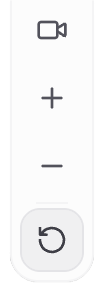
Below the share button. A compact panel with + (raise viewpoint), − (lower viewpoint), and Reset height (return to default). See Navigating in 3D for full details.
Virtual Joystick
If enabled in Settings, a game-controller-style pad appears at the bottom-left of the screen for movement. Looking around is still done by dragging with your mouse or a one-finger swipe. See Navigating in 3D for full details.
Keyboard shortcut: Press J to show or hide the joystick instantly without opening Settings. The shortcut is ignored while you’re typing in a text field or holding a modifier key such as Ctrl or Cmd.
Controls Help Strip
A small pill at the bottom-right of the screen that lists the navigation controls for your device and shows your current camera height in meters. It updates live as you move up or down. On desktop it shows keyboard and mouse hints; on tablets it shows touch gestures. See Navigating in 3D for what each hint means.
Step Panel
The step panel appears at the top-right of the screen and is your primary guide through each training step. On tablets in portrait orientation it moves to the bottom-right so it doesn’t cover the scene.
Step Number — A small label (for example, “Step 3”) so you always know where you are in the training
Step Title and Instructions — What you need to do at each step
Embedded Media — Some steps include an image or video inside the panel. A spinner appears in its place while the media downloads.
Back / Next Buttons — Navigate between steps (when available). On the final step, Next is replaced by Exit, which ends the training.
Multiple-Choice Questions — Select an answer from the provided options. Each choice navigates you to the step configured by the training author. Some choices may lead to different branches of the training depending on your answer.
Text Input Fields — Type your response and press Enter or click the Next button. Some steps require a specific answer format and will show an error if your input does not match. In steps that combine a text input with an object interaction or a choice, you must enter a valid response first before you can interact with the object or select a choice.
Throughout your training, additional panels may appear with instructions, images, videos, or reference material.
Text Panels
A box on the right side of the screen with written instructions, explanations, or background information for the current step. Text panels stay visible while the current step is active and update as you progress through steps.
Image Panels
Diagrams, photos, or reference images that may show close-up views, exploded diagrams, or labeled parts. Study them as reference for what you’re looking for in the 3D scene.
Click the maximize button in the panel’s top corner to view the image full screen. Press Escape or click outside the image to return.
Video Panels
An instructional video with play/pause controls. You can expand the video to full screen and control the volume from there. Watch the demonstration, pause to examine details, and rewind if needed.
Panel Placement & Behavior
Panels appear on the right side of the screen in screen space. Their visibility and content are controlled by the training creator — panels may be shown or hidden at different points in the training, and their content updates automatically as you progress through steps.
Ghost Hand Animations
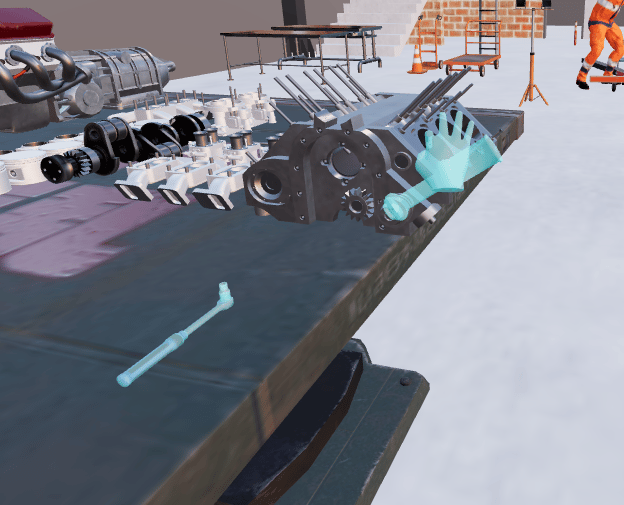
When you need to interact with something, animated ghost hands show you which object to tap and what will happen — a tap, a move, or a rotation. All three are triggered by tapping the object; moves and rotations then play out automatically. A direction indicator arrow on screen points toward the target object for the current step. See Interacting with Objects for full details.
Callout Labels
Some steps attach small text labels to objects in the scene, connected by a leader line that points at the object. If a label is covering something you need to see, drag it with your mouse or finger to move it out of the way. The leader line stretches to follow, and the label stays attached to its object if the object moves. The moved position is not saved: if the training removes the label and shows it again later, it appears in its original position.
A quick tap on a label (without dragging) still triggers any action the training author attached to it.
Safety Alerts
Training authors can mark certain objects as hazards. If you walk into one, or tap and hold it, a red vignette appears around the edges of the screen along with a message card in the center explaining the hazard. The vignette fades a few seconds after you move away or release the object.
Tapping the wrong object in assessment mode does not trigger this vignette. That shows a message on the step panel instead. See Assessment Mode for details. How It All Works Together
- Read instructions from the step panel
- See visual guidance from highlighted objects and ghost hand animations
- Interact by tapping on objects in the 3D scene — tap triggers the event (tap, move, or rotate) configured by the creator
- Move to the next step using the step panel or by completing the interaction
New to 3D controls? Check out Navigating in 3D to learn all the mouse, keyboard, and touch controls.