

Profile Menu Contents
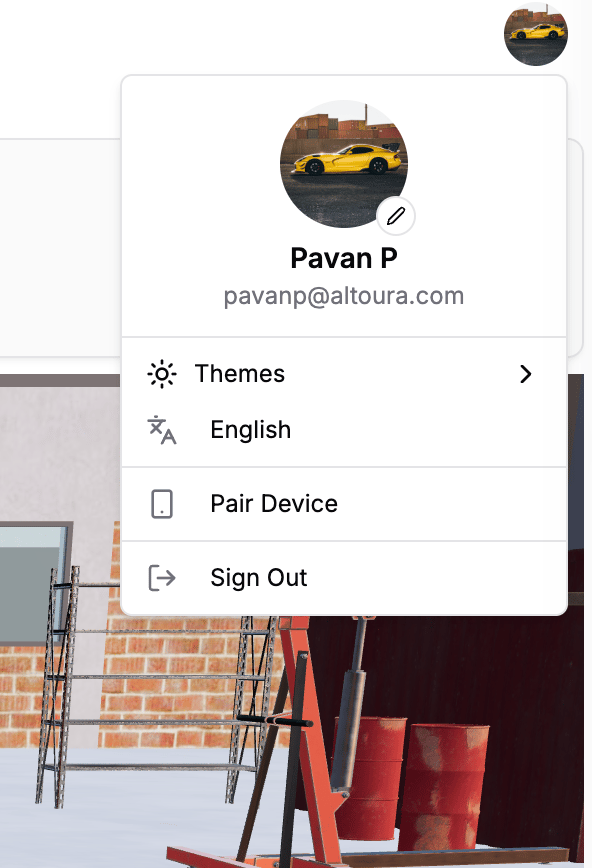
The profile menu includes:- A profile card with avatar, display name, and email
- Avatar change button
Themessubmenu- Static
Englishrow Pair DeviceSign Out
Themes
Users can switch the app theme from:- The profile menu
- The footer toggle
LightModeDarkModeSystem
Language
Supported language is English.Pair Device
Users can pair a device from the profile menu.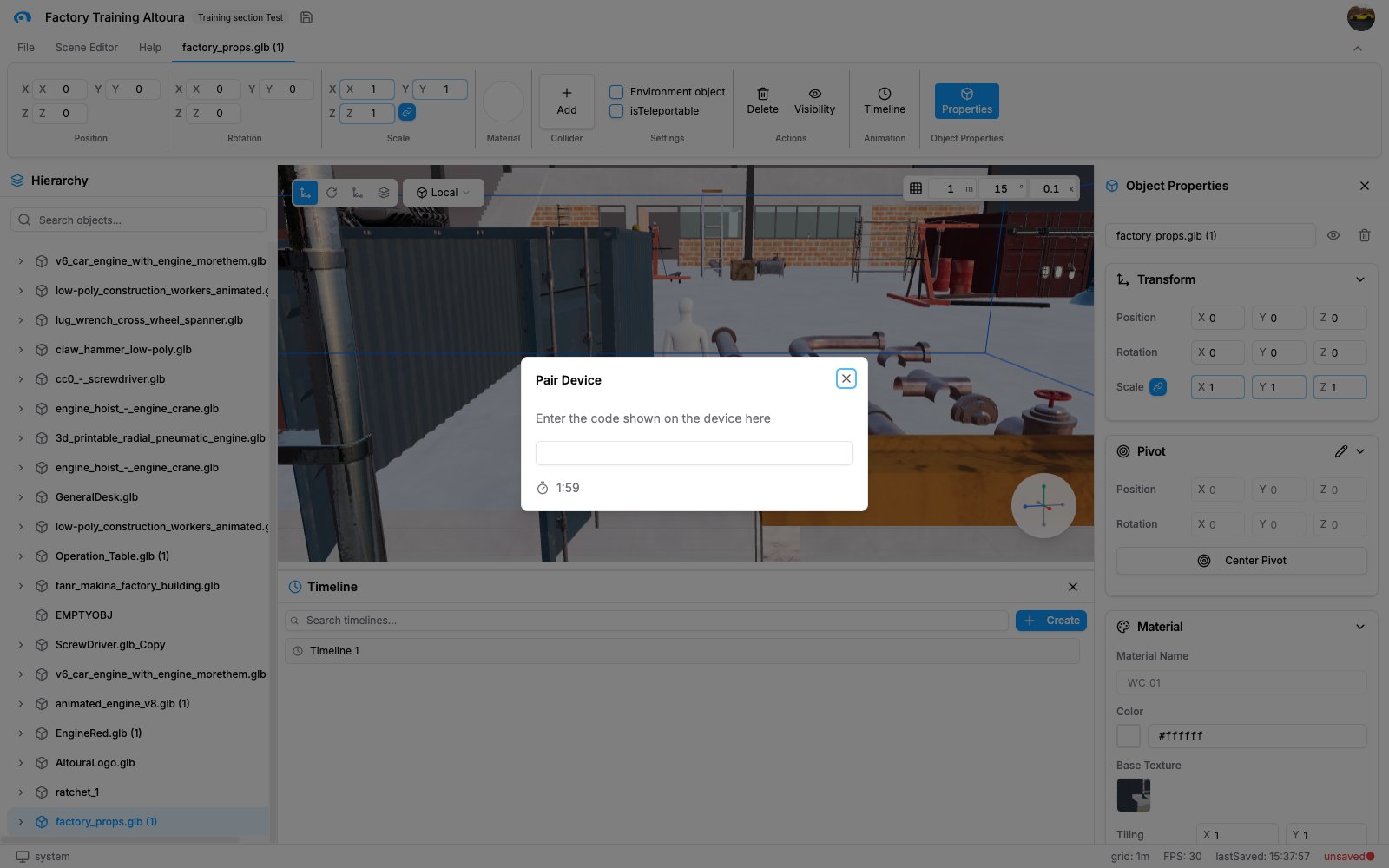
- Title:
Pair Device - Instruction:
Enter the code shown on the device here - A 6-digit entry field
- Timer display
Restart Timerafter expiryValidating code...Invalid codePairing is Successful.
Pairing Flow
- Open the profile menu.
- Click
Pair Device. - Wait for the session to initialize.
- Enter the 6-digit code shown on the device.
- Complete pairing before the timer expires.
Sign Out
To sign out, open the profile menu and selectSign Out.
After you sign out, you are logged out and returned to the login flow.