

Camera Controls
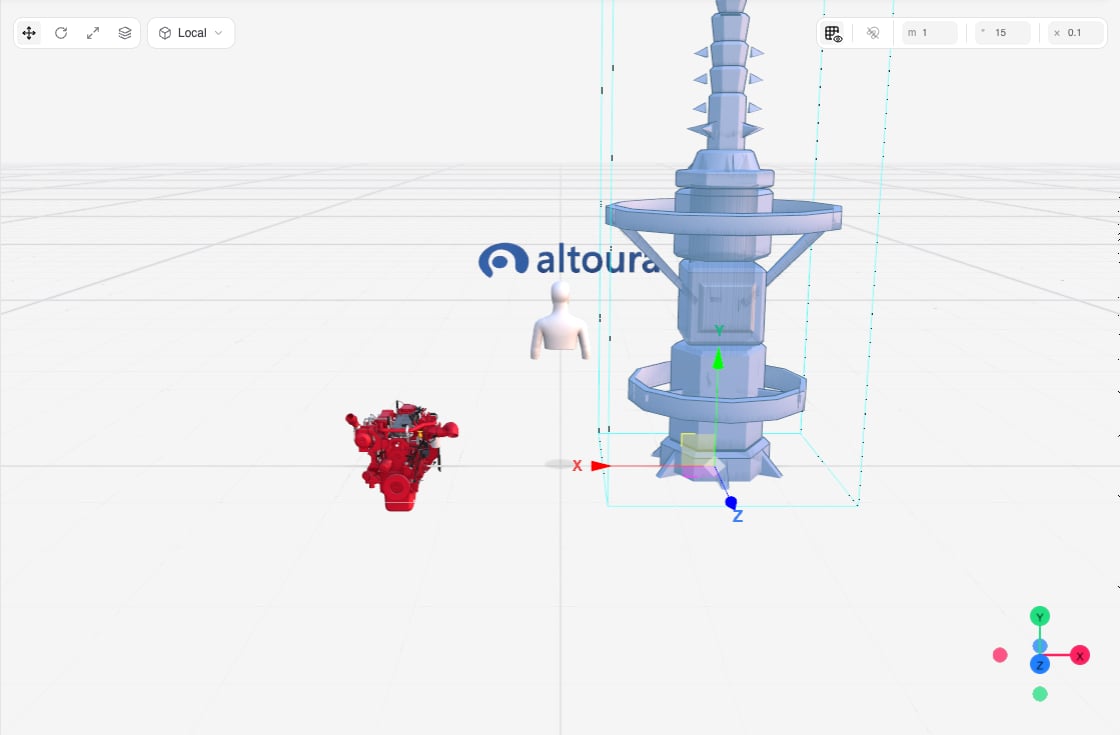
The camera orbits around a focus point. Orbiting turns the camera around that point, panning slides the camera and the focus point together, and zooming moves the camera closer to or farther from it.
You can also fly the camera and frame the selection from the keyboard. See Keyboard Shortcuts.
Axis Widget
The axis widget in the bottom-right corner shows the camera’s orientation. Each colored cone is the tip of one axis. Click a cone to jump to a standard view along that axis, centered on the selected objects or, when nothing is selected, on the focus point. Orbiting afterwards stays centered on that point.Selecting Objects
Selecting an object in the viewport also selects it in the Hierarchy, and selecting a row in the Hierarchy selects the object in the viewport. Selected objects get a cyan outline and a light-blue tint. When several objects are selected, the one selected first is the active object. It is outlined more strongly, and its values appear in the ribbon and the Object Properties pane.
Gizmo Toolbar
The toolbar in the top-left corner of the viewport controls the transform gizmo. The gizmo appears at the pivot of the selected object and has handles you drag to change the object’s Transform. A child’s Transform is relative to its parent, so a child moves, rotates, and scales with its parent.
Scale and Universal are not available for the Initial User Position or while editing a pivot. Scaling always uses the object’s own axes.
While you drag the Move gizmo, a white ring appears on the floor under the object when its base comes close to floor level. The ring tells you the object is nearing the floor, so you can set it down on the ground.
Snap Toolbar
The toolbar in the top-right corner controls the grid and snapping.
To change a snap value, drag the field left or right, scroll over it, or click and type. Hold Shift while dragging for larger steps and Ctrl for finer steps. Press Esc to revert. Snapping is off by default. Steps are measured from where the drag starts, not from the grid.
On a narrow viewport the toolbar shrinks to icons and a Snap settings popover.
Right-Click Menus
On an Object
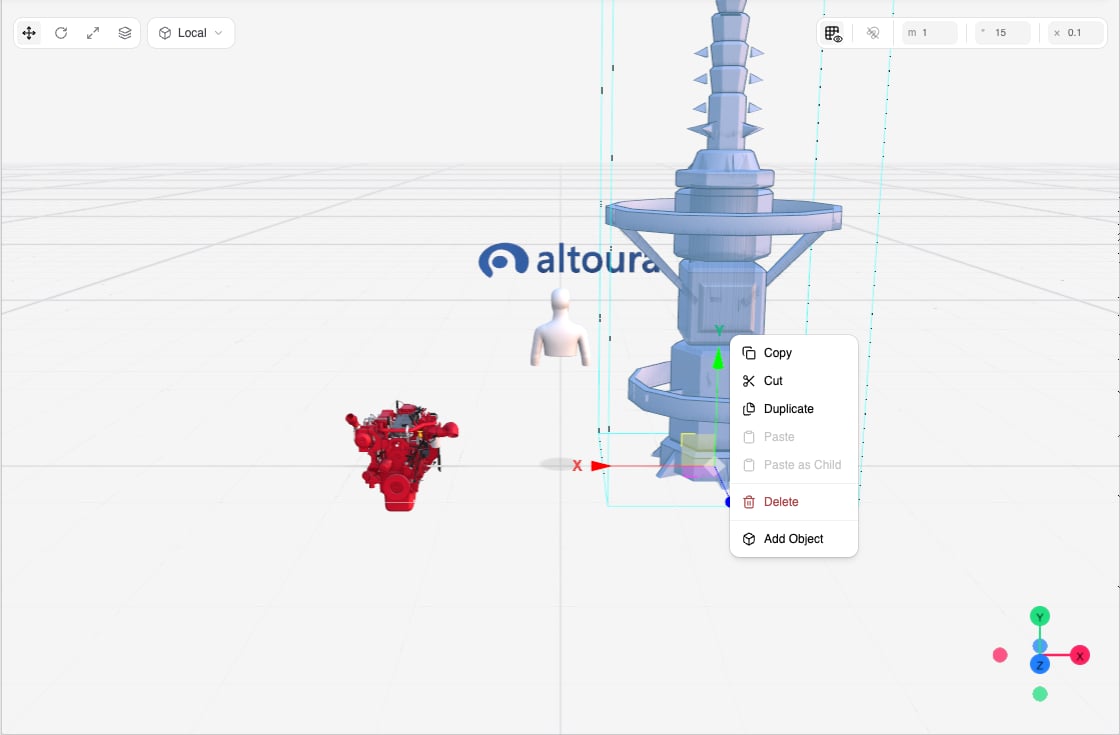
When several objects are selected and you right-click one of them, Copy, Cut, Duplicate, and Delete act on all of them. Paste, Paste as Child, and Add Object are not available on the Initial User Position.
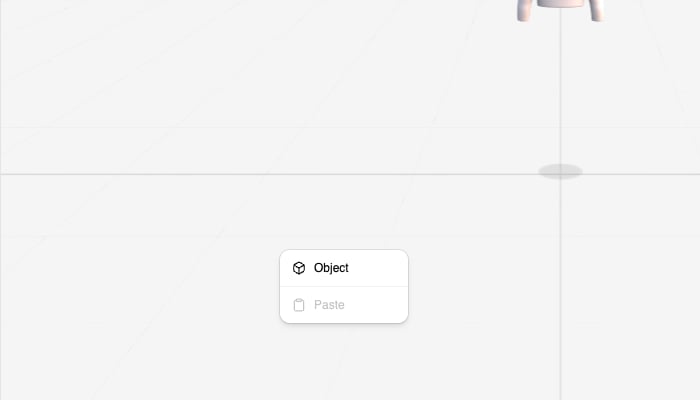
On the Floor
Dragging Files Into the Viewport
Drag a.glb file from your computer onto the viewport. While you hold the file over the viewport, an overlay shows that releasing will place the model. On drop, the model is uploaded to your library and placed at the drop point as a top-level object.
Other file types, including images, are rejected with a notification. To apply an image as a texture, use the Material popover in the ribbon or the Texture field in Object Properties. See Object Properties. Audio files are added on the Timeline, not in the viewport. File names must be 50 characters or fewer, including the extension.
Moving Objects Precisely
The viewport is best for quick placement. To type exact values:- Use the Position, Rotation, and Scale fields in the object ribbon
- Or open the Object Properties pane and use its Transform section
Special Viewport States
- Editing a pivot: the pivot is the origin of the object’s local space, and rotation and scaling happen around it. In this state the gizmo moves the pivot instead of the object, and clicking the background does not change the selection. See Object Properties.
- Editing a collider: a collider is an invisible shape used to detect collisions, and it does not need to match the mesh. In this state the gizmo and outline are hidden, and handles appear on the collider shape. See Object Properties.
- Timeline playback: objects move according to the Timeline and transform edits are disabled.