

How You Enter Scene Editor
Scene Editor is opened through a scene link, normally from the Scene Editor page in the Altoura Dashboard. Each link identifies one scene and the organization that owns it. If you open Scene Editor with a URL that is not valid, you are redirected back to the Dashboard.Signing In
Scene Editor uses your Altoura account, so there is no separate login. If you are already signed in to Altoura in this browser, the scene opens straight away. If not, you are taken to the Altoura sign-in page and brought back to your scene once you sign in.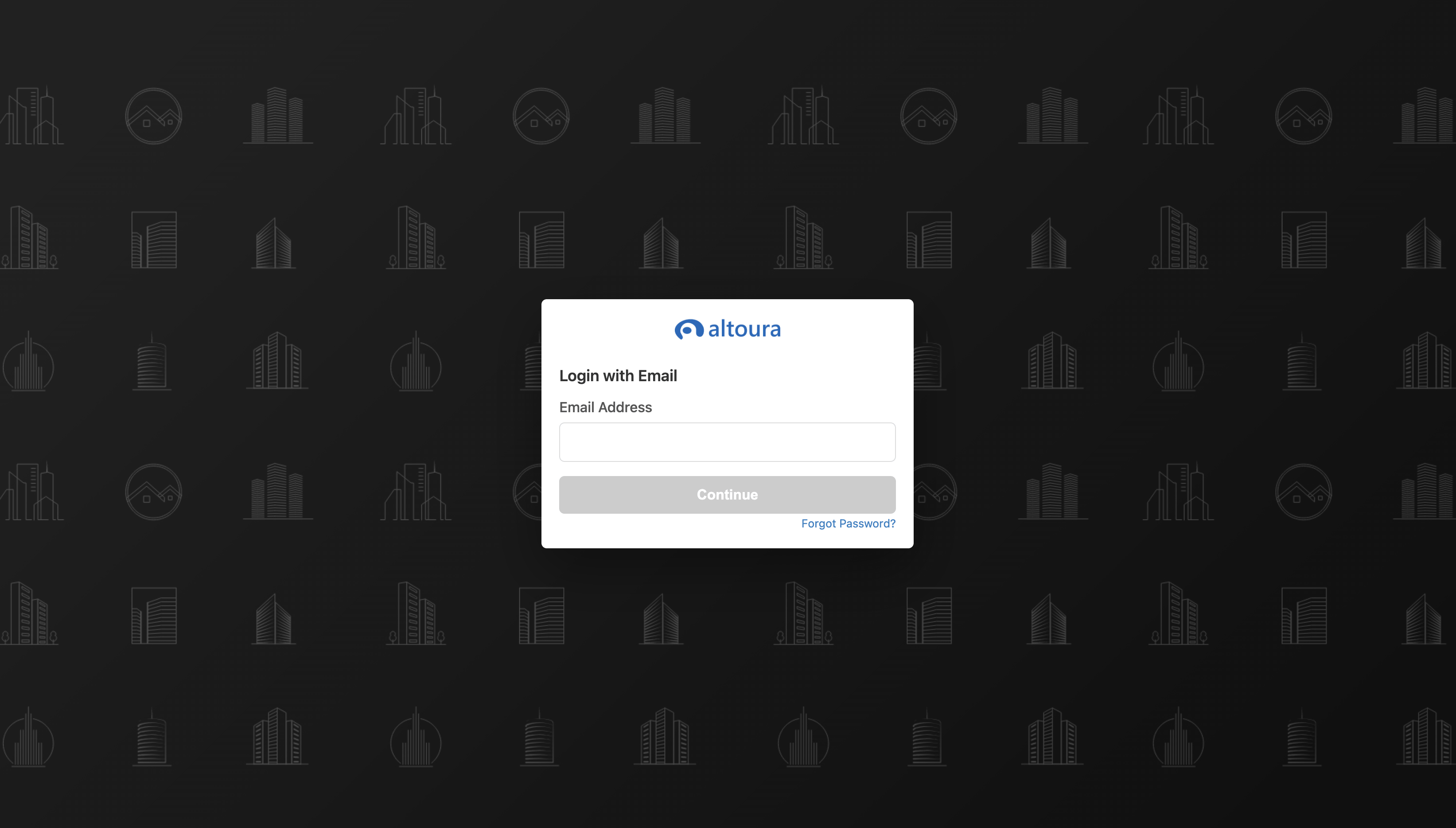
Session Expiry
Sessions have a time limit. A few minutes before your session ends, Scene Editor warns you and saves any unsaved changes for you where it can. If it cannot save, the warning asks you to save your work and sign in again. If your session expires, you are asked to sign in again. Save often so you do not lose work.Signing Out
- Click your profile picture in the top-right corner.
- Click Sign Out.
What Access You Need
To open a scene you need all of the following:- An Altoura account
- Membership in the organization that owns the scene
- A role in that organization that allows editing scenes, such as a creator or admin role
Access Denied
If your role in the organization only allows viewing scenes, Scene Editor shows an Access Denied dialog. Click Okay to return to the Dashboard. There is no read-only editing mode.Protected Objects
Some objects are protected regardless of your permissions:- The Initial User Position marker cannot be deleted, hidden, renamed, copied, or duplicated, and nothing can be placed inside it.
- Internal skeleton bones of animated models cannot be moved, copied, or duplicated.