

Loading a Scene
When you open a scene, Scene Editor shows a loading dialog until every asset has downloaded. The dialog shows:- The name of the scene being loaded
- The current stage, from preparing assets through downloading to complete
- A progress bar and percentage
- How many assets have downloaded out of the total
Renaming a Scene
- Double-click the scene name in the header.
- Type the new name. Names can be up to 50 characters.
- Press Enter or click elsewhere to keep it, or press Esc to cancel.
Creating a New Scene
- In the ribbon, click New in the File group.
- In the New Scene dialog, type a Scene Name of up to 50 characters. The Organization field shows the current organization and cannot be changed.
- Click Continue. The button stays disabled until you enter a name.
Saving a Copy (Save As)
- In the ribbon, click Save As in the File group.
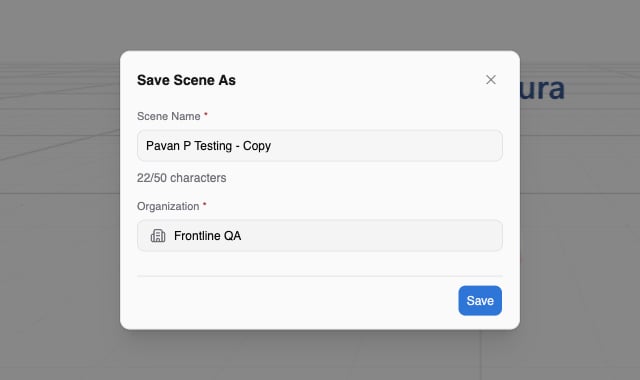
- In the Save Scene As dialog, change the Scene Name. The default is the current name followed by ” - Copy”. Names can be up to 50 characters.
- Click Save. The button stays disabled while the name is empty.
Scene Properties
Click Properties in the Scene group of the Scene Editor ribbon to open Scene Properties. Changes apply immediately, count as unsaved changes, and can be undone.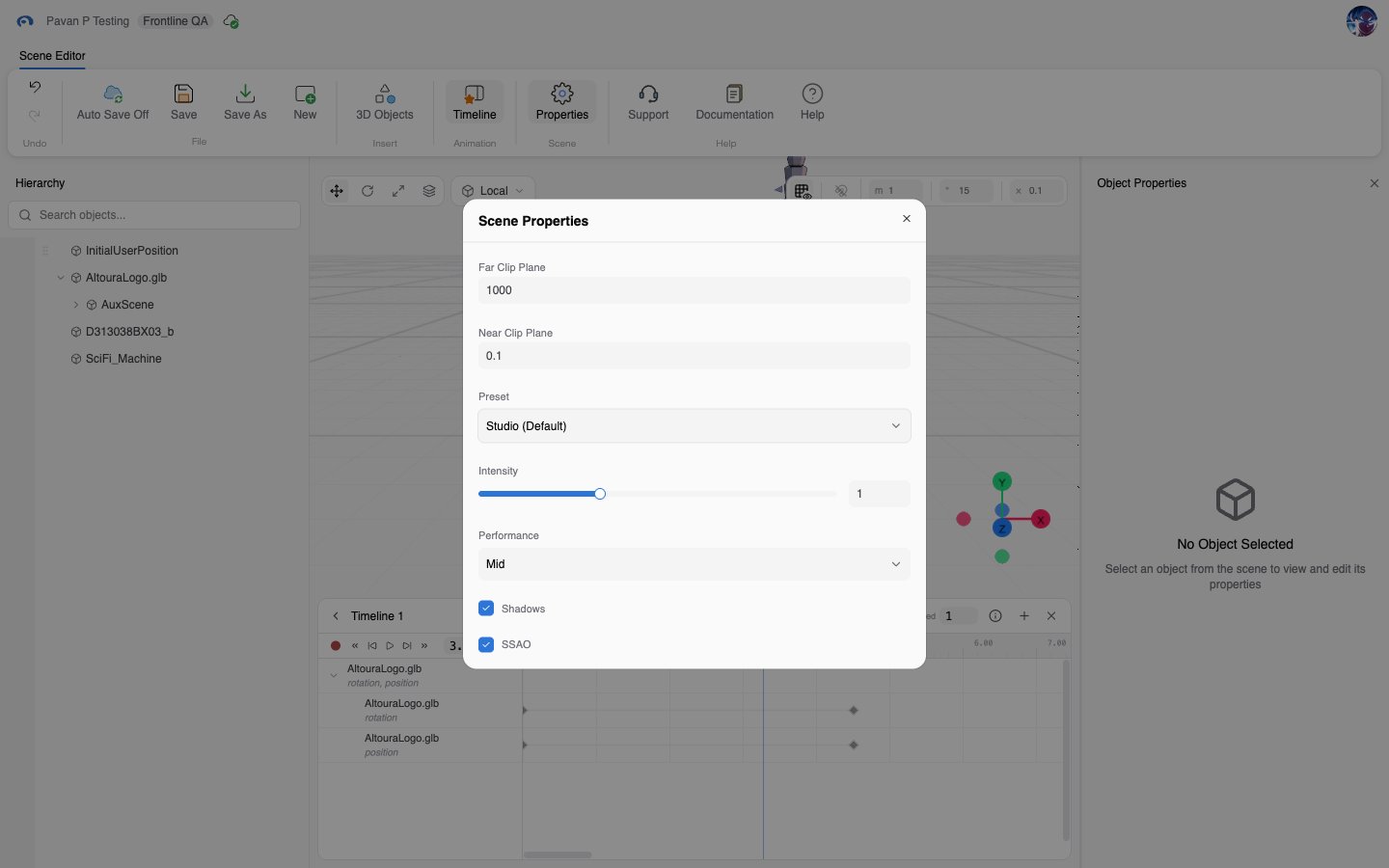
Drag a number field left or right to change its value, or click it and type a value.
Saving
Scene Editor saves the whole scene, including objects, scene properties, and timelines, to Altoura.Save Manually
Click Save in the File group. A notification at the top center of the screen shows that the save is in progress and then that it succeeded. If the save fails, the notification tells you why.Auto Save
The first button in the File group shows Auto Save On or Auto Save Off. Click it to switch. A notification confirms the new state. Auto Save is on each time you open a scene, and the setting is not remembered between visits.When Auto Save Runs
With Auto Save On, Scene Editor saves about 2.5 seconds after your last change to the scene. Each further change restarts the wait, so a run of quick edits is saved once at the end. Selecting objects, scrubbing playback, or changing panel layout does not count as a change and does not trigger a save. Successful automatic saves show no notification. Only the save indicator next to the scene name changes: it shows a spinning icon while saving and a green check when done. If you make more changes while a save is in progress, they are saved in a follow-up save.When Auto Save Waits
Auto Save holds off, and resumes as soon as the condition clears, when:- Auto Save is off. Nothing is saved until you click Save or switch Auto Save back on.
- There are no unsaved changes.
- You are dragging a gizmo in the viewport. The save starts after you release it.
- You are dragging a control in the ribbon or the Object Properties pane, such as scrubbing a number field, moving a slider, or dragging in a color picker. The save starts after you release it.
- A save is already in progress. A second save is not started until the first finishes.
- The scene has not finished loading.