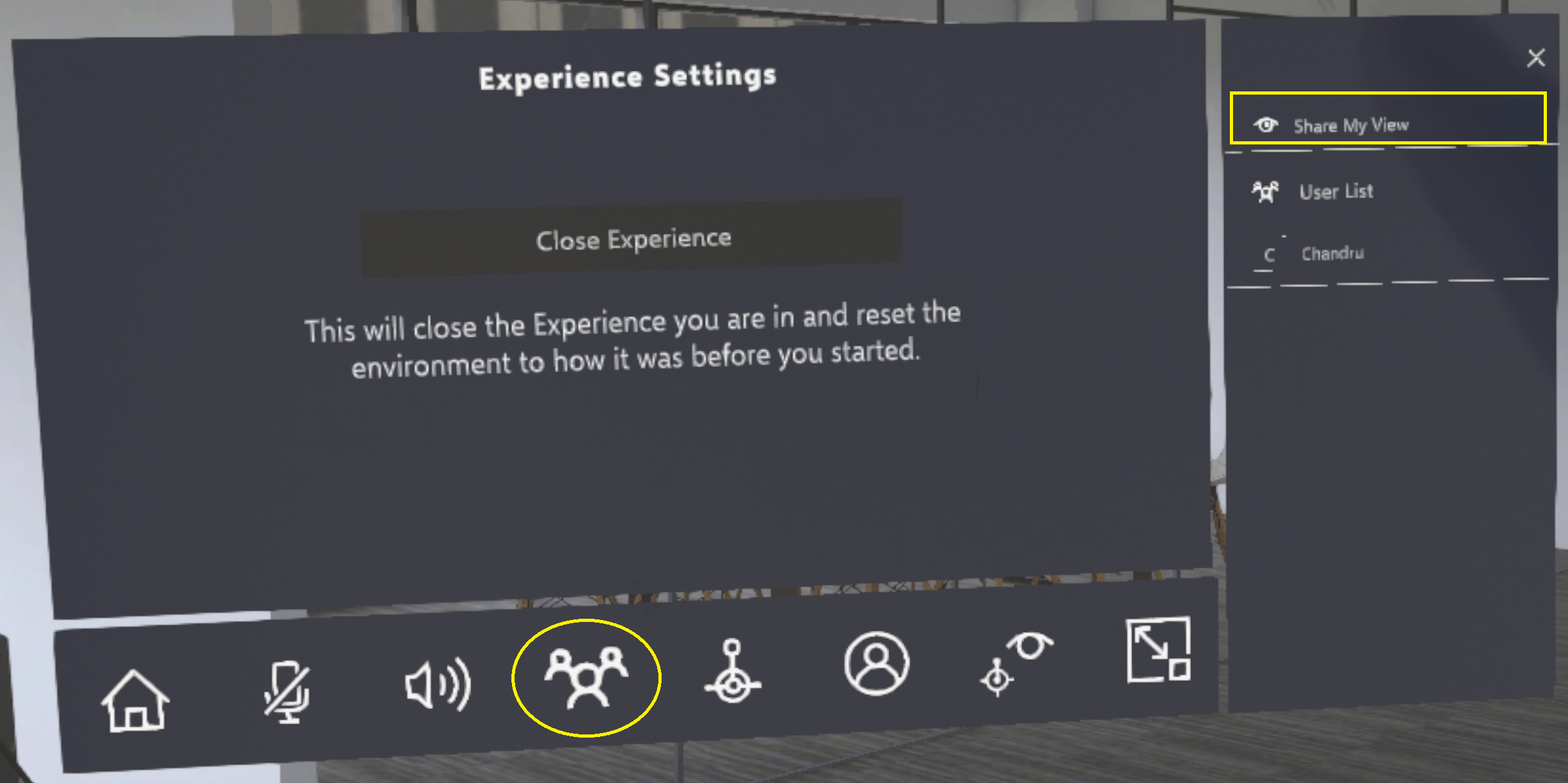
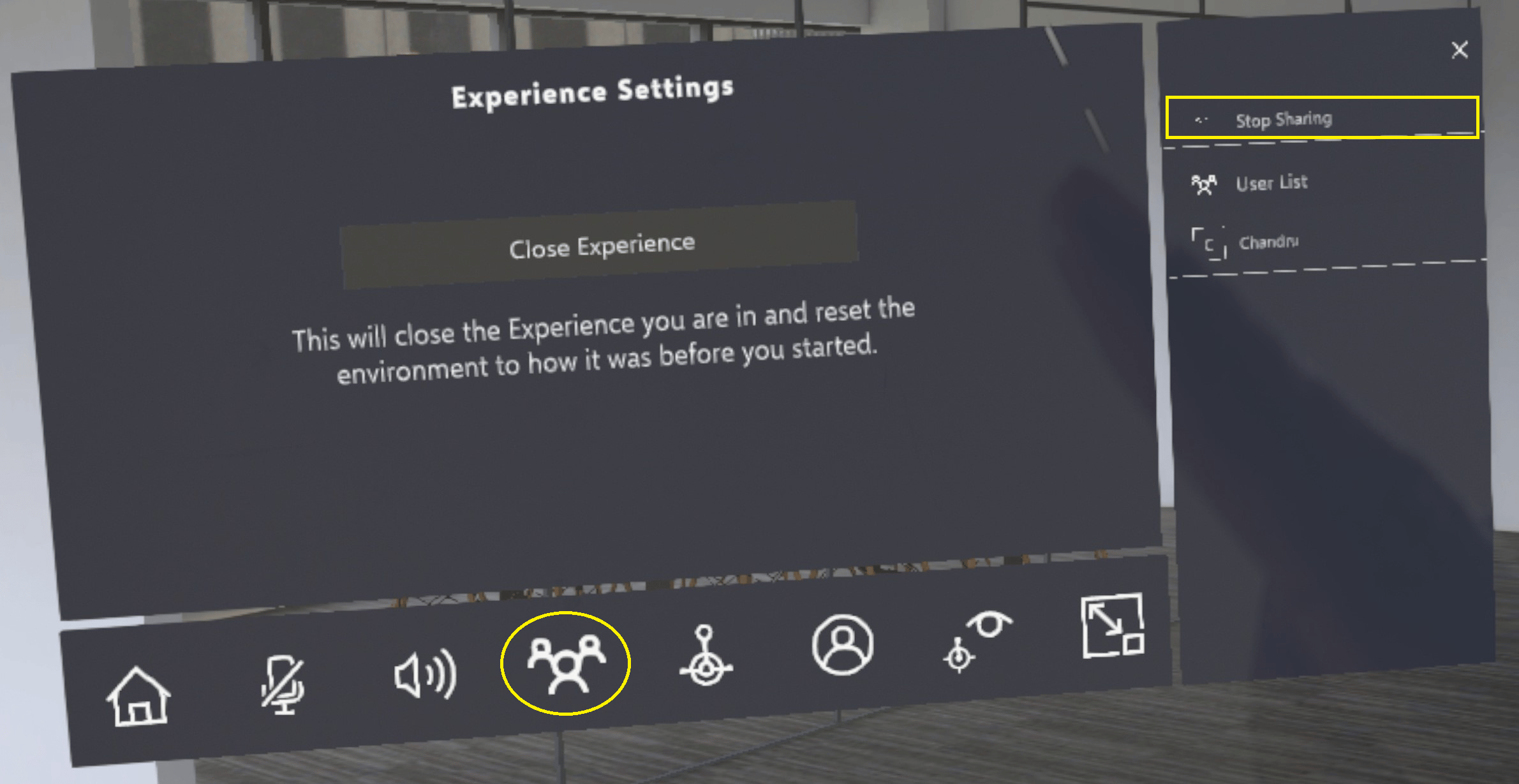
‘Share My View’ feature allows User to project the real time content displayed on his/her device (Smartphone, Tablet, PC or HMD’s) to all the other participants of the Meeting. This mimics the Training session in classroom mode where Trainer decides and controls the training content that needs to be seen by all other participants in the training session. When ‘Share My View’ is selected by User, all the other participants in that Meeting will start seeing exact mirror view of the User who has shared their view.

Sharing User View

When participating in a meeting, User has the ability to share their screen with others by selecting the ‘Share My View’ option. This option will be visible when the user clicks on the icon encircled in yellow below. All participants of the Meeting will instantly start seeing the User’s screen. Once ‘Share My View’ session is active, any User who joins the Meeting will automatically be included to the shared session Meeting. To stop screen sharing, User can select the ‘Stop Sharing’ option, which will discontinue the sharing / mirroring of their screen to all other participants. This option will be visible when the user clicks on the icon encircled in yellow below.