

Find the Right Contact
Open Remote Expert and select the Contacts tab. Each contact card shows a profile picture, the contact’s name, their organization, and a favorite icon.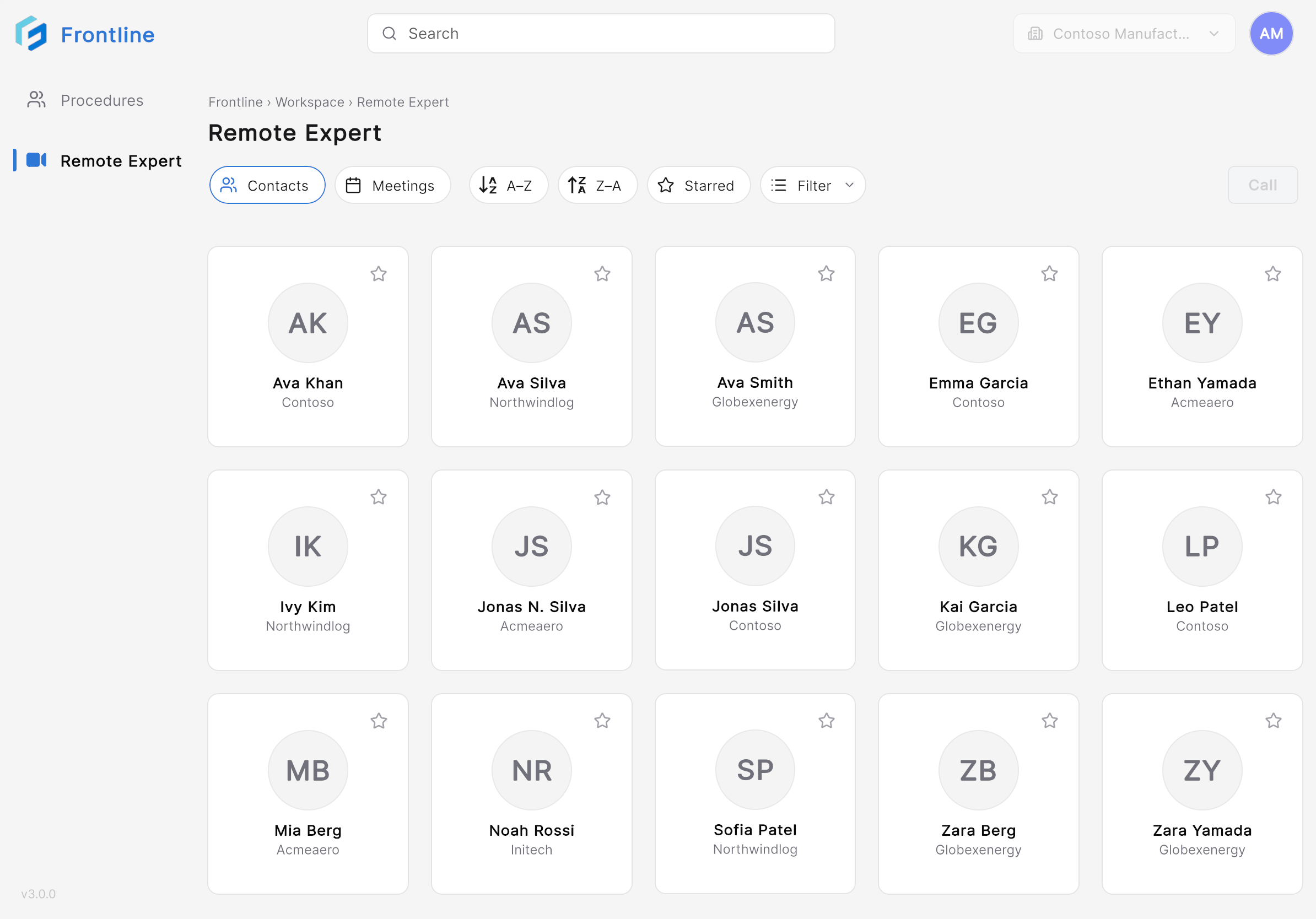
- Search for contacts using the search bar.
- Sort contacts alphabetically (A–Z or Z–A).
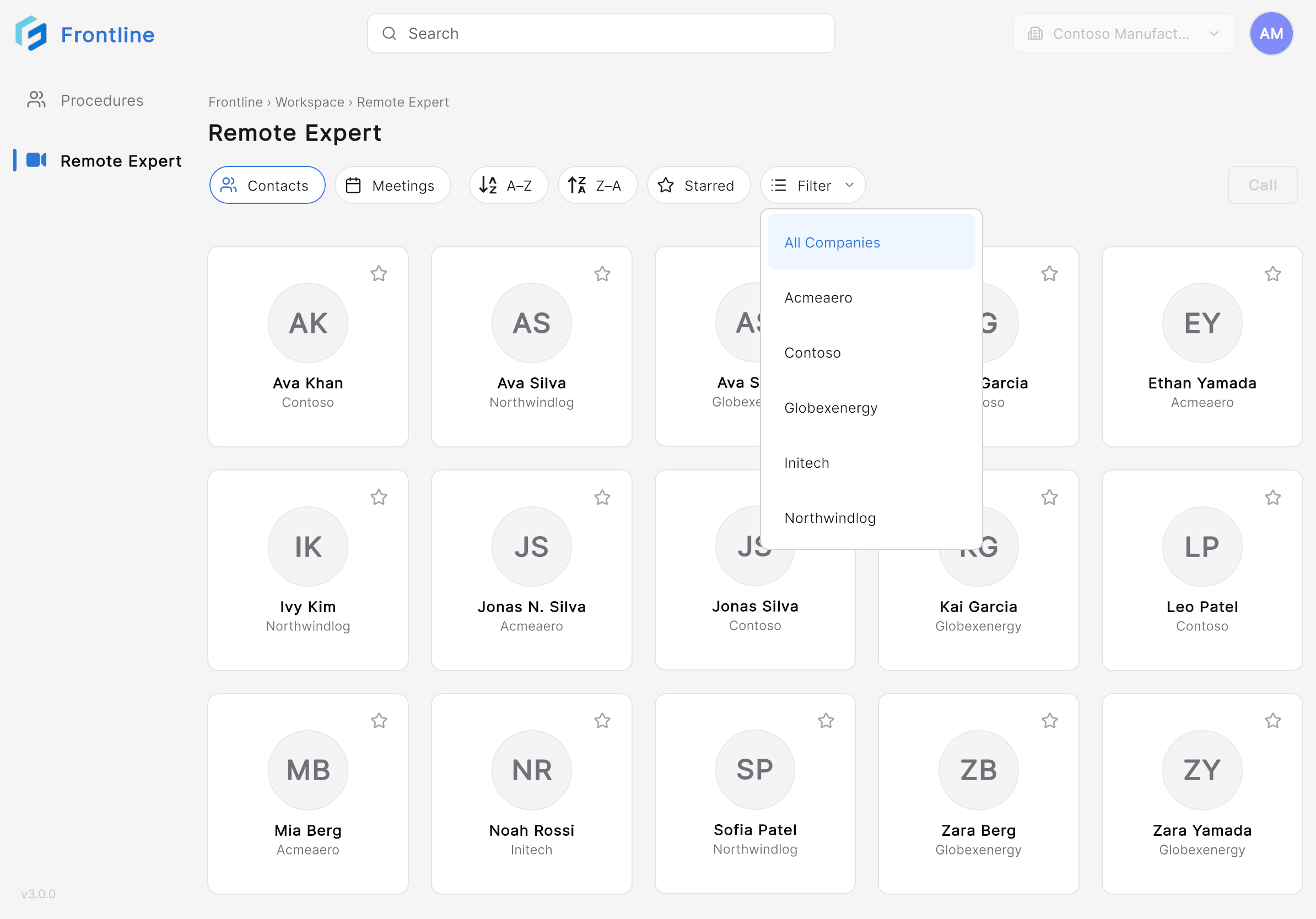
- Filter contacts by organization using the Filter menu.
- Mark contacts as favorites — select the Star icon on a contact card to add or remove them.
Invite an Expert
1
Select a contact
Tap the contact card of the expert you want to call.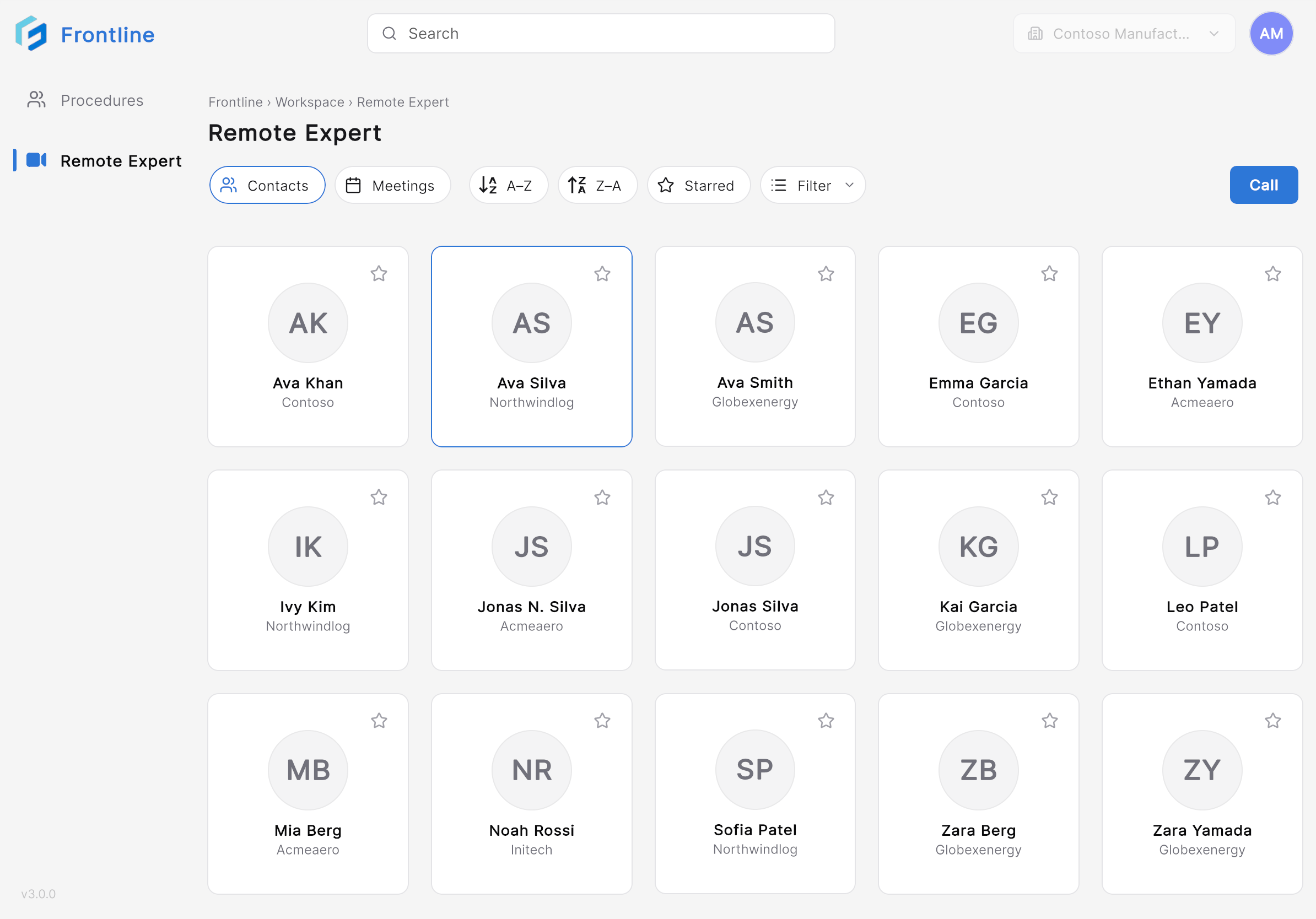
2
Tap Call
Frontline creates a Microsoft Teams meeting and sends an invitation to the selected contact. A progress screen is displayed while the meeting is being created.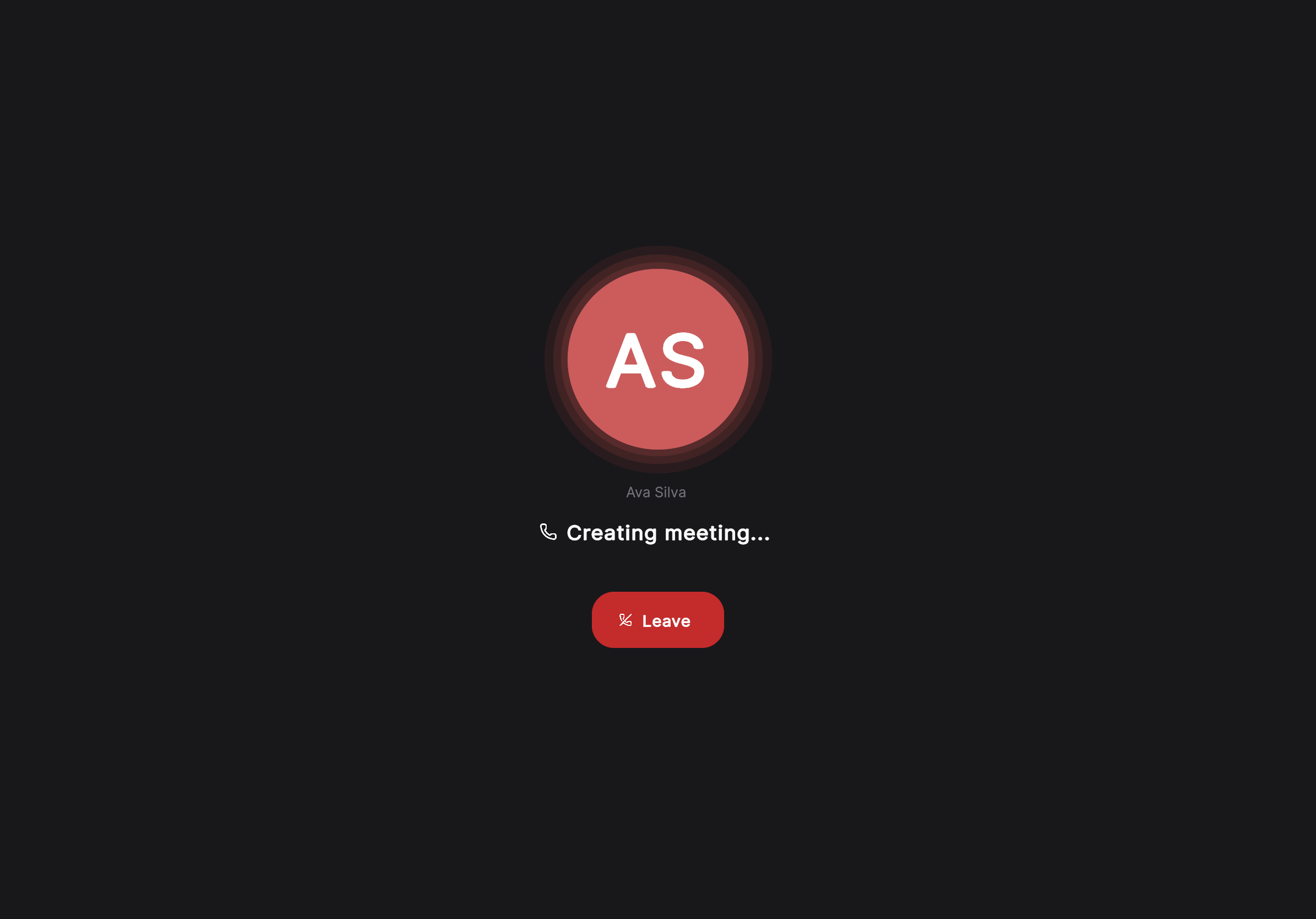
3
Wait for the expert to answer
Once the expert answers the call, the Remote Expert session opens.
Next: Collaborate During a Remote Expert Session