

1
Find the app
Find Altoura Frontline in the App Store.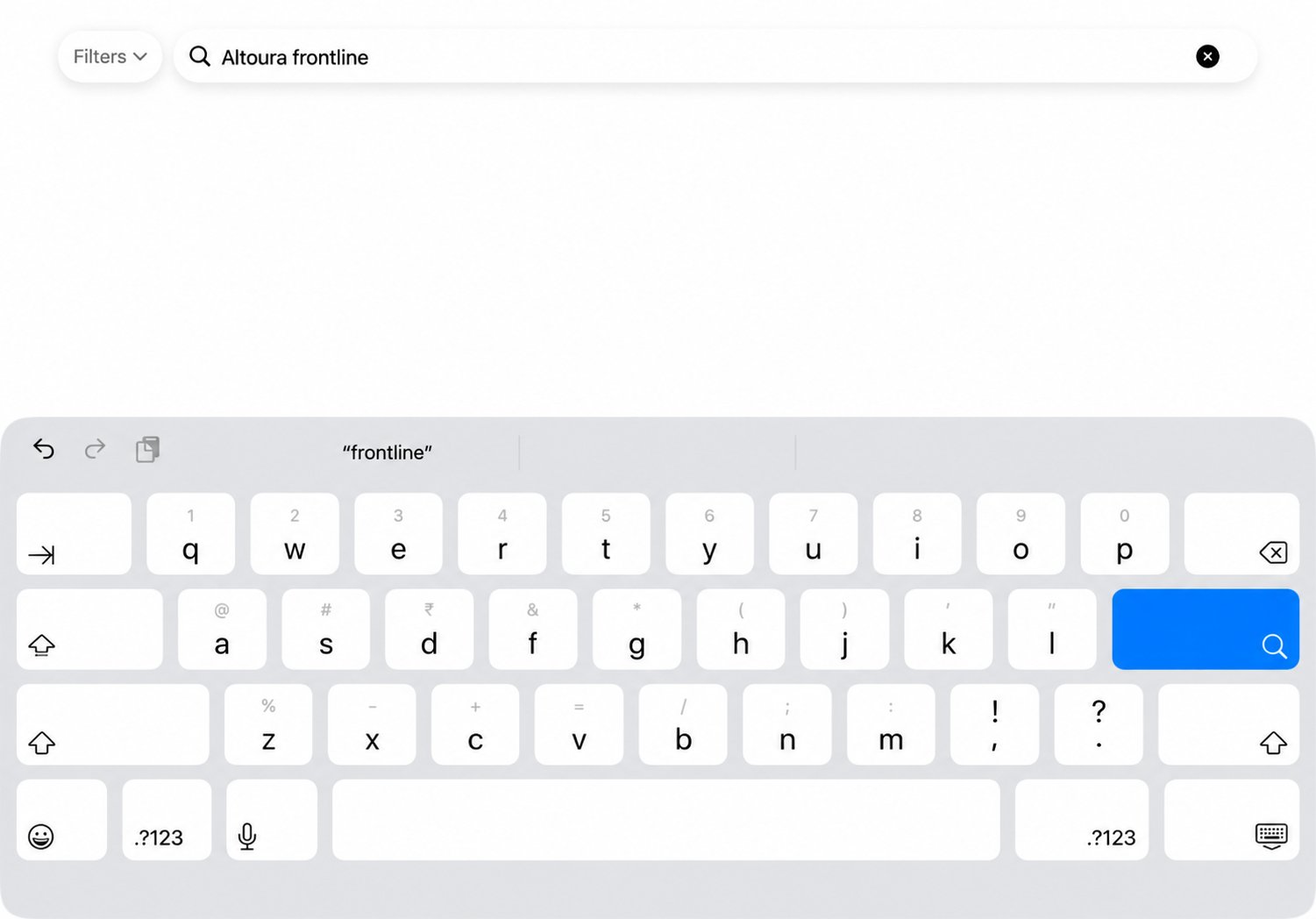
2
Open the app
After installing Altoura Frontline, select Open to launch the app.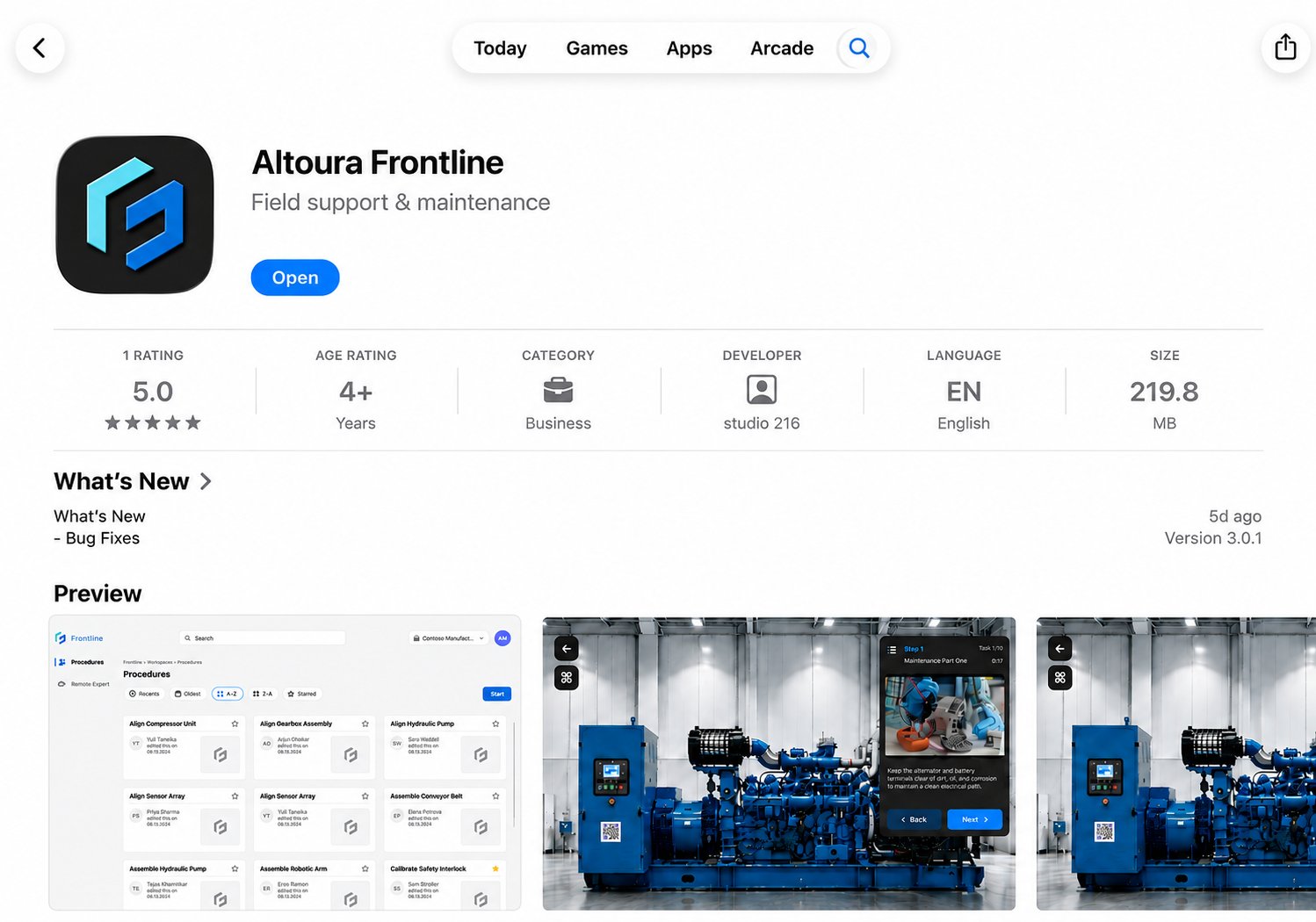
Choose a Sign-In Method
The Sign In screen provides the following authentication methods:Sign In with Email and Password
1
Enter your email address
Enter your registered email address to continue.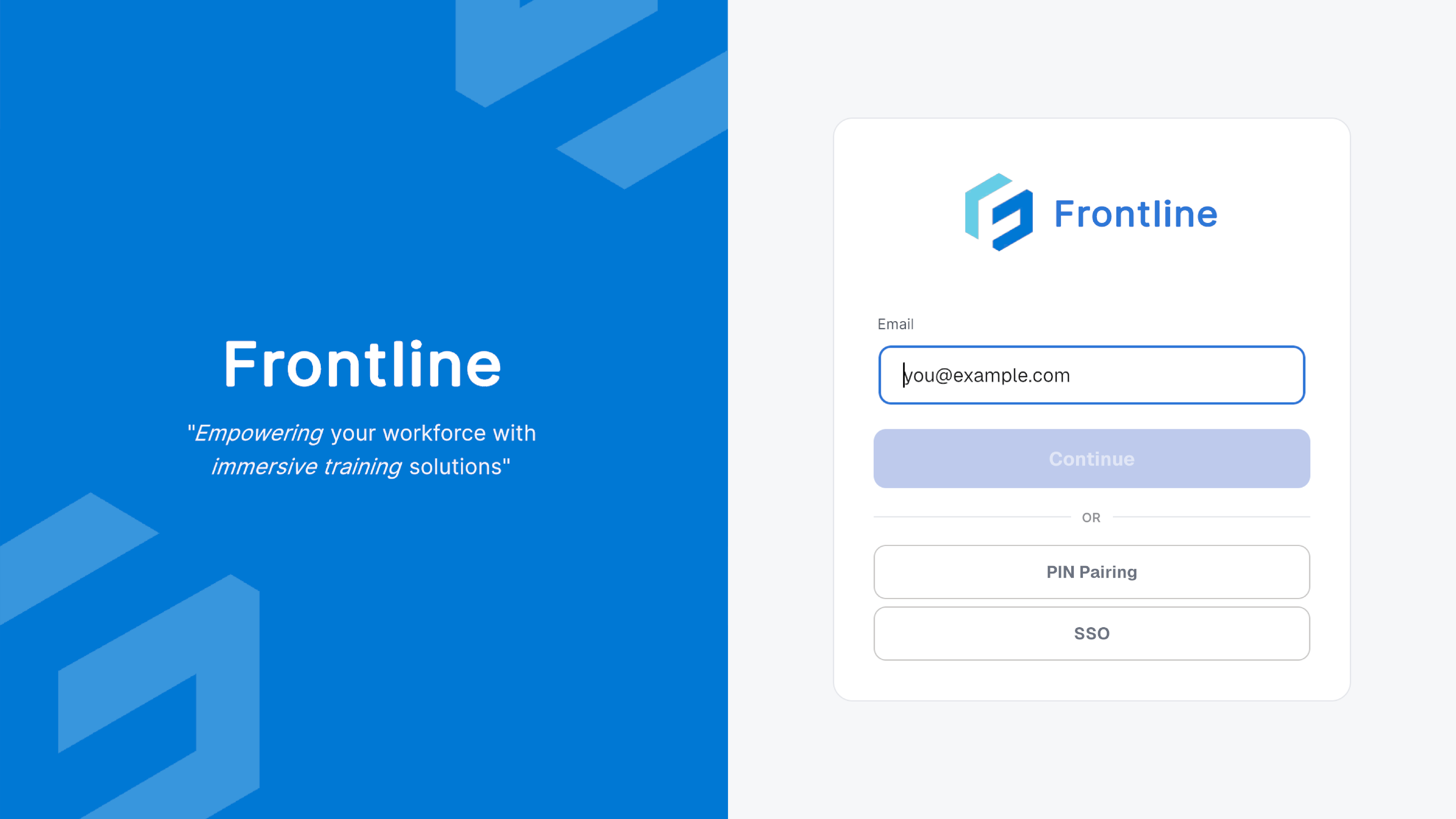
2
Enter your password
After entering your email address, the password screen appears. Enter your password to sign in.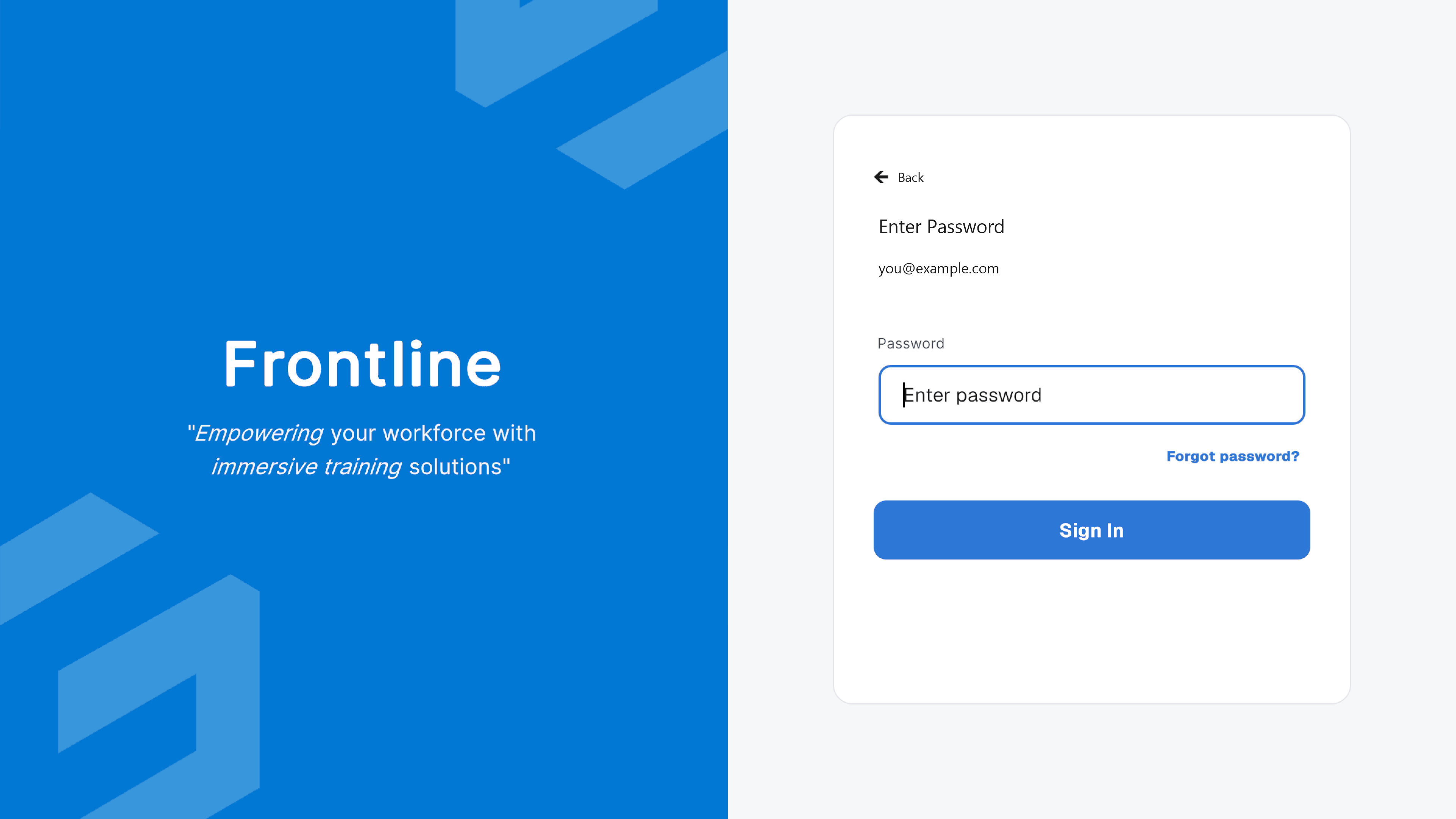
Forgot Your Password?
1
Enter your email address
Enter your registered email address.
2
Select Forgot password?
The Forgot password? option appears on the password screen after you enter your email address.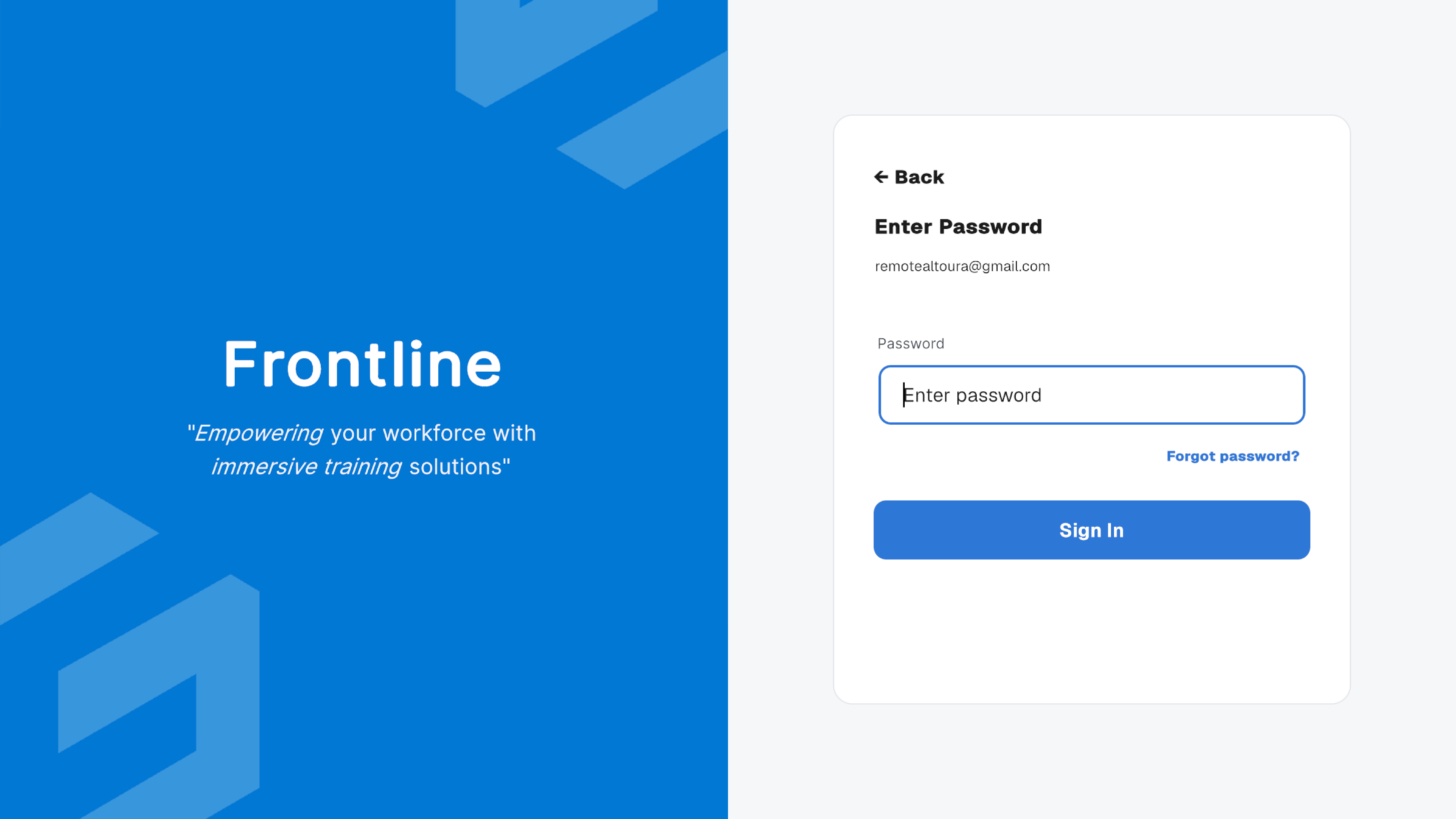 Select Forgot password? to request a password reset. A reset email is sent to your registered email address.
3
Check your email
The following confirmation appears after the password reset request is submitted.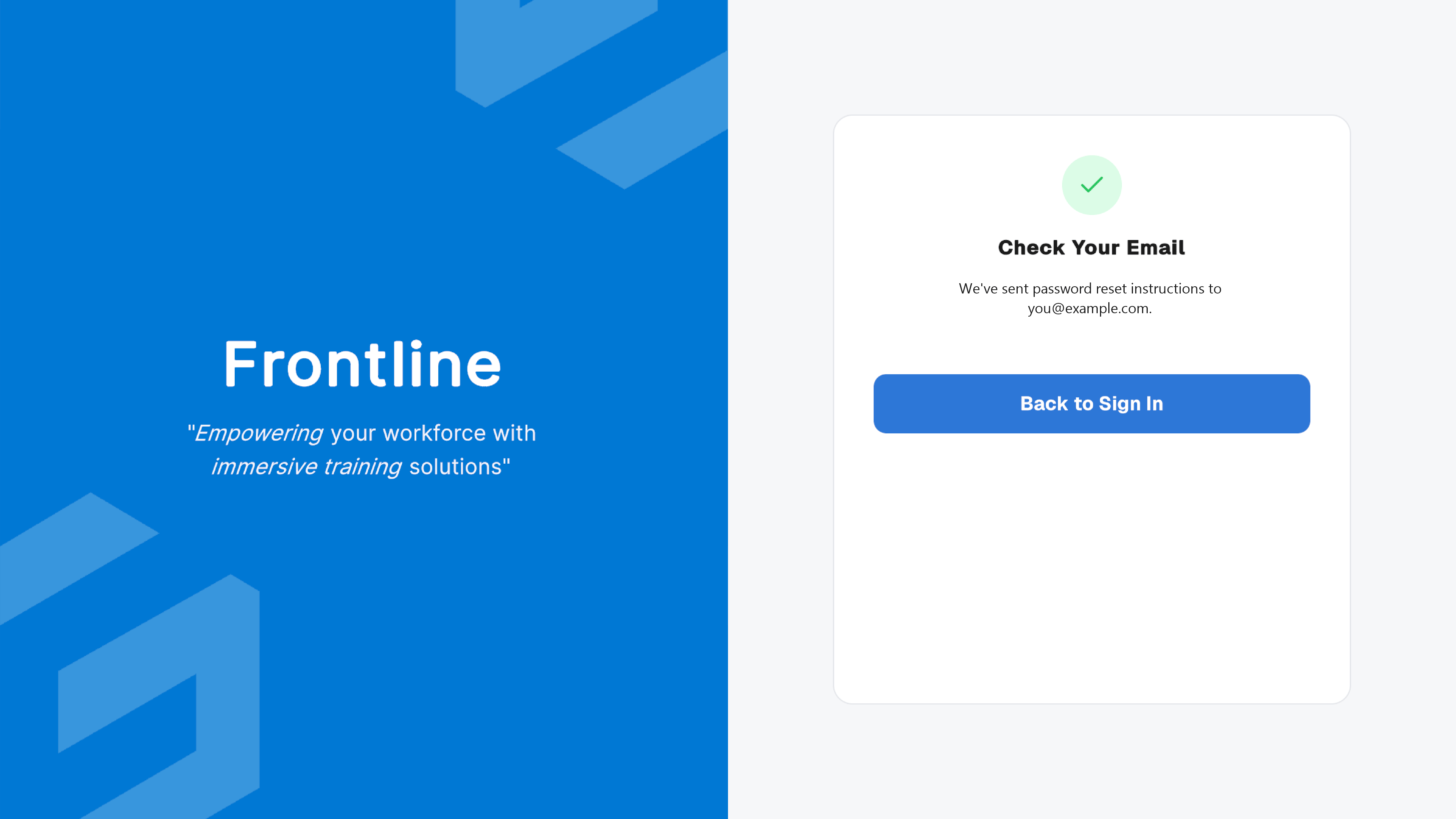 Open the password reset email and follow the instructions to create a new password. Then return to Altoura Frontline and sign in again.
Sign In with Single Sign-On (SSO)
If your organization uses Single Sign-On, enter your organization’s domain to continue with your corporate identity provider.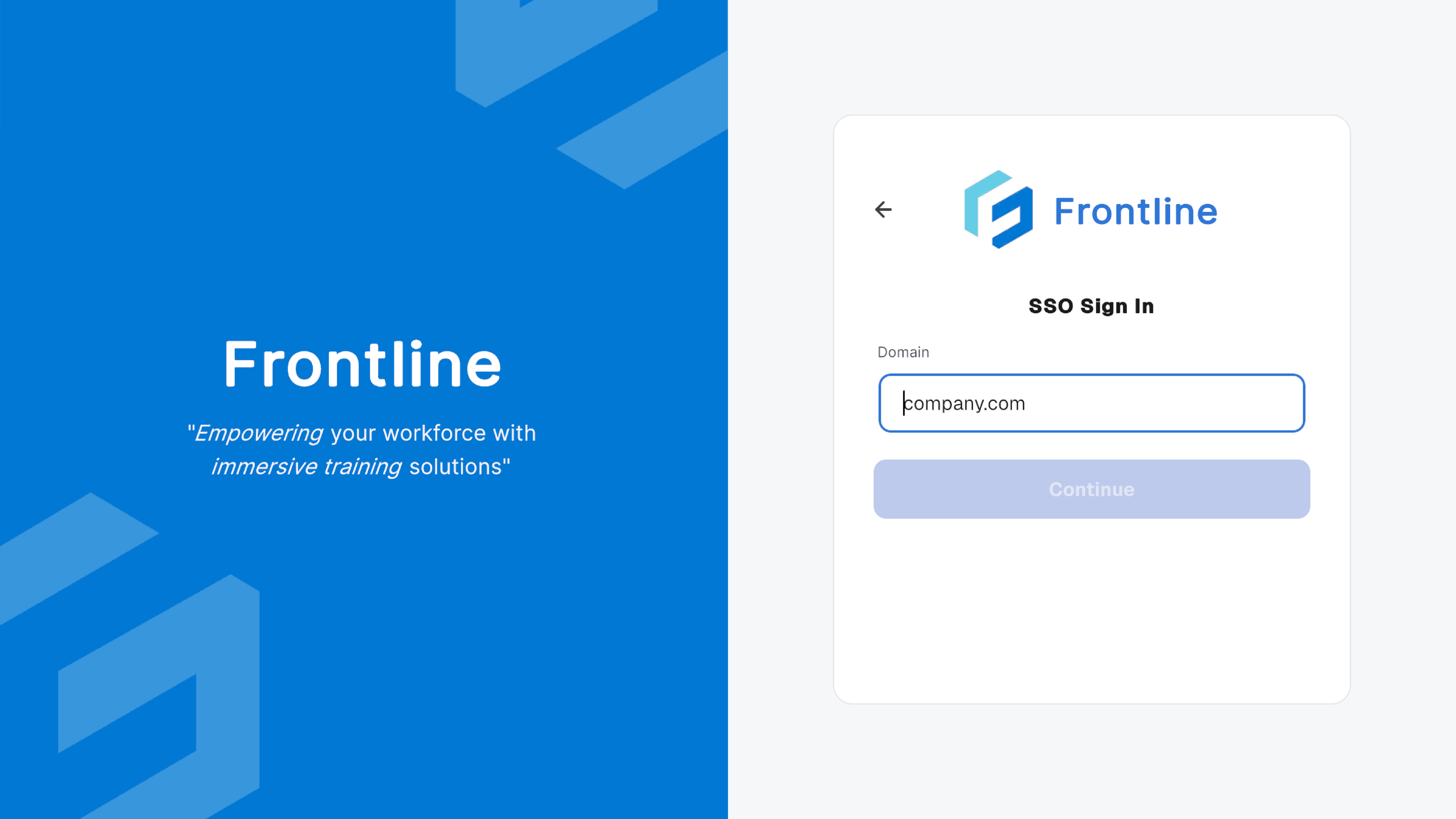
Sign In with PIN Pairing
PIN Pairing signs the iPad in to your Altoura Frontline account without requiring you to enter your credentials on the device. This is useful when using a shared device. The PIN Pairing screen displays a temporary six-digit PIN that you can use to pair the iPad with your account.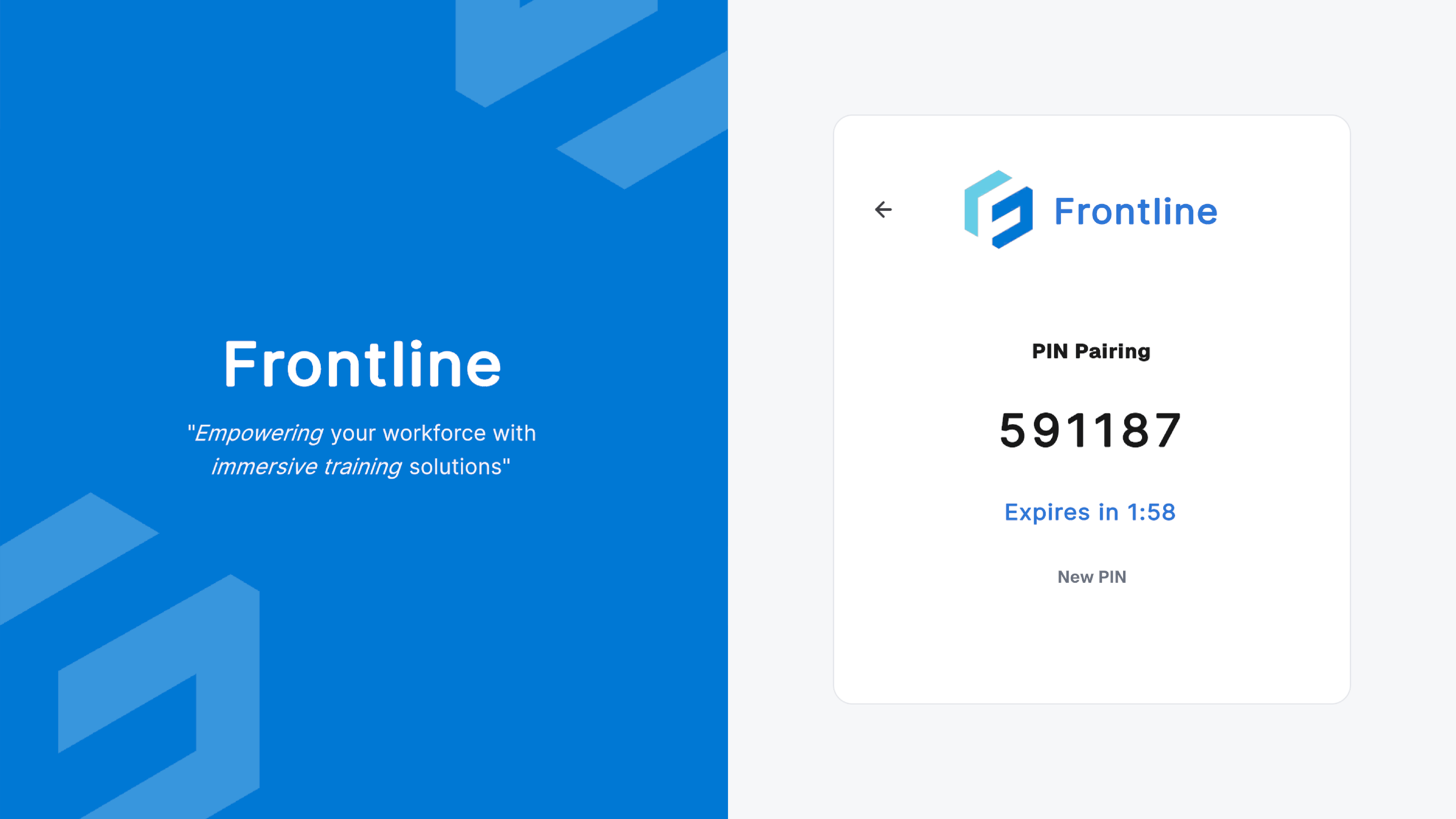
Next: First Launch and Navigation