


Scan Your Environment
The environment scan identifies the horizontal and vertical surfaces required for AR tracking.1
Hold the iPad in front of the workspace
Face the area where you will perform the procedure.
2
Slowly move the device around the area
Sweep the iPad across the surrounding surfaces.
3
Wait for the scan to finish
Keep moving until the environment scan completes automatically.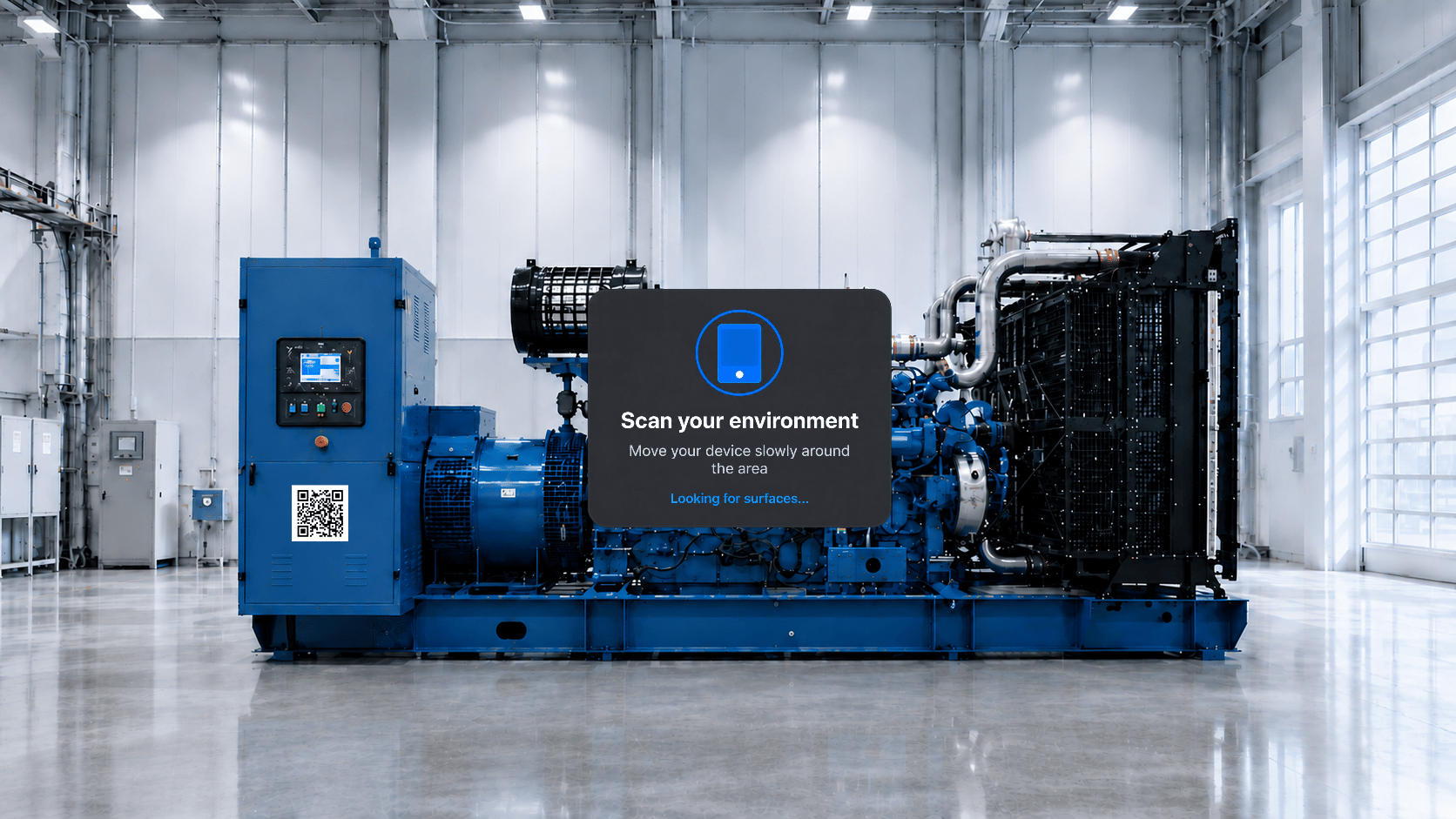
Move the iPad slowly and avoid rapid movements while scanning. This improves surface detection and tracking accuracy.
Scan the QR Code
After the environment scan, the application prompts you to scan the printed QR code.1
Point the camera at the QR code
Aim the iPad’s camera toward the printed code.
2
Align it within the on-screen guide
Frame the QR code inside the guide.
3
Hold steady until it is detected
When the QR code is recognized, the application anchors the procedure to the scanned location and automatically opens it.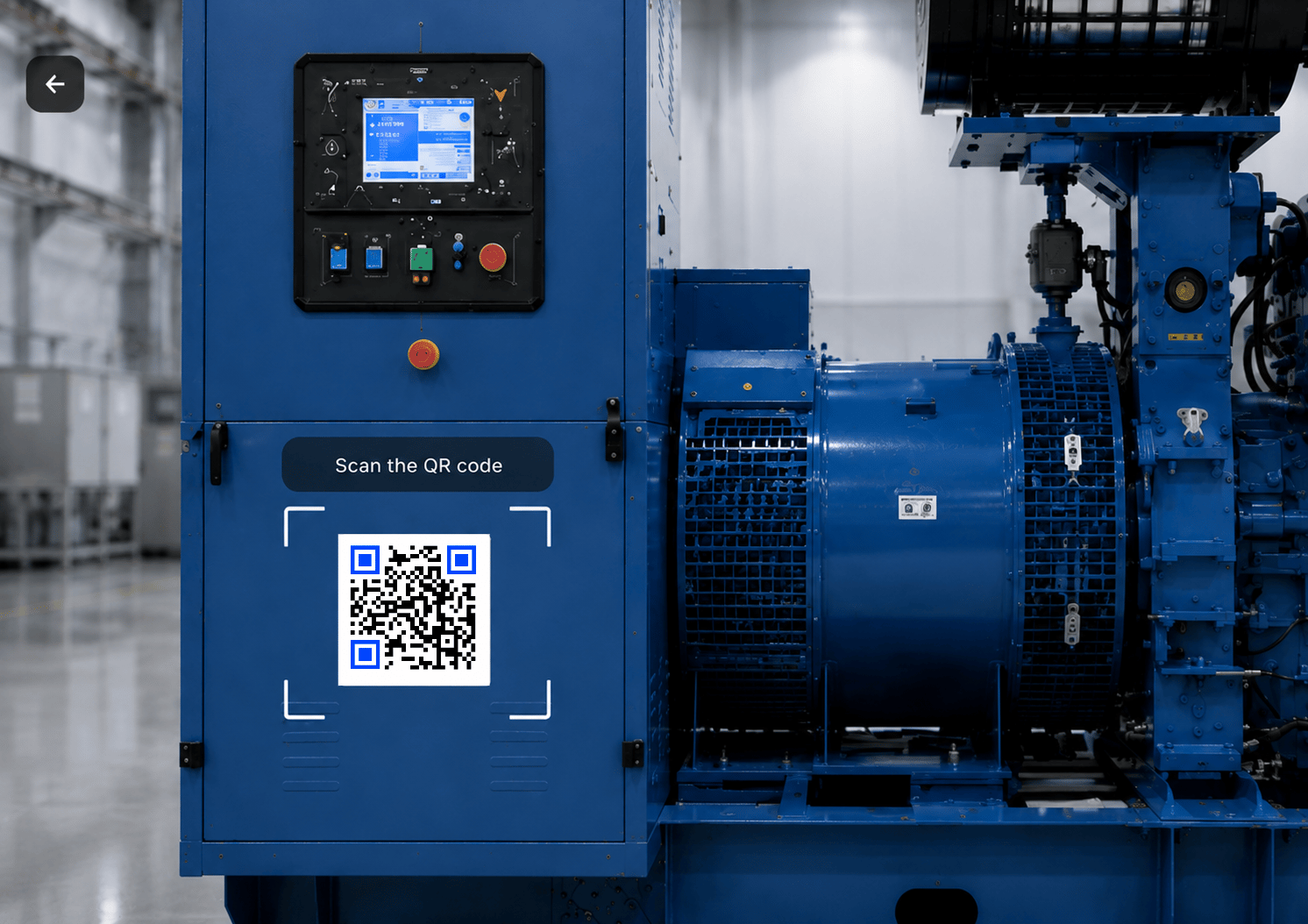
Best Practices
For the most accurate AR experience:- Place the QR code on a stable, flat surface.
- Ensure the QR code is fully visible and well lit.
- Avoid reflections, glare, or partially covered QR codes.
- Hold the iPad approximately 30–90 cm (1–3 ft) from the QR code during scanning.
- If the QR code is not detected, adjust your viewing angle or move closer before trying again.
Next: Follow Steps