

Choose a Mode
The Mode Selection screen appears after you select a procedure on Home and tap Start.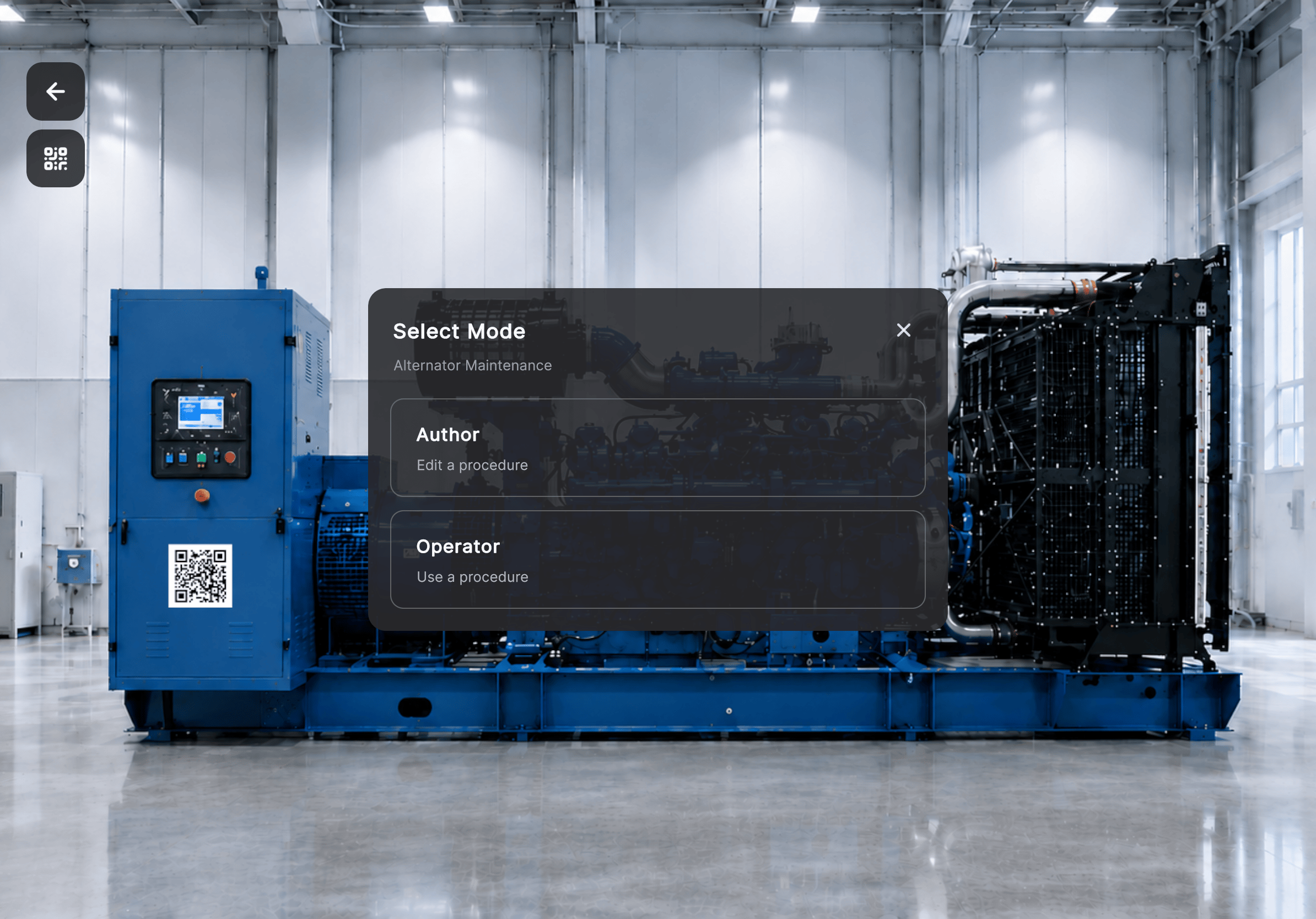
The Mode Selection option is available only to users with Author access. Operators go straight into the procedure.
1
Select a procedure from Home
Tap the procedure card, then tap Start.
2
Select Author Mode
Frontline prepares the workspace and opens the procedure for authoring.
Get Oriented in the Authoring Workspace

Move Between Procedure Steps
Use the Previous and Next controls to move through the procedure one step at a time. To jump directly to another step:1
Open the Steps panel
Select the Steps  button.
button.2
Select the required step
The selected step immediately becomes active.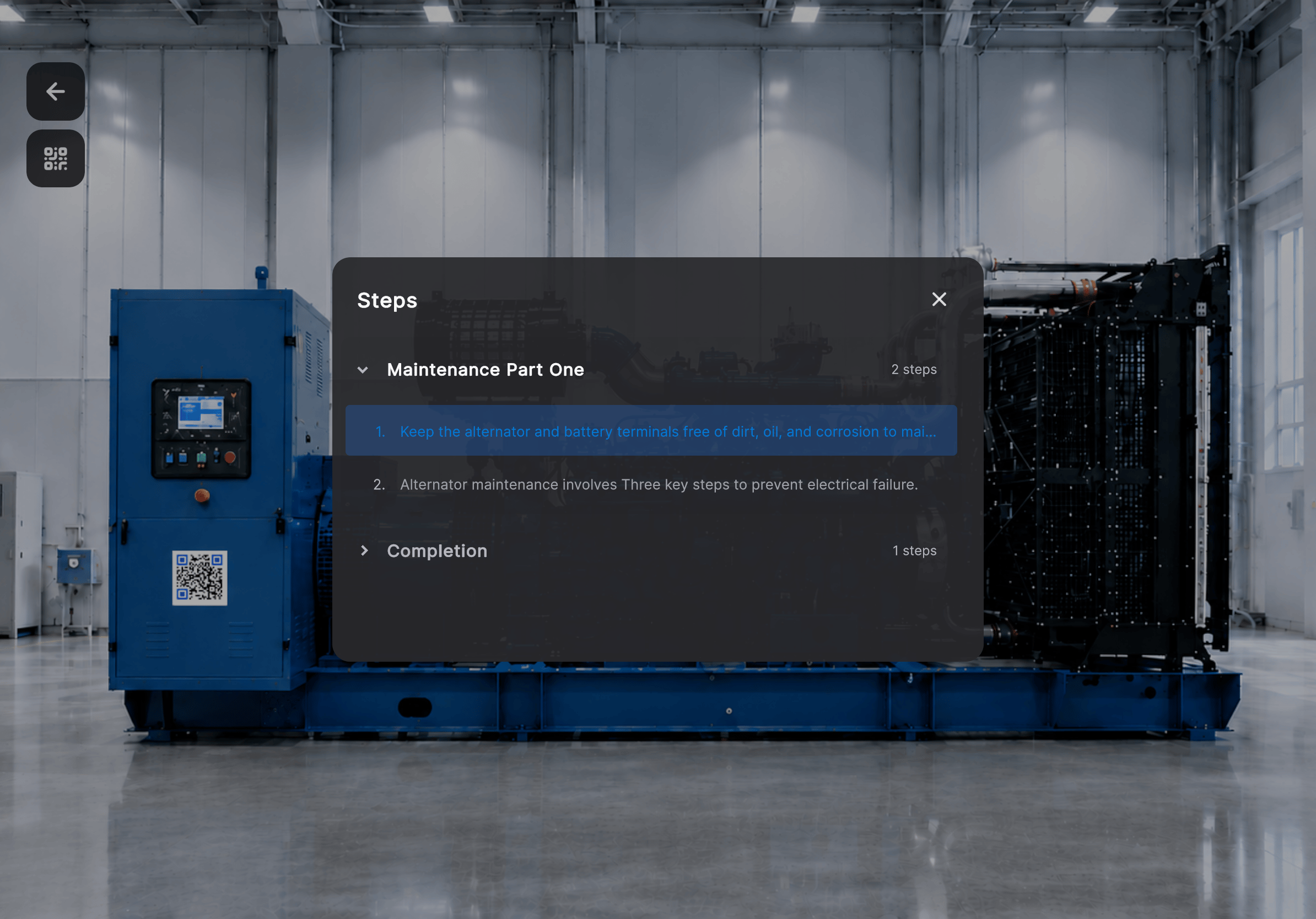
- Regular Step — Guides the user through a sequence of instructions.

- Question Step — Presents a question with multiple answer choices. The selected answer determines the next procedure step.

Next: Anchor and Set Up the Space