

Two roles, two modes
Procedures have two complementary modes on the device, each with its own flow and interface.Author Mode — build procedures in the real space
Author Mode is for content creators — subject-matter experts, training teams, supervisors — who build and configure procedures where they’ll actually be used. In Author Mode you can:- Create and organize tasks and steps
- Place and position 3D models in the physical space
- Set anchor gems for spatial alignment
- Configure choice steps and completion criteria
- Preview how procedures will appear to operators
Operator Mode — run procedures in the field
Operator Mode is for field workers executing a published procedure. Everything is optimized for hands-free use and minimum cognitive load. In Operator Mode you can:- Browse and select available procedures
- Follow step-by-step guidance with AR overlays
- View 3D models, media, and annotations anchored in your environment
- Navigate through tasks using the procedure panel
- Complete steps and mark tasks as done
The mode selection dialog
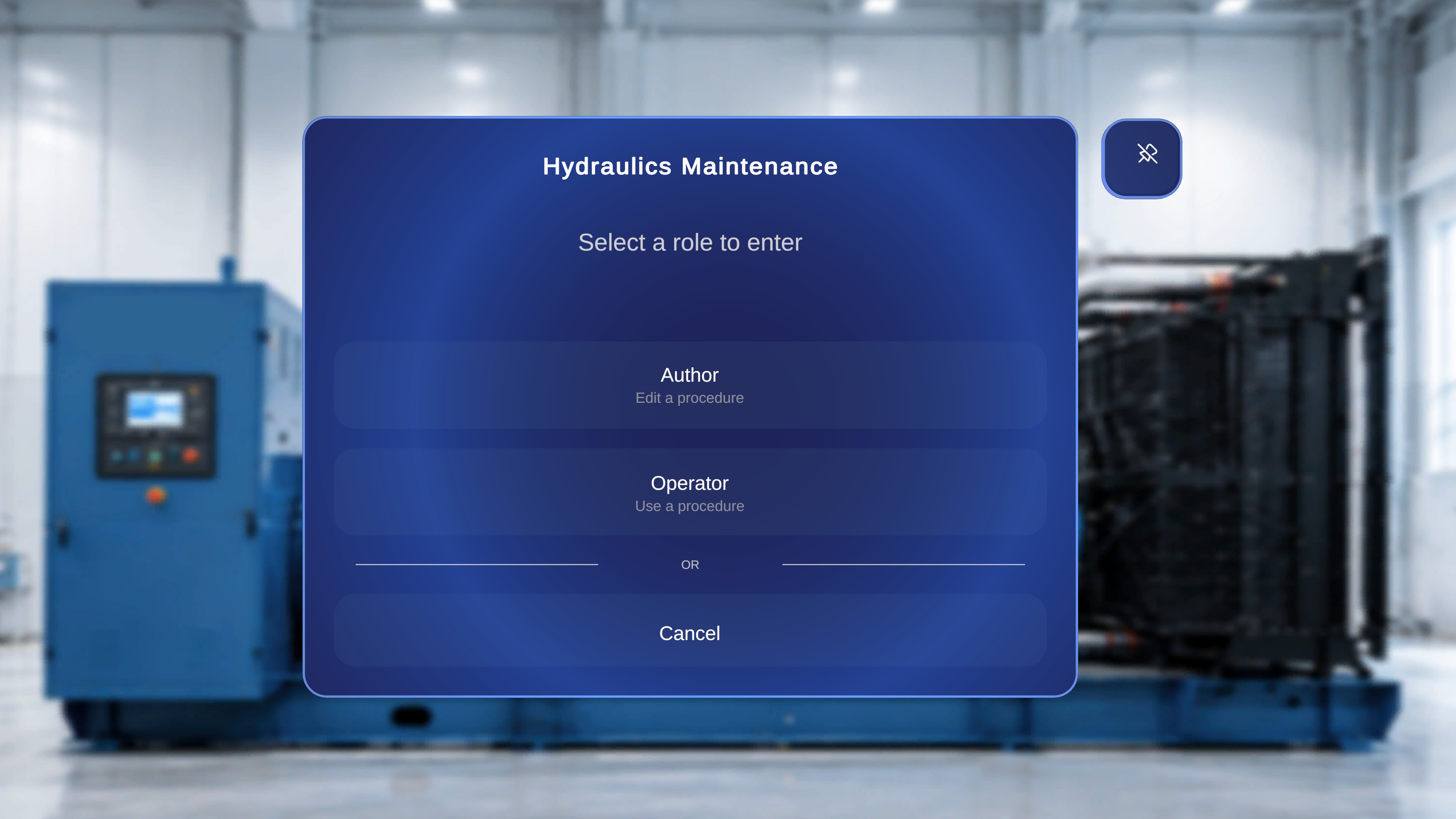
- Author — edit the procedure
- Operator — use the procedure
The mode selection option is available only to users with Author access. If your account doesn’t have it, you won’t be asked — you open procedures as an operator.
What each role sees at a glance
Where to go next by role
- Authors: start in the browser with the Procedures Portal, then finish spatial placement on the device — HoloLens or iPad.
- Operators: follow the operate guides — HoloLens or iPad.