Asset Tabs
The page opens on Custom Assets. When you search, each tab shows how many results it contains.
Viewing Assets
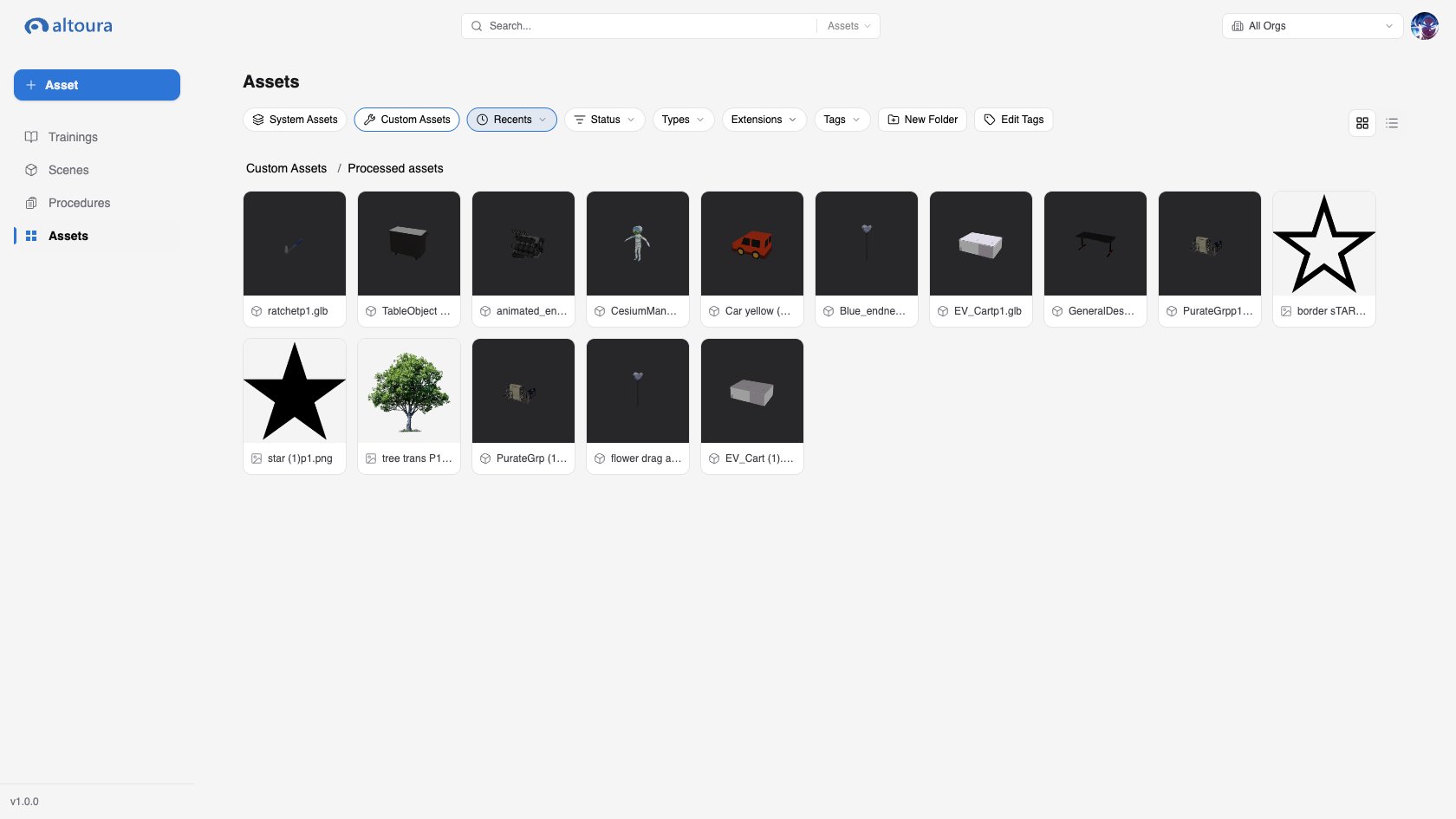
Switch between Grid view and List view with the view toggle. In Grid view, each asset tile shows its thumbnail, a type icon, and its name. Custom assets also show a status toggle that appears when you hover over the tile. In List view, the Custom Assets table has Name, Type, Date Added, and Added By columns. The System Assets table has Name, Category, Type, and Date Added columns. Click any asset to open its preview. See Previewing and Editing Assets.Supported Asset Types
Asset Status
Custom assets can be Active or Inactive. Inactive assets appear dimmed and are hidden from the asset pickers in the editors. Hover over a tile, or use the switch in the list row, to set an asset active or inactive.Folders in Custom Assets
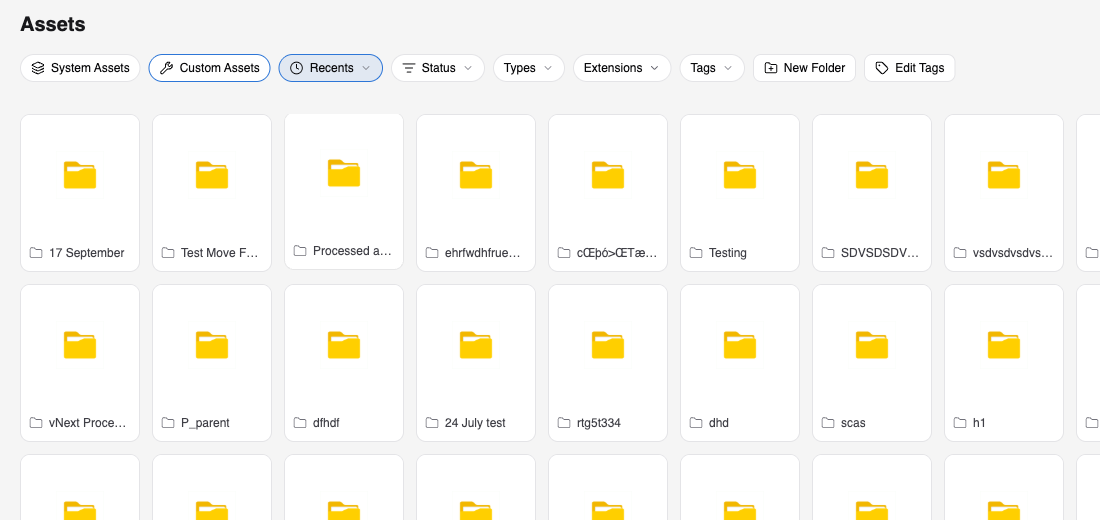
Custom assets can be organized in folders, including nested folders.- Double-click a folder to open it. The breadcrumb above the list shows your location. Click Custom Assets in the breadcrumb to return to the top level.
- Click New Folder in the toolbar to create a folder in the current location. Folder names can be up to 50 characters.
- Drag an asset or folder onto another folder, or onto a breadcrumb entry, to move it there.
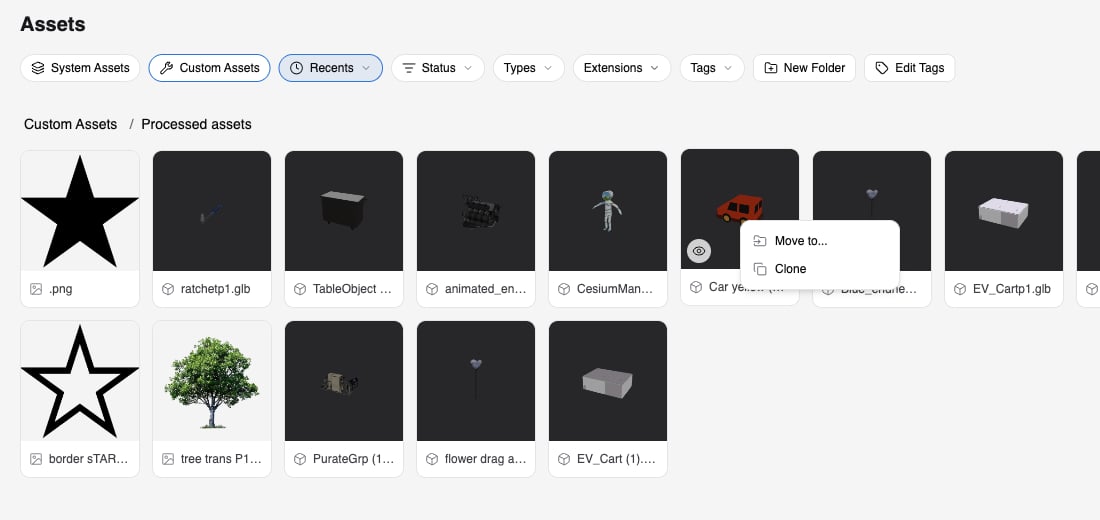
- Right-click an asset or folder to open its menu. On a tablet, press and hold instead.
Searching, Filtering, and Sorting
- Search in the header filters by asset name. Type at least three characters. Search covers every folder. Each result shows its Location, and Open folder takes you to the folder that contains it. Click Back to results to return.
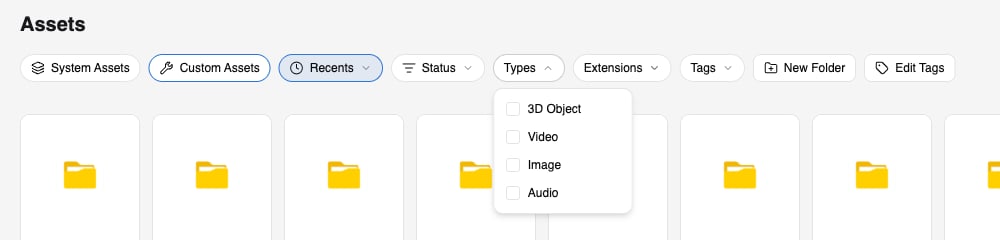
- Types filters by 3D Object, Video, Image, or Audio.
- Extensions filters by file extension. The list shows only extensions that match the selected types.
- Tags filters custom assets by the tags assigned to them.
- Status filters custom assets by Active or Inactive.
- Sort with Recents, A-Z, Z-A, or Oldest.
- Use the Organization picker to view one organization or All Orgs.