

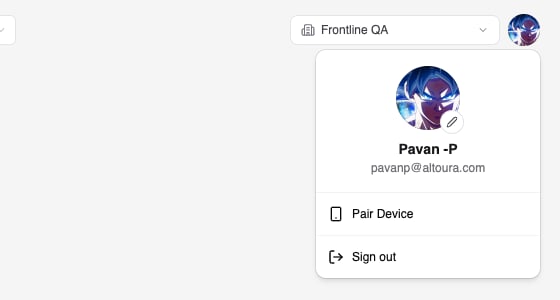
- Pair Device
- Sign out
Change Your Profile Photo
- Open the profile menu.
- Click the pencil button on your picture.
- In the Edit Profile dialog choose Use Initials or Upload Photo (2D). Use Initials shows your initials instead of a photo. Your uploaded photo is kept, so you can switch back at any time.
- For a photo, click Upload (or Change photo if you already have one), choose a PNG or JPEG image, drag to position it, adjust the Zoom, and click Save Cropped Image.
- Click Save.
Pair a Device
Pairing links a head-mounted display (HMD) running an Altoura app to your account.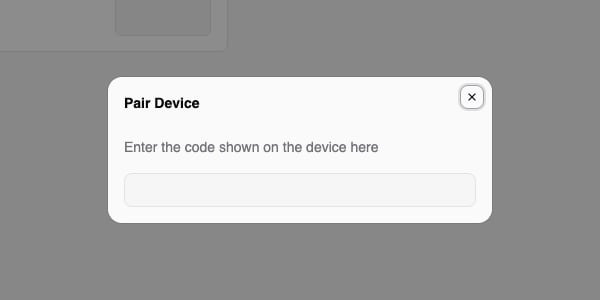
- On the device, open the Altoura app and choose the pairing option. The device shows a six-digit code.
- In the Dashboard, open the profile menu and click Pair Device.
- Type the six digits into the field. The code is checked as soon as the sixth digit is entered.
- A green check mark and Pairing is Successful confirm that the device is paired. Press Esc or click outside the dialog to close it.