

How Access Works
What you can do in the Dashboard depends on:- Which organizations you belong to
- Your role in the organization that is selected in the header
- Your role in the organization that owns each training, scene, asset, or procedure
What Each Role Can Do
Actions on Each Item
There is no per-item permission. Your role in the organization that owns a training, scene, asset, or procedure decides which actions appear on its card:- With a creator role, clicking the item opens it for editing. You can also change its settings and status, and clone it.
- With a viewing role, clicking the item opens it for viewing or playing. Inactive items cannot be opened for viewing.
- Share and Delete appear only when your role allows them.
- A Restricted Author can edit and delete only the assets they created. Other assets open for viewing.
Switching Organizations
Use the organization picker in the header to switch. Type to search for an organization by name. Changing the organization can change:- Which sections appear in the sidebar
- Whether the Create button appears
- Which content appears in the list
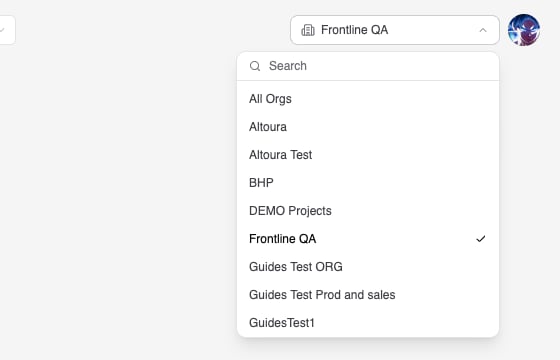
Using All Orgs
All Orgs appears in the picker on the Trainings, Scenes, Procedures, and Assets pages when you belong to more than one organization. When it is selected:- Content from all your organizations is shown together.
- The Create button appears if you can create in at least one organization. The create dialog then asks you to choose the target organization.
- Actions on each item still follow your role in that item’s organization.
- Some procedure actions, such as importing guides and viewing import status, need one organization selected. The Dashboard asks you to select an organization first.
Organization During Content Creation
When you create a training, scene, folder, or asset, or upload a file:- If one organization is selected, it is pre-filled and cannot be changed in the dialog.
- If All Orgs is selected, you choose from the organizations where you have create rights.