In Altoura 6.2 significant enhancements have been made to the connectors making them more powerful than ever before. These enhancements involve grouping the properties into comprehensive Actions. While earlier releases allowed creators to perform a set of actions it was not possible to sequence these actions and duplicate them. For e.g., if a creator wanted to make an object visible and then hide another object and then make a third object visible, that would not be possible. However, now with the introduction of the new actions framework, creators will have a lot more flexibility to add multiple actions, duplicate and sequence them. In this release a range of new actions have also been added expanding the capabilities available to creators. With the new flexibility and additional actions being exposed, creators can now develop sophisticated transitions between nodes that were earlier possible only using Unity animations. By leveraging these new features, creators no longer have to use Unity in majority of the steps and that increases creator efficiency significantly.

Creating Connector Actions

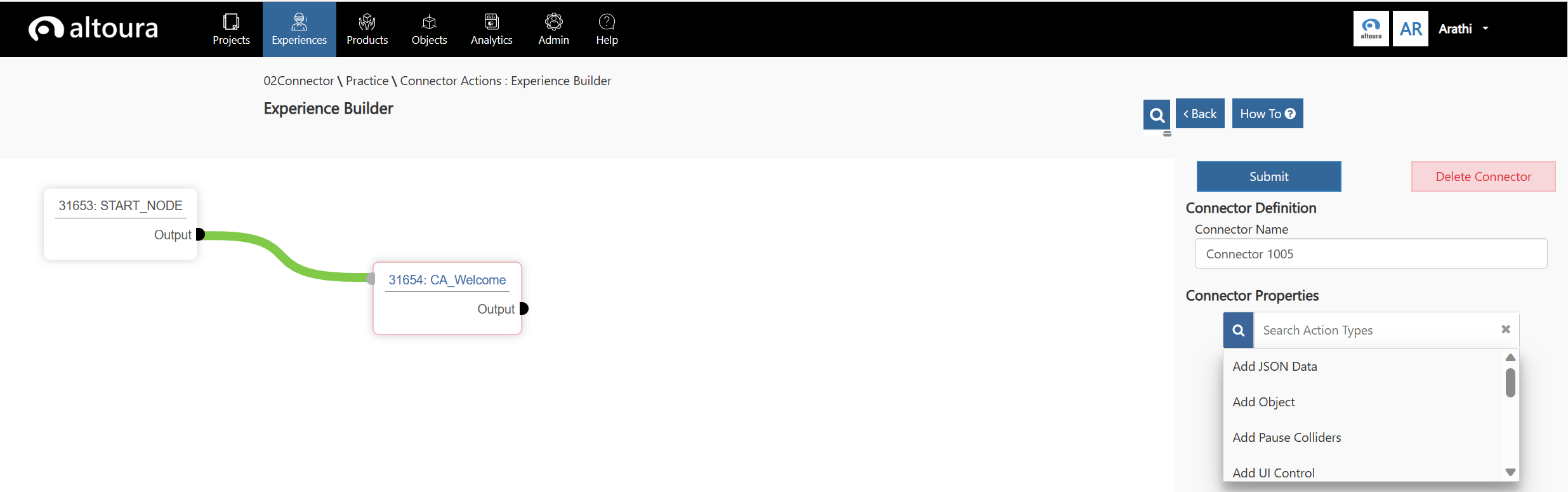
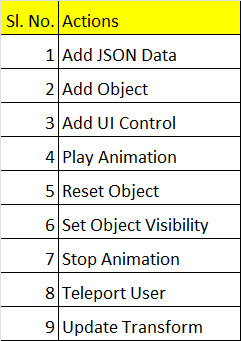
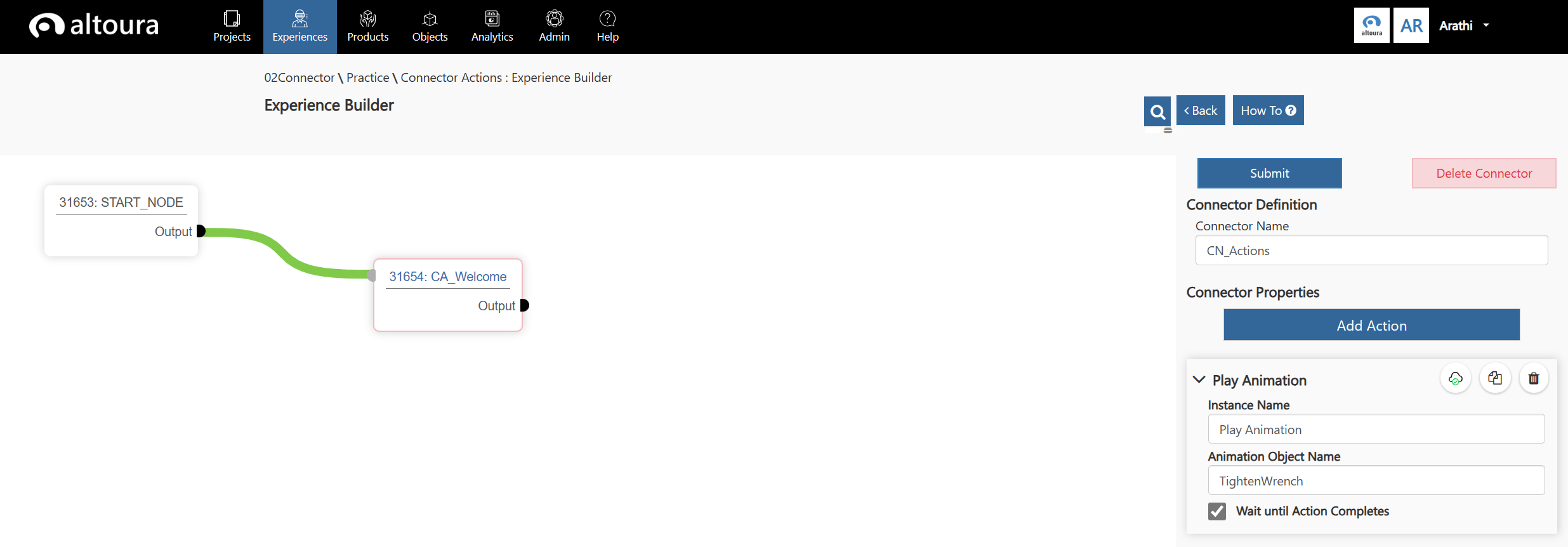
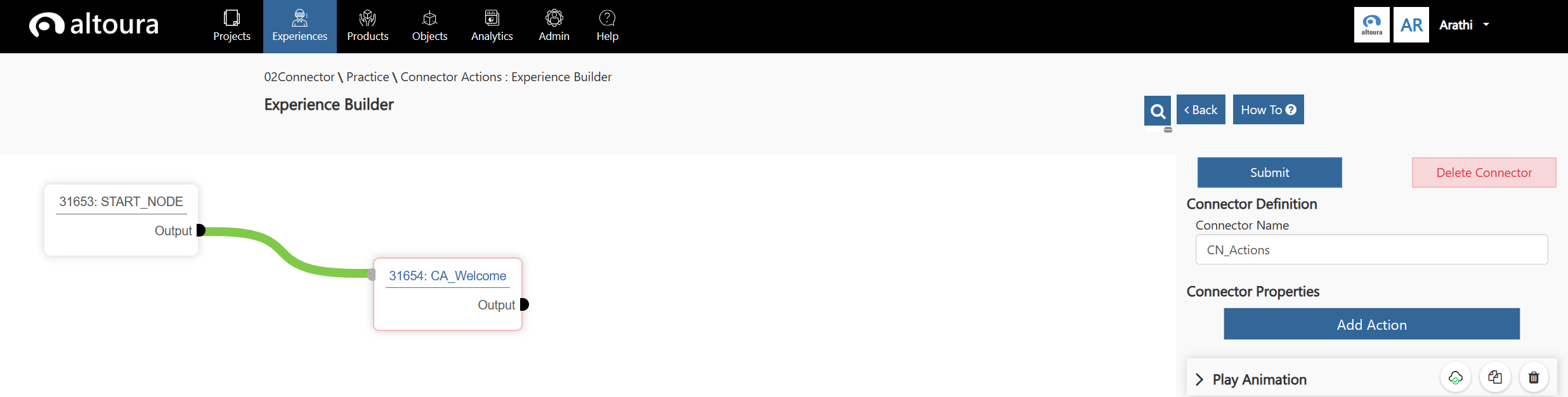
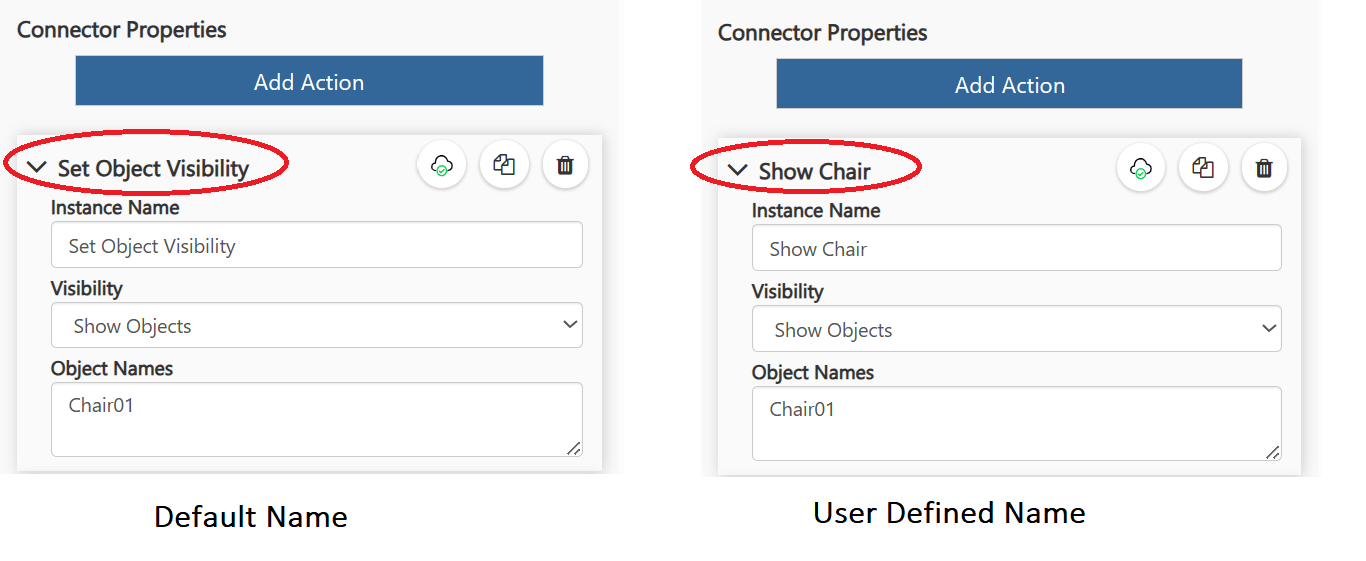
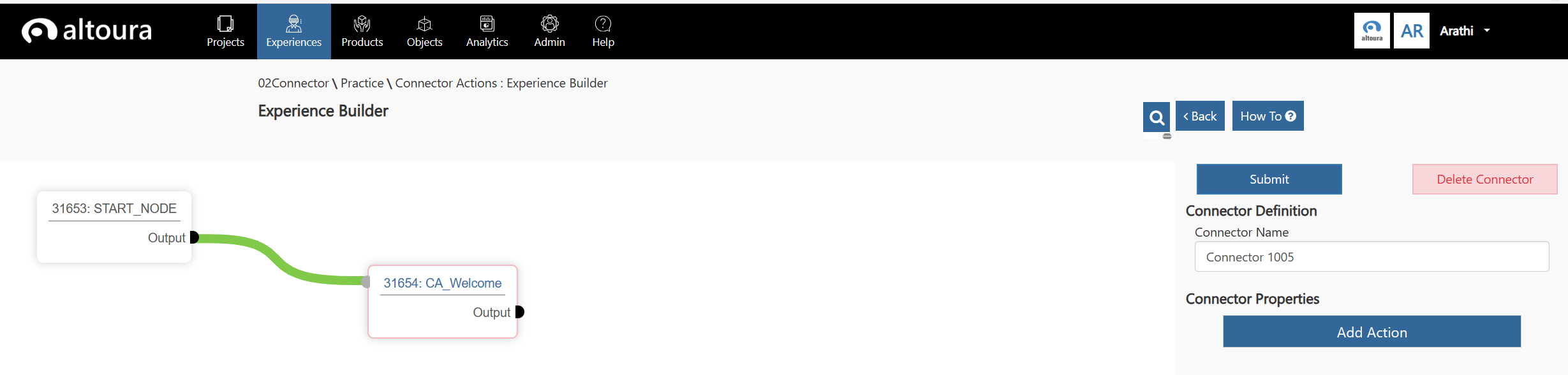
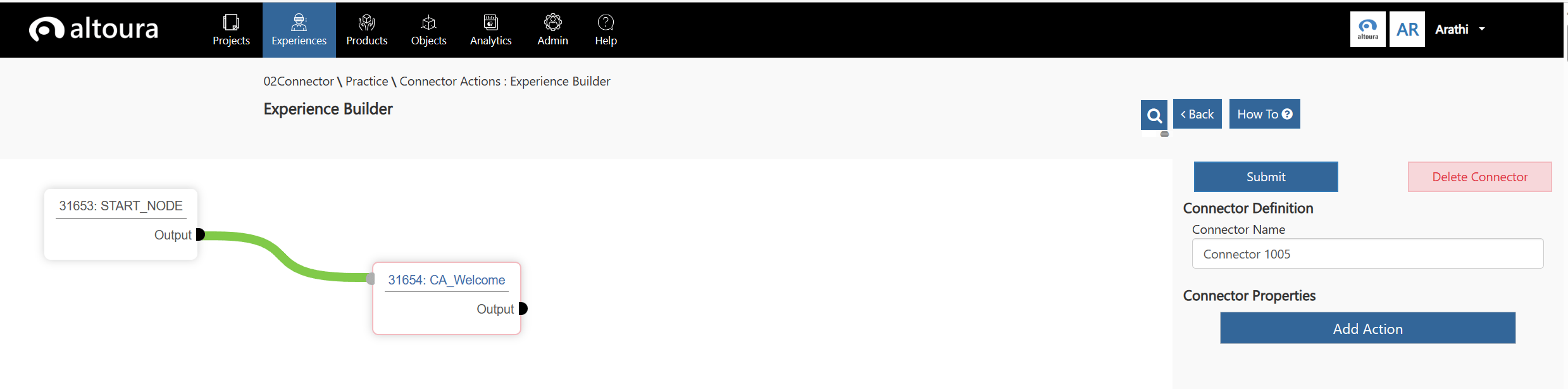
Create a new Experience in the Altoura Portal. Add a new node and connect it to the Start Node. A Connector is added between the Start Node and the newly created Node. The new properties window of the Connector is as displayed in the image below. Here the user will have the ability to add various Actions to the Connector. Click on the Add Action button, all the available Actions are listed. List of Actions available in Altoura 6.2 Select the required Action from the list, all the properties associated with that Action are displayed. Enter the values and click on the Submit button. the connector details are saved. Notes: When Actions are created, the Instance Name will default to the Action that is selected. The user can choose to change that name to a more contextual specific name.
Adding Connector Actions Use case

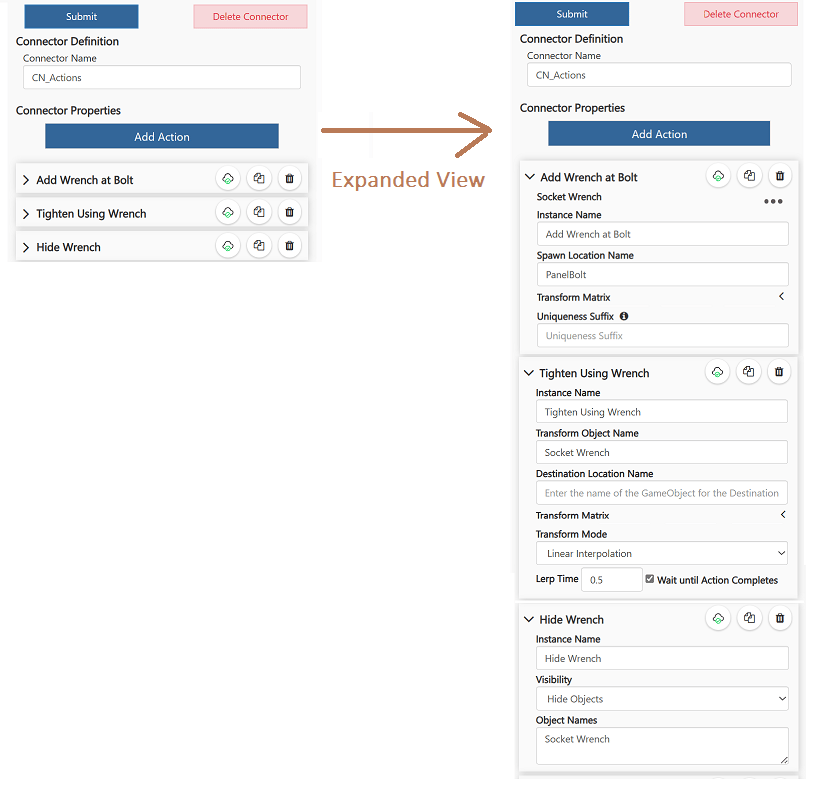
As an example, let’s say that in a connector, the user wants to add a wrench and then show it tightening the bolt on a machine and then hide the wrench. This can be done by adding three actions in the connector.
  • The First action would add a Wrench to the scene from the object catalog, Action - Add Object
  • The second would rotate the wrench to indicate that the bolt is being tightened. Action - Update Transform
  • The third action would be to hide the wrench. Action - Show Object Visibility, select Hide Objects
Others
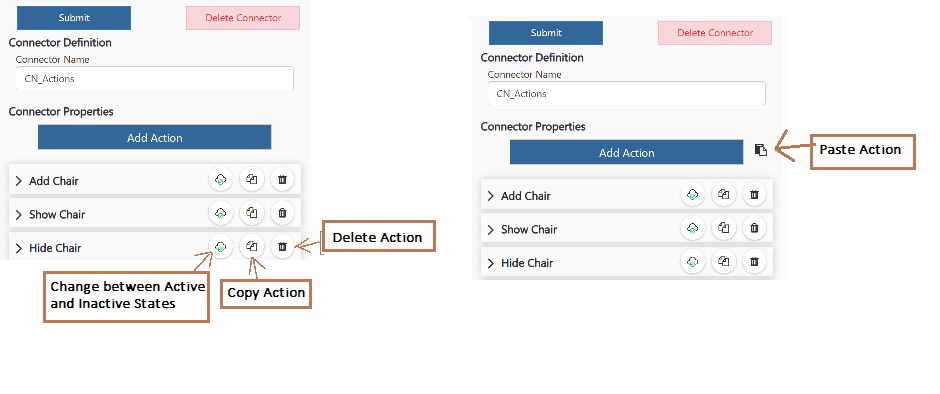
  1. Use the cloud icon to change the state of the Action from Active to Inactive and vice-versa.
  2. Use the Copy Button to copy the Action to the clipboard and paste it back to the same Connector or another Connector in the same Experience.
  3. Use the Delete Button to delete the Action.
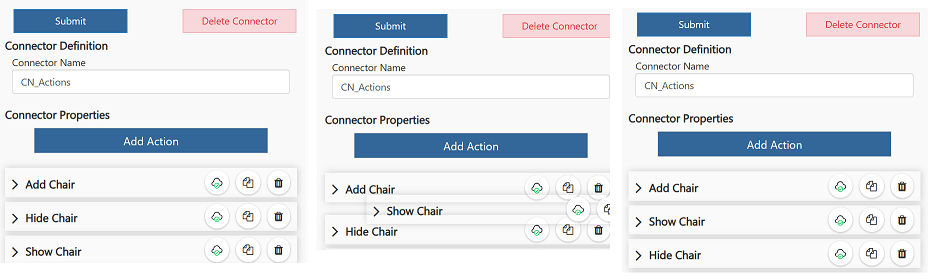
  4. Every time a new Action is added it is added to the bottom of the list.
  5. To move Actions, hover over the Action, when the Move cursor shows up, drag and drop the action to the required position.
Backward Compatibility - All existing Connectors will be displayed in the new format in the Altoura Portal.