

How Translation Works
Altoura uses Azure Open AI to automatically translate each panel’s text into the selected language during the copy process.List of Available Languages:
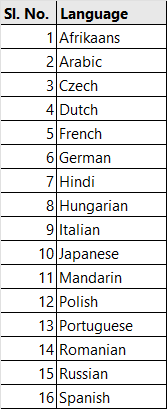
Steps to follow:
In the Altoura Portal, go to the Experiences tab. A list of experiences under the Organization are listed. Click on the ellipsis against the experience that needs to be copied, and from the menu select the Copy Experience option.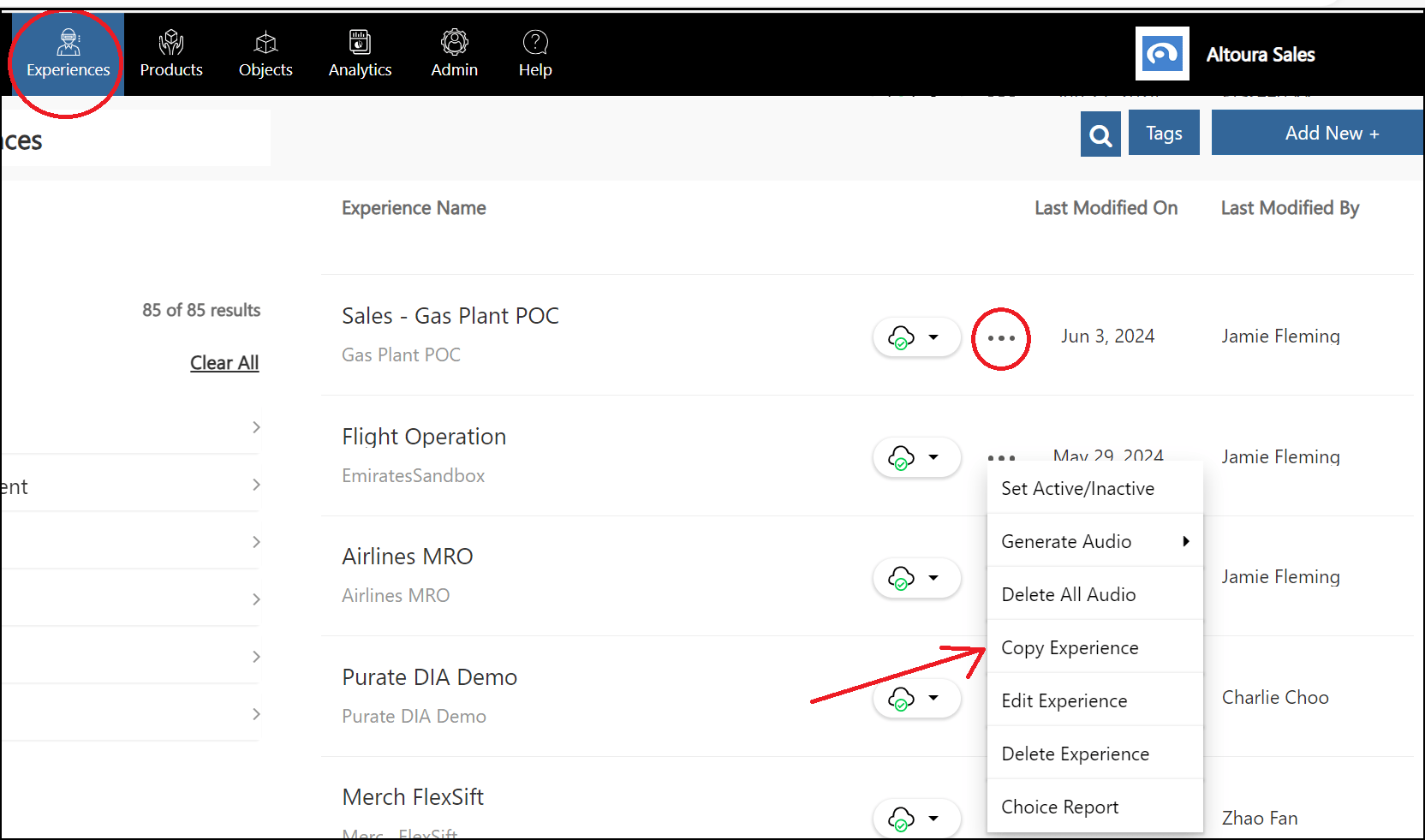
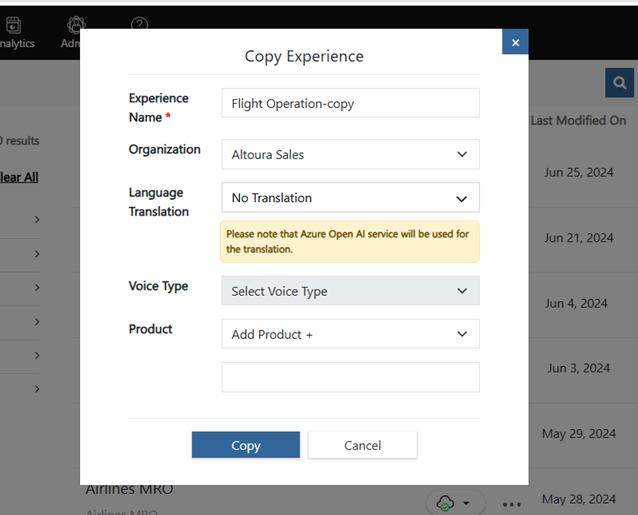
- Here, select the Organization in which the experience has to be created. A list of Organizations that the user has access to will be displayed in this dropdown.
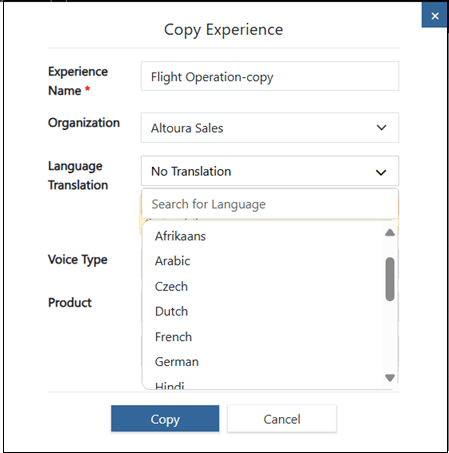
- If regular copying is required, then select the No Translation option. If language translation is required, then select the language.
-
-
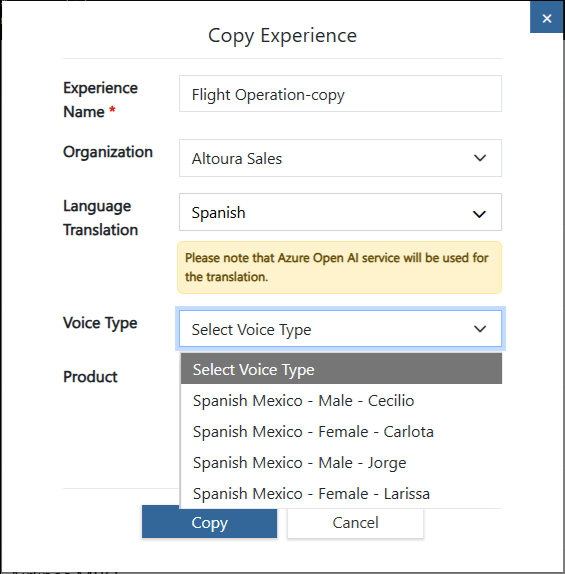
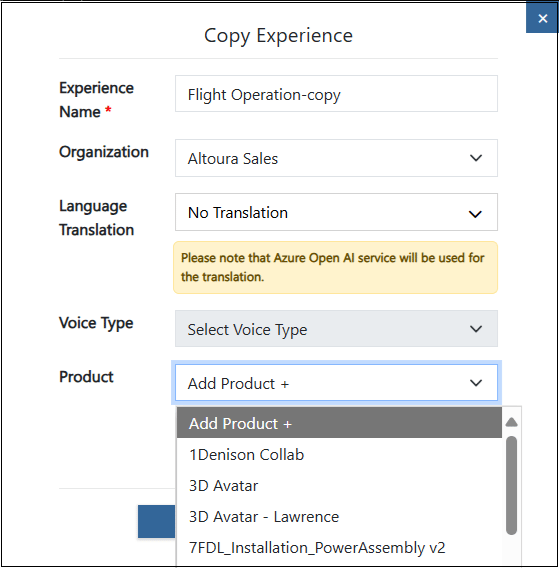
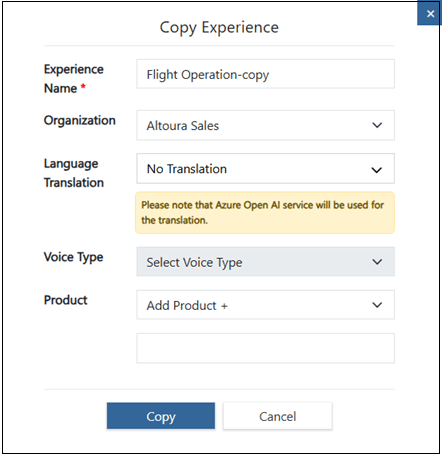
- Click on the Copy button. The experience is translated to the selected language using Azure OpenAI service and copied to the selected Organization. If a Voice Type option is selected, then audio files are generated for all the nodes in the selected Voice Type.
- The newly created experience will be displayed in the Experiences tab on top of the page.
-
The following field in all the nodes will be translated to the selected language:
- Display Text
- Title
- UIControls - UIControlText, TitleText, BodyText (Text, Image, Video)
- UIControls - UIControlText (Teleport, BrowserLink, Animation)