

-
Expanded Training Mode Support
DID feature is no longer limited to Practice mode. It has been expanded to include it when the training is run in Assessment mode as well. It can now be enabled in- Practice only mode
- Assessment only mode
- Or both, so the scenarios remain consistent across both Practice and Assessment modes.
-
Custom Instruction Prompts
When DID is enabled on a node, the creator has the option to provide the trainee with custom instructions text. Voice-over Generation - An option to generate voice-overs for this instruction text is also available. -
Tailored Error Messaging
The error messages shown when the DID criteria is not met is customizable now. The creator can provide an error message that will be shown during the training, and voice-overs can be generated for this as well.
DID UI and configuration in the Portal
For every node, DID settings can be configured in the properties window under the DID section as shown below: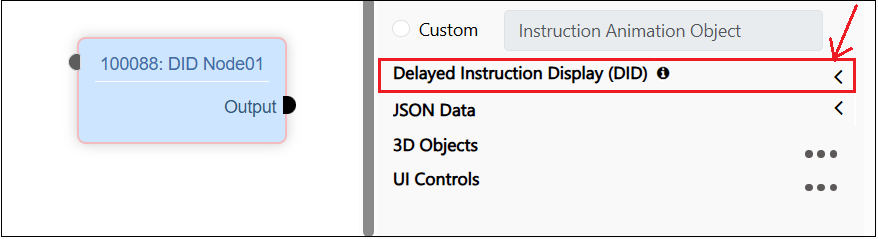
Note: When the Delay Instructions check box is unchecked, all the DID related property fields are disabled.
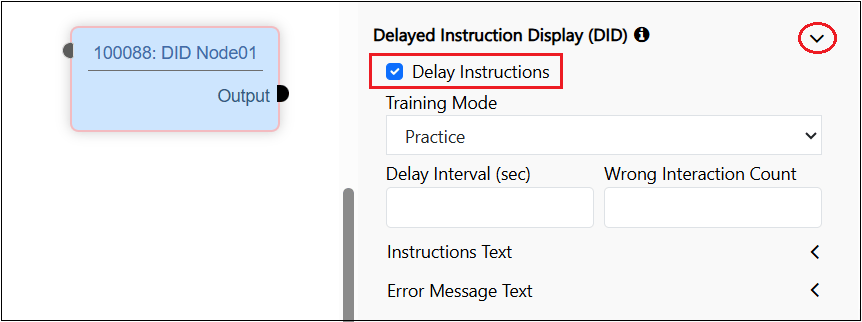
DID Properties
On expanding all the fields, the DID section of the properties window will appear as follows: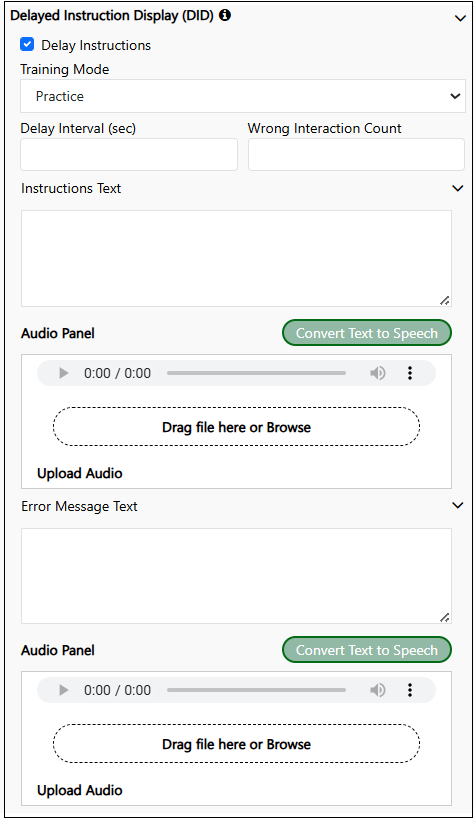
Training Mode
Select a value for the Training Mode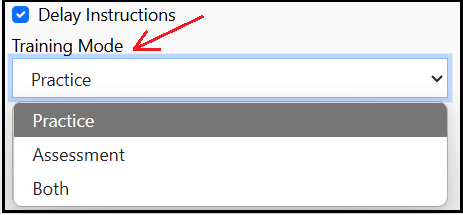
Delay Interval and Wrong Interaction Count
Enter the required values for Delay Interval and Wrong Interaction Count. One or both of these values can be set. These two values are used to control when the Display Text Panel will appear in the Altoura Client.Delay IntervalEnter the amount of time (e.g. seconds) the system has to wait for the trainee to complete the action defined for the node.
Wrong Interaction CountSpecify how many inccorect attempts the trainee may take to complete the action defined for the node before the Dispaly Text Panel is shown.
Configuring both the valuesIf both the values are configured, whichever threshold is hit first - the elasped delay or the number of wrong attempts will trigger the display of the Display Text Panel.
Instructions Text
Enter text under Instructions Text field. This text will be displayed to the trainee when they enter the DID node.Samples for this text could beVoiceover- Use the Convert Text to Speech button to generate an Audio file for the entered text. The voice type used for this audio file will be the same voice type that is set for the experience. The creator can also choose to upload a pre-recorded audio file.
- You have 60 seconds to replace this filter
- You have 2 attempts to select the right filter.
Error Message Text
Enter text under the Error Message Text field. This message will be displayed to the trainee when the DID condition fails.Samples for this text could beVoiceover- Use the Convert Text to Speech button to generate an Audio file for the entered text. The voice type used for this audio file will be the same voice type that is set for the experience. The creator can also choose to upload a pre-recorded audio file.
- The allotted time to replace the filter has elapsed.
- The 2 permitted attempts to select the right filter have been utilized.
Notes: When the voice type of the experience is changed, and the Convert Text to Speech button is clicked, the audio generated will be in the newly set voice type of the experience. However, in this release when the Generate Audio - All Nodes/Updated Nodes feature of an experience is used, the audio files will not be regenerated for the DID text configured in the nodes. This has to be regenerated manually for the above 2 fields under the DID properties.
Customizing the Wrong Object Interaction Message
By default, when a user interacts with the wrong object in a DID node or any Assessment node, the system displays the message in English as “You selected the wrong object, please try again.” To localize this message into another language, you can use a custom JSON action in the first connector of the node. Follow these steps:- Add a JSON Connector Action to the first connector of the node.
- Use the following format to define the localized message: