

Open the Procedures Page

1
Select Procedures in the side menu
Select the top icon (list icon) in the left-side navigation menu. The Procedures page opens and lists the procedures available for your currently selected organization.
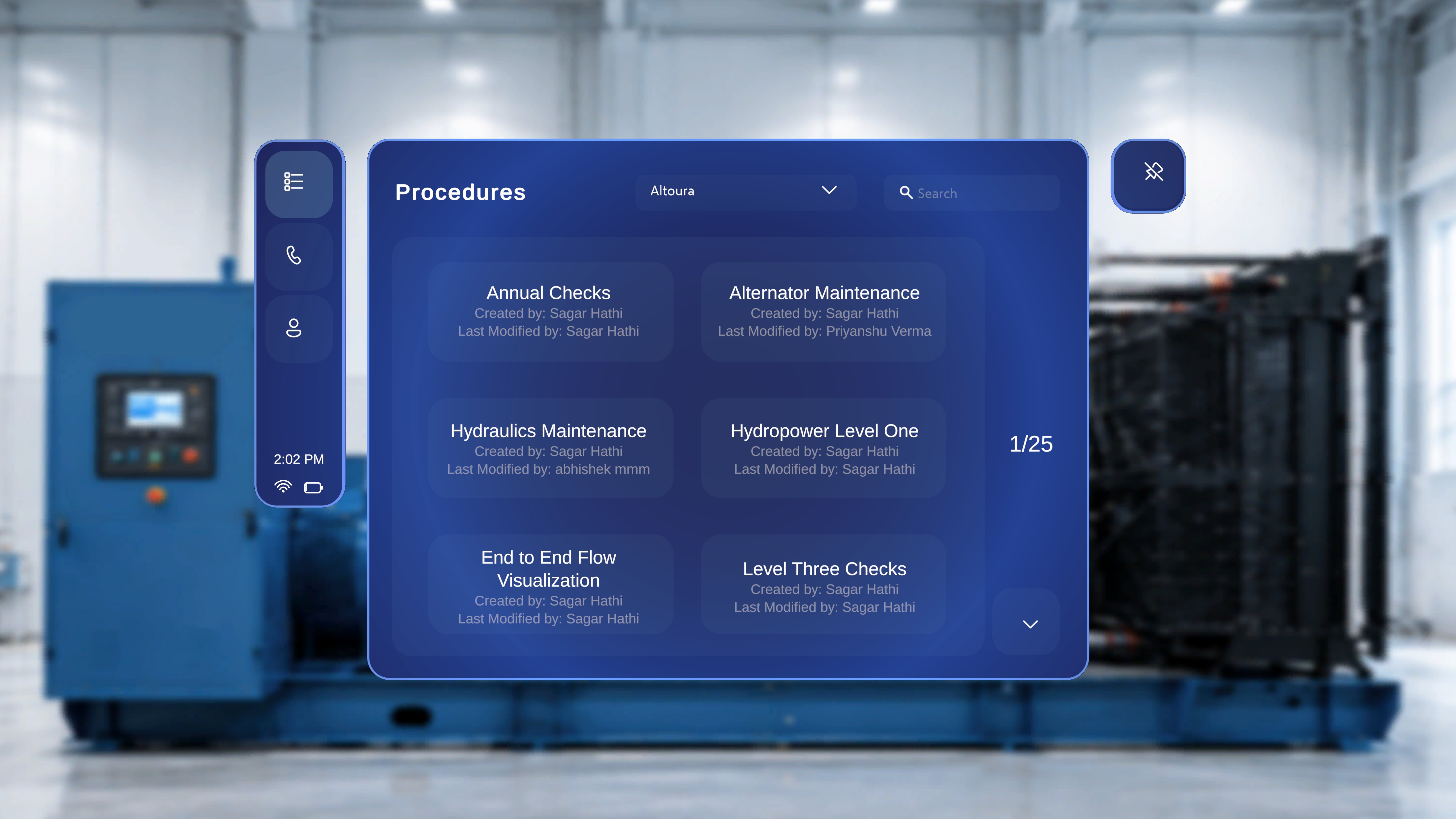
- Procedure name (for example, Air Filter Replacement)
- Created by information
- Last Modified by information
Pick the Right Organization (If You Belong to Several)
If your account has access to more than one organization, make sure the right one is selected before you search.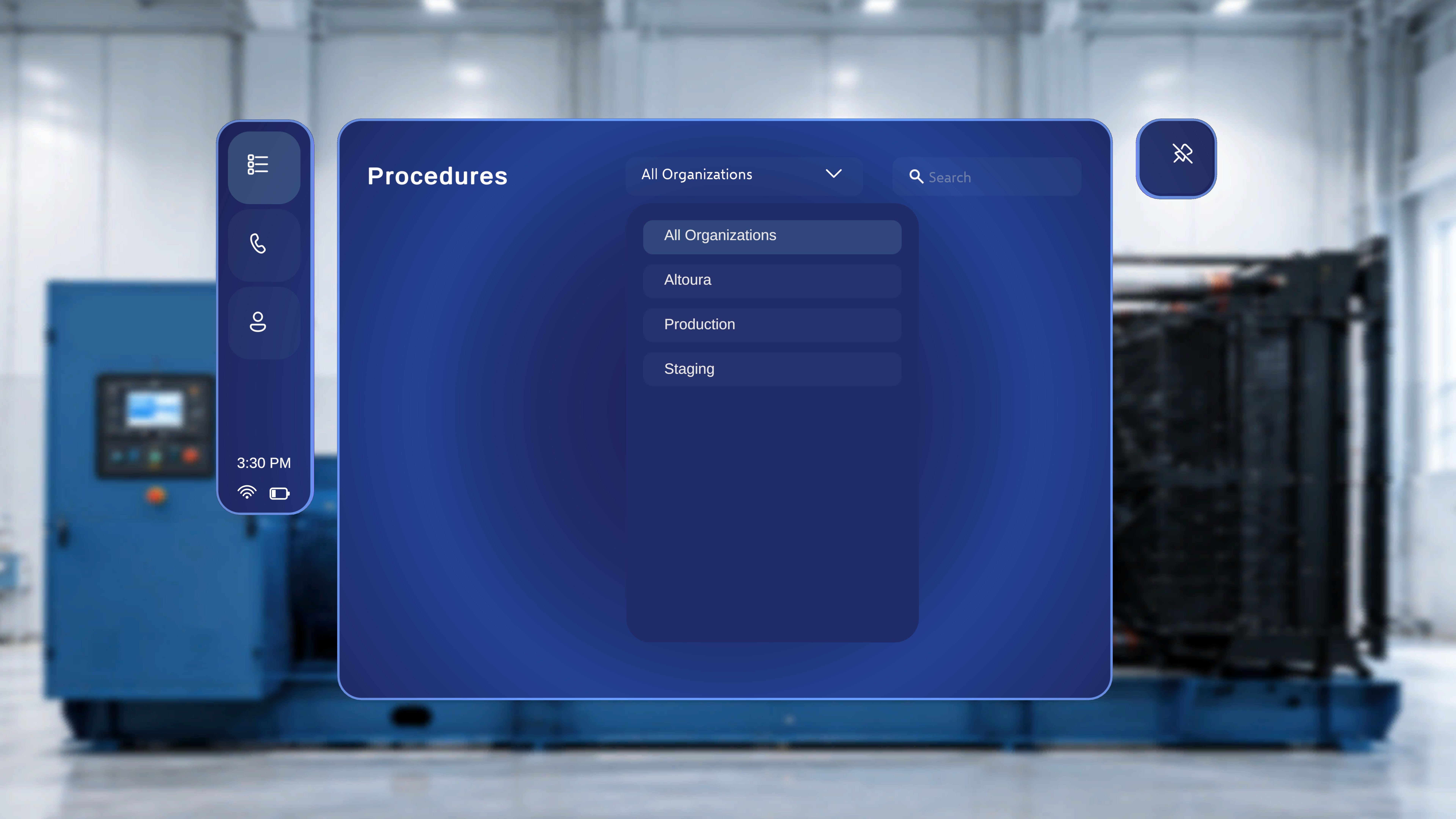
1
Open the organization dropdown
Select the organization dropdown at the top of the page (for example, Altoura).
2
Choose an organization
Select one of the available options — for example All Organizations, or a specific organization. The list refreshes to show only procedures belonging to your selection.
Search for a Procedure
1
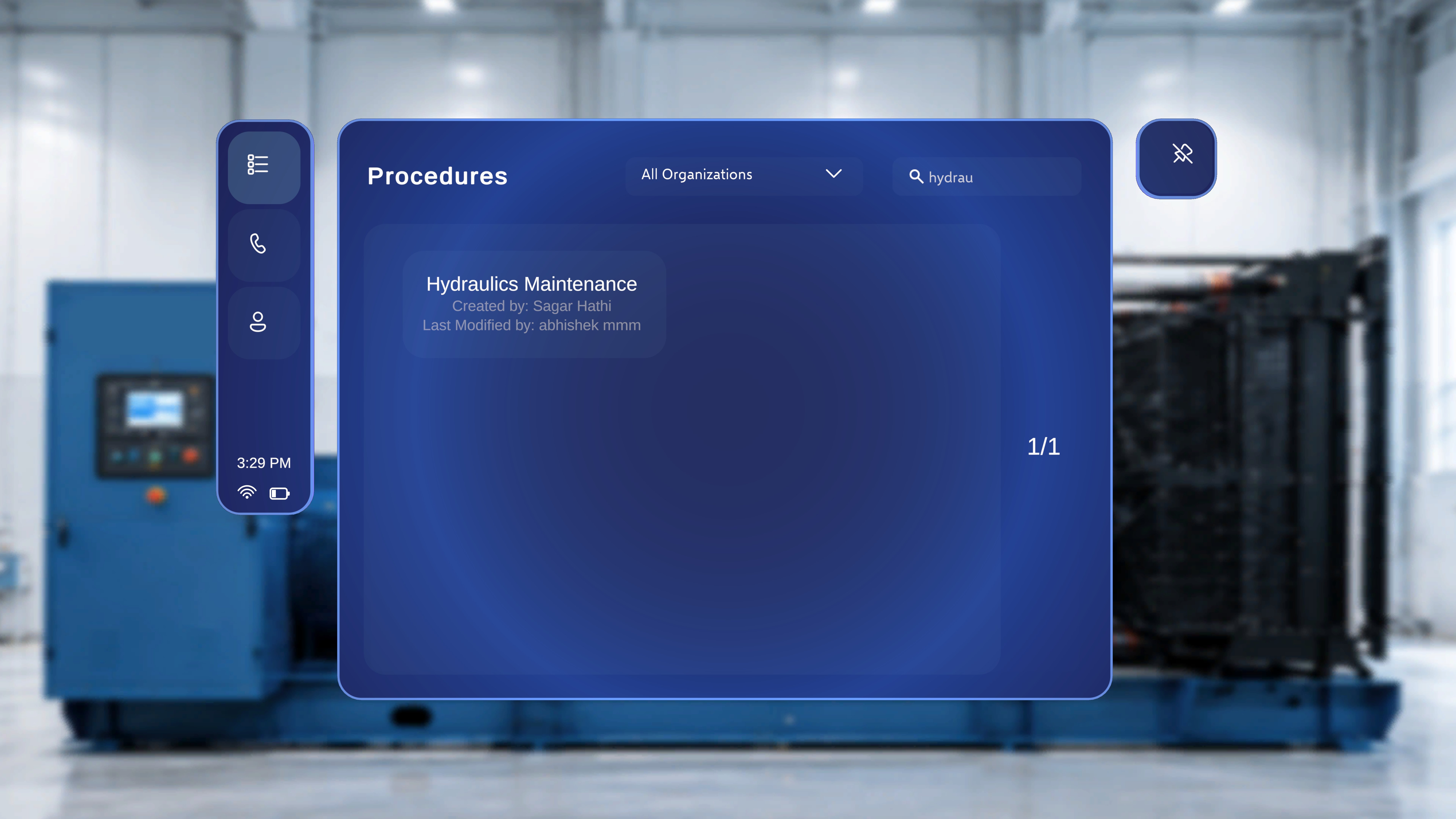
Select the Search field
The search field is in the top-right area of the page.
2
Enter a name or keyword
The list filters as you type. For example, entering Air shows only procedures with “Air” in the title, and the results count updates (for example, 1/1).
Select the Procedure
1
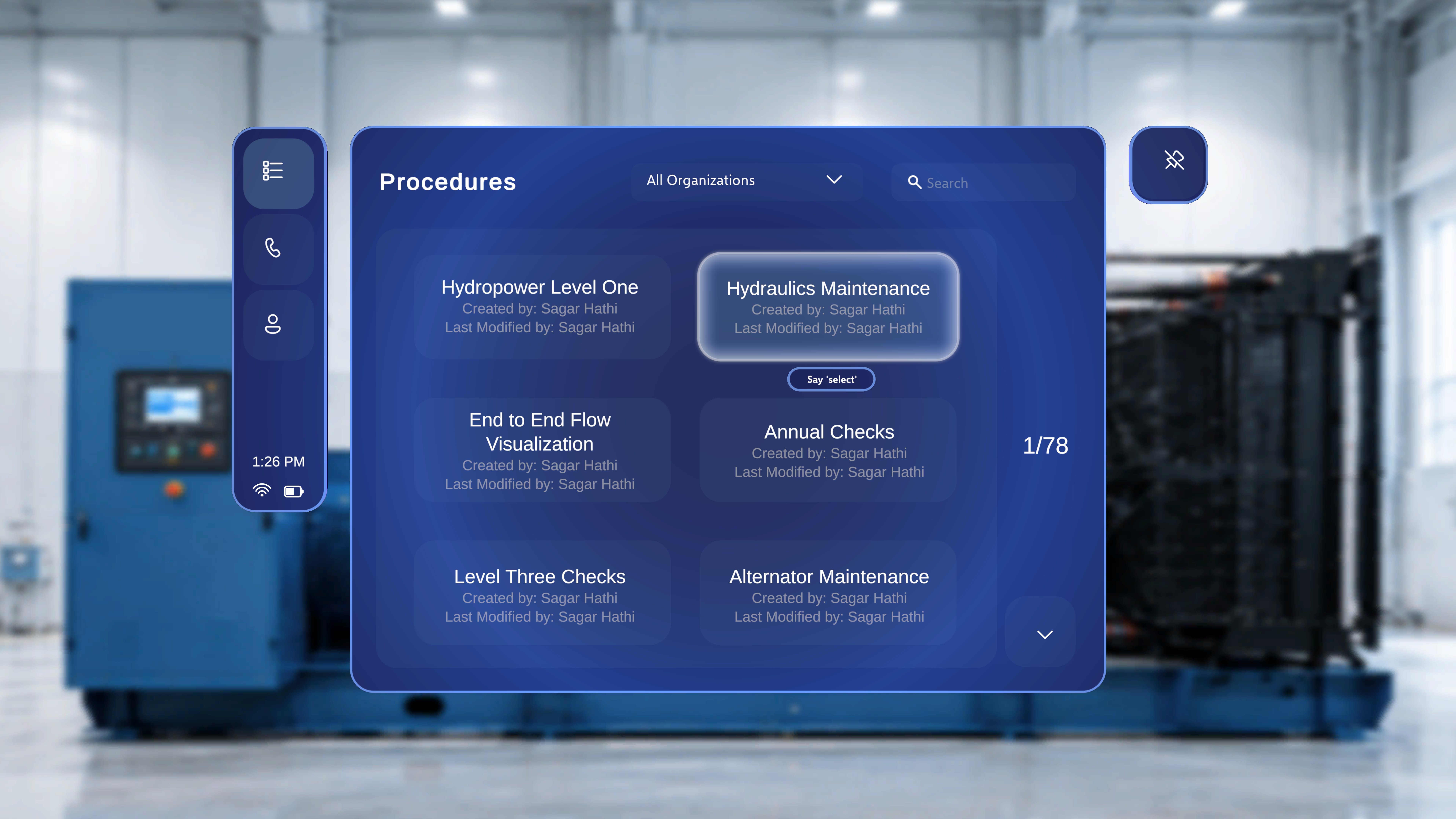
Focus the procedure card
Point the ray or move your head-gaze cursor onto the card. A “Say ‘select’” tooltip appears beneath it.
2
Activate it
Air-tap the card — or simply say “Select” while it is focused. See Voice Commands for everything you can do hands-free.
Next: Anchor with a QR Code