

The web Procedures Portal is the primary authoring surface: that is where you create the procedure itself — its tasks, steps, instructions, media, and branching. See Authoring in the Procedures Portal. On the HoloLens, Author mode is where you place and fine-tune that content in the physical space — 3D models, step anchors, and spatial alignment. If you are unsure how the two roles differ, see Author vs Operator.
Open the Procedures Page
1
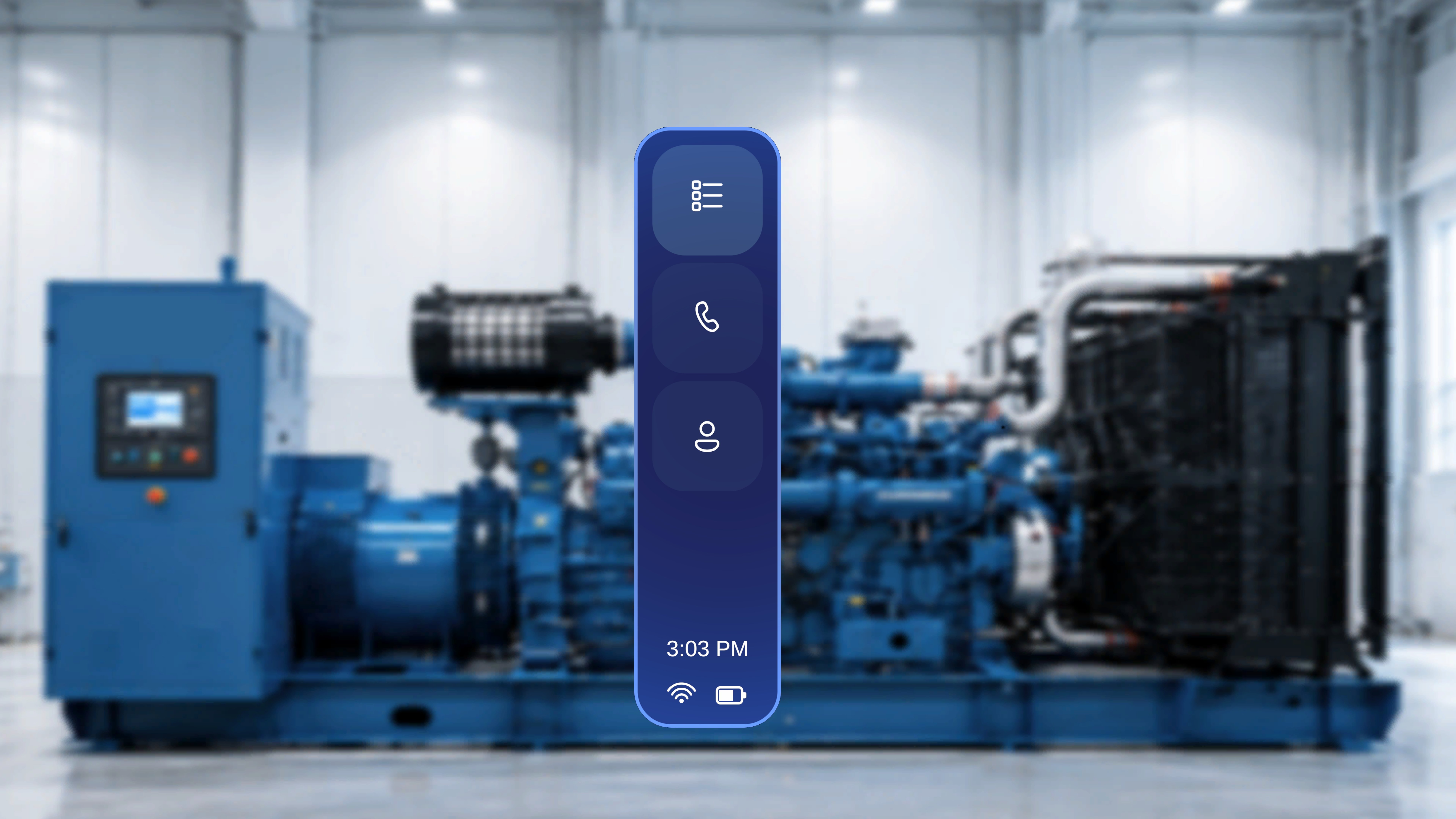
Select Procedures in the side menu
Select the top icon (list icon) in the left-side navigation menu. The Procedures page opens with the procedures available for your currently selected organization.
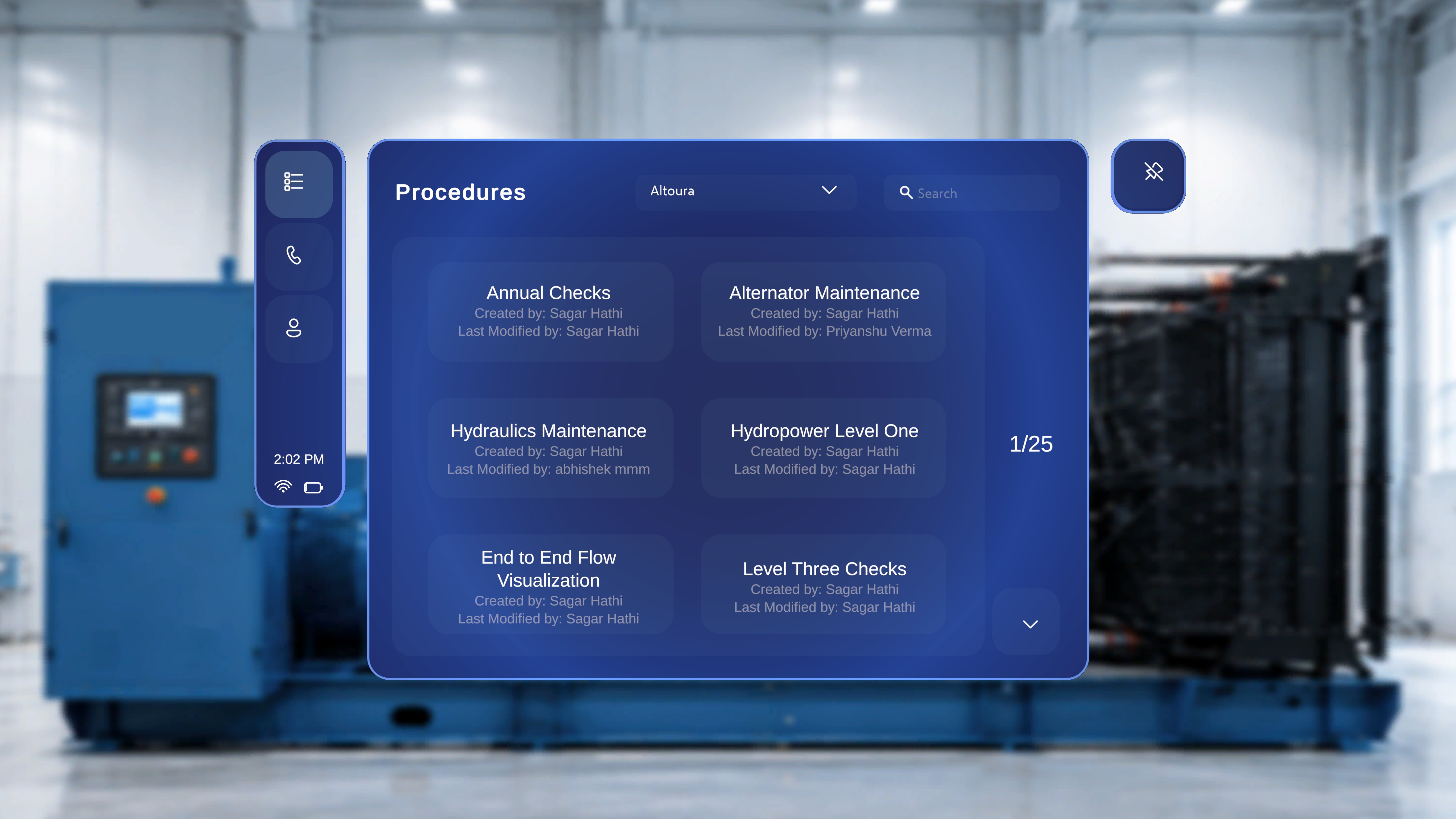
Find the Procedure You Want to Author
If your account has access to more than one organization, switch to the right one first.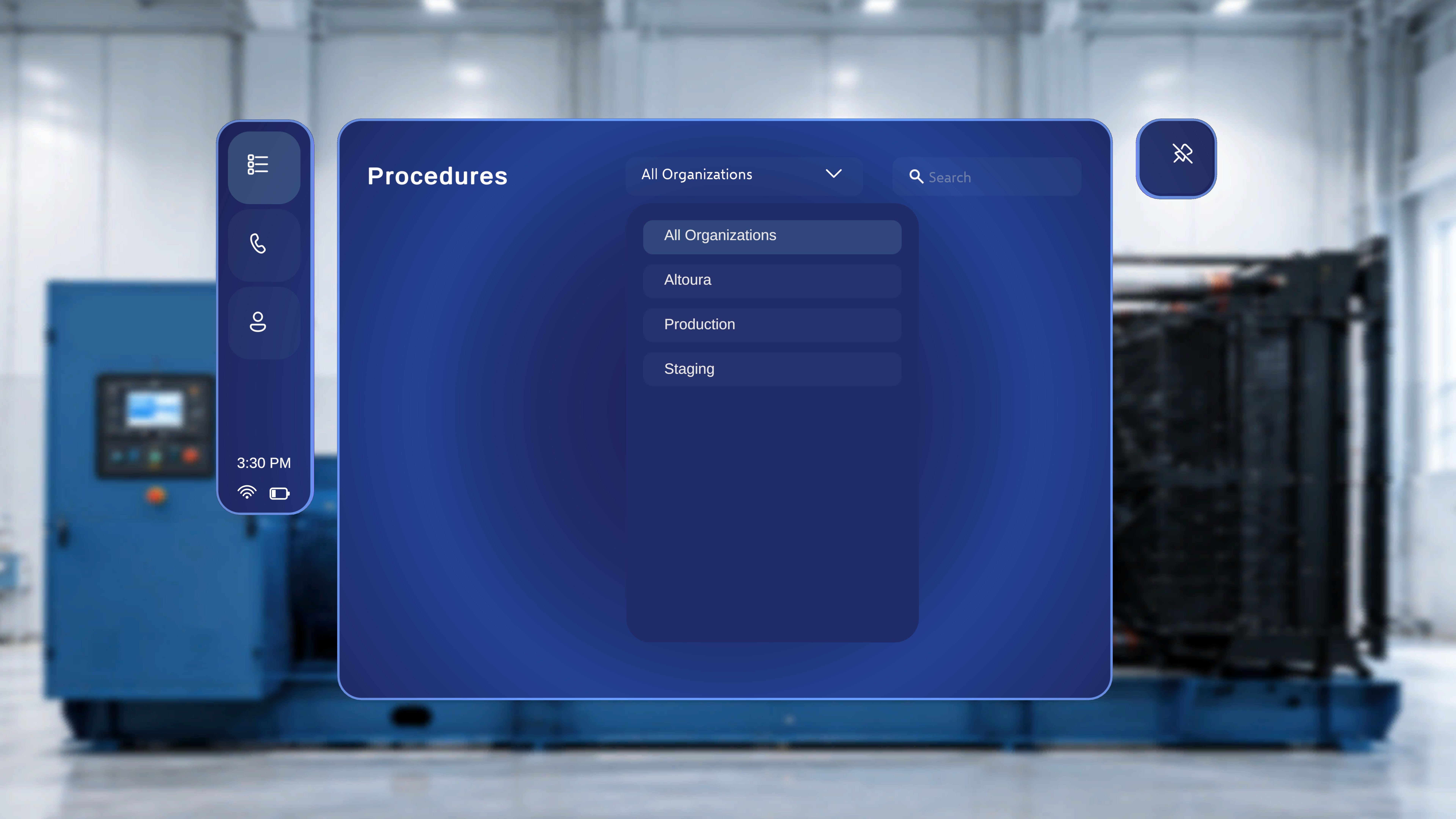
1
Filter by organization (optional)
Select the organization dropdown at the top of the page and choose an option — for example All Organizations or a specific organization. The list refreshes to show only procedures belonging to your selection.
2
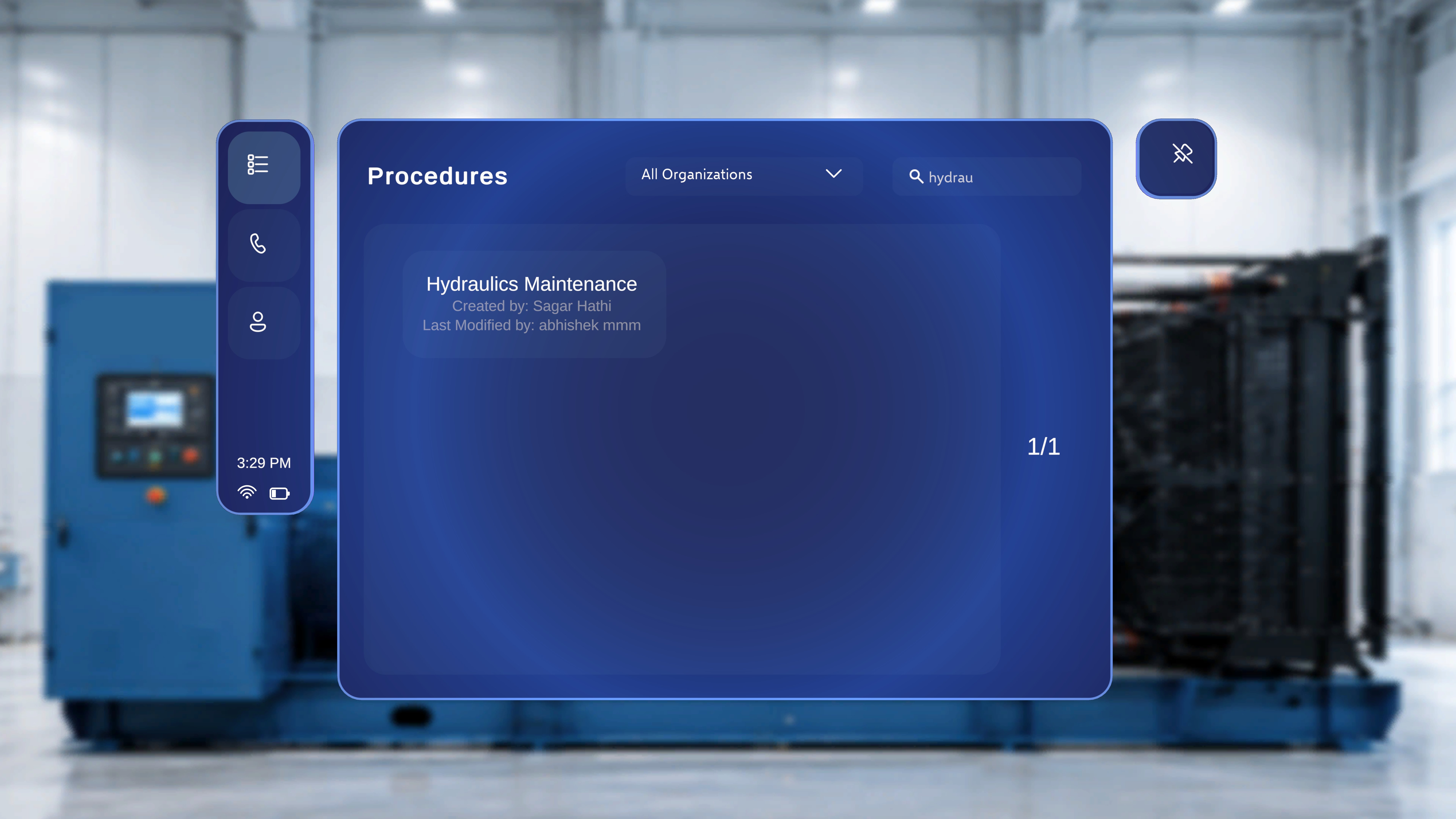
Search by name
Select the Search field in the top-right area of the page and enter a procedure name or keyword. For example, entering Air shows only procedures with “Air” in the title, and the results count updates (for example, 1/1).
Select the Procedure
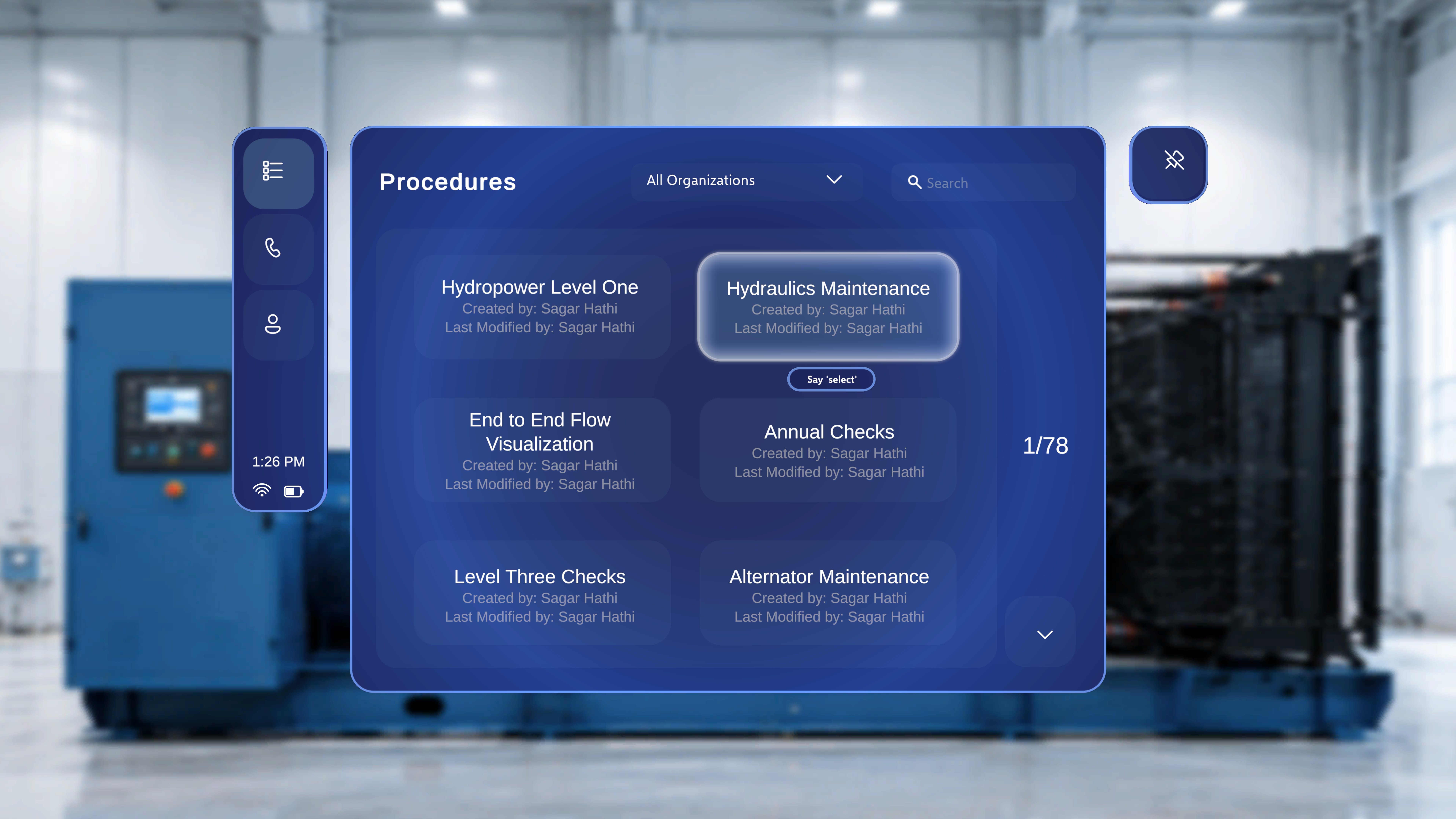
1
Focus the procedure card
Point the ray or move your head-gaze cursor onto the card. A “Say ‘select’” tooltip appears beneath it.
2
Activate it
Air-tap the card — or say “Select” while it is focused. See Voice Commands for everything you can do hands-free.
Choose Author Mode
Because your account has the Author role, a mode-selection dialog appears after you choose a procedure. (Users without the Author role go straight into Operator mode and never see this dialog.)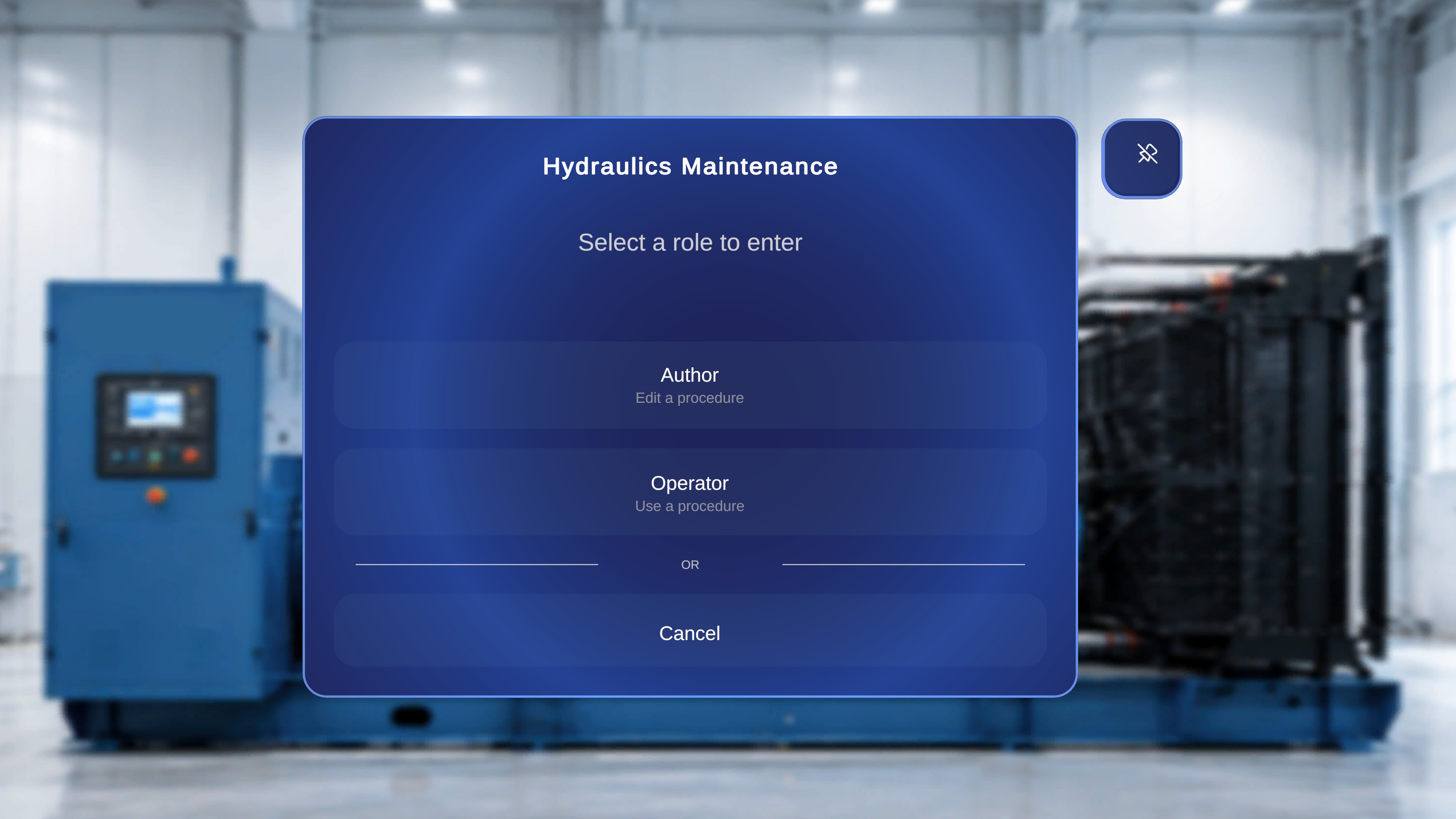
A Cancel option closes the dialog and returns you to the Procedures page.
1
Select Author
Focus Author and air-tap it, or say “Select”. Choose this whenever you need to modify or update the spatial content of an existing procedure.
Next: Anchor and Set Up the Space