

Overview
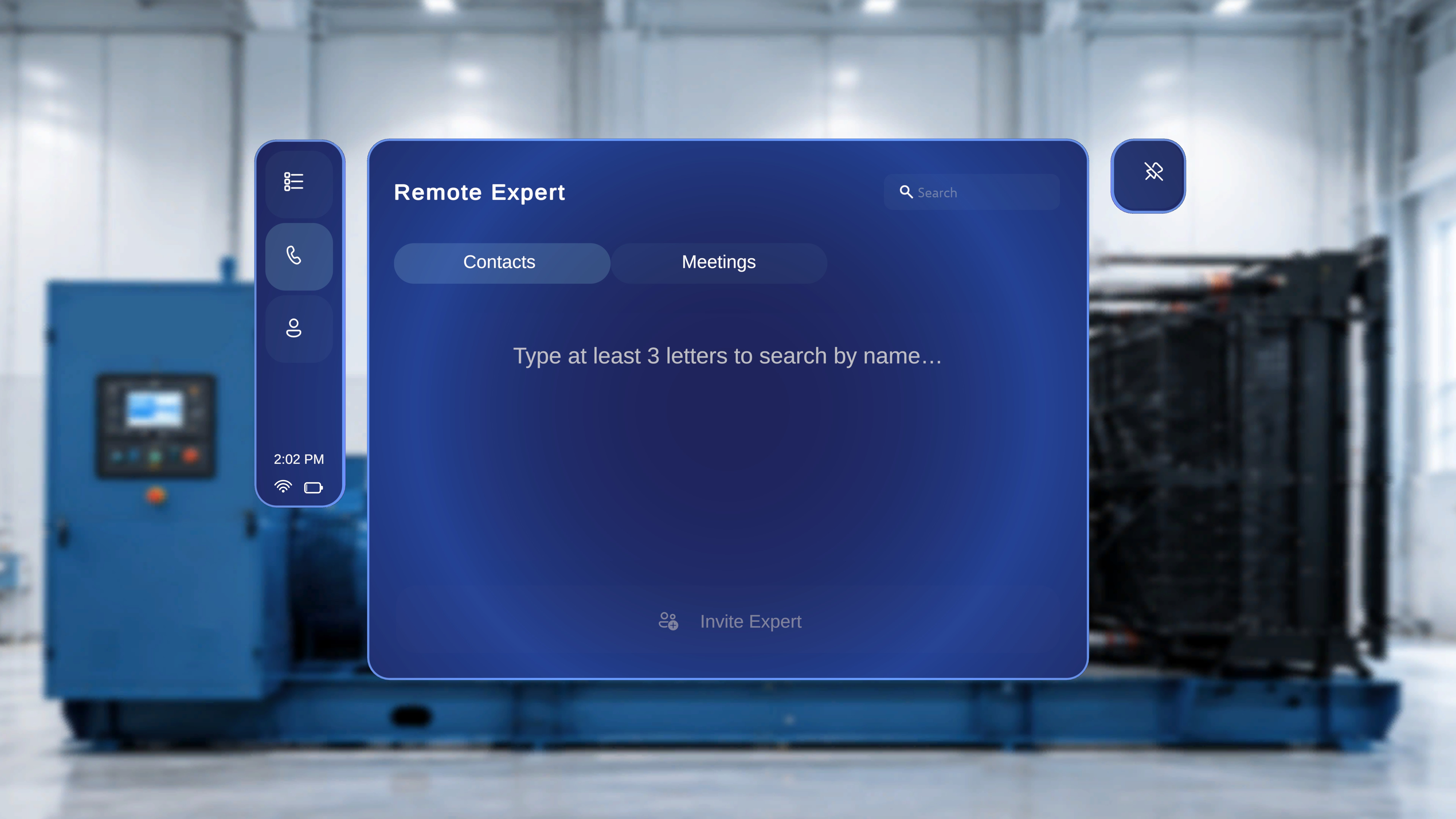
From the Remote Expert screen, under the Contacts tab, you can search for an expert by name and send a session request. Once the invitation is sent, a live session is created and you are placed in a waiting state until the expert joins.Search for an Expert
Search by Name
- In the Remote Expert screen, ensure the Contacts tab is selected.
- Select the Search field in the top-right corner.
- Enter at least three letters of the expert’s name.
What Happens Next
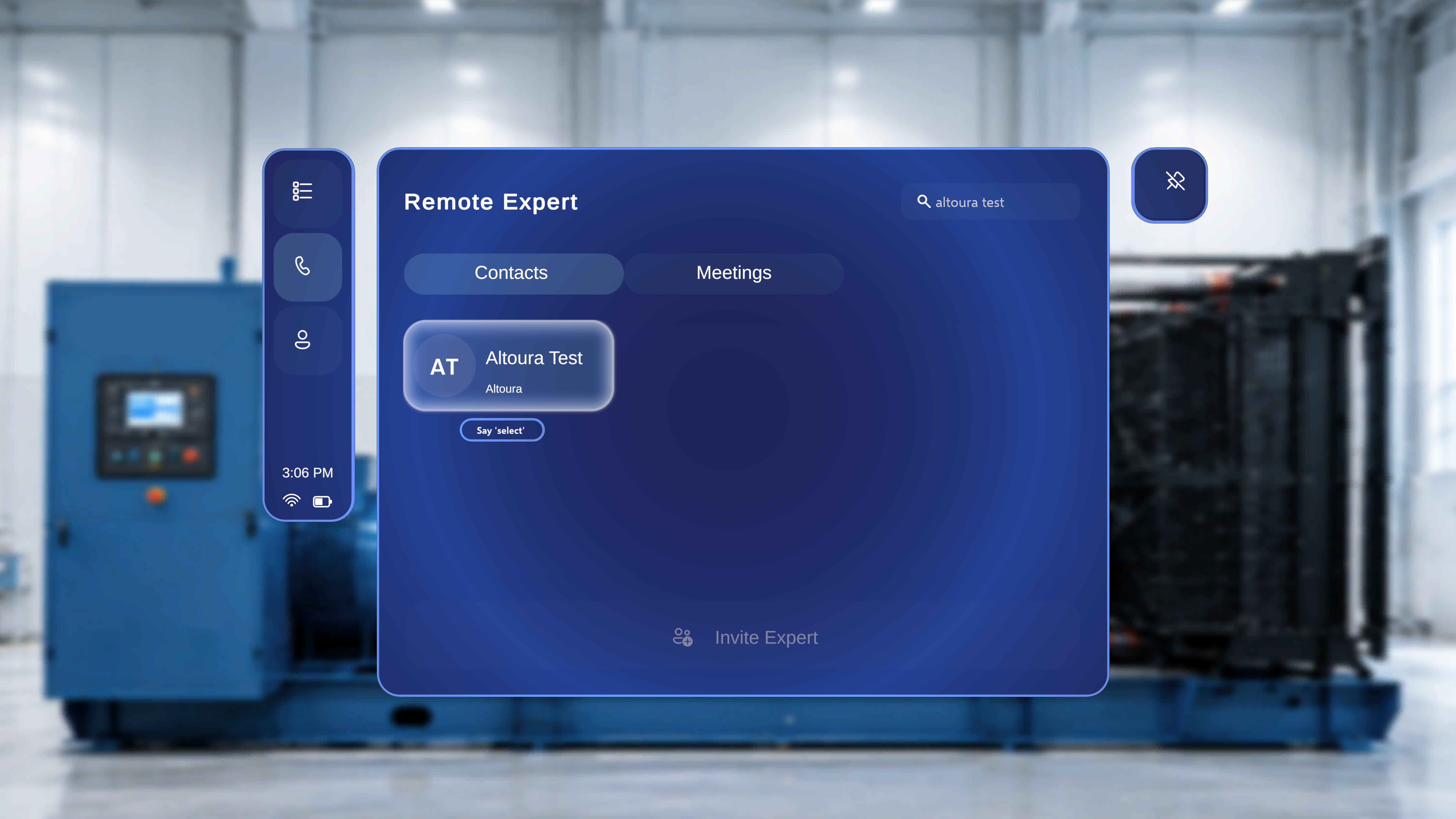
- Matching results appear in the main panel.
- Each result is displayed as a name card.
- The name card includes:
- The expert’s initials (for example, SH)
- The expert’s full name (for example, Sagar Hathi)
Send an Invitation
- Select the expert’s name card.
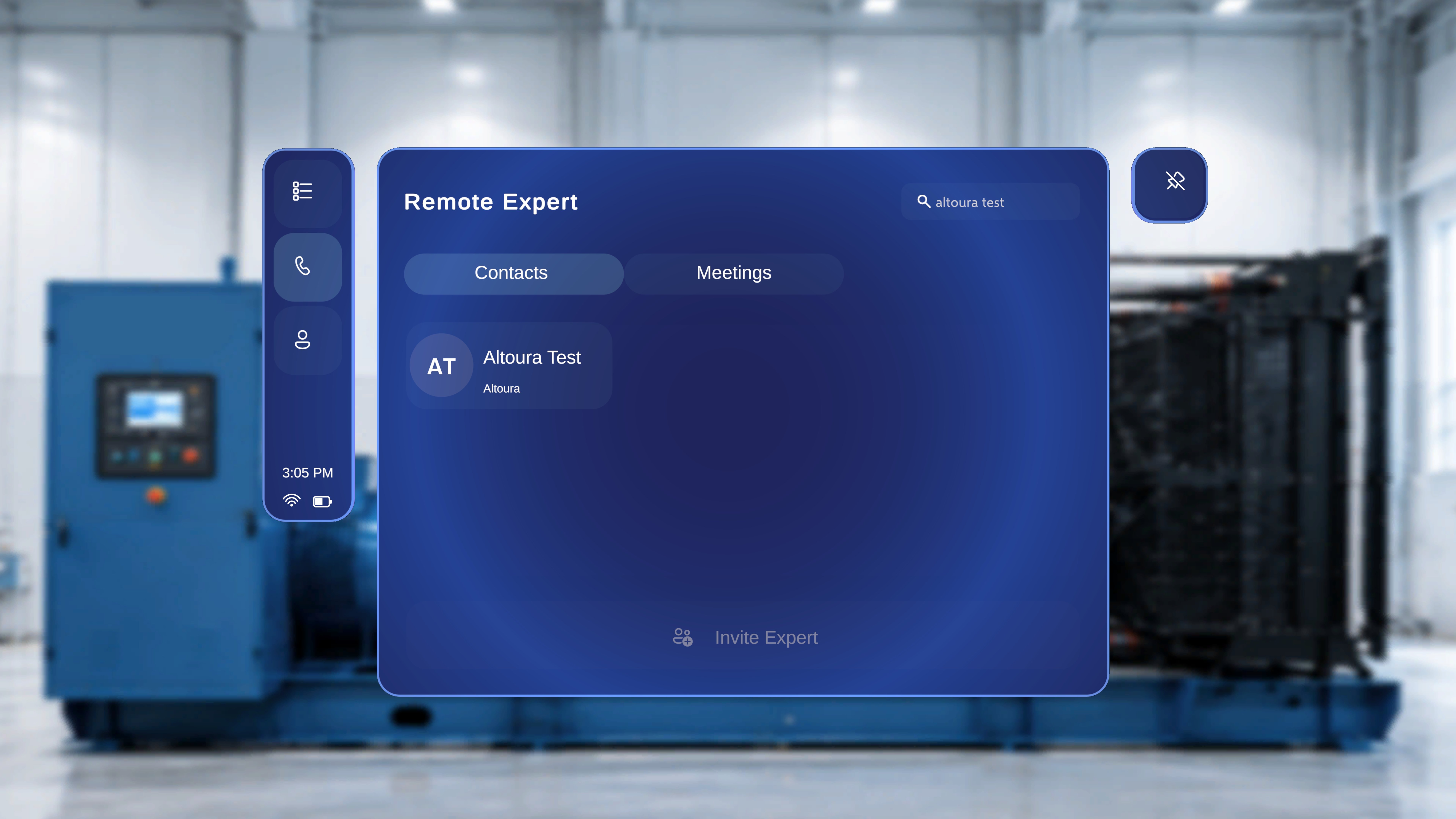
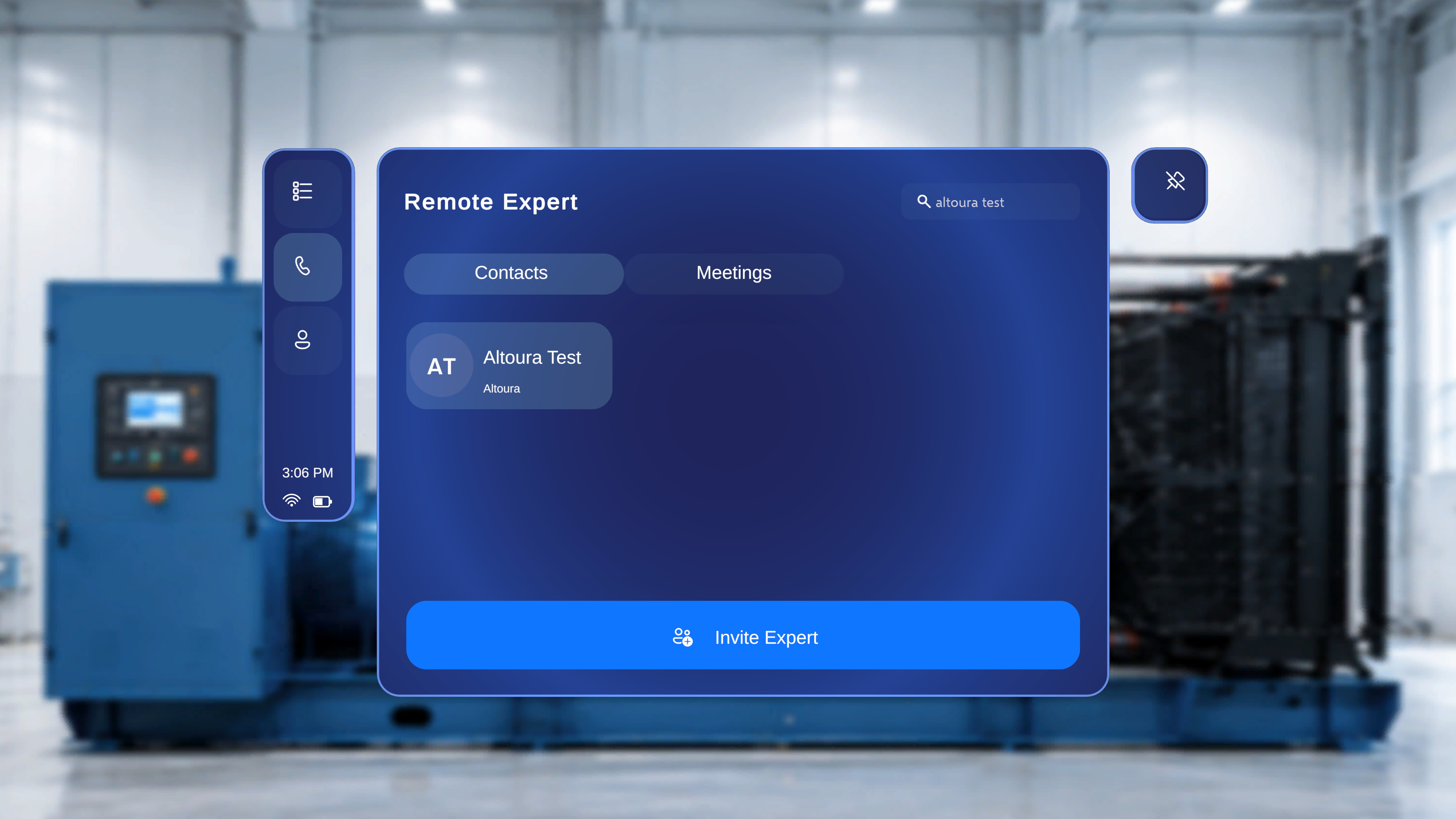
- The Invite Expert button at the bottom becomes active once a name is selected.
- Click Invite Expert.
What Happens Next
- When you click Invite Expert, a session invitation is sent to the selected expert.
- The expert receives a meeting request in Microsoft Teams.
- The call interface opens automatically on your device.
Waiting for the Expert to Join
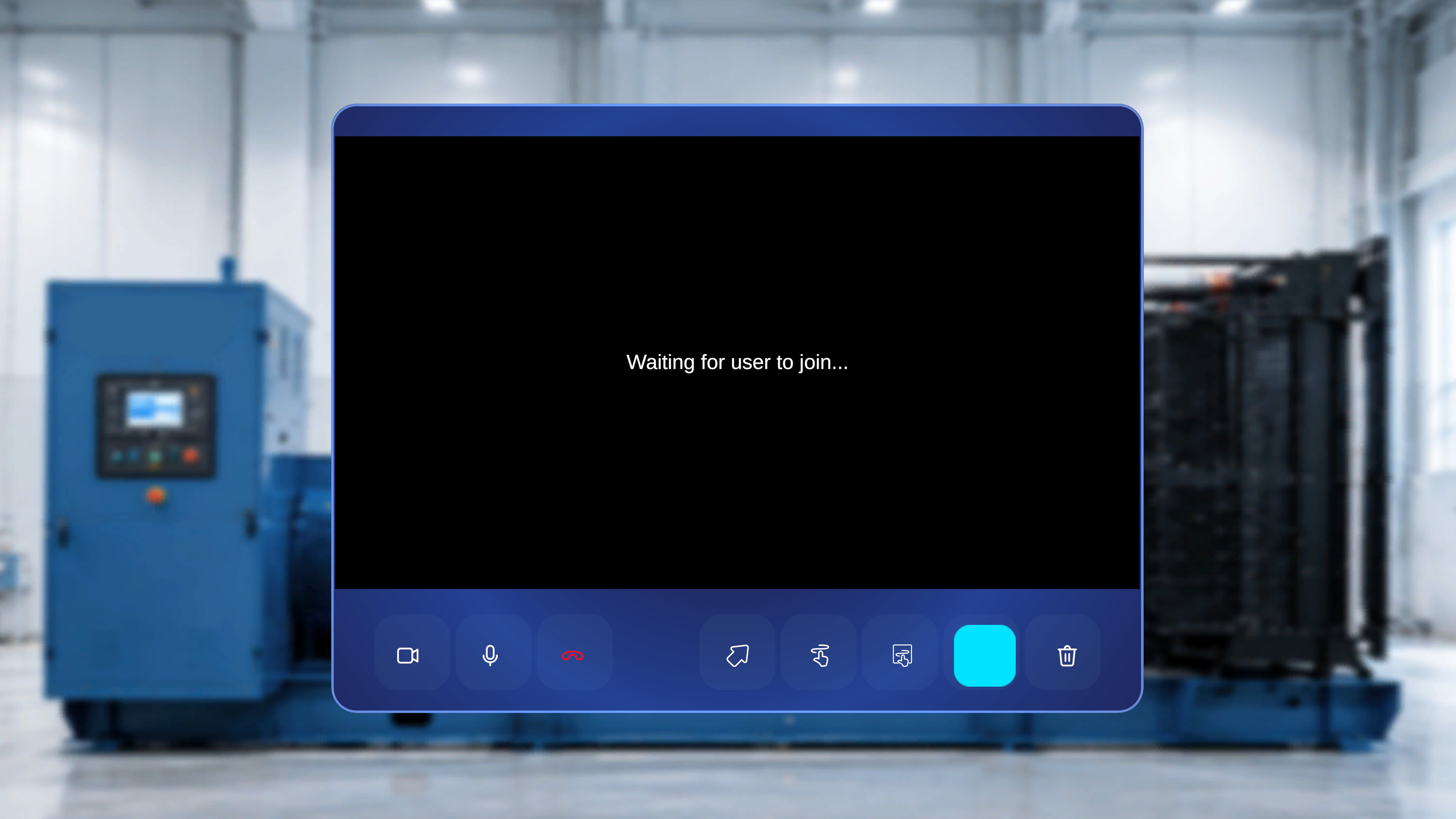
Overview
After sending the invitation, the session is created and you enter the call interface. At this stage, you are connected and waiting for the expert to join.What You See
- A video display area.
- The message: “Waiting for user to join…”
Available Controls While Waiting
The call control bar is displayed at the bottom of the screen. The following controls are available:- Camera – Turn your video on or off.
- Microphone – Mute or unmute your audio.
- End Call – End the session.
What Happens Next
- When the expert joins the meeting, the waiting message is replaced by the live session view.
- If your camera and microphone are enabled, the expert can see and hear you.
- The session is then ready for live collaboration and annotation.
When the Expert Joins
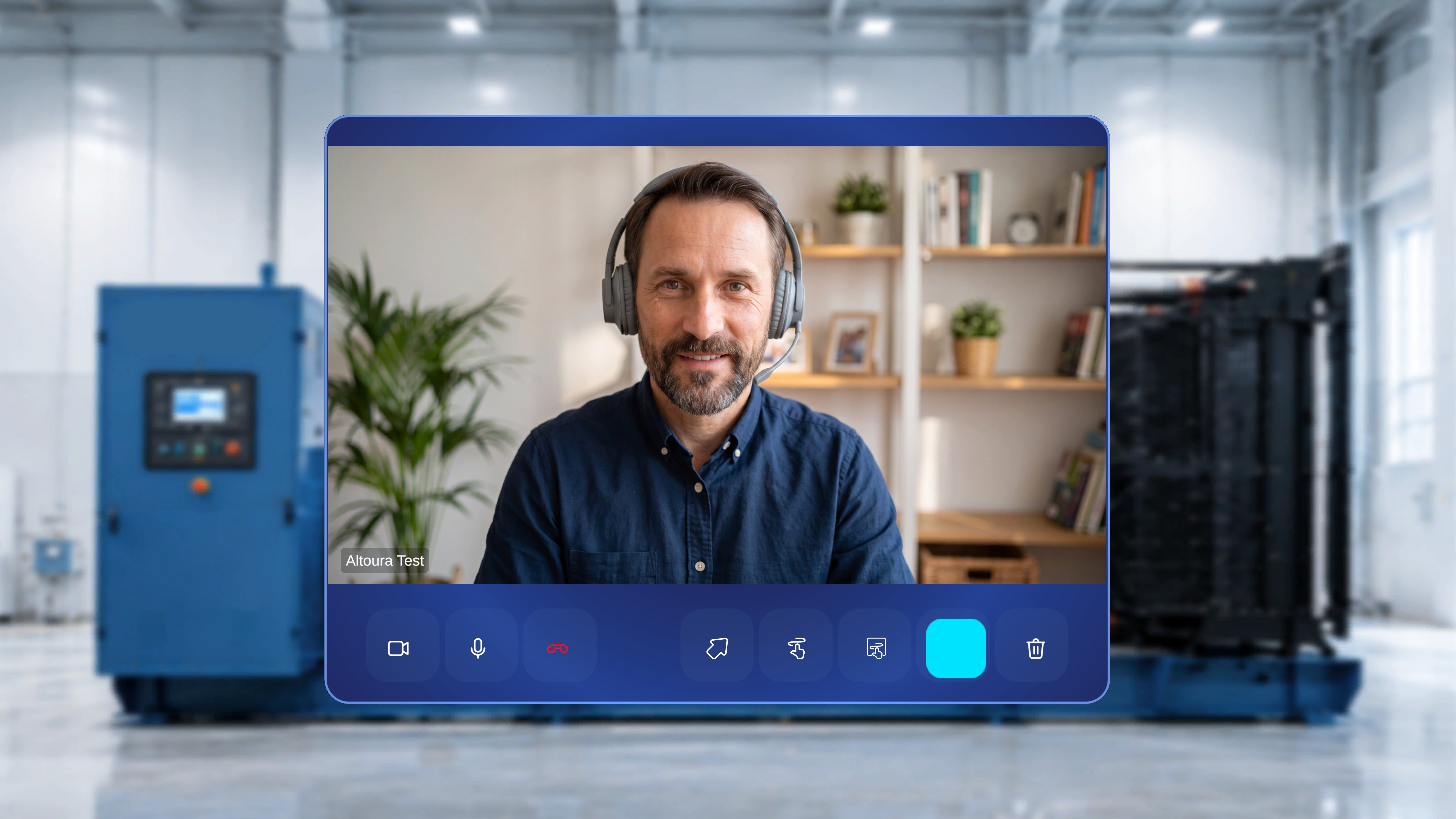
- The expert’s video feed appears in the main call panel — this is the person who joined from Teams.
- The call control bar (Camera, Microphone, End Call) remains at the bottom of the panel.
- If your camera and microphone are on, the expert can see and hear you.
- The session is now ready for live collaboration and annotation.