

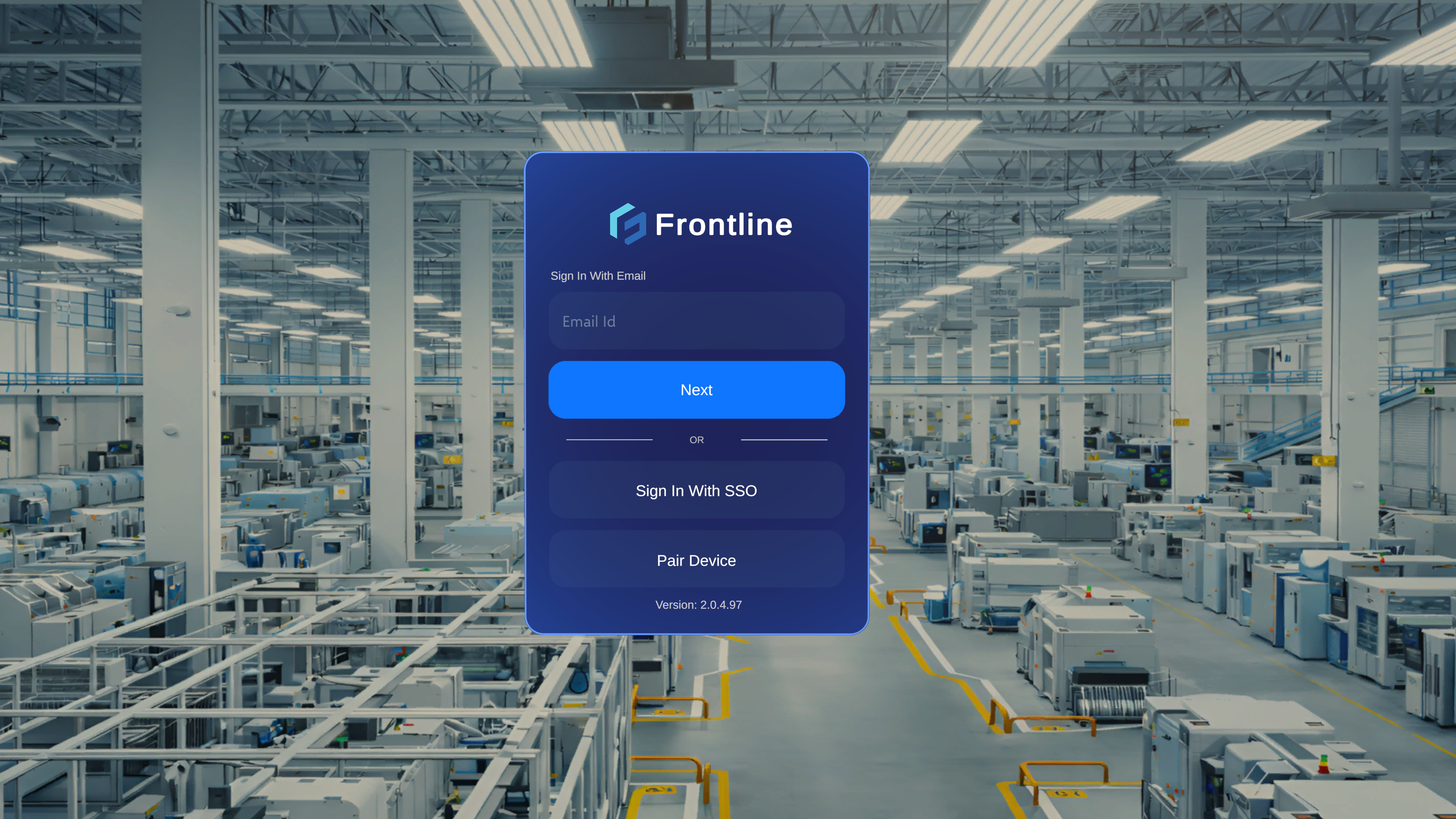
Sign In with Email & Password
Use this method when your organization uses Altoura-managed credentials.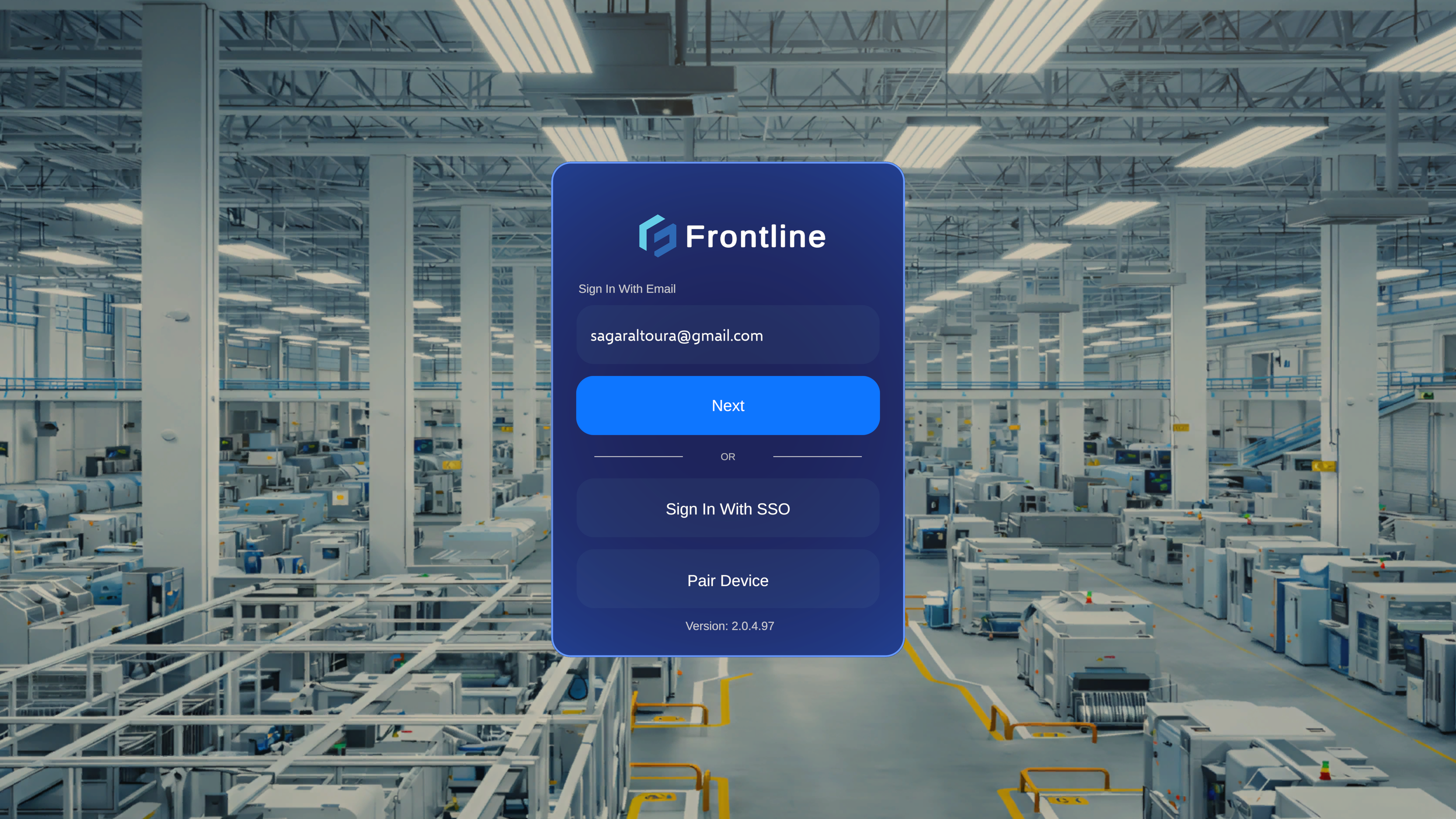
Steps
- Launch Altoura Frontline on your HoloLens 2.
- On the sign-in screen, enter your email address and select Next.
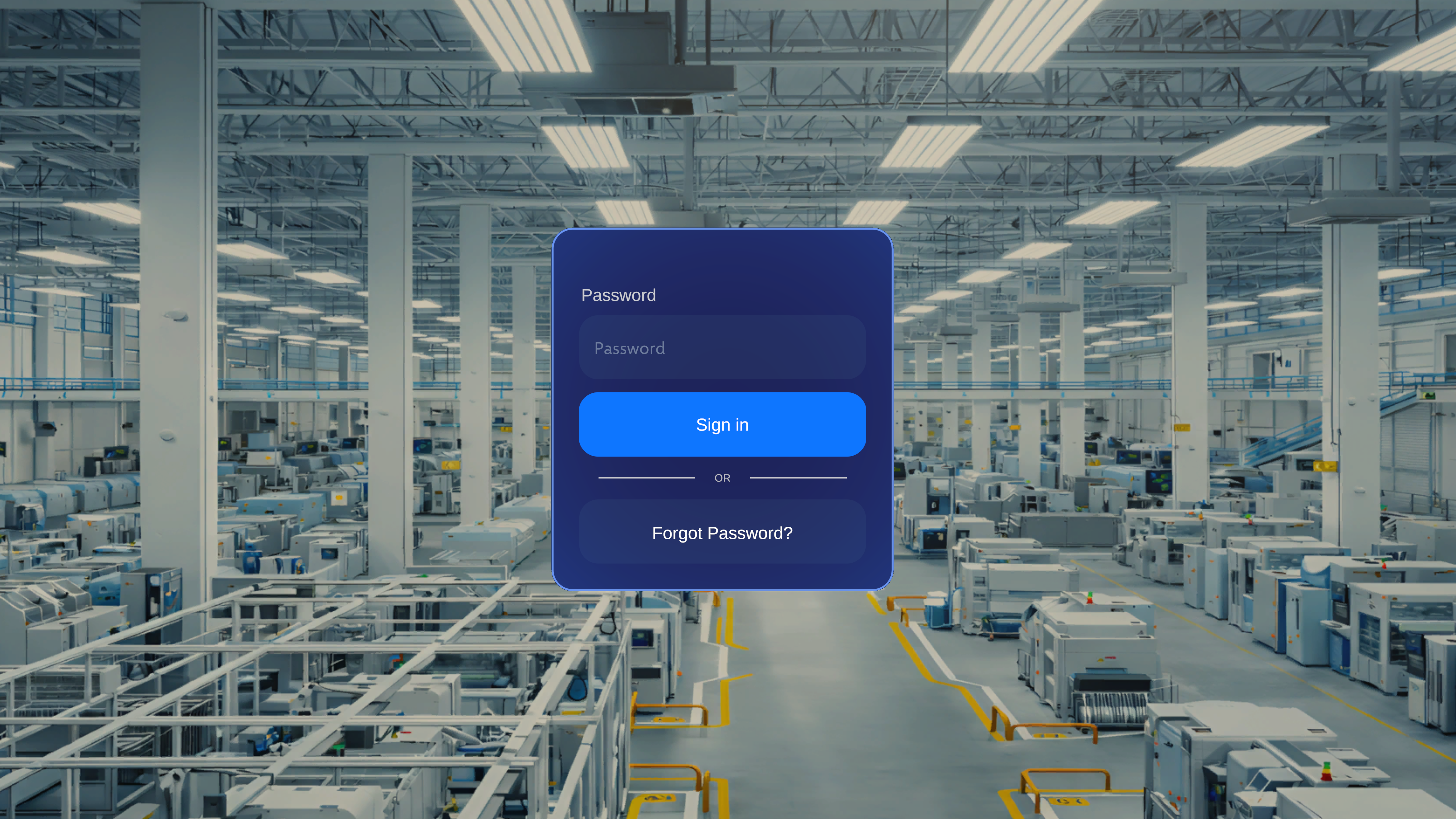
- Enter your password and select Sign In.
- After successful authentication, the app opens to the Procedures landing page.
Troubleshooting
- Invalid credentials: Verify that you are using the correct email and password associated with your Altoura account.
- Account locked: Contact your IT administrator if your account has been locked due to repeated failed attempts.
Sign In with SSO (Single Sign-On)
Use this method when your organization has configured a custom Identity Provider (IdP) for authentication.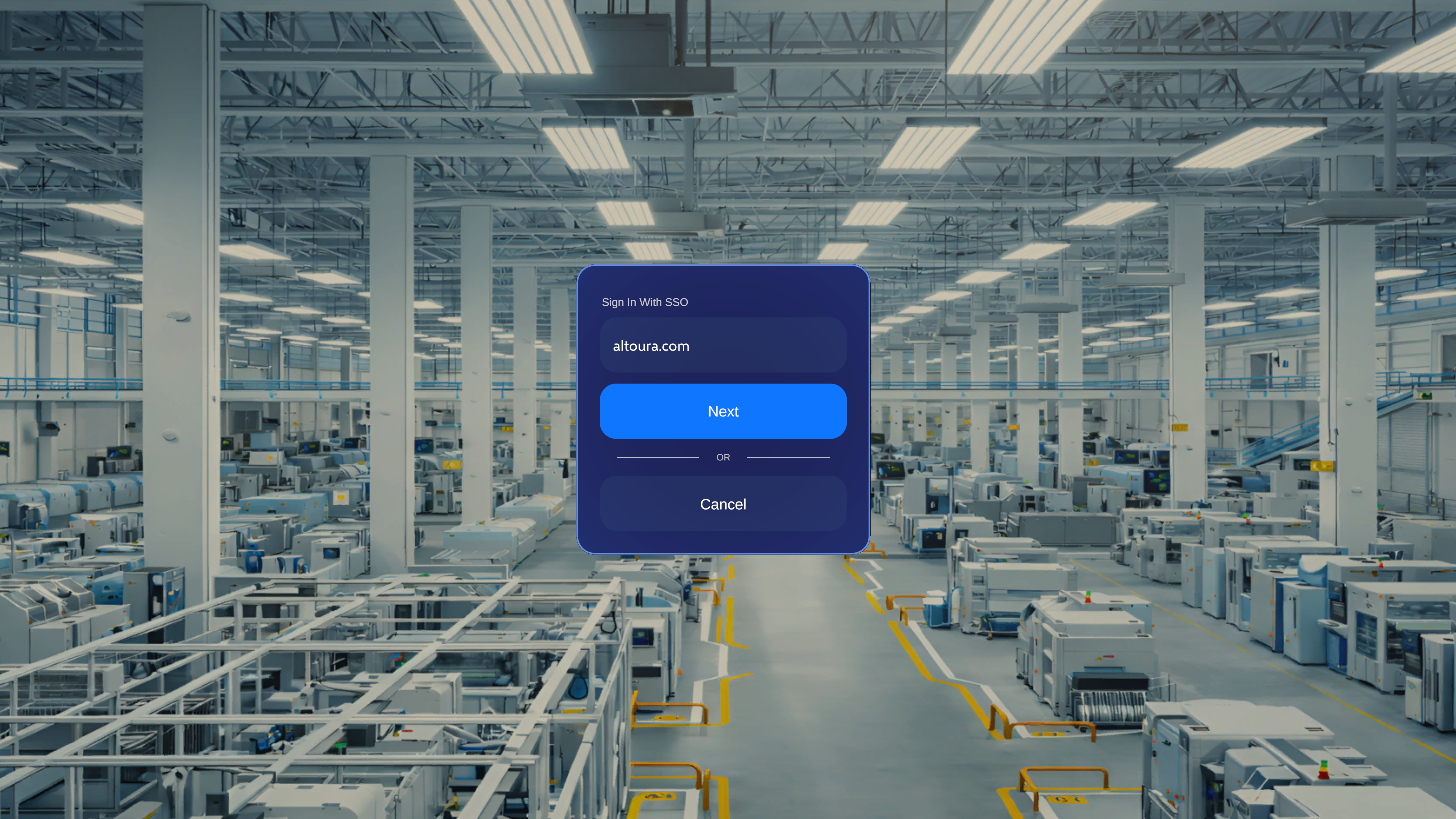
Steps
- Launch Altoura Frontline on your HoloLens 2.
- On the sign-in screen, enter your organizational email address and select Next.
- You are redirected to your organization’s Identity Provider (IdP) login page.
- Sign in using your organization’s credentials and complete any authentication steps required by your IdP (e.g., multi-factor authentication).
- After successful authentication, you are redirected back to Altoura Frontline and the app opens to the Procedures landing page.
Troubleshooting
- Redirect not working: Ensure your HoloLens has internet access and can reach your organization’s IdP.
- IdP login fails: Verify your credentials with your organization’s IT team. The issue may be on the IdP side, not Altoura.
- MFA issues: Ensure your authenticator app or phone is accessible for multi-factor verification if required by your IdP.
Sign In with PIN Pairing
Use this method when entering credentials directly on the HoloLens is impractical, for example in shared device environments or when the HoloLens keyboard is difficult to use.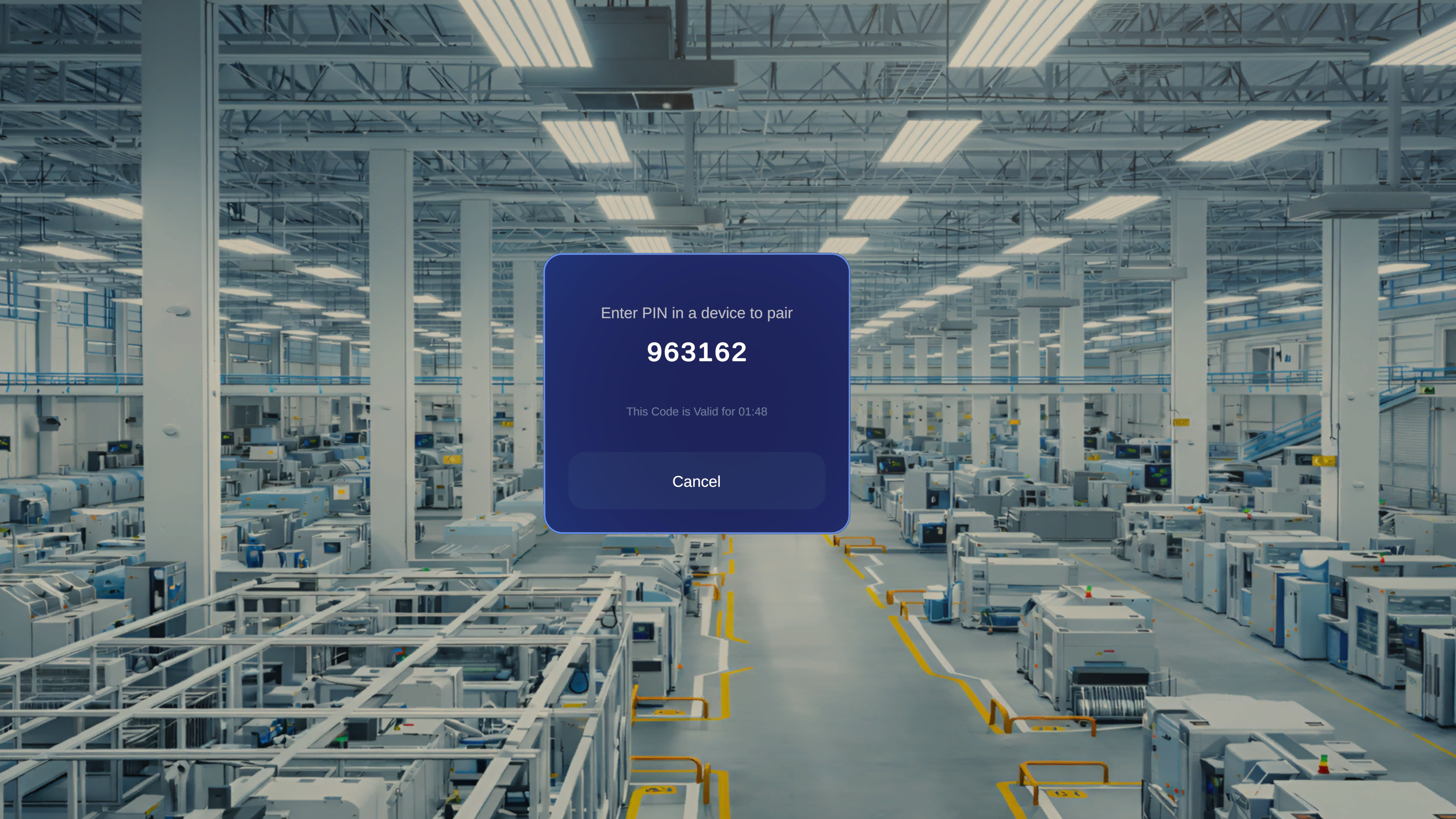
How It Works
- The HoloLens app displays a 6-digit PIN code.
- On the Altoura Portal, you open the Pair Device page and enter that code.
- Once the code is verified, the HoloLens is automatically signed in to your account.
Step 1: Get the PIN from the HoloLens
- Launch Altoura Frontline on your HoloLens 2.
- On the sign-in screen, select PIN Pair.
- A 6-digit code is displayed on the HoloLens screen. Note this code and keep the screen open.
Step 2: Open Pair Device on the Altoura Portal
- On your phone, tablet, or PC, sign in to the Altoura Frontline portal at procedure.altoura.com.
- Click on your profile icon in the top-right corner.
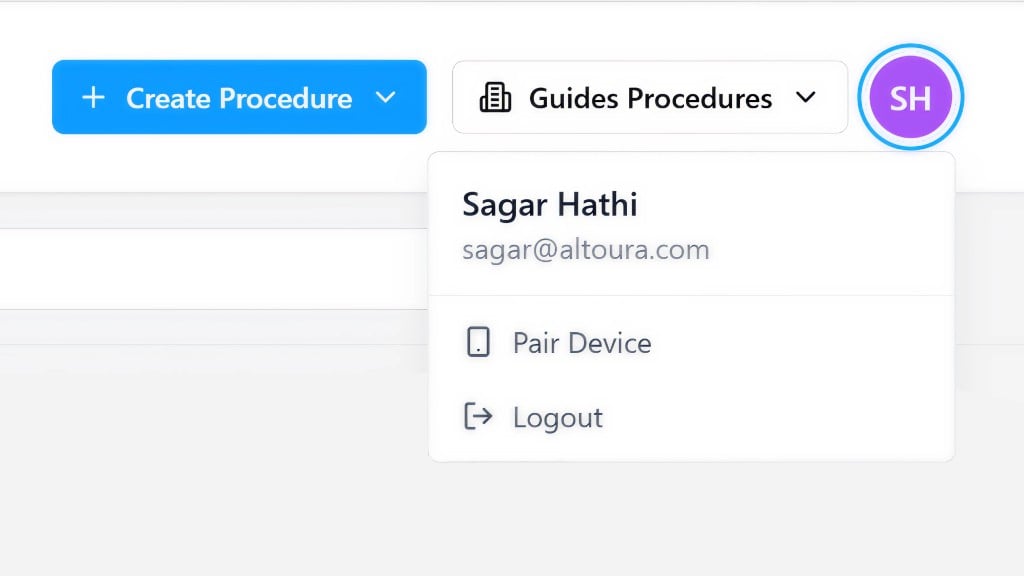
- Select Pair Device from the dropdown menu.
Step 3: Enter the PIN
- The Pair Device page opens, showing a QR code and a text field labeled “OR Enter the code shown on the device here”.
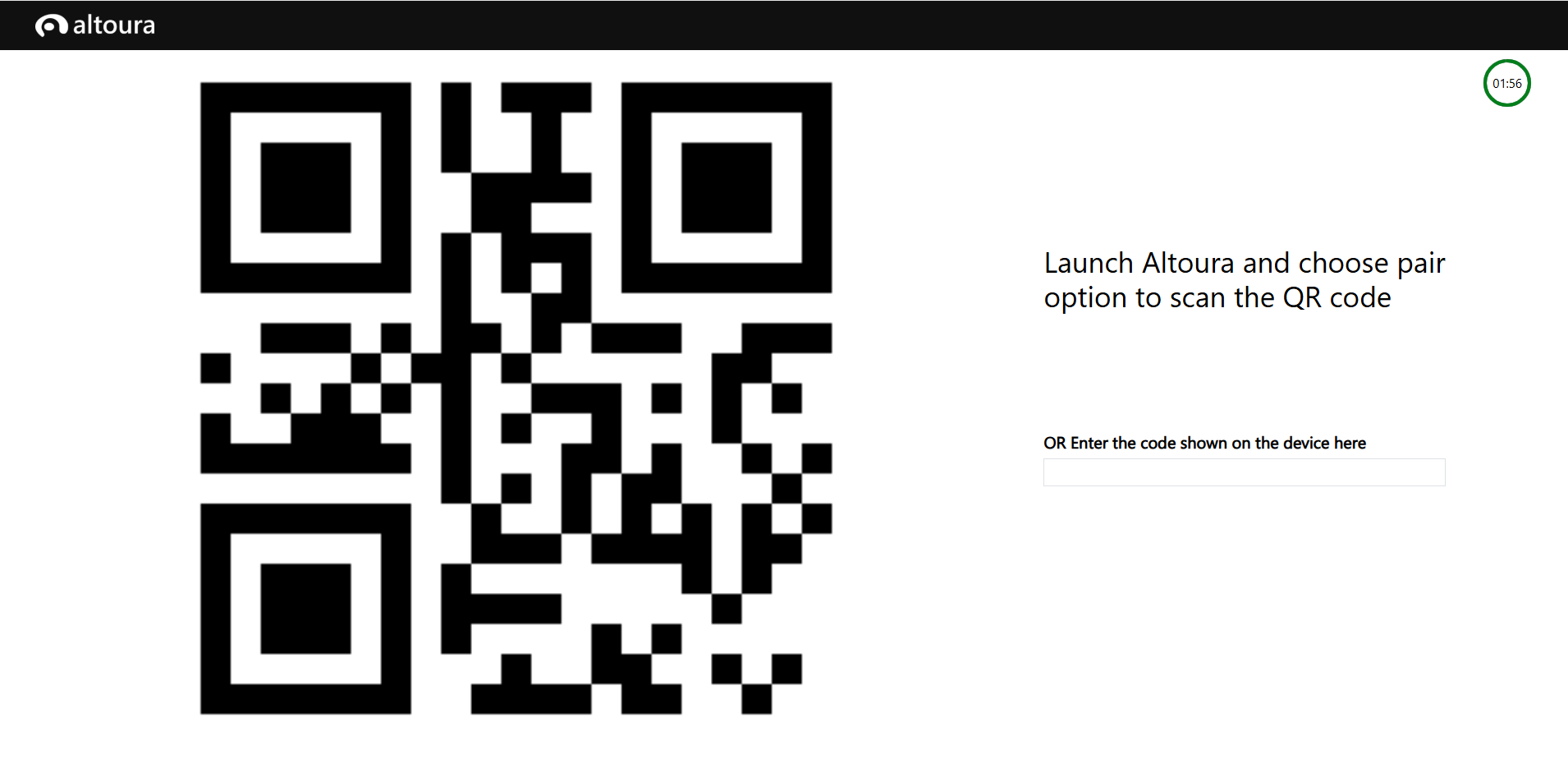
- In the text field, enter the 6-digit code displayed on your HoloLens.
What Happens Next
- Once the code is accepted, the HoloLens automatically completes the sign-in and links to your account.
- The app opens to the Procedures landing page.
Troubleshooting
- PIN expired: The code is time-limited (shown by the countdown timer on the pairing page). If it expires, go back on the HoloLens and generate a new code.
- Pairing page not loading: Ensure you are signed in to the Procedure Portal and have internet access.
- Code not accepted: Verify that you entered the 6-digit code exactly as displayed on the HoloLens.