

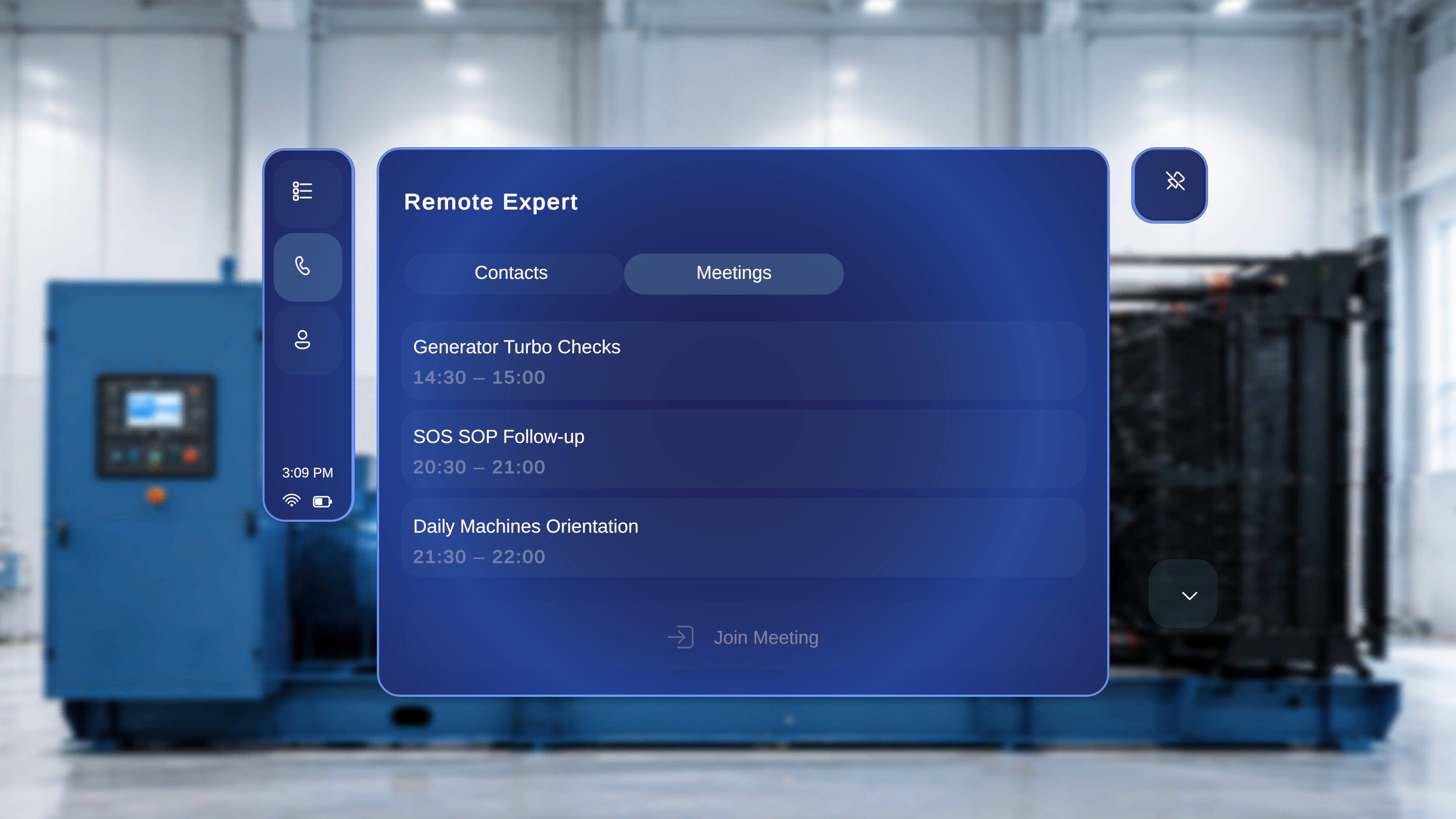
Overview
The Meetings tab in Remote Expert displays your scheduled Microsoft Teams meetings. You can browse your upcoming meetings and join any of them directly from the HoloLens without needing to search for a contact or send an invitation. Unlike the Contacts flow, no notification is sent to the expert. You are joining an existing scheduled meeting, and the other participants are expected to join the same meeting from their Teams client.View Scheduled Meetings
- In the Remote Expert screen, select the Meetings tab.
What You See
- A list of your scheduled Microsoft Teams meetings.
- Each meeting displays:
- The meeting title (for example, Inline/Straight Engines Discussion)
- The scheduled time (for example, 13:30 – 14:00)
- The Join Meeting button appears at the bottom of the panel.
Select a Meeting
- Tap on the meeting you want to join from the list.

What Happens Next
- The selected meeting is highlighted.
- The Join Meeting button becomes active (enabled).
Join the Meeting
- Click Join Meeting.
What Happens Next
- The HoloLens connects to the selected Microsoft Teams meeting.
- The call interface opens and you are placed in the live session.
- If the meeting has other participants already connected, you can see and hear them.
- The session is ready for live collaboration and annotation.
Available Controls During the Call
The call control bar is displayed at the bottom of the screen. The following controls are available:- Camera – Turn your video on or off.
- Microphone – Mute or unmute your audio.
- End Call – Leave the meeting.