

Opening the Anchor Options
1
Open the Toolbelt menu
On Meta Quest, touch the tips of both index fingers together to form an “A” and hold briefly, or press and hold the left controller’s menu button for 2 seconds. On HTC Vive, press and hold the menu button on either controller for 2 seconds.Inside a Training, the Toolbelt shows the Training Settings panel.
2
Tap the anchor icon
Tap the anchor icon at the bottom of the Training Settings panel, next to the Reset Step icon. The Reset Anchor and Adjust Anchor options appear.
3
Choose an anchor option
Tap Reset Anchor or Adjust Anchor depending on what you need.
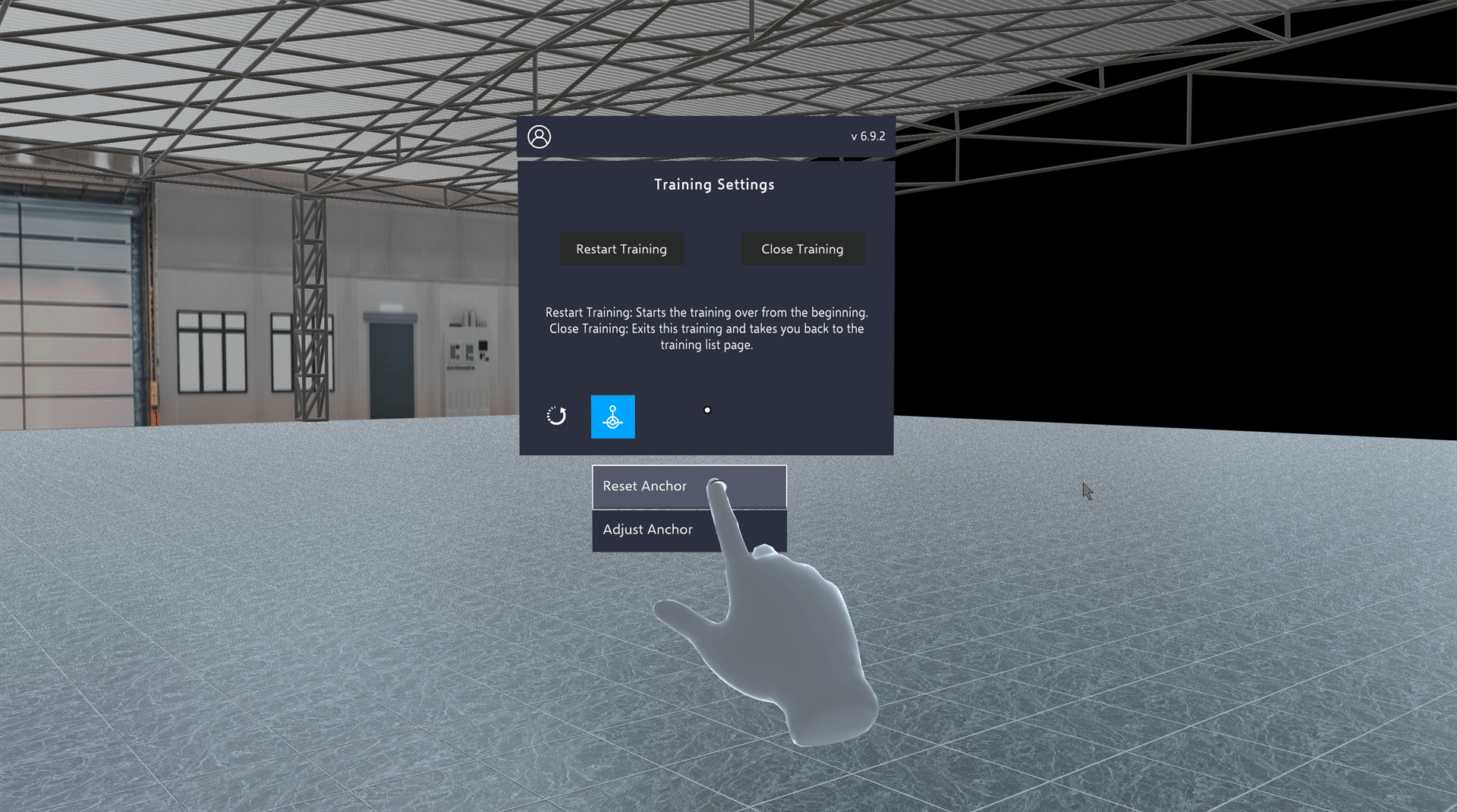
Reset Anchor
Tap Reset Anchor to put the training scene back where it started. Use it after an adjustment that went wrong, or when you’ve lost track of where you are. When you tap it:- The scene is put back into its original alignment.
- You’re moved back to the training’s start position.
- Any height adjustment is undone.
- The Toolbelt reappears beside you.
Adjust Anchor
Tap Adjust Anchor to enter adjustment mode, where you can slide and rotate the training content without leaving the training. When adjustment mode is active:- A panel appears with the instruction “Air tap and drag the floor or training object to adjust the anchor.” and a Finish button
- The training pauses, and the step panel and callouts are hidden
- The Toolbelt hides
- Self teleport is turned off
- The floor and training objects in the current step become draggable
- Grab and drag the floor or a training object to slide the entire scene horizontally
- Movement is locked to the horizontal plane — the scene cannot be moved up or down
- To rotate the scene, grab the floor and twist. Training objects can only be dragged, not rotated
- On Meta Quest, Passthrough turns on as a partly see-through overlay so you can line the scene up with your room, whatever your Passthrough setting
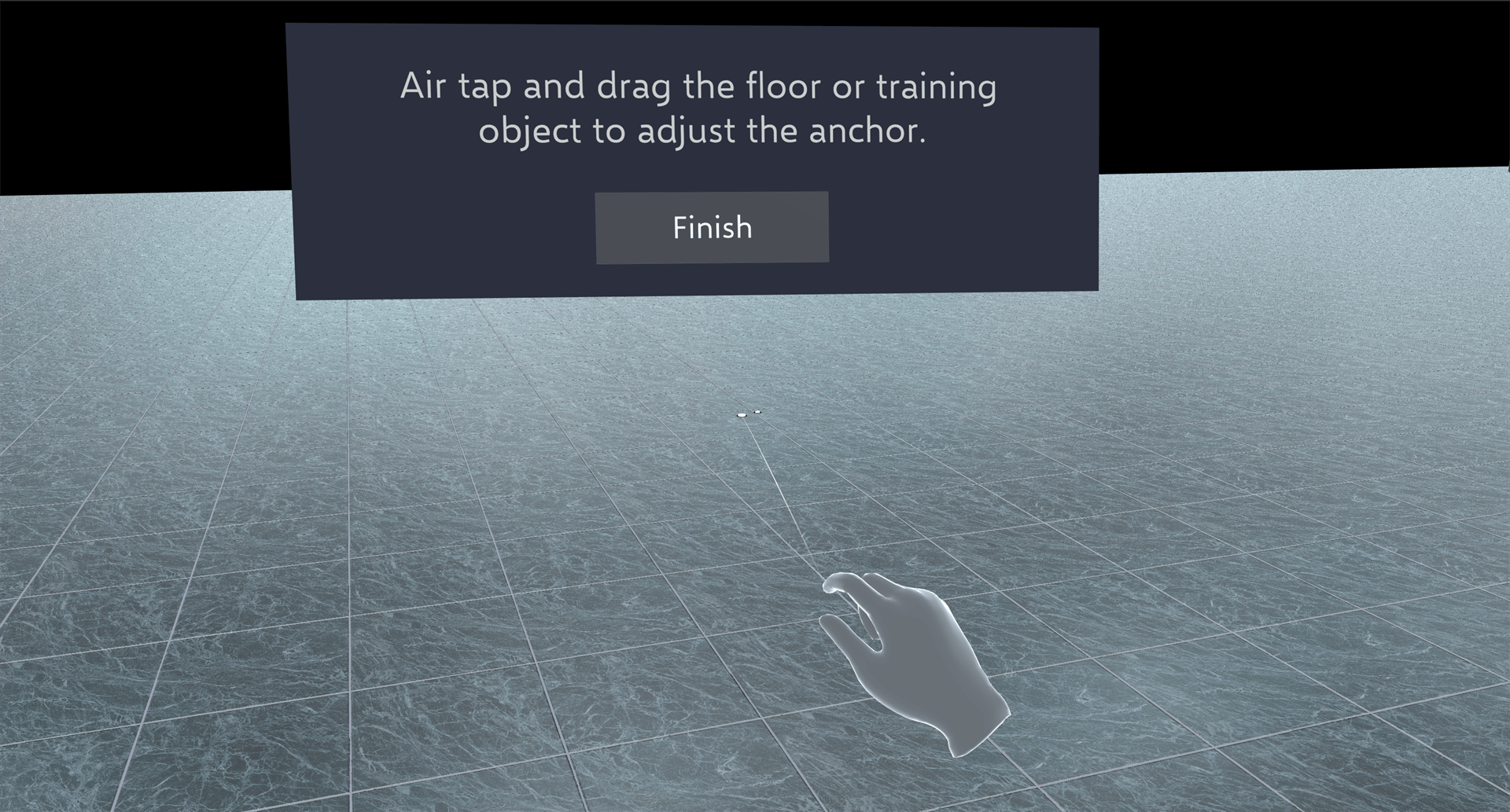
If the training is paused, for example by a time limit or a pause collider alert, Adjust Anchor plays an error sound and does nothing.
Related
- Toolbelt — other Toolbelt menu options
- Height Adjustment — adjust camera height with the controller