

Step Panel
The step panel is your main guide through the Training.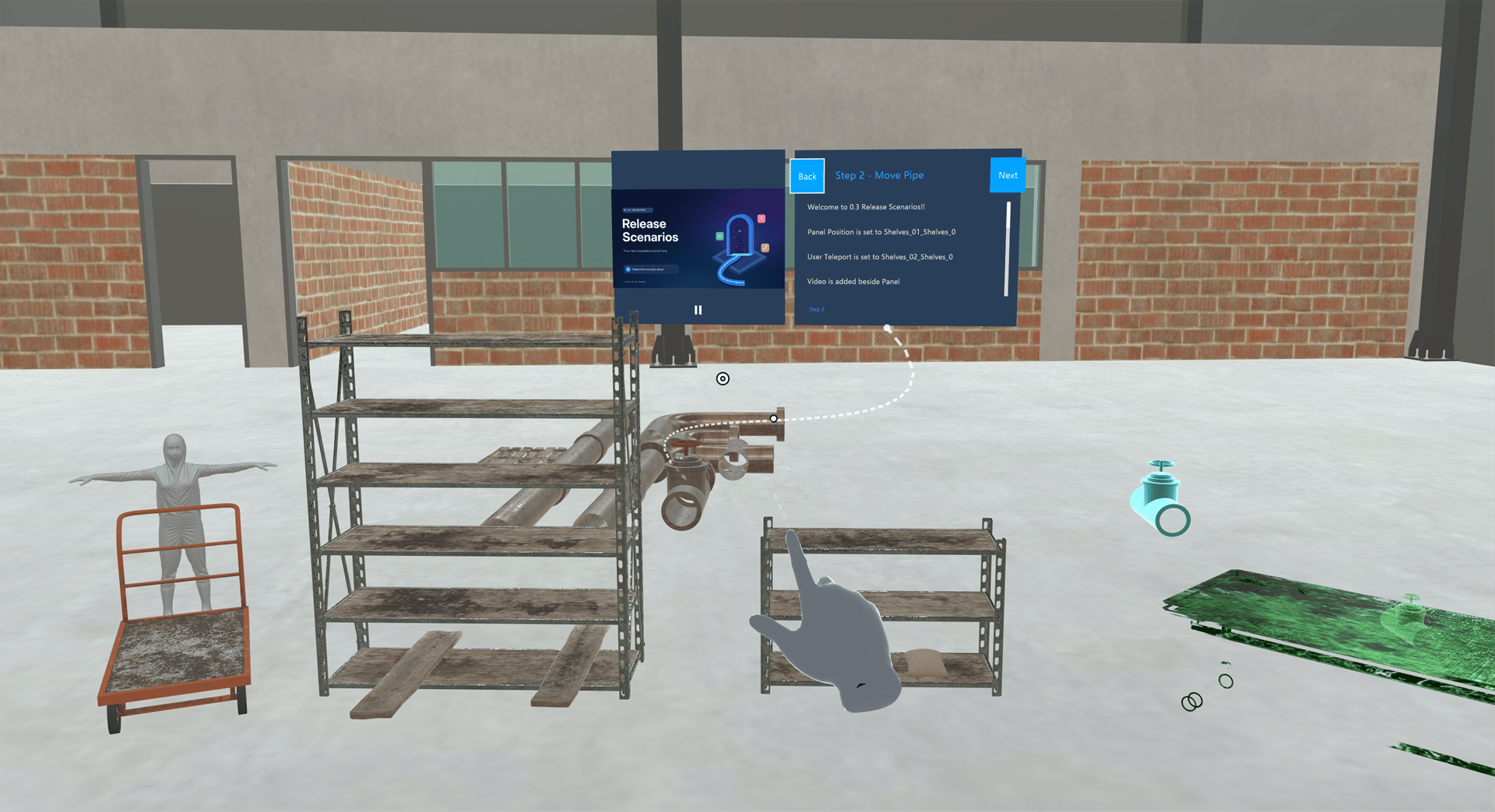
- Title and instructions: what to do in this step.
- Step number: a small Step N label (for example, “Step 3”) at the bottom of the panel.
- Image or video: some steps include one inside the panel. While it downloads you see “Loading …”. If it can’t be loaded, you see “Failed to load image” or “Failed to load video”. An embedded video has a play/pause button, and it starts after the step’s narration has finished.
- Next and Back: arrow buttons, or the button text the creator chose. On the last step, Next reads Exit, which ends the Training and takes you back to the Trainings list.
Pressing Next and Back
- Press the button with your finger, or point the ray at it and pinch or pull the trigger.
- Or look at the button until it fills up (about 2 seconds).
- On HTC Vive you can also say “Next Step” or “Go Back”.
- It appears only after the step’s narration has finished. See Step Instruction Audio.
- Some steps have no Next button. You move on by completing the interaction, such as tapping or moving an object.
- While the Training is paused, Next is hidden and Back can’t be pressed.
Tether Line
When a step is about a particular object, a moving line leads from the bottom of the panel to that object, so you can find it. See Tether Line Color.Unlike the web Trainee App, the headset has no on-screen arrow pointing to objects outside your view. Look around, or follow the tether line.
Multiple-Choice Questions
Some steps ask you to choose an answer. They use a separate panel with the question and a button for each answer.- Press an answer, or look at its checkbox for about a second.
- The answer you chose is highlighted with a tick, and the Training moves on to the step that answer leads to, or keeps you on the same question. Different answers can lead to different parts of the Training.
- The panel doesn’t tell you whether your answer was right. The Training may show its own message.
Text Boxes
Some steps ask you to type an answer.- The in-headset keyboard opens by itself. The text box shows the creator’s hint, or “Enter value:”.
- Type your answer using the step’s instructions.
- Press Next, or the keyboard’s Enter key. The app then checks your answer’s format.
- “This field is required. Please enter a value.”
- “Invalid input format. Please check your entry.”
Information Panels
A Training can also show extra panels with text, an image or a video. They appear in the scene, usually near the object they’re about.- A panel has a close (X) button only if the creator allows you to close it. On image panels, the close button can also appear after you slide the caption down.
- The volume slider on video panels doesn’t change the volume. Use your headset’s volume instead.
- Some panels close on their own after a while.
Callouts
Callouts are short text labels attached to objects in the scene, sometimes with a line pointing to the exact spot.- Callouts can turn to face you as you move.
- If a callout is set up to be tapped, tapping it shows more information, such as text, an image or a video. Tapping doesn’t move you to another step.
- Callouts can’t be moved or dragged in the headset.
- They usually go away when the step ends.
Other Things a Training Can Do
- Red tint: a red tint can briefly appear around the edges of your view, for example after a wrong answer.
- Open a web page: tapping an object can open a web page. On Meta Quest it opens in the Quest browser. On HTC Vive it opens in the PC’s web browser, so take off the headset to read it. Go back to the Altoura app when you’re done.
- Move you: the Training can move you to another spot, or jump to another step.
- Pause: some Trainings pause if you touch a hazard, run out of time or move too fast. See Pause Colliders, Time Limit and Speed Tracking.
For Creators
To set up these panels and effects, see Show Panel & Hide Panel, Show Text & Hide Text, Show Image & Hide Image, Play Video & Stop Video, Add Callout, Show Red Vignette and Open Browser Link.Related
- Interacting with Objects
- Assessment Mode — what’s hidden on the step panel in Assessment mode
- Controls