

The screens are the same on Meta Quest and HTC Vive. The screenshots on this page were taken on a Quest.

Module Selection

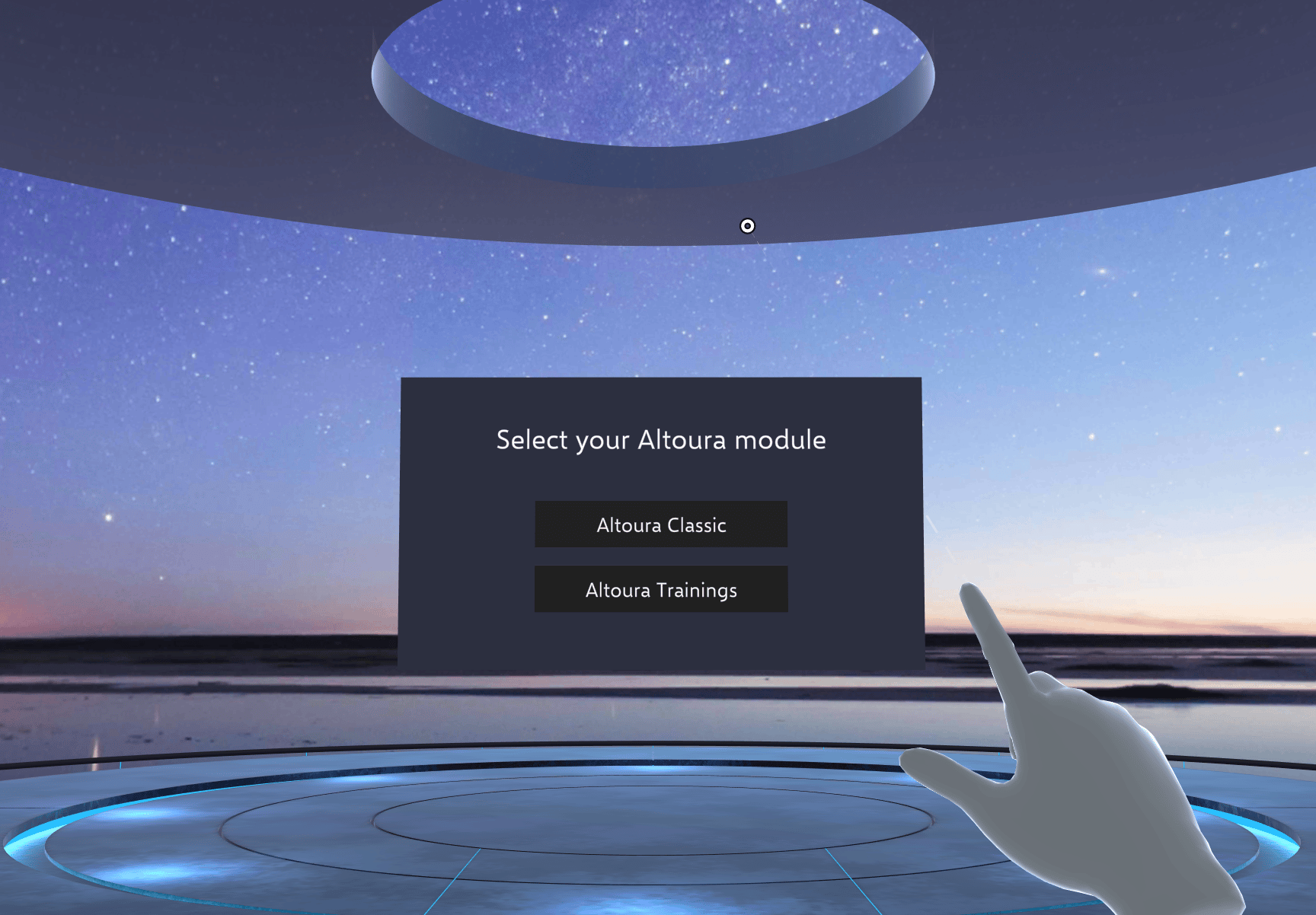
After you log in, the Module Selection screen appears if you have access to both Altoura Classic and Altoura Trainings. Tap Altoura Trainings to open the Trainings screen. If you have access to only one module, the Module Selection screen is skipped and you go straight to that module’s list screen. The Module Selection screen with Altoura Classic and Altoura Trainings buttons When you have access to both modules, each list screen has an Exit button (top right) that takes you back to the Module Selection screen. If you have access to only one module, there’s no Exit button. Each list screen also has its own user profile button (top left).
Trainings

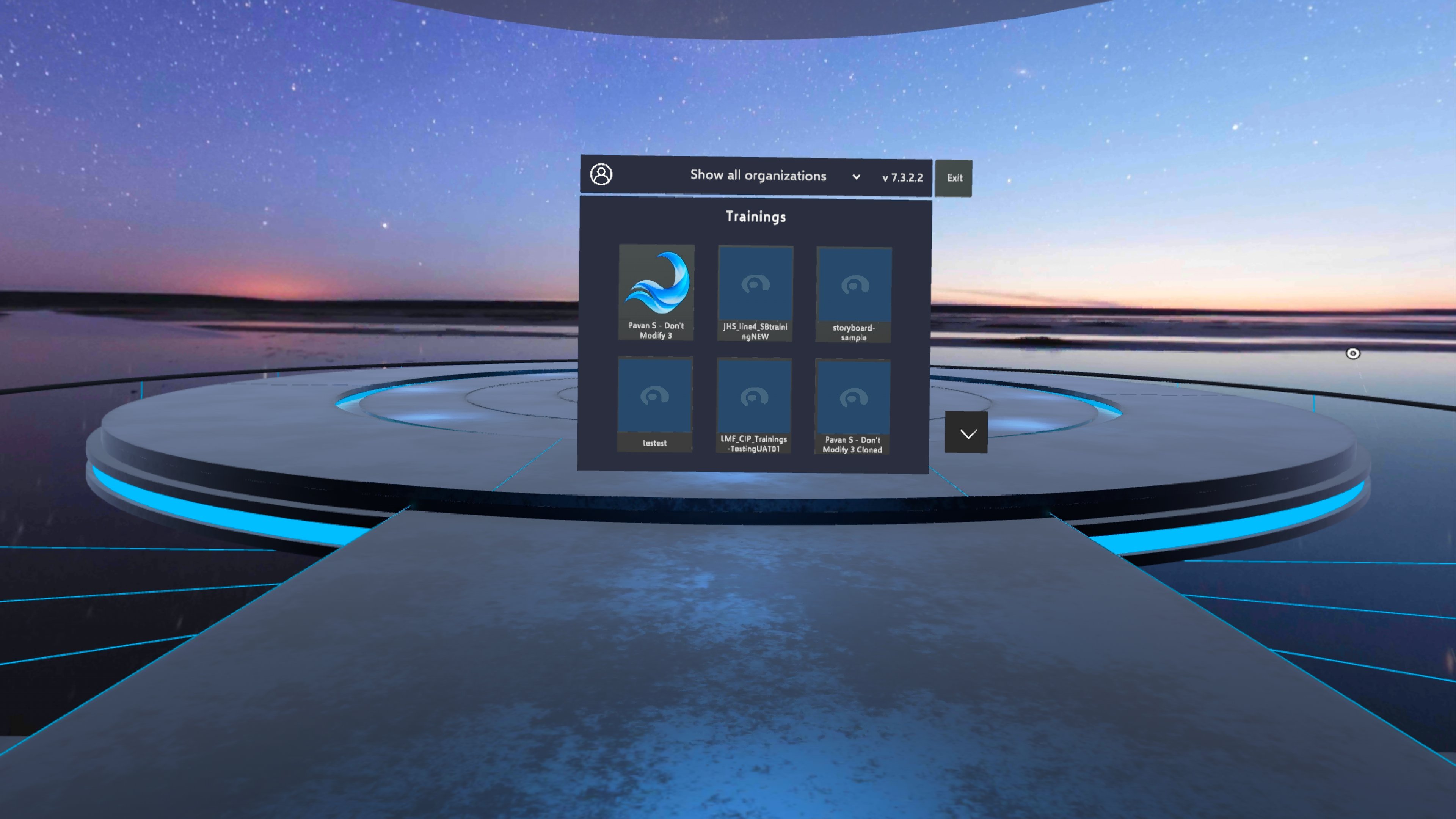
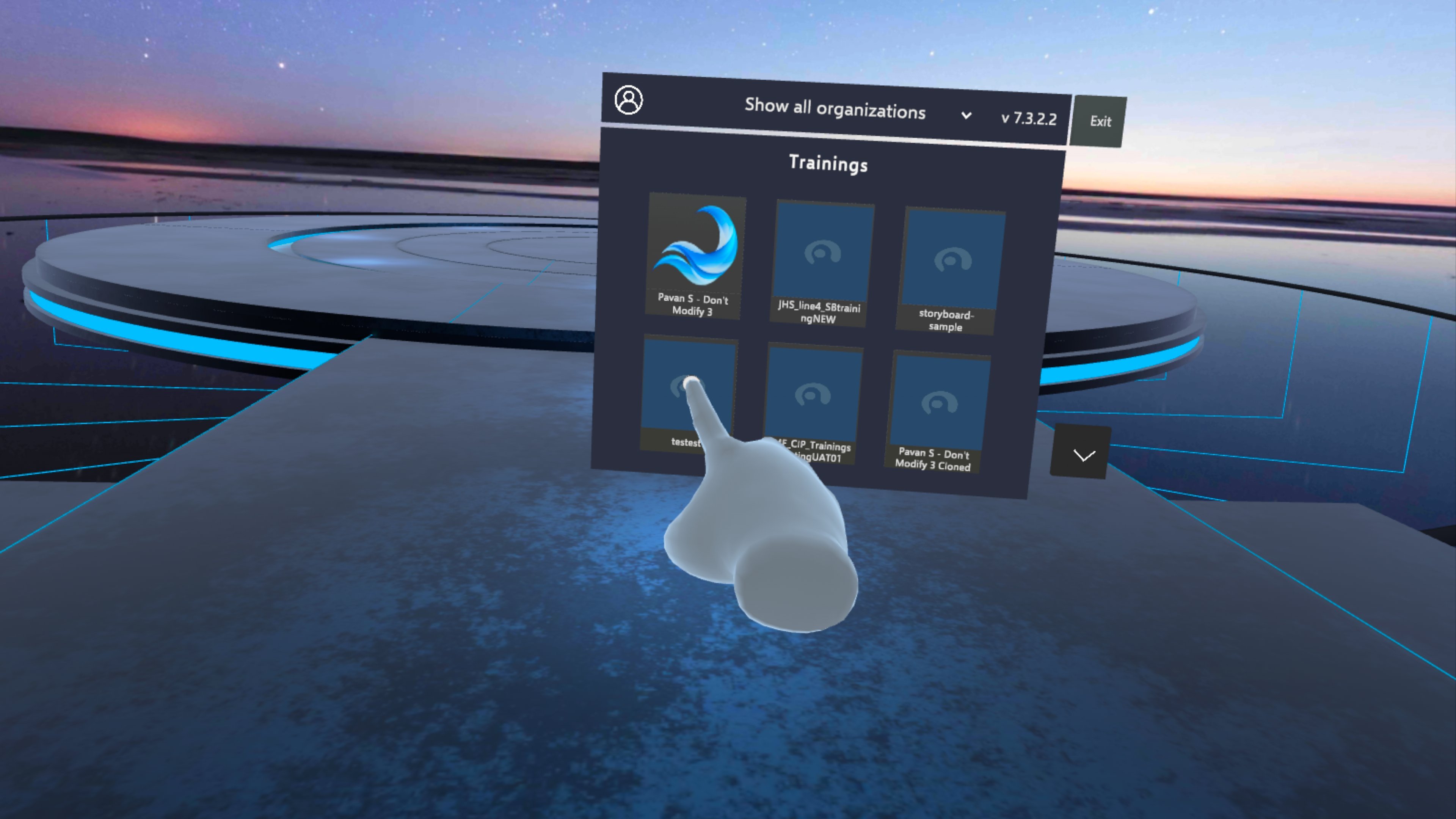
The Trainings screen lists the Trainings available to you, six at a time. Use the up and down arrows to see more. Use the Show all organizations dropdown to filter the list by organization. The Trainings screen listing the available Trainings Tapping on a Training will load the Training. Tapping a Training in the list to load it
Loading a Training

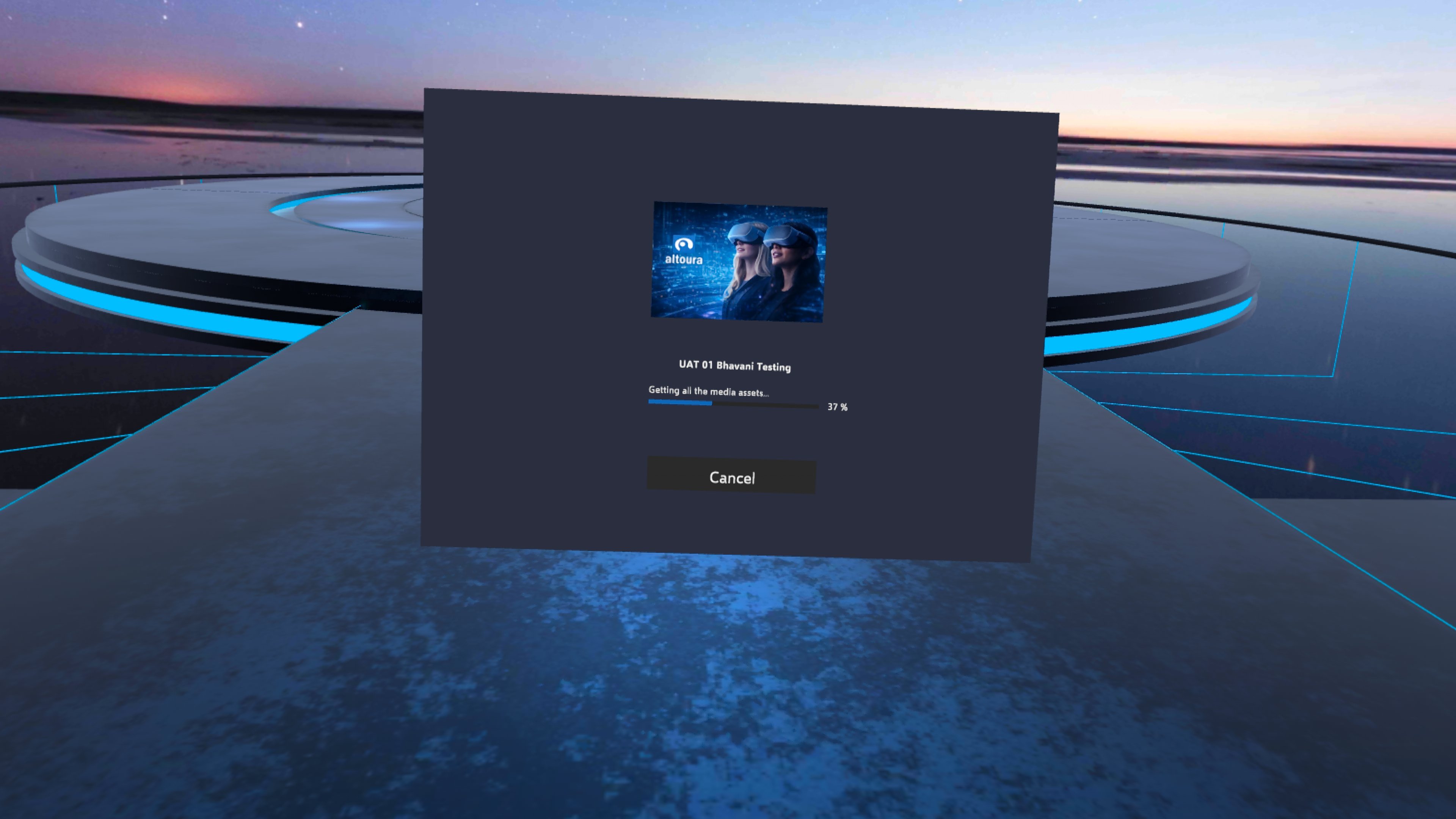
While the Training loads, the loading screen shows the Training’s name and thumbnail, a progress bar with the percentage loaded, and what the app is doing (“Getting all the media assets…”, then “Downloading assets” with the number of assets downloaded so far). The loading screen for a Training Tap Cancel to stop loading and go back to the Trainings list. If the Training can’t be opened, you see “Failed to load training. Please try again.” and you return to the Trainings list. If the Training can’t be downloaded, for example because you’re offline and it hasn’t been downloaded before, you return to the Trainings list without a message. See Troubleshooting.
Before the Training Starts

Depending on the Training, you may be asked one or two questions before the first step:
  1. Resume: if the Training allows resuming and the app finds your saved session online, you’re asked “Do you want to resume the last experience?” Tap Yes to continue where you left off, or No to start from the beginning.
  2. Mode: if the Training has an Assessment mode, you’re asked “Which experience mode do you want to start?” Tap Practice or Assessment. You aren’t asked this when you resume, because the Training continues in the mode you chose before. See Assessment Mode.
If the Training has changed since your last session, you see “Training has been updated since your last session. Starting a new training session.” and the Training starts from the beginning. If the app can’t retrieve or resume your saved session, for example because you’re offline, the Training starts from the beginning. See Progress & Completion. Unlike the web Trainee App, there’s no separate Start button. The Training starts as soon as it has loaded, or as soon as you answer these questions.

User Profile

Tap the user profile button (top left) to open App Information. From here you can check the Altoura Cloud connection, turn Passthrough on or off (Meta Quest), clear the cache, and log out. See Toolbelt Menu for details.
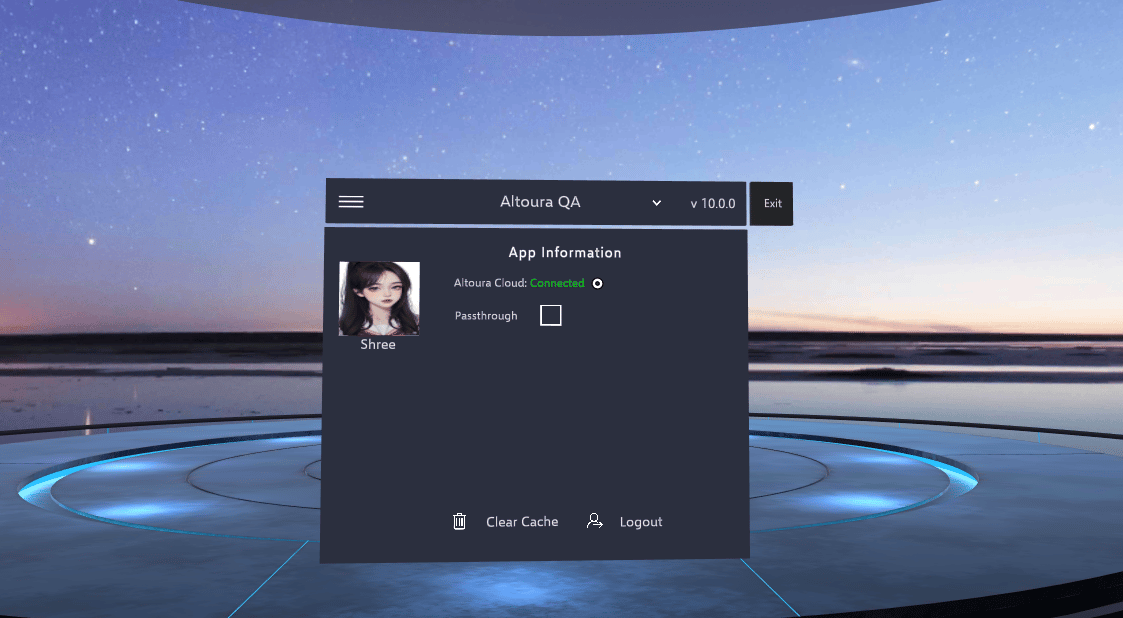
The App Information panel showing Altoura Cloud Connected, the Passthrough checkbox, and the Clear Cache and Logout buttons
Tap Exit to return to the Module Selection screen.

Toolbelt Menu

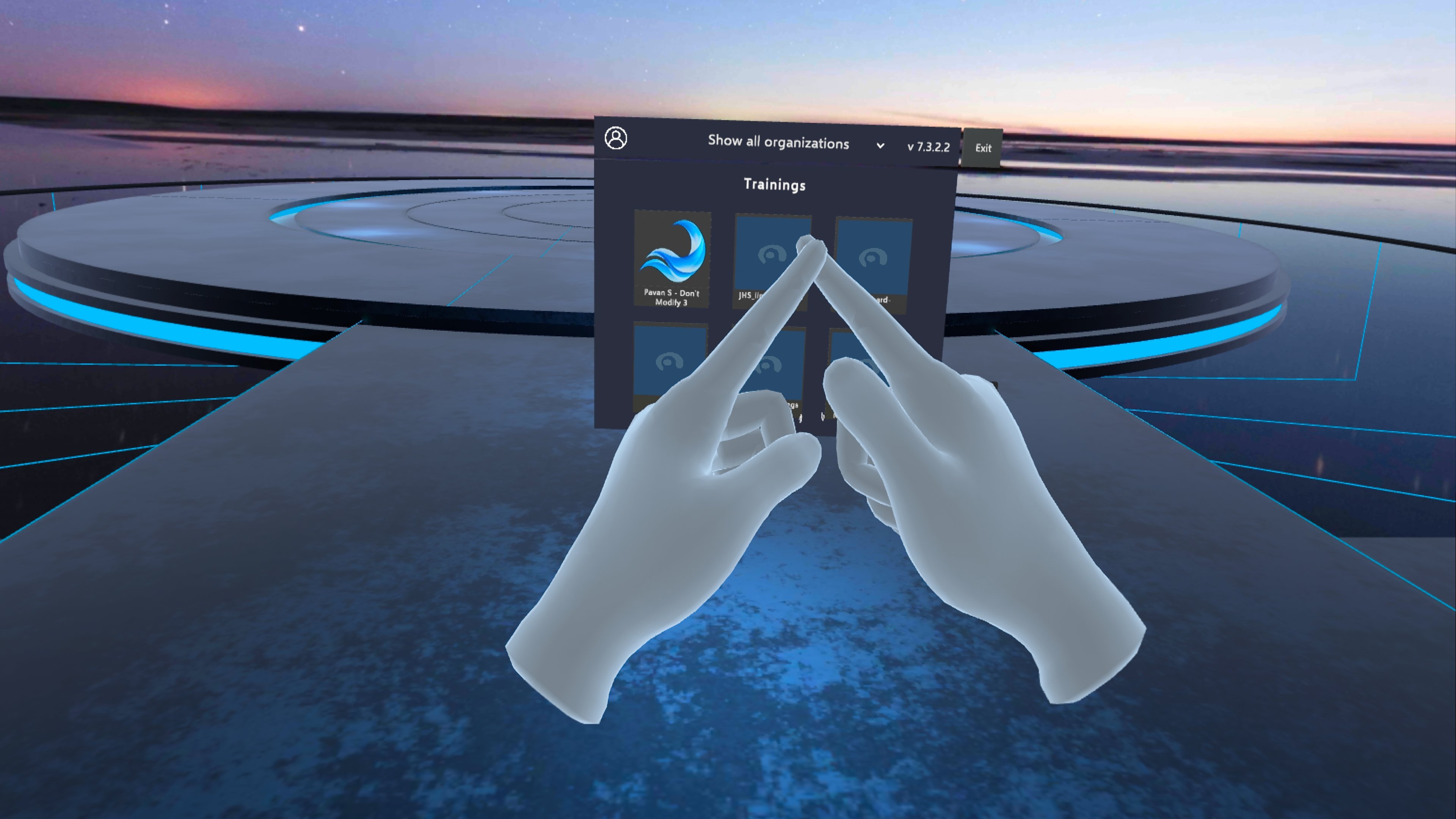
Make an A with your fingers to bring up the Toolbelt menu. With controllers, press and hold the left controller’s menu button for 2 seconds.Touching the tips of both index fingers together to form an APlay the below video to see an example for hand gesture to bring menu front.
See Toolbelt Menu for everything the menu does, and Controls for all buttons and gestures.