

Logging in using Email
Tap on Login with Email.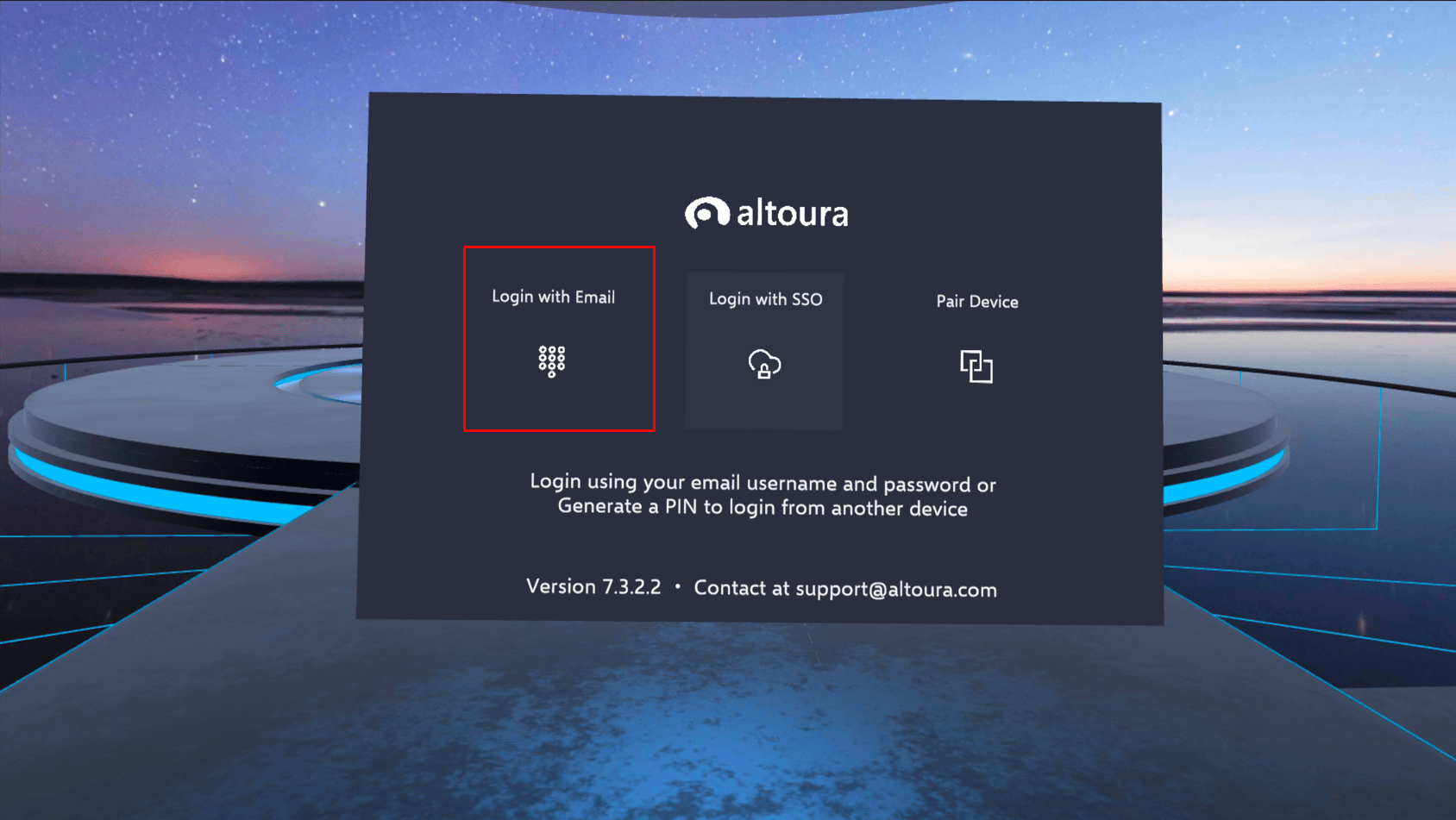
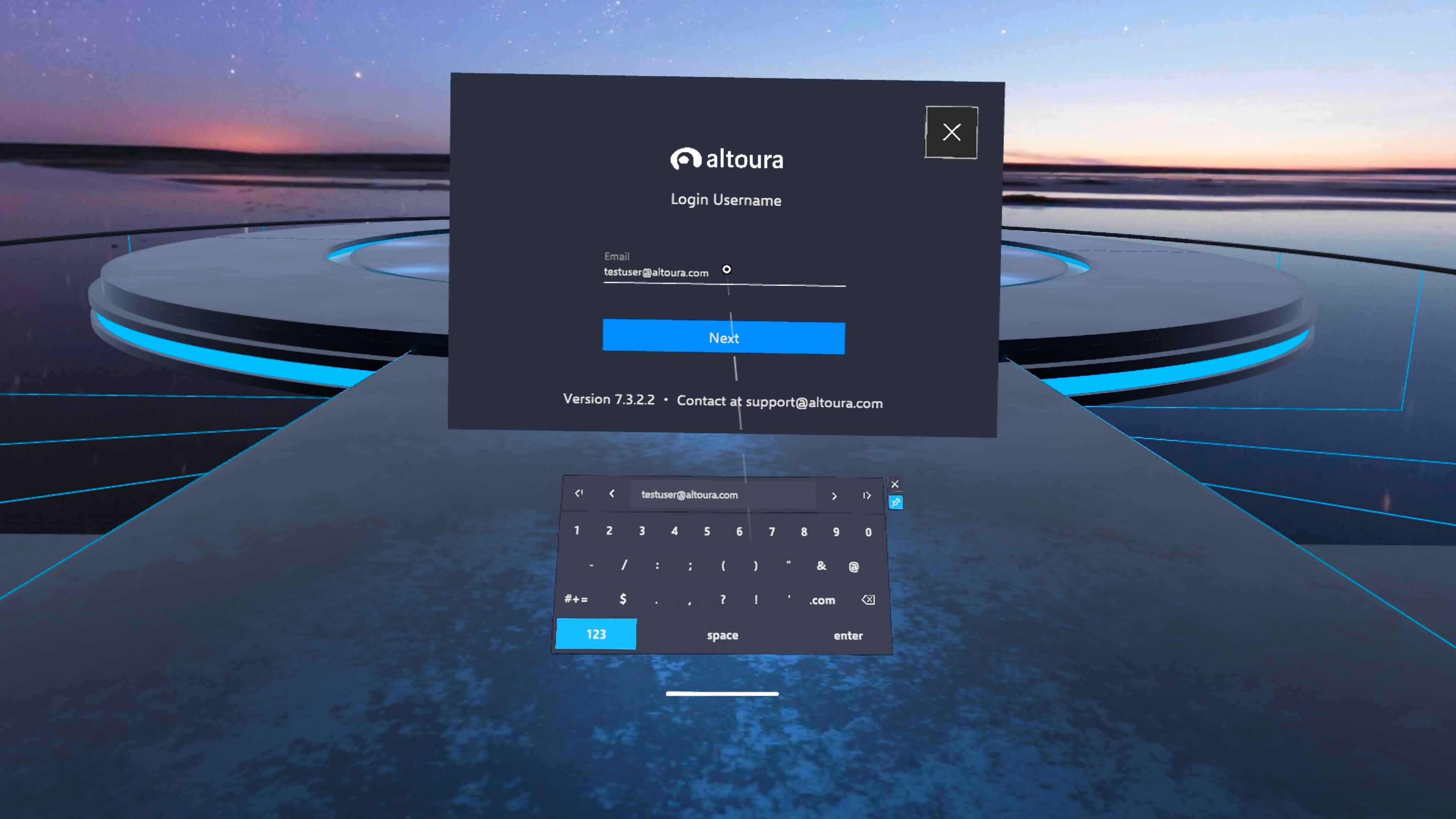
- Password account: the Login Password screen opens. Enter your password and tap Login. The app shows Login successful! and logs you in.
- SSO account: your organization’s sign-in page opens inside the headset. Sign in there, the same way you do on the web.
Logging in using SSO
If your organization uses single sign-on, you can also sign in with your organization’s domain.- Tap on Login with SSO.
- On the Login with domain screen, enter your organization’s domain (for example,
mycompany.com) and tap Next. - Your organization’s sign-in page opens inside the headset. Sign in there.
Logging in using a logged in device (pair device)
You can log in to the headset by pairing it with a browser session where you’re already logged in to Altoura.Pair from the Dashboard
- Open https://app.altoura.com in your browser and log in using your Altoura credentials.
-
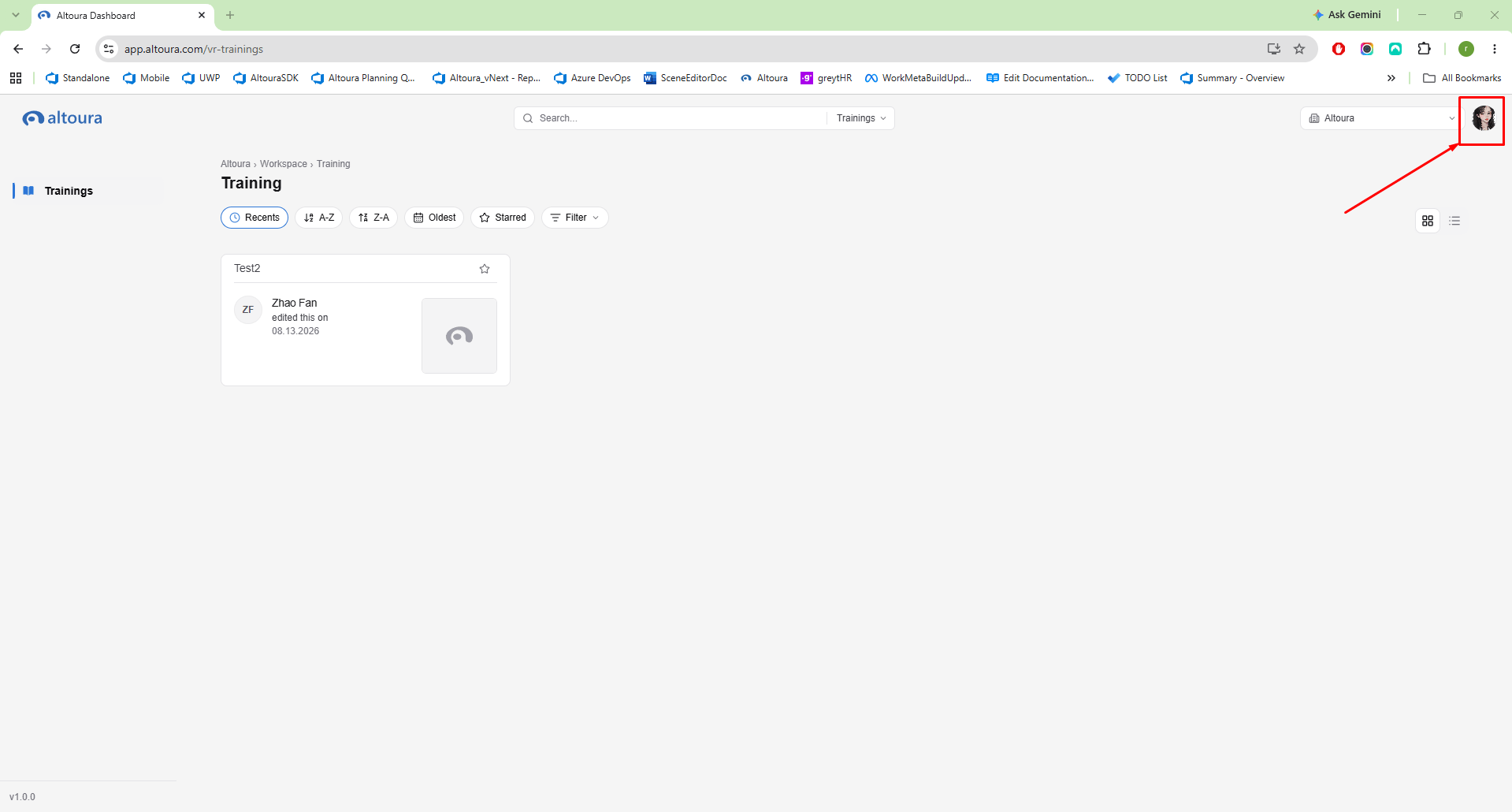
Click on the user profile button in the top right corner.
-
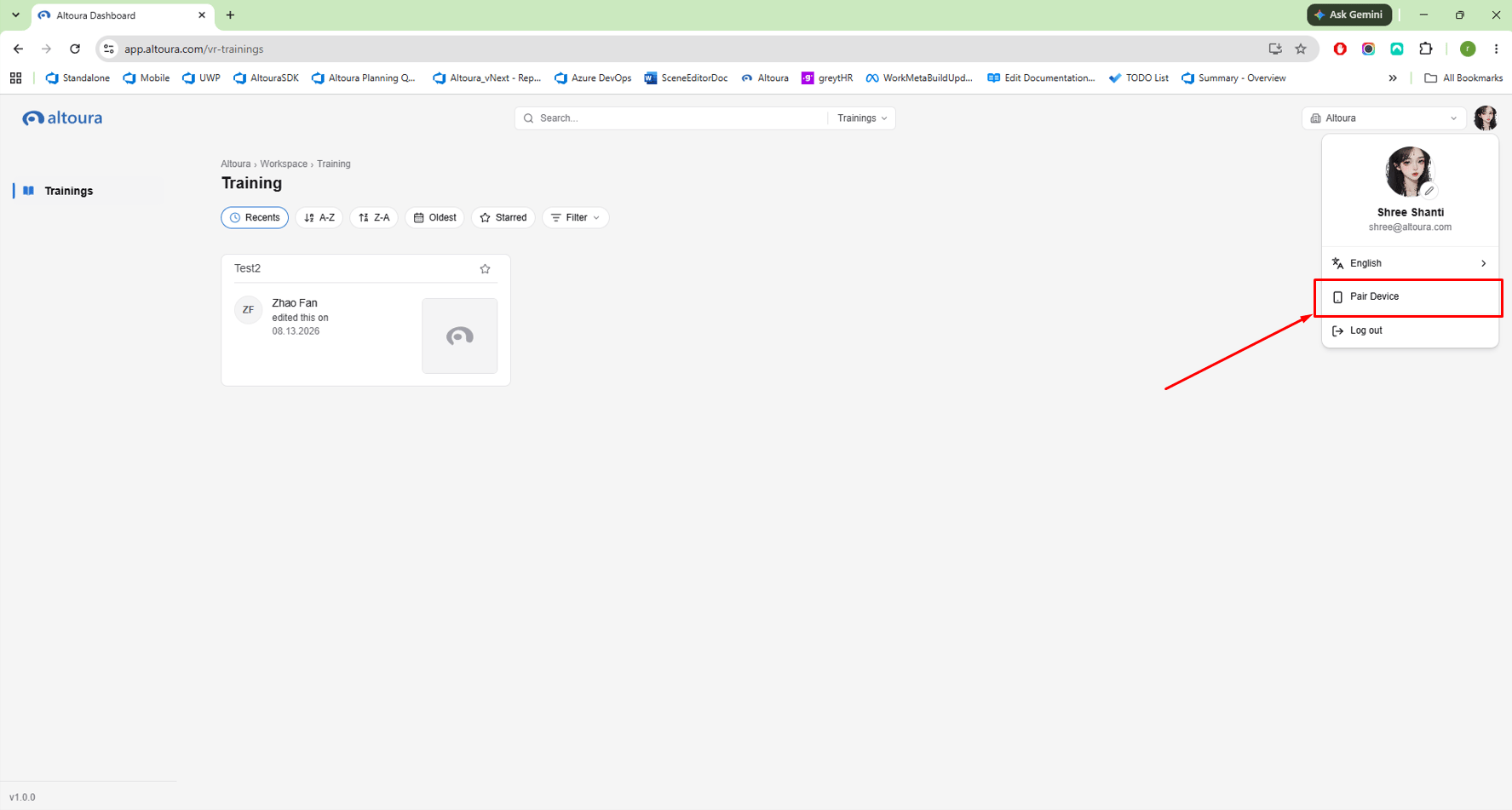
Click on Pair Device.
-
A Pair Device window opens, asking for the code shown on the device.
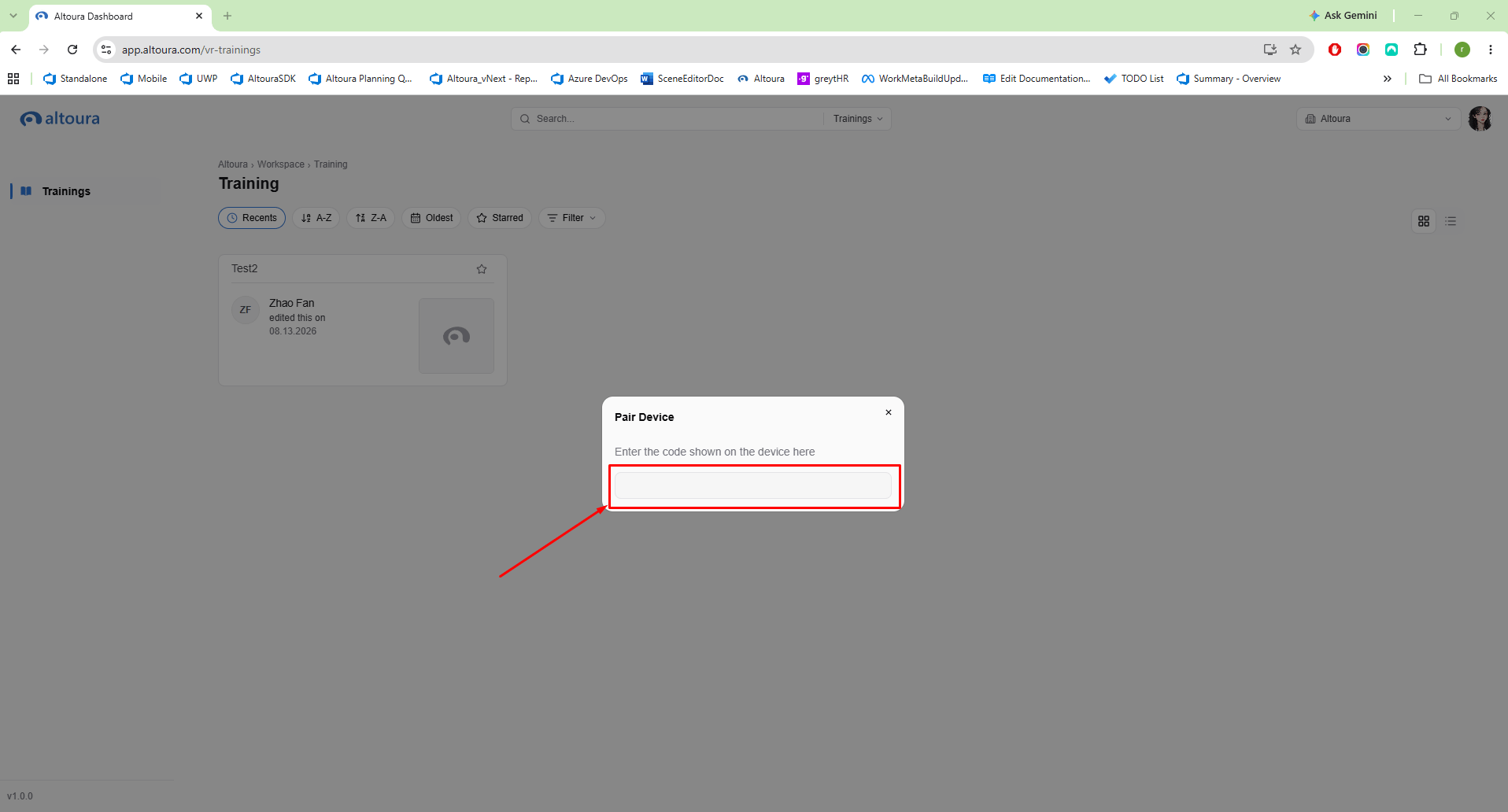
-
Meanwhile, on the headset, tap on Pair Device.
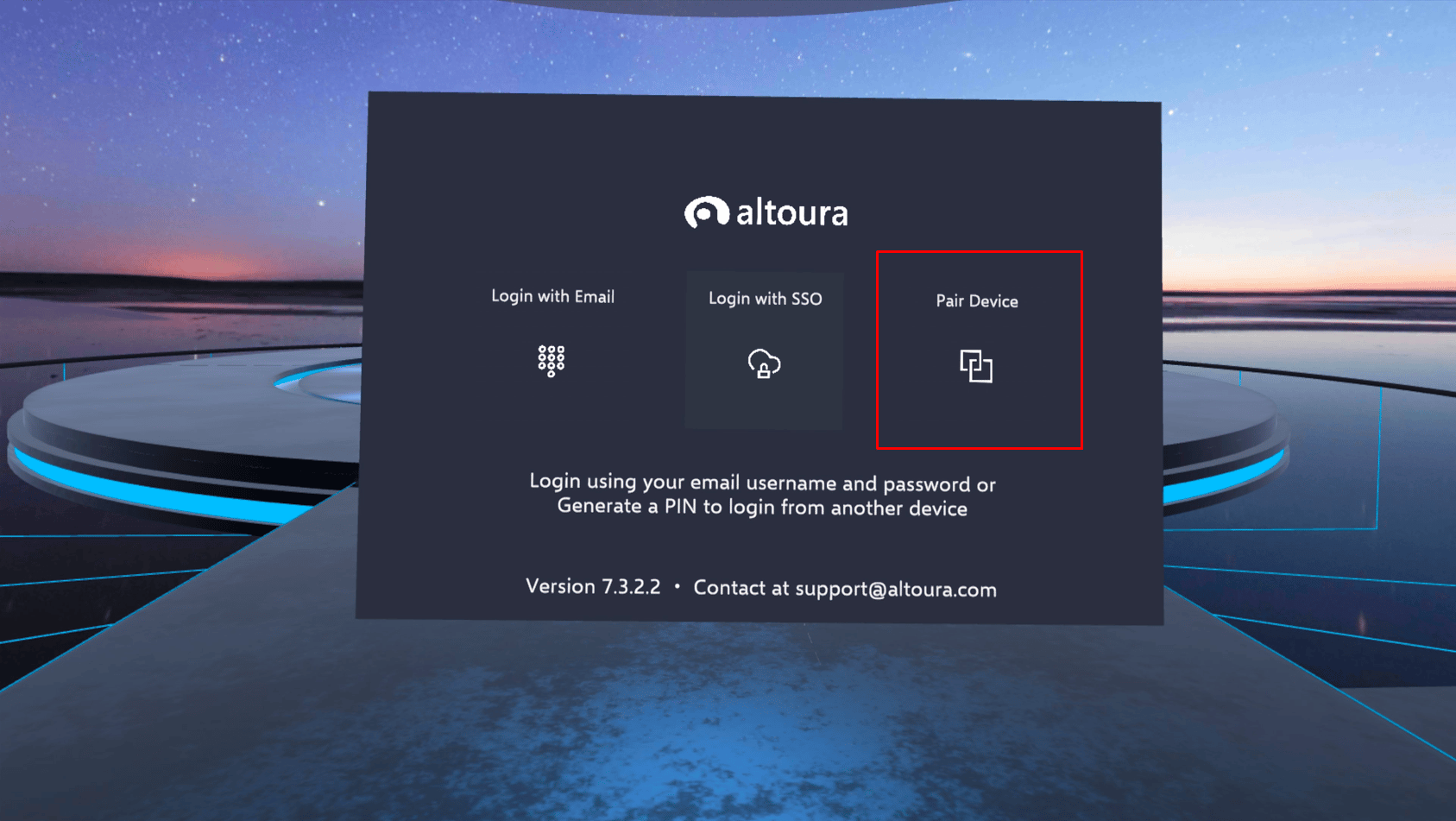
-
The headset shows a six-digit PIN with the message “Enter the below PIN in a logged in device to pair.” A countdown shows how long the PIN is valid (“This code is valid for another MM:SS minutes”). Enter the PIN before the countdown ends.
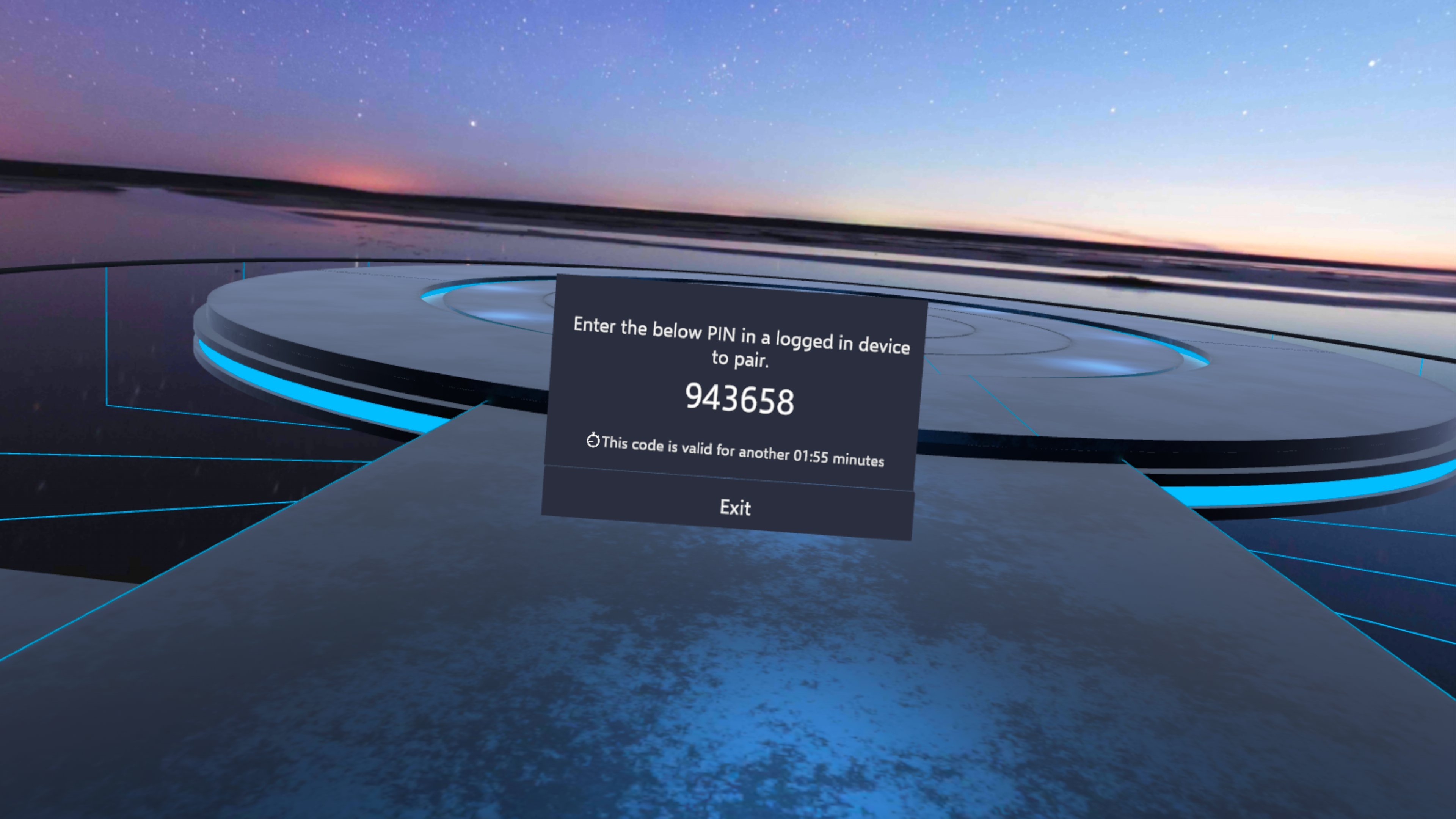
-
Enter the PIN from the headset in the Pair Device window. The code is submitted as soon as you type the sixth digit, and the dashboard shows Validating code…. If the code is mistyped or has expired, you see Invalid code.
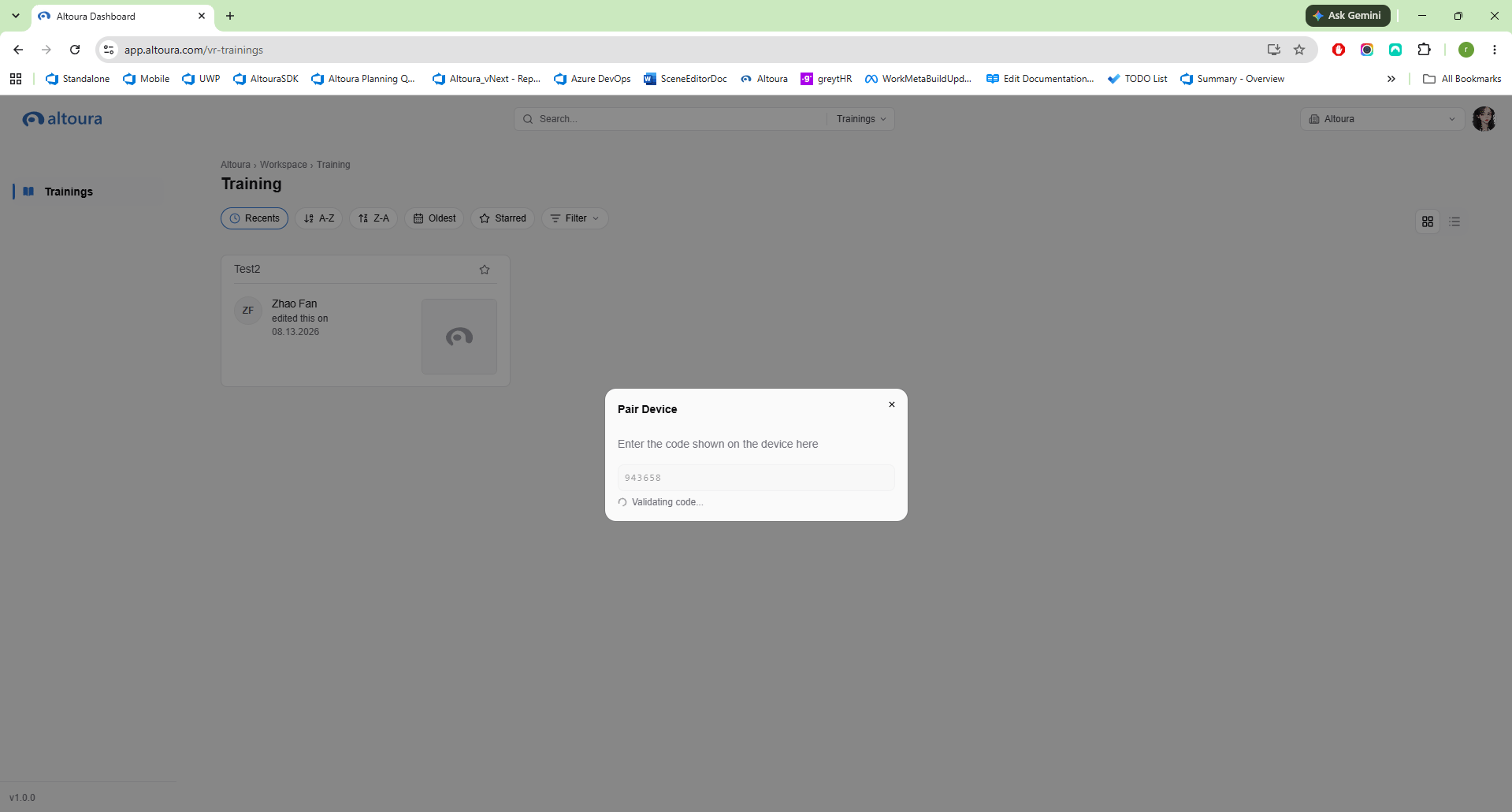
-
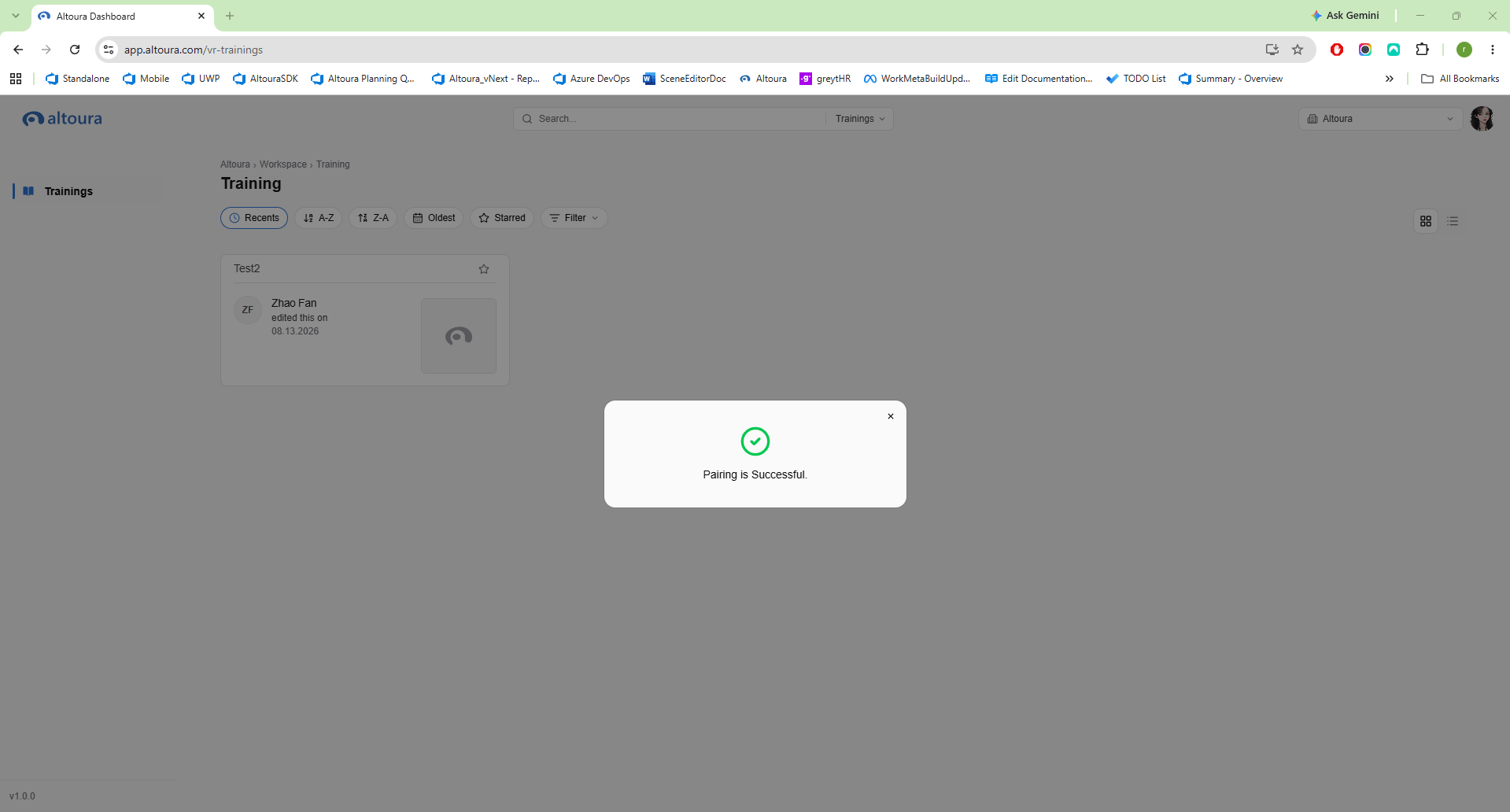
Once the validation is successful, the dashboard shows Pairing is Successful. and the headset shows Device Paired Successfully! and logs in.
If the PIN times out
If you don’t enter the PIN before the countdown ends, the headset shows “The generated PIN timed out.” Tap Regenerate PIN to get a new PIN, and enter the new one.Pair from an open Training
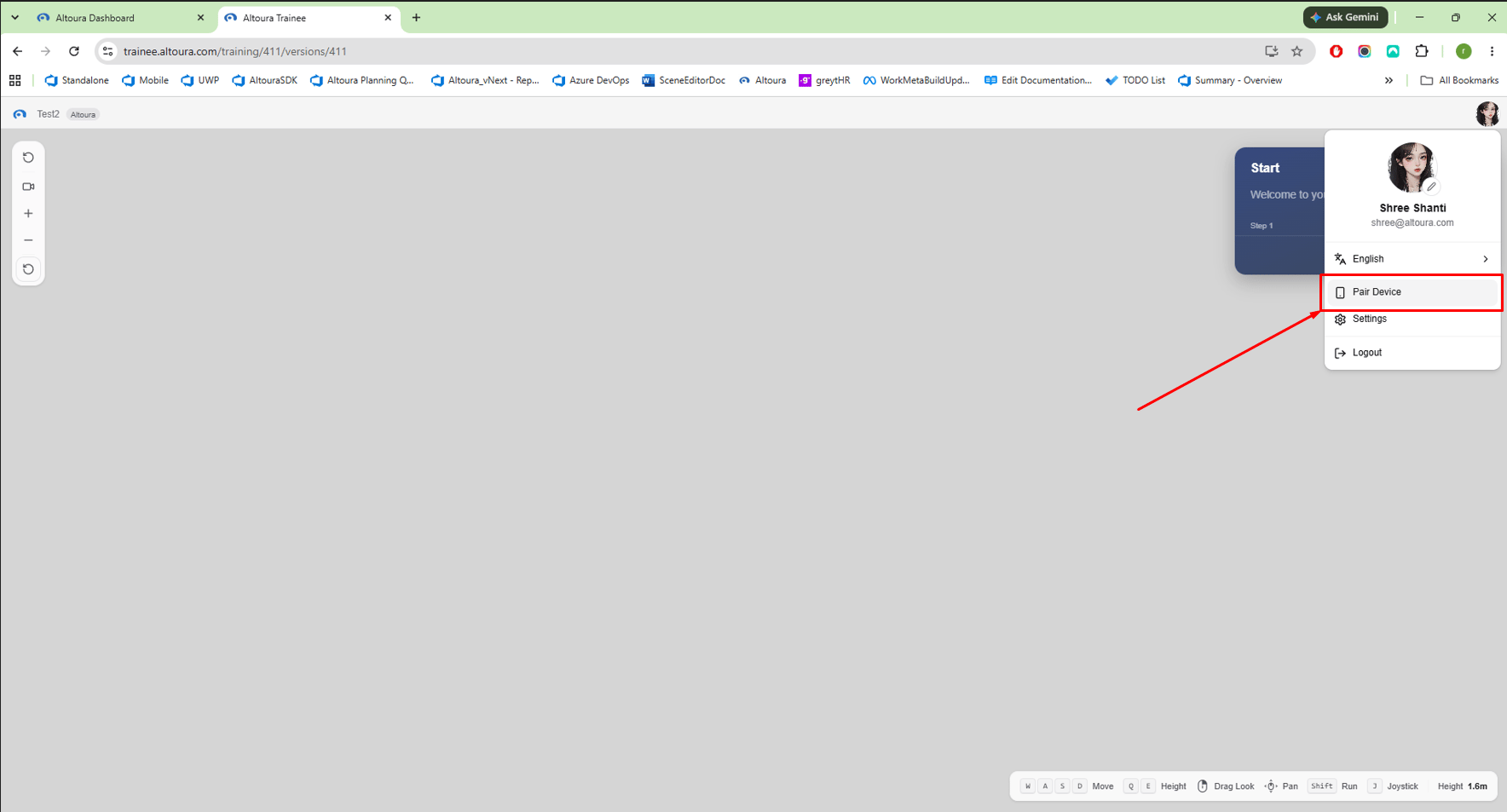
You can also pair from a Training that is open in Creator Studio or in the Trainee App. The Pair Device option is in the user profile menu in both, and the pairing flow is the same.- Open the Training in Creator Studio or in the Trainee App.
-
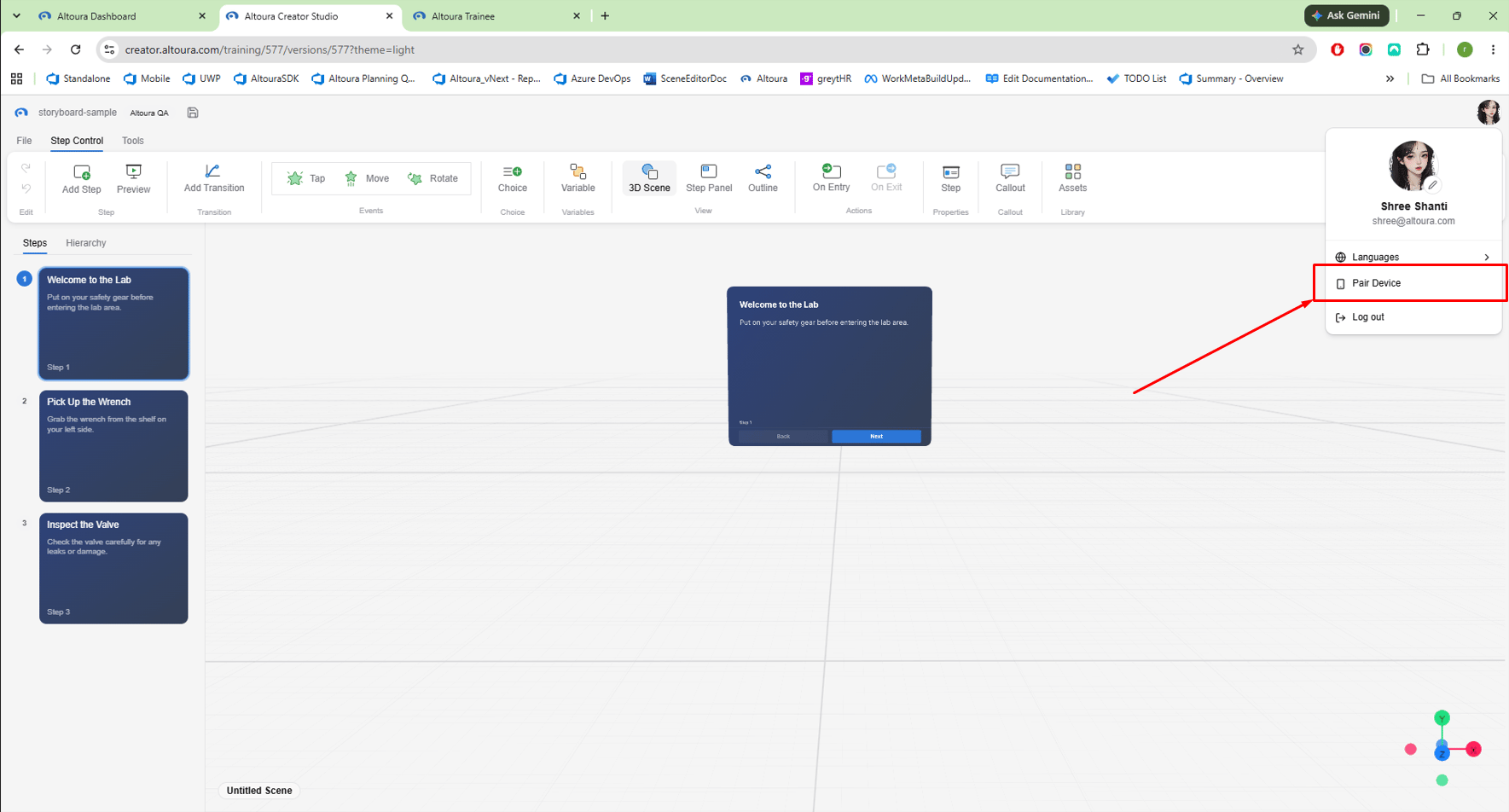
Click on the user profile button in the top right corner and click on Pair Device.
Creator Studio:
- Tap on Pair Device on the headset, then enter the PIN shown in the headset, the same way as pairing from the Dashboard.
- Once the pairing is successful, the app on the headset is logged in and the Training you had open is loaded automatically. If your account can’t see that Training in the headset’s Training list, the headset logs in but the Training doesn’t open.