

Up Close or from a Distance
- Meta Quest
- HTC Vive
- Up close, with hands: touch the object with your finger, or pinch or grab it.
- Up close, with controllers: touch the object with the controller, or put the controller on it and hold the trigger.
- From a distance: point the ray from your hand or controller at the object, then pinch (hands) or pull the trigger (controllers).
The Three Kinds of Interaction
Tap
Touch the object, or point at it and pinch or pull the trigger. The step completes straight away.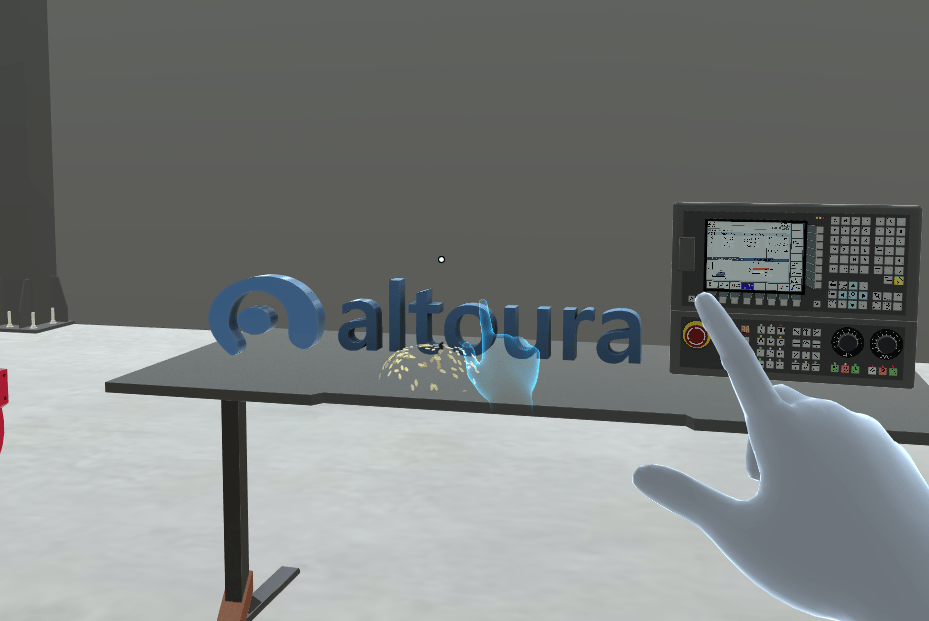
Move
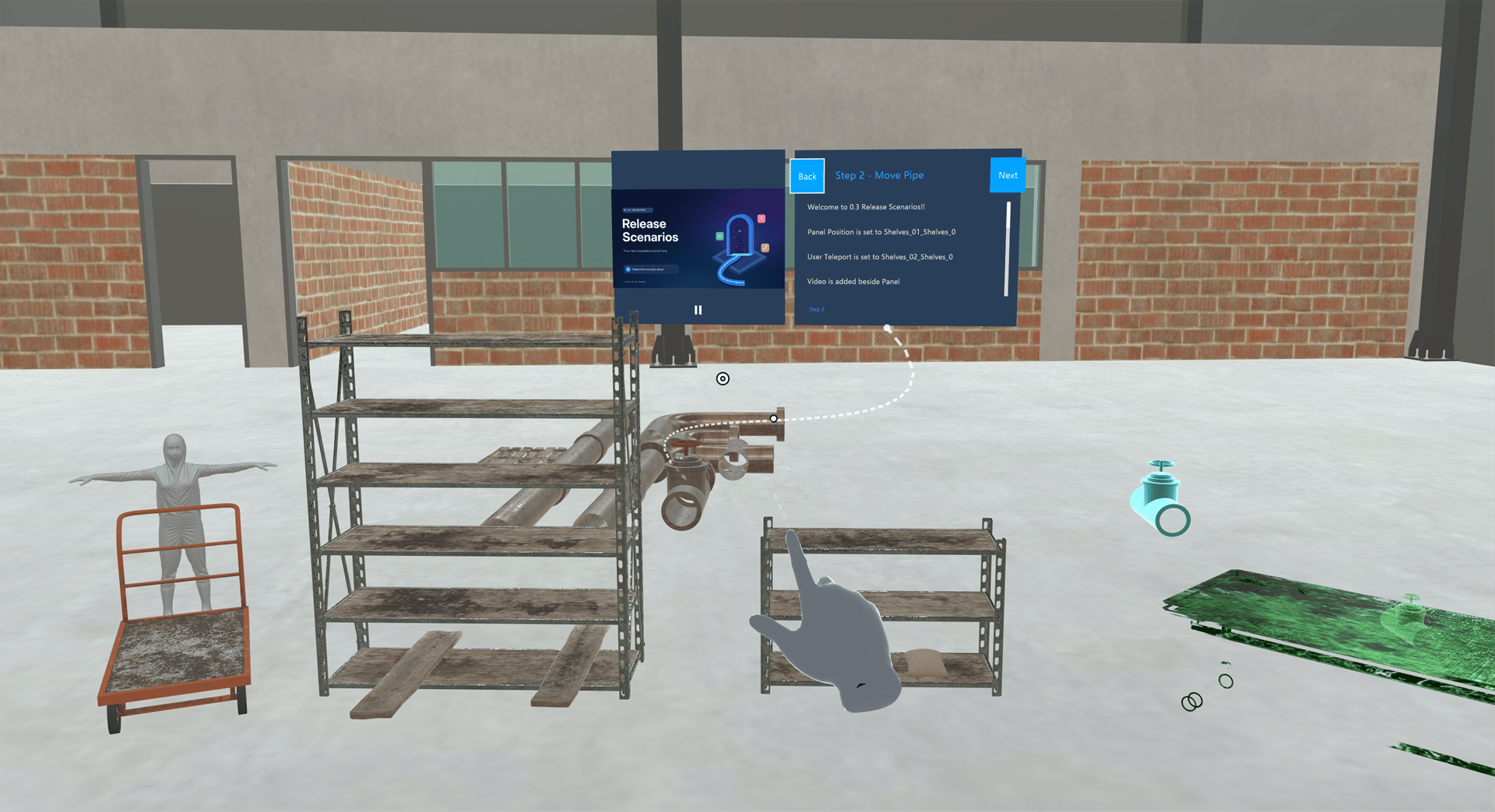
- Grab the object, up close or with the ray, and hold on.
- Carry it to the place where it should go. That place glows green.
- Let go near it. The object snaps into place and the step completes.
Rotate
Grab the object and twist your hand or controller to turn it the way the step shows. On rotate steps the ray always works, so you can also rotate the object from a distance.Guides That Show You What to Do
In Practice mode, a step can use several guides:
Not every step uses every guide. In Assessment mode they’re hidden, and touching the wrong object shows “You selected the wrong object, please try again.”