

Update Available
A newer version is available, but your current version still works.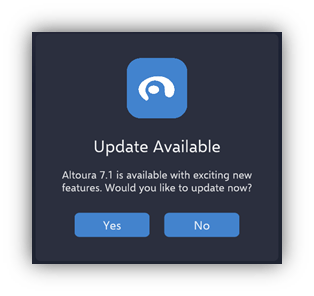
- Tap Yes to update. The app opens the download page for your headset and then closes. Install the new version and start the app again.
- Tap No to keep using your current version. The app continues to start as normal.
Update Required
The new version includes changes that older versions can’t work with. You must update before you can continue.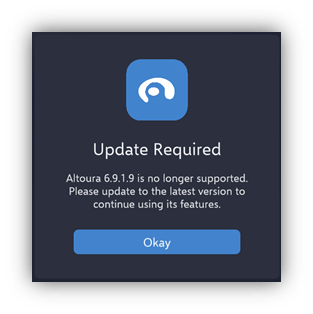
Where the Update Comes From
- Meta Quest
- HTC Vive
The link opens the Altoura app page on the Meta Horizon Store. If you installed the app with SideQuest, download the new APK and install it the same way. See Installation.
The app only checks for updates when it starts. If an update is released while the app is open, you’ll see the prompt the next time you start it. If the app can’t check (for example, because you’re offline), it starts as normal.