

Choosing a Mode
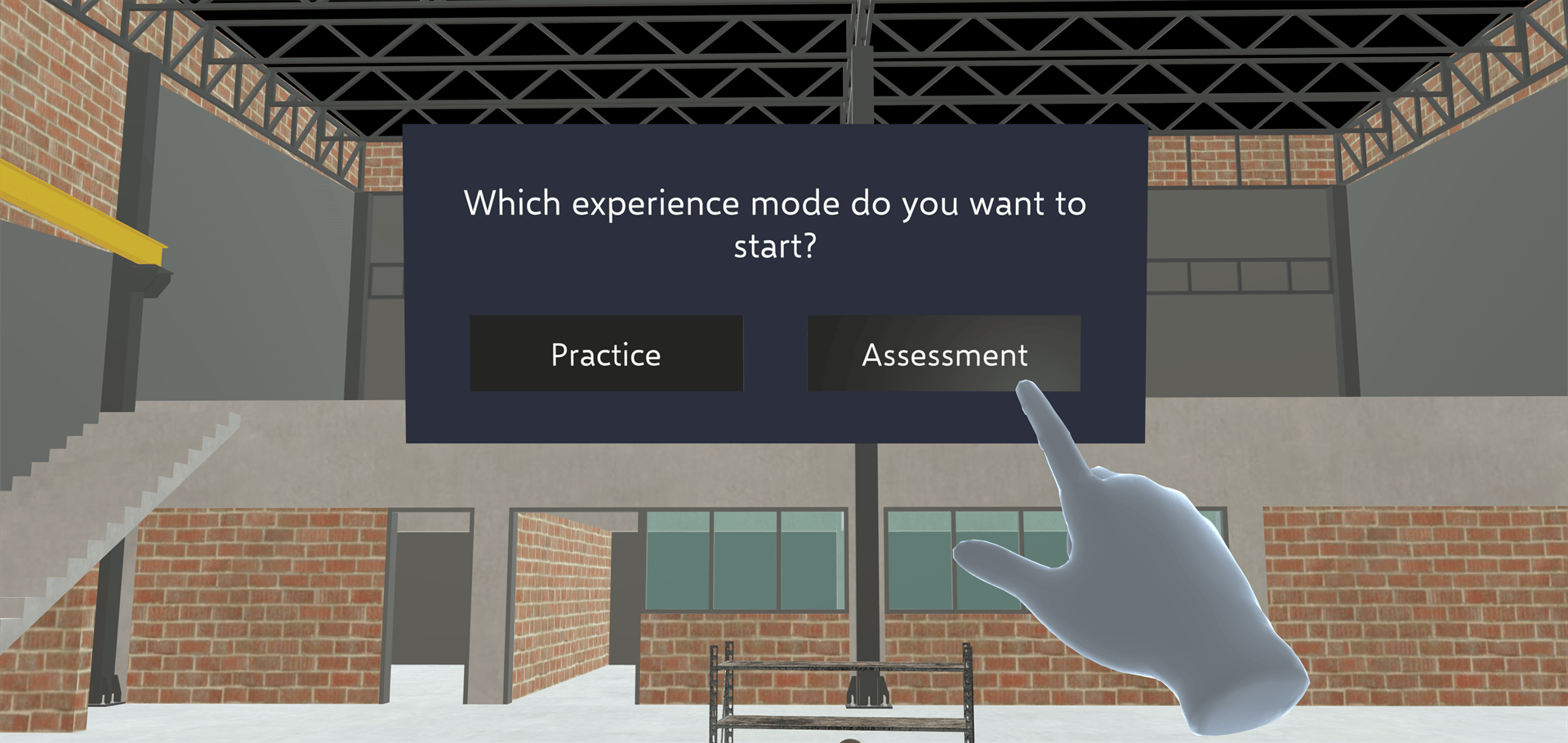
If a Training supports Assessment mode, you’re asked “Which experience mode do you want to start?” when you open it:- Practice: the Training guides you through each step.
- Assessment: the guidance is hidden, and you complete the steps on your own.
What’s Hidden in Assessment Mode
On steps where you have to tap, move or rotate an object:- The step’s instruction text (the step title stays)
- Step narration audio
- Ghost hand animations
- Highlights on the object to use and on its target position
- The Next button, on steps where completing the interaction moves you to the next step. You move on by completing the interaction.
- Images and videos in the step panel
- The tether line that points to an object
- The Back button on the step panel. The Back button on a multiple-choice panel stays visible.
Objects highlighted by the Training itself (with the Highlight Object action) are still shown in Assessment mode. See Highlighting.
If You Choose the Wrong Object
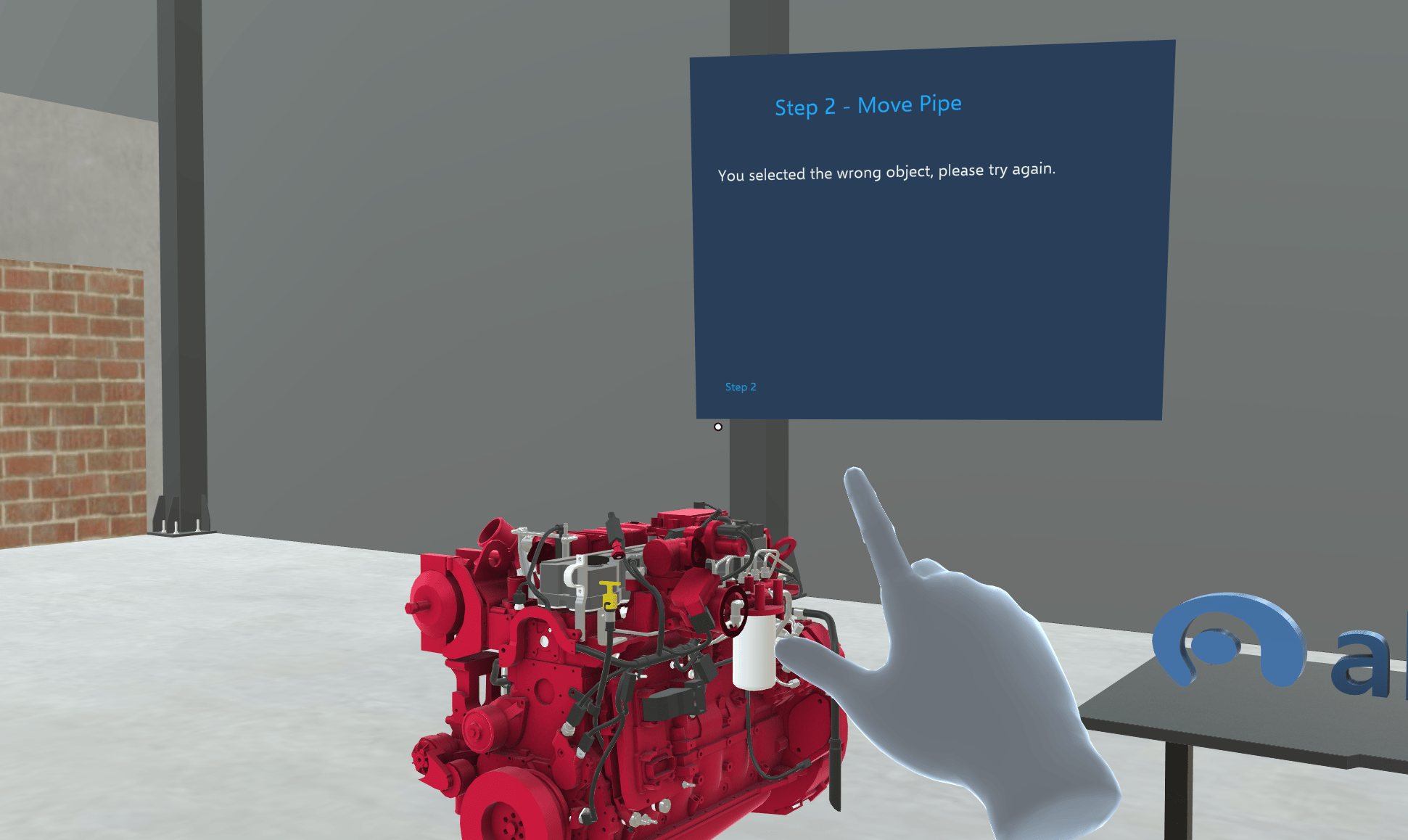
If you touch or tap an object that the Training uses in another step:- An error sound plays.
- The object flashes red briefly.
- The step panel shows “You selected the wrong object, please try again.” for 4 seconds.
Finishing the Assessment
When you complete the last step, the Training ends the same way as in Practice mode: the step panel’s button reads Exit, and tapping it takes you back to the Trainings list. There’s no separate results screen. To take the assessment again after exiting, open the Training from the list and choose Assessment. To start over while the Training is still open, use Restart Training in the Toolbelt menu. It keeps you in Assessment mode. See Toolbelt Menu.For Creators
To turn on Assessment mode for a Training, see Trainings in the Dashboard docs.Related
- Highlighting: which highlights are hidden in Assessment mode
- Reset Step: try a step again without leaving Assessment mode