

Offline mode lets you open the Dashboard and play trainings when there is no internet connection. A training is available offline after it has been played once online in the same browser on the same device.
Offline mode is read-only. You can browse and play trainings, but you cannot create, edit, share, or delete anything until the connection returns.
Preparing for Offline Use
Prepare each device while it is still online.
- Sign in to the Dashboard in the browser you plan to use offline.
- Open the Trainings page and select the organization that owns the trainings. Scroll until every training you need appears in the list. Only the trainings that have loaded are saved for offline use.
- Open each training you need in the Trainee and wait until it finishes loading. The Trainee downloads everything the training uses during this load.
- Return to the Dashboard.
The Dashboard saves the list of trainings as you browse it, and the Trainee saves the content of each training you play. Both are stored in the browser, so they are available only in that browser on that device.
When an organization has more trainings than the list has loaded, only the loaded trainings appear in the list offline. To have a training from the end of a long list available offline, scroll down while online until the whole list has loaded.
A training that has Override Auto Cache Experience checked is not downloaded in full when it loads, so it is not available offline. See Training Settings.
When the Dashboard Goes Offline
The Dashboard switches to offline mode when the device loses its internet connection or when Altoura cannot be reached. A banner appears at the top of the Dashboard to tell you that the Dashboard is offline. The banner contains a Retry live data button.
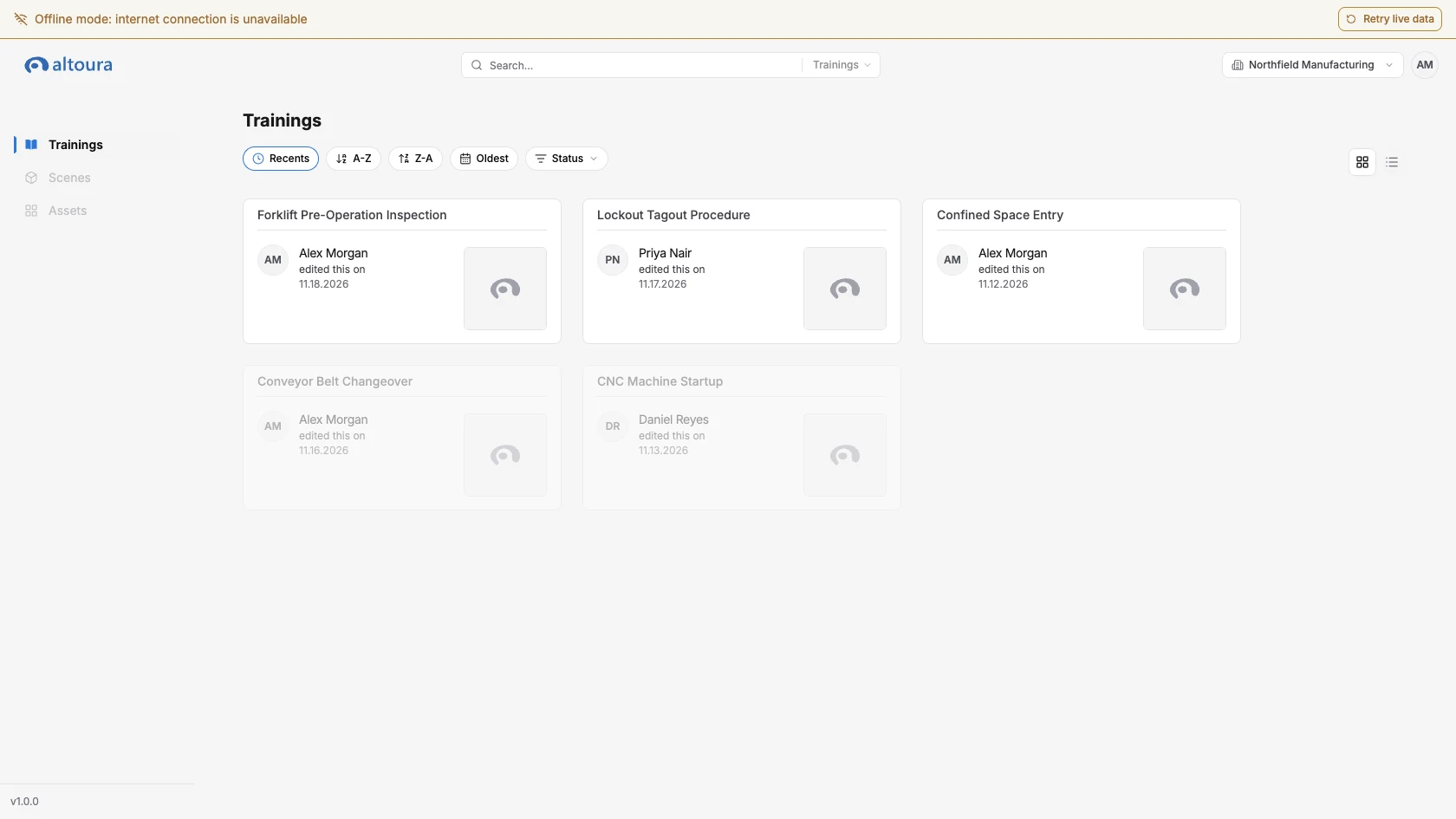
While the Dashboard is offline:
- Only the Trainings page is available. The other sidebar sections are disabled. If you were on another page, the Dashboard moves you to Trainings.
- The Create Training button is not available.
- The organization picker still works, so you can switch between your organizations and All Orgs.
- Thumbnails that were already displayed on this device stay visible.
You need to be signed in before the connection is lost. Signing in requires an internet connection.
The Trainings Page Offline
The Trainings page shows the trainings that were loaded on this device while it was online.
| Training | How it appears offline |
|---|---|
| Active training that has been downloaded | Listed first at full strength. Click the card or row to play it. |
| Active training that has not been downloaded | Listed after the downloaded trainings and dimmed. It cannot be opened. |
| Inactive training | Hidden from the list. |
When All Orgs is selected, the list combines the trainings saved for every organization you browsed online. When one organization is selected, the list shows that organization's saved trainings.
Search and sort work on the saved list.
If nothing has been saved for the selected organization, the page shows a notice that the trainings are not available offline, and the banner notes that the view is not cached. Select another organization, or reconnect and open the page once while online.
If your role in the selected organization does not include the Trainings page, the Dashboard shows a notice that nothing is available offline. Use the organization picker to switch to an organization where you have access to trainings.
Playing a Training Offline
Click a downloaded training to open it in the Trainee. This is the same for every role. Trainings do not open in the training authoring app while the Dashboard is offline.
The Play, Settings, Set Active or Set Inactive, and More actions controls are not shown while the Dashboard is offline.
The training plays from the copy that was downloaded to the device, so nothing needs to be fetched from the internet.
The steps you complete while offline are recorded on the device, because they cannot be reported to Altoura without a connection. The Trainee sends that record to Altoura the next time it is open in the same browser with a connection. Clearing the browser's site data before then removes the record. See Progress & Offline Access.
Returning Online
When the connection returns, the Dashboard checks for live data automatically. You can also click Retry live data in the banner. Once the Dashboard reaches Altoura, the banner disappears, the other sidebar sections become available again, and the full trainings list reloads.
Limits
- Offline content is stored per browser and per device. A training downloaded in one browser is not available in another.
- Clearing the browser's site data removes the saved trainings. The browser can also remove saved content when the device runs low on storage. A private or incognito window does not keep it.
- A download covers the version of the training that was current when you played it. After the training is updated, play it once online to download the new version.
- Only trainings are available offline. Scenes, procedures, and assets require a connection.