

Space level Metadata to control training object and snap to position object highlight

User can use “HighlightTrainingObject” key as a control to highlight training object and snap to position object. By default highlight object will be false. To see the highlighting feature, add a metadata in the space. Note: Highlighting the snap-to-position object is effective only if a mesh renderer is attached to either the child object or the parent object. During the highlighting process, both the mesh renderer and the child object will be enabled to display the visual effects.
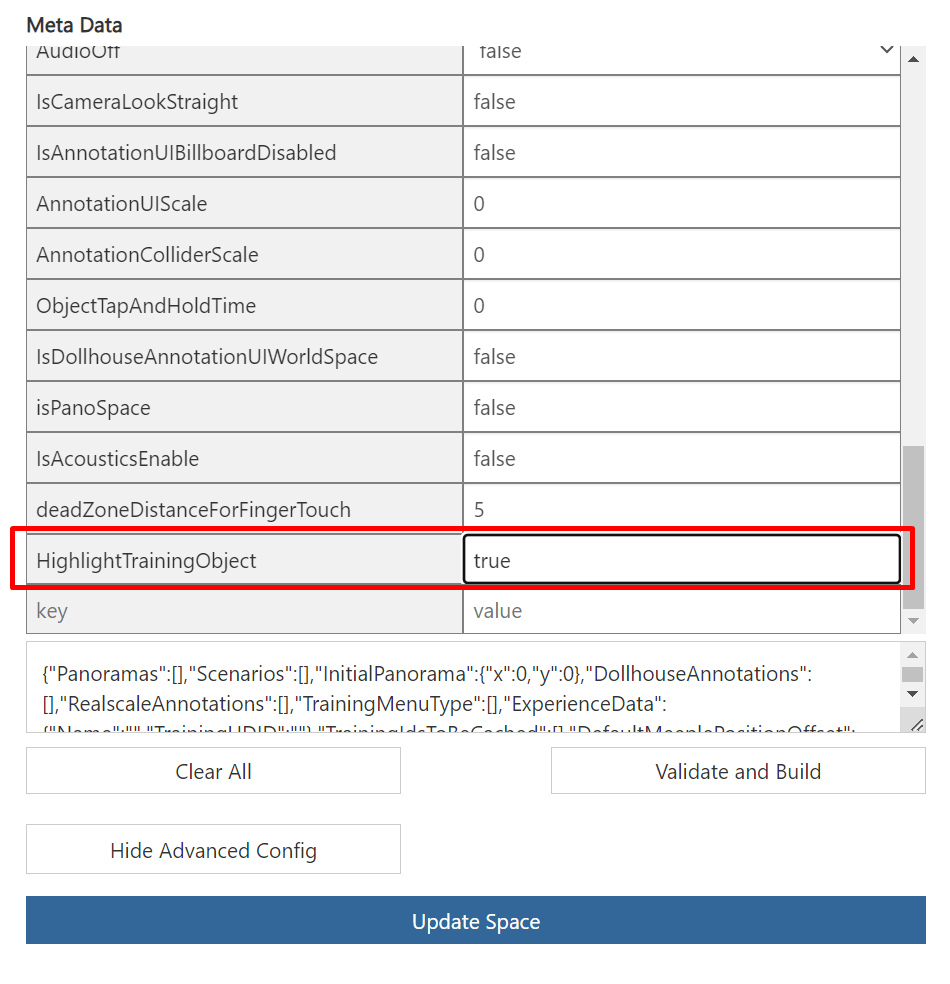
JSON to Dehighlight training object and snap to position object

If the user has added “HighlightTrainingObject” key as true in the space metadata then ‘Highlight object’ feature is enabled by default. However, users have the option to disable it in the JSON data for specific node. To turn off the highlighting feature in the experience, use the following JSON setting: {“HighlightTrainingObject”: false, “HighlightSnapPosition”: false}. Important: The JSON configuration can be concatenated with the existing JSON in the node. This allows for incremental updates to the node’s settings without replacing the entire configuration. When adding new properties or updating existing ones, simply append them to the current JSON structure in the node. This method ensures that only specified properties are altered, while the rest retain their existing values or defaults.
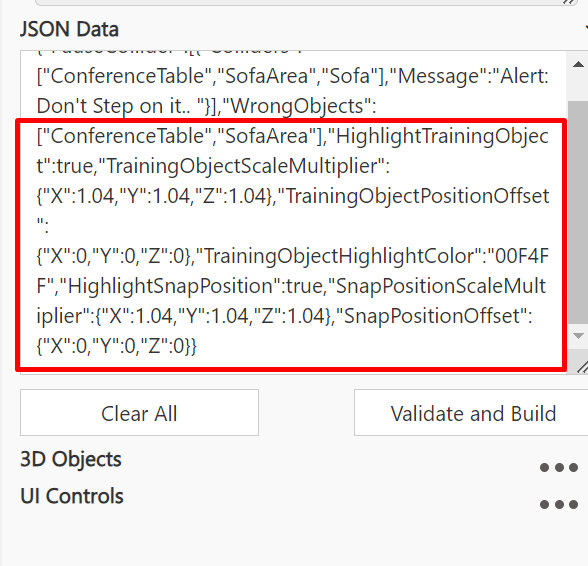
JSON Configuration for Visual Enhancements

The JSON configuration allows user to specify various properties that affect the appearance and behavior of training objects and associated elements. If a property is omitted in the JSON configuration, the system will apply default values to ensure consistent behavior. { “HighlightTrainingObject”: true, “TrainingObjectScaleMultiplier”: {“X”: 1.04, “Y”: 1.04, “Z”: 1.04}, “TrainingObjectPositionOffset”: {“X”: 0.0, “Y”: 0.0, “Z”: 0.0}, “TrainingObjectHighlightColor”: “00F4FF”, “HighlightSnapPosition”: true, “SnapPositionScaleMultiplier”: {“X”: 1.04, “Y”: 1.04, “Z”: 1.04}, “SnapPositionOffset”: {“X”: 0.0, “Y”: 0.0, “Z”: 0.0}, “SnapPositionHighlightColor”: “00F4FF”, “TetherLineColor”: “FFFFFF”, “GhostAnimationColor”: “00F4FF”, “HandAnimationColor”: “00B4FF” } Key Configuration Details HighlightTrainingObject: Defaults to true. Set to false to disable highlighting. Scale Multipliers: Defaults to 1.04x. Specify to scale the highlighting training object differently in X, Y, and Z dimensions. TrainingObjectPositionOffset: Defaults to {“X”: 0, “Y”: 0, “Z”: 0}. Adjust to offset the highlighting training object’s position. TrainingObjectHighlightColor: Defaults to 00F4FF(light blue). Define custom colors using hex codes. HighlightSnapObject: Defaults to true. Set to false to disable highlighting. SnapObjectScale Multipliers: Similar to the highlighting training object, these controls defaults to 1.04x. Specify to scale the snap to position object differently in X, Y, and Z dimensions. SnapObjectPositionOffset: Defaults to {“X”: 0, “Y”: 0, “Z”: 0}. Adjust to offset the highlighting snap to position object’s position. SnapObjectHighlightColor: Defaults to 00F4FF(light blue). Define custom colors using hex codes. TetherLineColor: Defaults to FFFFFF(white). Define custom colors using hex codes. GhostAnimationColor: Defaults to 0059FF(light blue). Define custom colors using hex codes. HandAnimationColor: Defaults to 00B4FF This JSON configuration is designed to be robust, allowing for both explicit customization and sensible defaults. The system ensures that the user experience remains consistent and predictable, even when specific adjustments are not specified. This approach enhances visibility and interactivity of training objects, facilitating a more intuitive user experience in complex environments.(light blue). Define custom colors using hex codes.