


Node Definition
Name – The text value to title the step in the Experience Builder. This is only visible within the builder to organize and identify your nodes. ID – The unique number value that identifies your node. This number is displayed at the bottom of the step display panel if there is one and can be used in Altoura as a debug method to search for a specific node in the portal. This value is generated by the database and cannot be changed.
node definition section in a step node
Node Properties
Display Text – The text value that displays in the middle of the blue step panel as the description. Audio Panel - The audio that plays when you first reach this step. This can be auto generated from the Display Text with the Convert Text to Speech button or can be uploaded for custom audio with an mp3 file.
node property section in a step node
Step Details
Title – The text value that displays at the top of the blue step panel as the header. Target Object - The name of a GameObject in the asset bundle with a Transform component. The position of this object will be the end position of the dotted tether from the blue step panel.- The Transform Matrix below is an optional offset to the position, rotation, and scale of the Target Object transform.
- The Click/Touch is the default event which indicates that the user can complete the step by only clicking or touching on the step panel arrow on any platform.
- The Tap event indicates that the user can complete the step by tapping the Training Object with their finger in the headset or mobile device, or by clicking on the Training Object with the mouse on a PC.
-
The Manipulate event indicates that the user can complete the step by grabbing the Training Object and either moving it to the Collider Name on the headset. On a screen device, this event defaults as a Tap event because there is no hand tracking.
-
When “Manipulate” is selected: A new option, “Use Both Hands,” appears.

-
When “Manipulate” is selected: A new option, “Use Both Hands,” appears.
- The Lever Arm Rotate event indicates that the user can complete the step by grabbing the Training Object and rotating it to the value defined in the Success Rotation. On a screen device, this event defaults to a Tap event because there is no hand tracking. The Training Object can be rotated only on one axis; the axis on which it can be rotated should be unfrozen while the others should be frozen. The Training Object can be rotated in either direction (negative or positive value in the success rotation). The maximum rotation value is 178 and the minimum is -178. The Lever Arm Rotate event functions on HoloLens and Quest, but not on HTC Vive.
-
When Manipulate is selected and Encapsulate is chosen for the collider type: A new option, “Align Training Object On Axes,” appears.
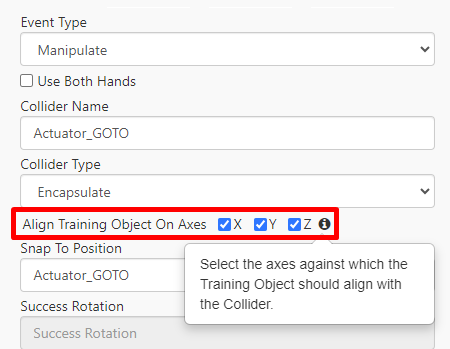
- If any axis is selected: The training object’s axis should to align with the selected axes of the Collider Name to get snapped. For example: If X,Y and Z axes are selected, the training object’s X,Y and Z will match the collider’s X and Y to snap.
- If no axes are selected: The user can encapsulate the training object in any direction.

node details section in a step node
Panel Location
Panel Object - The name of a GameObject in the asset bundle with a Transform component. The global position of this object will be the position that the blue step panel will display at. This value is only required for the first step of the training, otherwise the panel will show in the same location unless there is neither a Title or DisplayText in which case the panel will not show. The Panel Object is only read if there is a Teleport User GameObject defined in the connector going into the node.- The Transform Matrix below is an optional offset to the position, rotation, and scale of the Panel Object transform.
- Default Behavior: The “Play Once” toggle is unchecked by default. In this state, the video will continuously loop until the user manually stops it or proceeds to the next step.
- When Checked: If the “Play Once” toggle is checked, the video will play only once and then stop. To replay the video, the user can simply click the play button on the control panel.
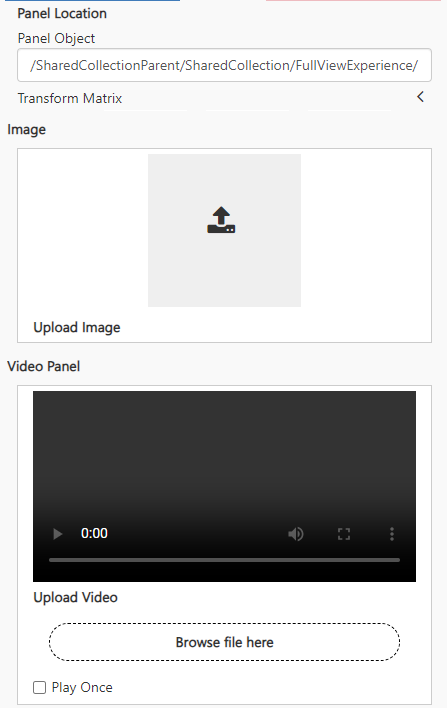
panel location section in a step node
Step Animations
Training Object - The name of a GameObject in the asset bundle with a Collider component and a Mesh component either on the object or nested under the object. This object serves as the subject for the Event Type of Manipulate and Tap. Constraints - The limits that can be put on the local position, rotation, and scale of each axis of the Training Object. These constraints are only read when the Event Type is Manipulate. Instructional Animation Object - The animation that plays when reaching a node, usually used as visual instruction to help inform the user what to do to complete the step. If the Auto Generated option is checked there are two results depending on the Event Type:- If the Event Type is Tap the Auto Generated Instruction Animation will be a ghosted hand looping to the Training Object. A value for the Training Object is required to have an Auto Generated Instruction Animation for a Tap event.
- If the Event Type is Manipulate the Auto Generated Instruction Animation creates a ghosted blue object that loops from the Training Object to the Snap To Position. A value for both the Training Object and the Snap To Position is required for this functionality. You also have the ability of adding instructional ghosted hands to the animation with the No hands displayed, One hand displayed, and Two hands displayed dropdown options.
JSON Data
JSON metadata can be added to nodes for some in development features. Ask a developer if you are interested in using one.3D Objects
3D Objects can be added to connectors in the same way they can be added to connectors. When adding a 3D Object to a node, the lifetime of that 3D Object is only for the lifetime of the node. Once the end user leaves the node, the 3D Object will be destroyed.UI Controls
UI Controls can be added to connectors in the same way they can be added to connector. When adding a UI Control to a node, the lifetime of that UI Control is only for the lifetime of the node. Once the end user leaves the node, the UI Control will be destroyed.
additional customizations in a step node