

Creating Randomizer in the Altoura Portal
Create a new Experience in the Altoura Portal. Add a new node and click on the Template list, the following options as shown in the image below are displayed.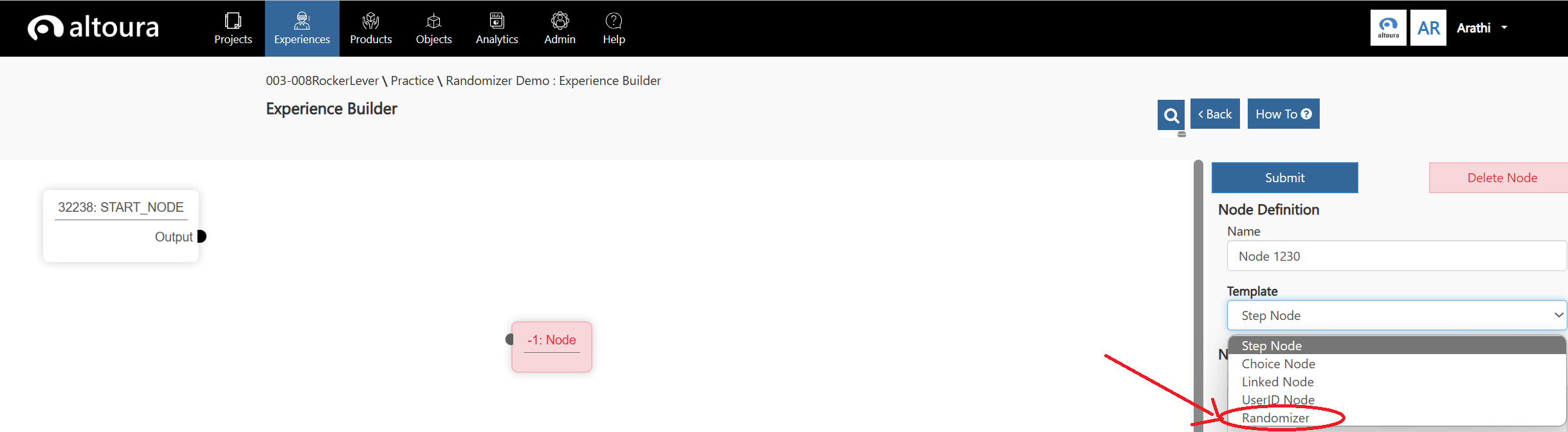
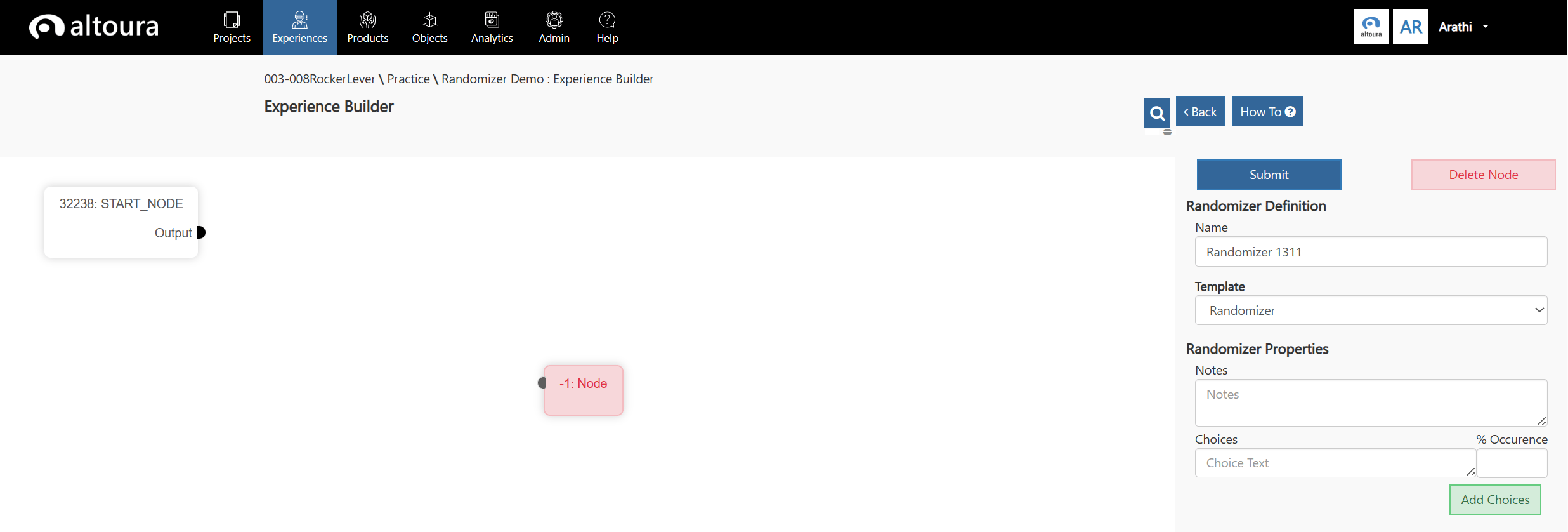
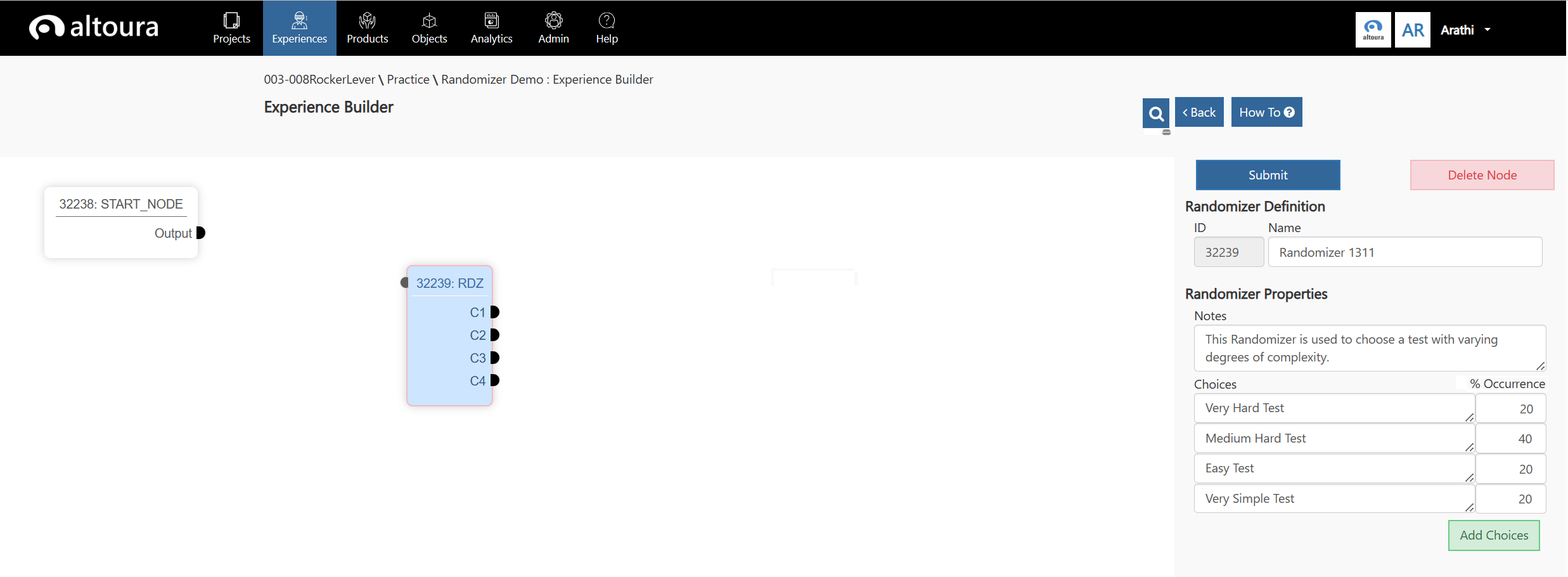
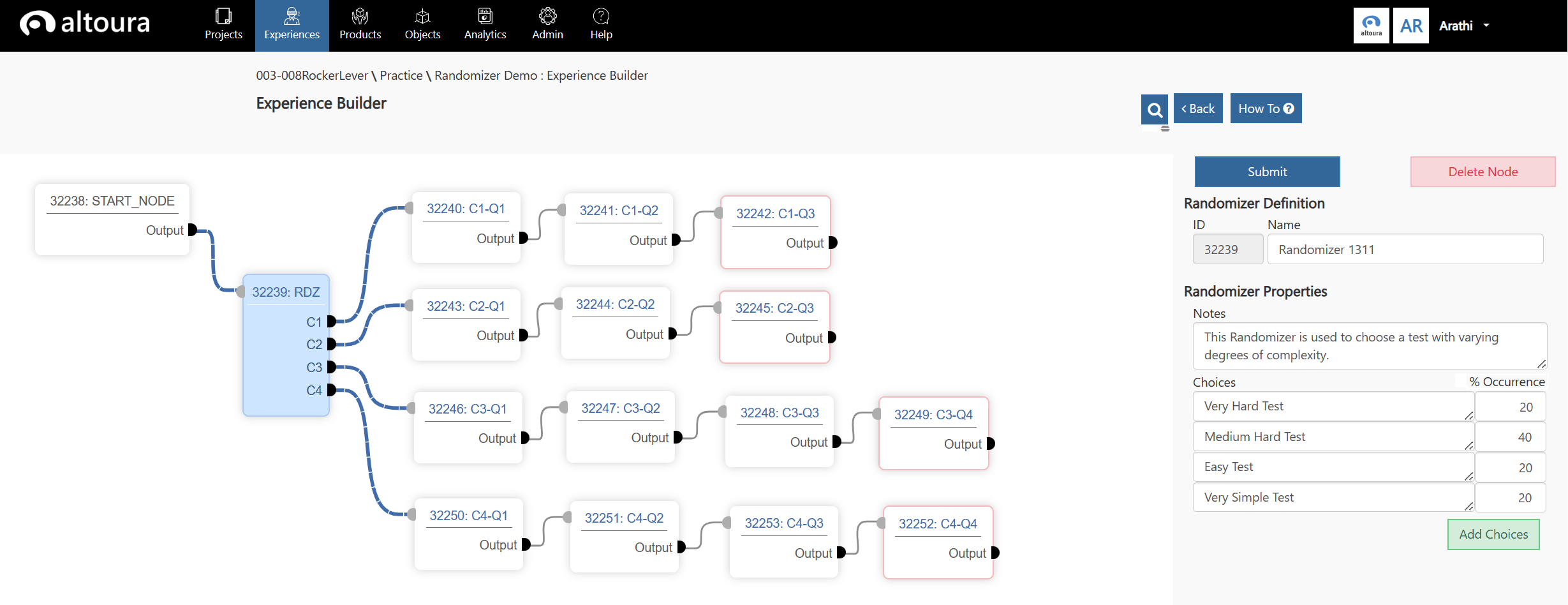
Inner Workings of the Randomizer - A closer look at Data Processing
This section explains the inner workings of the Randomizer element. When the Altoura Client requests all the experience data associated with an experience that contains a Randomizer, the backend system will process the Randomizer element and seamlessly transmit the data back to the client. Data Processing and Random Function During this processing, each Randomizer element will execute a random function. The input to this function is a dataset that is generated based on all the paths created by the user and the percentage occurrence of that path. The Randomizer function will then pick a single path and send it back to the client. As a result, the data that is sent back to the client will have no information related to the Randomizer element. Instead, it will appear as any other experience that was sent to the client. This intentional design ensures that across various training sessions, the client receives different paths for the same experience, thereby maintaining desirable variations across sessions.Others
- Data cannot be added to the Connector connecting into the Randomizer as the Randomizer is not visible in the client. All connectors going out from the Randomizer can have Connector Actions configured.
- This release does not support using an experience that has a Randomizer in a meeting.