

- A panel has moved out of view
- You’ve moved to a spot where you can’t reach the object you need
- You want to try an interaction again from the object’s original position
Resetting the Current Step
1
Open the Toolbelt menu
On Meta Quest, touch the tips of both index fingers together to form an “A” and hold briefly, or press and hold the left controller’s menu button for 2 seconds. On HTC Vive, press and hold the menu button on either controller for 2 seconds.
2
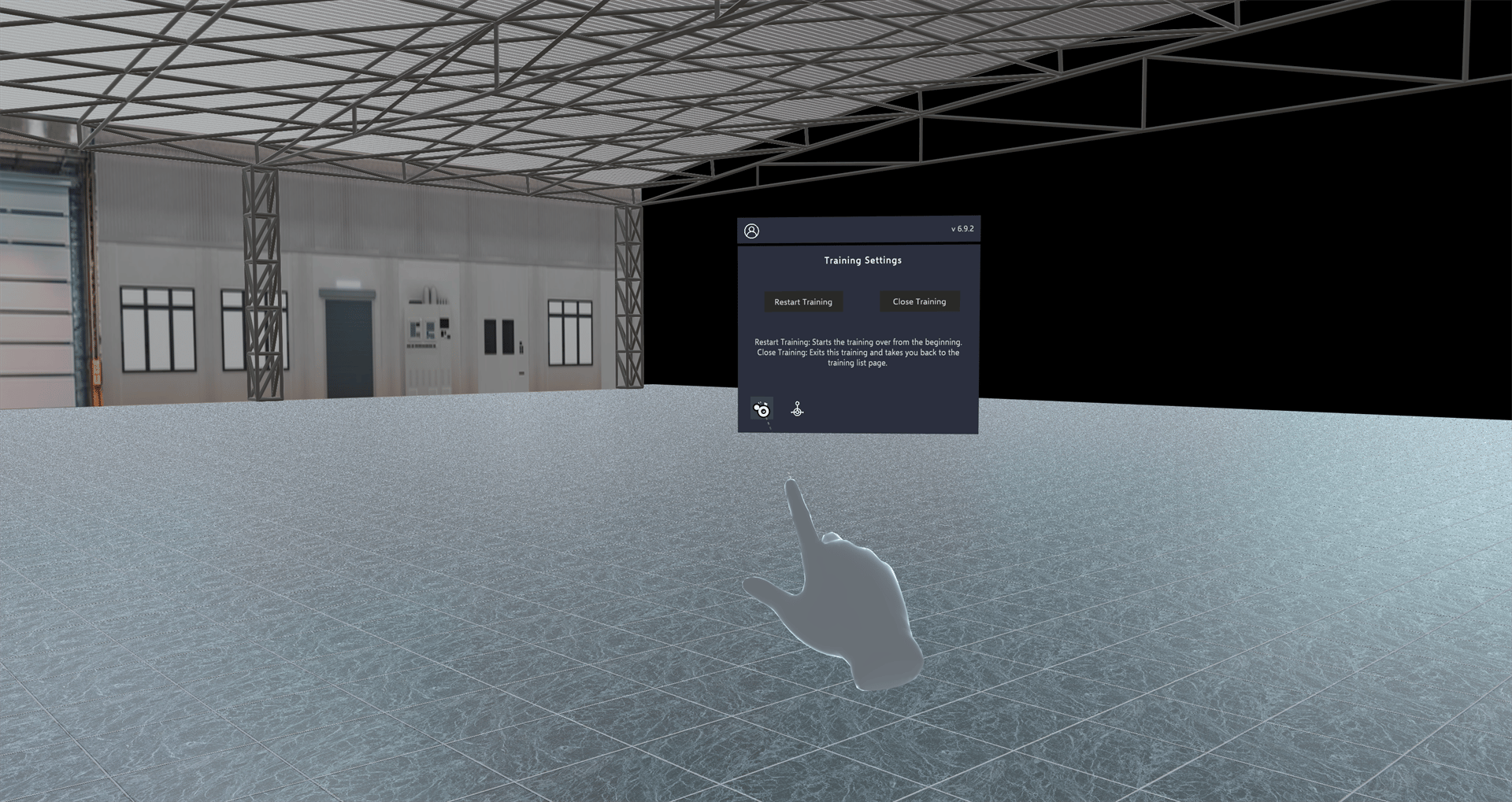
Tap the Reset Step button
Inside a Training, the Toolbelt shows the Training Settings panel. Tap the Reset Step icon at the bottom left of the panel. It has no text label.
What Gets Reset
- Objects you moved, hid or showed in this step go back to where they were.
- Animations, audio and video for the step start again where your mode and audio settings allow them.
- Guidance such as ghost hands and step highlights appears again in Practice mode, if the step uses it. Guidance hidden in Assessment mode stays hidden.
- Your position returns to where the Training last placed you: the scene’s start position, or the last position the Training moved you to.
- Gloves and tools set by the Training are re-applied.
- Speed tracking starts again. If the step uses the same timer, it keeps its remaining time. See Time Limit.
If the Training is paused, follow the message on screen to continue before resetting the step. On HTC Vive, the “Reset Step” voice command is unavailable while paused.
What Stays the Same
- Your progress in earlier steps.
- Panels you closed in earlier steps stay closed.
- Your chosen mode (Practice or Assessment).
- Your Training session. Resetting a step doesn’t start a new attempt.