

Step Highlights
When a step asks you to tap, move or rotate an object, that object can pulse with a colored glow until you complete the interaction.- Training object: the object you need to tap, move or rotate pulses cyan by default.
- Snap position: in a move step, the place where the object should go pulses green by default. Release the object near it and it snaps into place.
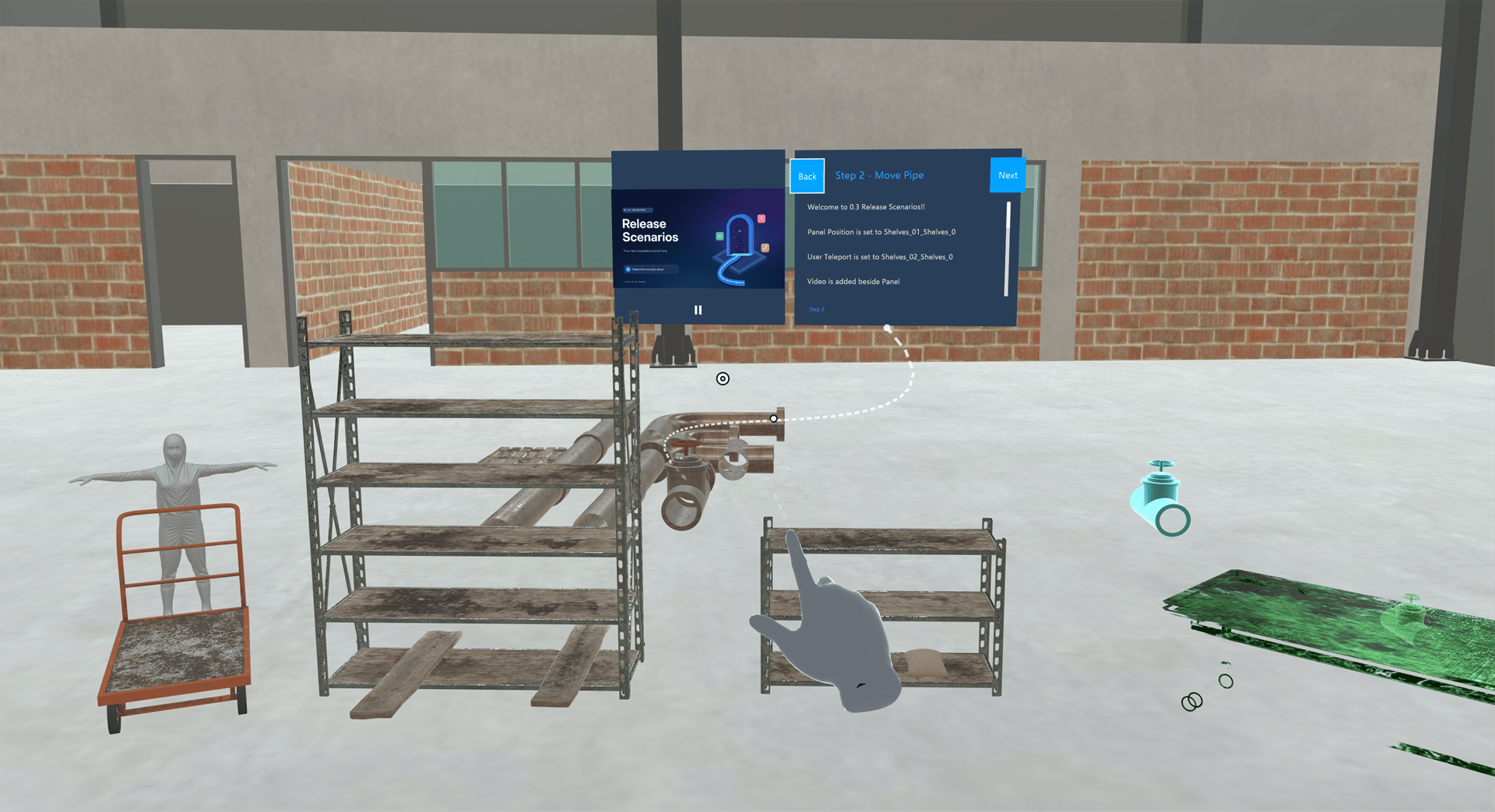
Step highlights are hidden in Assessment mode. You have to find the right object yourself.
Highlighted Objects
A Training can also highlight any object to draw your attention to it, for example a warning label or a part the step is talking about. These highlights are red by default and either glow steadily or pulse.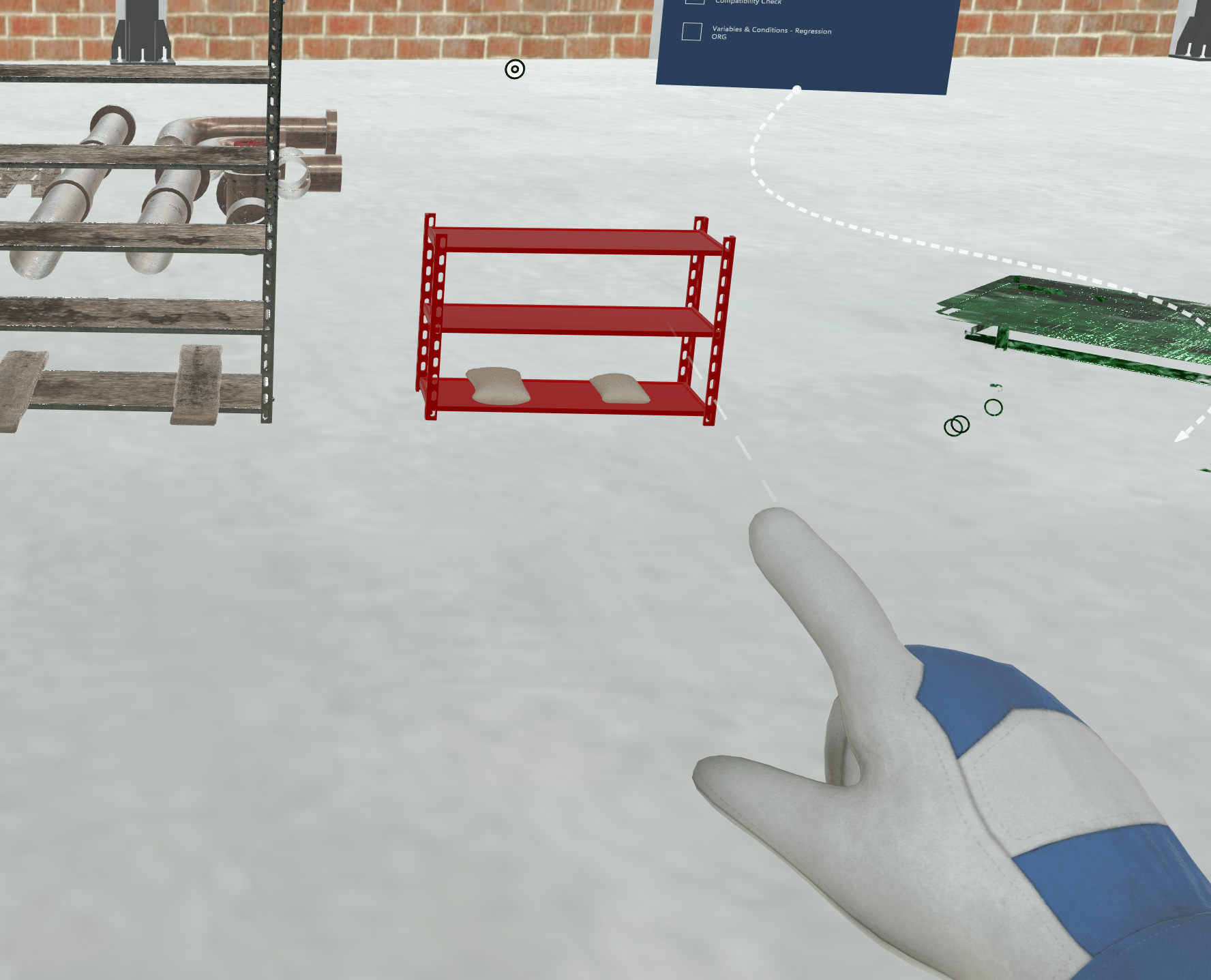
For Creators
To set up highlights in a Training, see:- Events: the highlight options on Tap, Move and Rotate events
- Highlight Object & Remove Highlight on Object
Related
- Interactable Objects: objects you can pick up freely
- Reset Step: see a step’s highlights again in Practice mode